



Home » Best Practices for Robust Identity and Access Governance » Why Hybrid Identity Management Fails — and How to Get It Right
Why Hybrid Identity Management Fails — and How to Get It Right
Learn the essential hybrid identity management best practices to prevent authentication failures during cloud migration.
Explore the chapters:
- Chapter
- Identity and Access Governance
- Privileged Access Management Best Practices
- Identity Lifecycle Management
- Identity Governance and Administration
- Identity Governance Solutions
- Automated User Provisioning
- Access Governance Tools
- Federated Identity Access Management
- Vendor Privileged Access Management
- Identity Governance Framework
- Entitlement Management
- Hybrid Identity Management
- Chapter
- Identity and Access Governance
- Privileged Access Management Best Practices
- Identity Lifecycle Management
- Identity Governance and Administration
- Identity Governance Solutions
- Automated User Provisioning
- Access Governance Tools
- Federated Identity Access Management
- Vendor Privileged Access Management
- Identity Governance Framework
- Entitlement Management
- Hybrid Identity Management
Next Chapter >
Table of Contents
Stop AD Threats As They Happen
Cayosoft Protector provides continuous monitoring and real-time alerts across your entire Microsoft Identity stack
Like This Article?
Subscribe to our LinkedIn Newsletter to receive more educational content
Most organizations can’t get rid of Active Directory overnight, especially with business‑critical apps and compliance rules tied to it. Instead, a good hybrid setup keeps existing services stable while enabling secure access to Microsoft 365, Azure, and other cloud platforms or applications.
But hybrid identity management is fragile. Get it wrong, and you create a nightmare. Remote workers can’t log in because their devices can’t reach a domain controller. Synchronization between on-premises AD and Entra ID silently breaks, and by the time you notice, users are already locked out. MFA prompts become so frequent that users are constantly frustrated, and so is helpdesk.
This guide covers essential hybrid identity management best practices that address these real problems. Each one tackles a specific failure point in hybrid identity deployments. By following them, you’ll achieve stable authentication during your transition to the cloud while avoiding the common pitfalls that make hybrid identity implementations unreliable.
Summary of key hybrid identity management best practices
The table below summarizes the five hybrid identity management best practices that this article explains in detail.
| Best practice | What it does for you |
|---|---|
| Validate prerequisites and configure Entra Connect properly | Prevents authentication failures by checking system requirements and configuring device registration correctly |
| Deploy Conditional Access Using Report-Only Mode | Tests policies safely without locking anyone out through controlled phased deployment |
| Establish sync monitoring and troubleshoot common issues | Catches sync failures before users are affected, preventing silent authentication breakage |
| Configure network infrastructure for remote access | Solves line-of-sight challenges and enables seamless legacy resource access through proper DNS configuration and VPN alternatives |
| Plan Cloud Sync transition with legacy cleanup | Eliminates post-migration security gaps by removing stuck legacy objects after moving to cloud sync |
Manage, Monitor & Recover AD, Entra ID, Microsoft 365

Unified Console
Use a single tool to administer and secure AD, Entra ID, and M365

Track Threats
Monitor AD for unwanted changes – detect for security or critical functions

Instant Recovery
Recover global enterprise-wide Active Directory forests in minutes, not days
Validate prerequisites and configure Entra Connect properly
Most hybrid identity deployments fail before they even start – not because the concept is flawed, but because people skip the prerequisite checks. You can’t configure Entra Connect properly if your environment isn’t ready. Missing prerequisites can cause device registration errors, broken authentication, and remote users who can’t log in at all.
The solution is straightforward: validate your environment first, then configure properly.
Essential prerequisites
Before touching Microsoft Entra Connect, verify that you have the required permissions and that your system is supported. Use Entra Hybrid Identity Administrator credentials and Local Administrator rights on the Entra Connect server. For Express settings, also provide AD DS Enterprise Administrator credentials (optional, to create the AD DS Connector account). After setup, day-to-day sync uses the created connector accounts (AD DS Connector, ADSync service account, Microsoft Entra Connector account).
Your systems for hybrid join must run the currently supported versions of Windows or Windows Server. Older operating systems aren’t supported and will cause registration failures.
Microsoft Entra Connect must be installed on a domain-joined server that runs currently supported versions of Windows Server.
Network connectivity is equally important. Your Entra Connect server must reach Microsoft’s endpoints. Test this with a simple PowerShell command:
powershell Test-NetConnection -ComputerName enterpriseregistration.windows.net -Port 443
You should see TcpTestSucceeded : True in the output. If this fails, hybrid identity won’t work no matter what you configure. Fix network issues first.
Configuring Entra Connect for Device Registration
Open Entra Connect and navigate to Configure Device Options > Configure Hybrid Entra Join. Authenticate with your privileged credentials. The wizard will guide you through setting up the Service Connection Point (SCP) – this is the mechanism that tells devices where to register.
Select Windows 10/11 as your device type (the default choice for most organizations). Complete the configuration and verify the setup.
Verify that devices actually join
After configuration, test whether devices are joining correctly. On a test device, run:
Cmd dsregcmd /status
Look for:
- AzureAdJoined: YES
- DomainJoined: YES
If you see “AzureAdJoined: NO” or the device shows as “Pending”, check your SCP configuration or certificate settings. Common issues include incorrect SCP values or expired certificates.
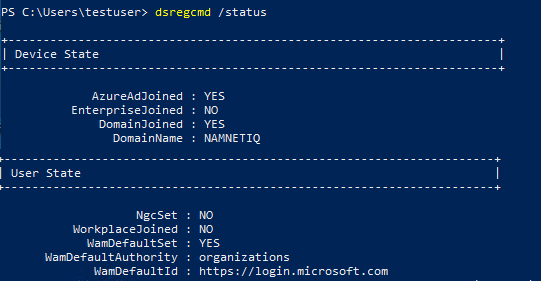
Example output of the dsregcmd /status command
Handling remote and hybrid workers
If you have individuals who can’t reach your domain controller during their first login (e.g., fully remote workers), hybrid join won’t work for them. You have two options:
- Certificate-based authentication allows devices to register without seeing a domain controller. This requires Intune or a certificate enrollment server, but it’s worth it for remote workers.
- Azure AD-only join is simpler if you don’t need access to on-premises resources. Cloud-only joined devices skip hybrid complexity entirely. Use this if your fully remote workers don’t need file shares or legacy applications.
Why does this matter? A device that can’t join during the first login causes multiple issues for the end user and results in a support ticket. If you don’t plan for this, your remote workers can be locked out and will call the helpdesk in frustration.
Manage, Monitor & Recover AD, Entra ID, M365, Teams
| Platform | Admin Features | Single Console for Hybrid (On-prem AD, Entra ID, M365, Teams) | Change Monitoring & Auditing | User Governance (Roles, Rules, Automation) | Forest Recovery in Minutes |
| Microsoft AD Native Tools | ✓ | ||||
| Microsoft AD + Cayosoft | ✓ | ✓ | ✓ | ✓ | ✓ |
Watch our recorded & upcoming educational webinars about identity protection
Deploy Conditional Access using report-only mode
The biggest mistake organizations make is deploying Conditional Access policies to their entire user base without testing. This locks users out, crashes critical workflows, and creates emergency situations that pressure users to disable security controls. Instead of rolling back misconfigured policies, people compromise by making them less restrictive, which defeats the purpose.
A staged rollout using report-only mode prevents these scenarios. You test everything before enforcement, see exactly who would be affected, and identify problems when you can still fix them without impacting day-to-day operations.
A three-phase approach for safe Conditional Access deployment
By breaking deployments into three distinct phases, administrators can avoid production-breaking issues and deploy Conditional Access safely. Let’s take a look at each of the three phases of safe Conditional Access deployments.
Phase 1: Pilot
Deploy only to IT staff or a small dedicated test group (e.g., 5-10 users in a pilot group). Test device registration, app access, and MFA. Verify that legitimate users can actually log in and access what they need. This should take a couple of weeks.
Phase 2: Reporting Mode
Deploy Conditional Access policies in reporting-only mode to a broader group. In reporting mode, policies don’t block anyone – they just log what would happen. Run this for 1-3 months. Review the reports and identify which users or applications would get blocked. This data is gold. It shows you exactly where your policies are too strict.
To check if a policy is in reporting mode you can use this powershell cmdlet:
powershell Get-MgIdentityConditionalAccessPolicy -Filter "displayName eq 'Your Policy Name'" | Select-Object State
Look for State: enabledForReportingButNotEnforced. This means it’s logging, not blocking.
Or you can check the state in the Entra admin center where you can list all conditional access policies.
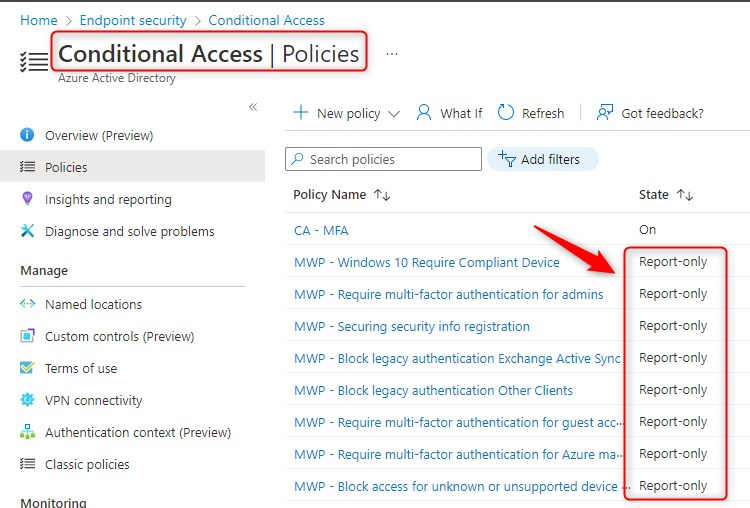
Example view of conditional access policies showing report-only state. (Source)
Phase 3: Gradual enforcement
Switch policies to enforcement mode gradually. Enable non-critical departments first. Monitor help desk tickets and help desk call volume. If tickets spike, pause and investigate. Expand slowly. This approach lets you catch problems before they affect your entire organization.
Protect against accidental lockout
Create a break-glass account with no MFA and no Conditional Access policies applied. This account is your emergency access in case you accidentally lock everyone out. Store the credentials securely (in a password vault accessible only by a limited number of administrators, not on a sticky note). Monitor this account – if it’s ever used, you have a serious problem that needs immediate investigation.
Reduce MFA prompt fatigue
Even with proper testing, users complain about too many MFA prompts. Configure trusted locations for your office IP ranges so users don’t get prompted for MFA every time they’re on your corporate network. Enable Remember MFA on this device so users don’t re-authenticate constantly on the same device. Use risk-based authentication so MFA only triggers when actually necessary, not for every login.
Set reasonable session timeouts (8-12 hours for most users). This is the security/usability trade-off. Too short, and users get constant re-authentication requests. Too long and stolen tokens are valuable for too long.
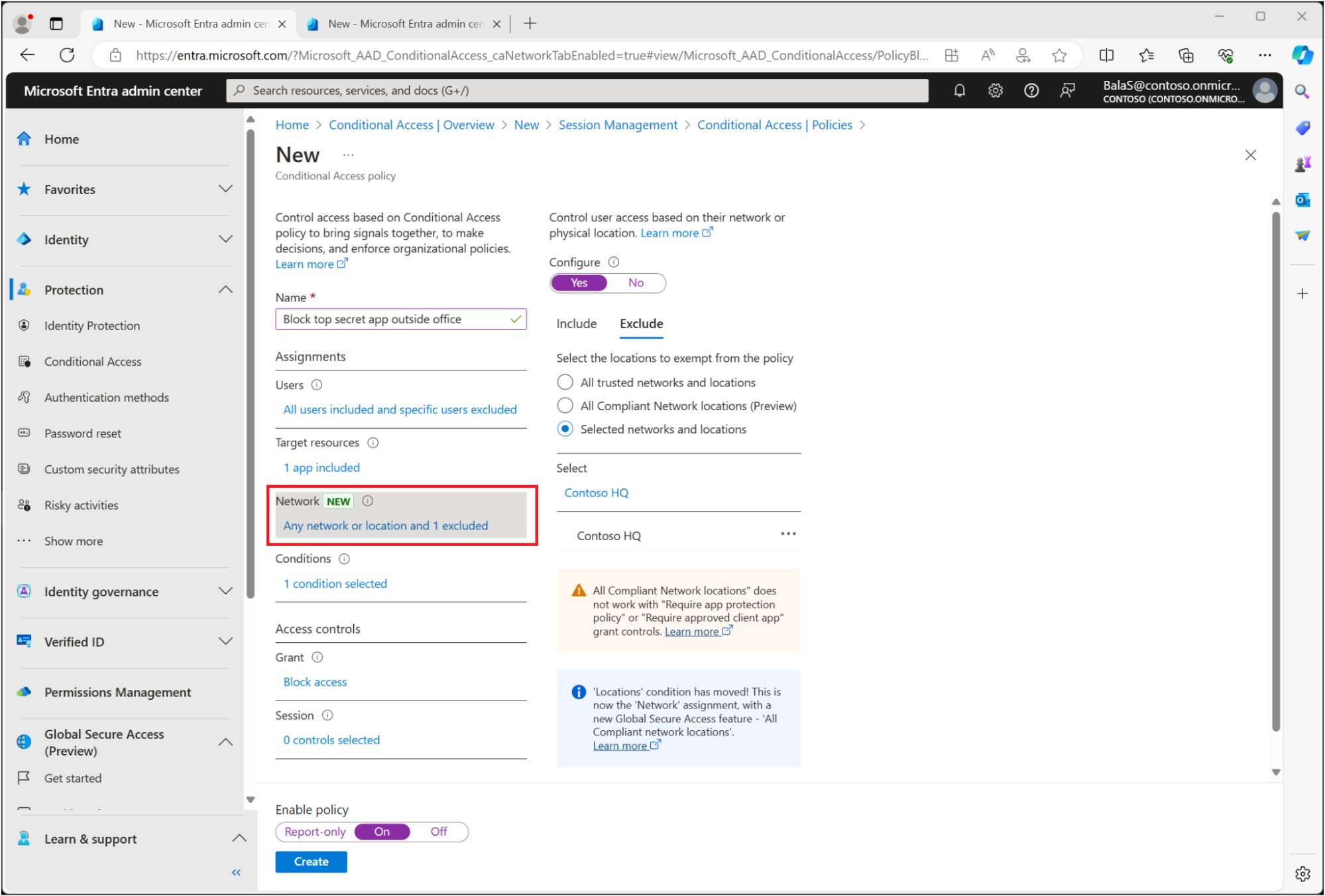
Conditional Access policy showing MFA requirement with trusted location exclusion (Source)
Rollback planning
Before you flip any switches, note down exactly what you’re changing – include timestamps and full commands so you can reverse them fast. Test turning everything off ahead of time so you know you can disable policies in 15 minutes. Have communication email templates ready for users, both for rollout or emergencies.
Learn About The First-Ever Monitoring and Rollback for Microsoft Intune
Establish sync monitoring and troubleshoot common issues
Entra Connect synchronization is silent. It either works or it fails, and if it fails, you won’t notice until users complain they can’t log in. By then, authentication has been compromised for hours, and multiple users are affected. Proper monitoring catches sync issues before they cause outages.
Enable Microsoft Entra Connect Health
Health monitoring is a feature of Microsoft Entra ID P1/P2 licenses. If you have Entra Connect 1.1.880.0 or later, the Health agent is already installed. Just enable it:
- Go to Microsoft Entra admin center > Microsoft Entra Connect > Health overview
- Click Enable if not already active
- Turn on email notifications under Notification settings (sends to Hybrid Identity Admins by default)
- Health automatically tracks sync errors, latency trends, and service status. No separate agent download needed.
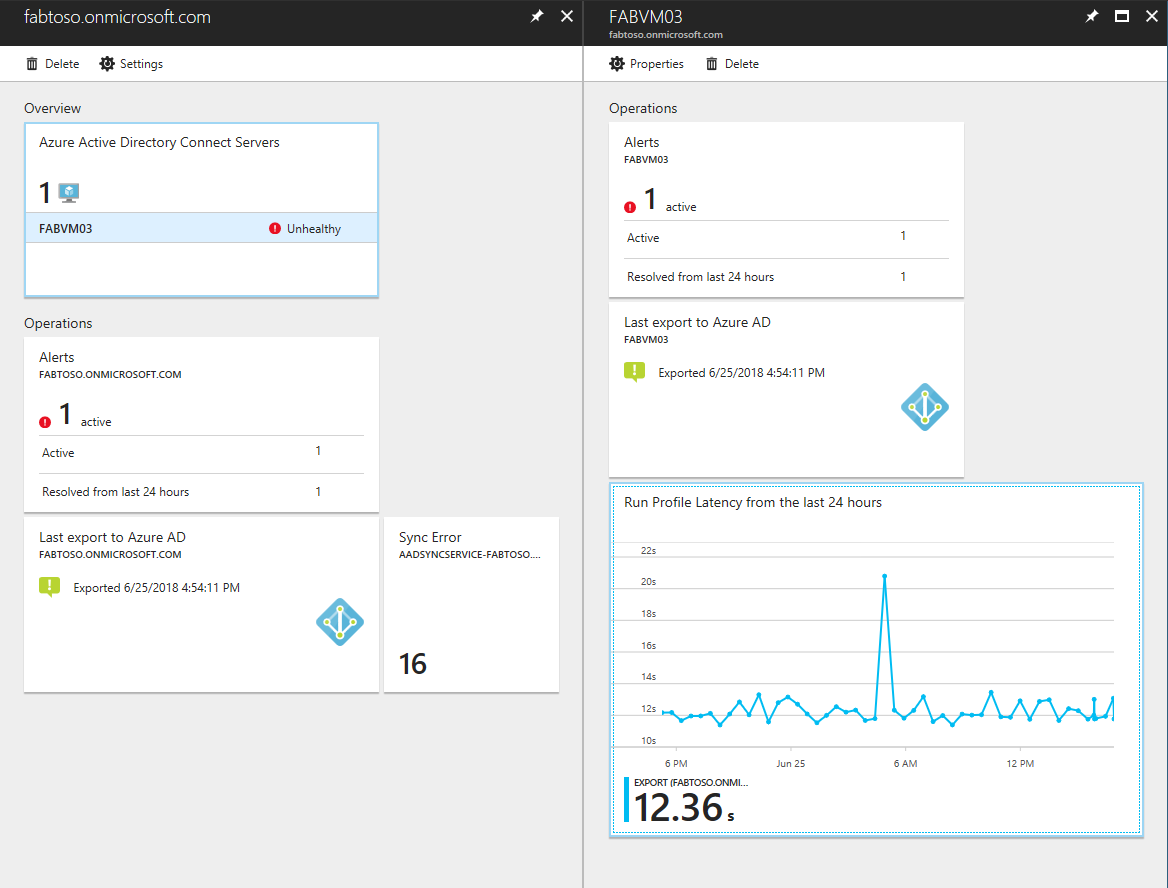
Microsoft Entra Connect Health Sync dashboard showing error count, sync latency trend, and recent alerts. (Source)
Monitor these key hybrid identity management metrics
Entra Connect Health dashboard tracks three critical signals:
- Sync errors – Red/yellow alerts show count. Click “View all errors” → Drill into Import/Export tabs for stalled objects by connector
- Sync latency – Graph shows average duration. Green = <30min. Yellow/Red spikes (>2hrs) mean blocked exports or network issues
- Data freshness – “Last heartbeat” timestamp. If >3hrs old, agent can’t reach Azure (possible firewall/proxy blocks outbound HTTPS)
Common sync problems and fixes
Hybrid identity management troubleshooting can be challenging. Fortunately, there are well-known solutions to several common problems.
Problem: Devices stuck as "CloudFiltered"
AD device exists but Entra shows CloudFiltered=true (blocks hybrid join). Root cause: missing userCertificate attribute
					powershell
Get-ADComputer DeviceName -Properties userCertificate
If userCertificate is empty: renew device cert by using this command – gpupdate /force to refresh policies and then Start-ADSyncSyncCycle -PolicyType Delta to sync updated AD objects to Entra
If the certificate is wrong, clear the attribute:
					powershell
Set-ADComputer DeviceName -Clear userCertificate
Problem: Objects stuck in "Pending Export"
Objects ready to sync but blocked (duplicate identity conflicts): force a delta sync to process pending objects
					powershell
Start-ADSyncSyncCycle -PolicyType Delta
Expected result: Operations tab shows “Success” (no red errors) and Pending Export count drops to 0.
User writeback limitations
Cloud-to-on-prem writeback only flows one way and is limited by design:
- New cloud users don’t sync back to AD
- Cloud password changes don’t update on-prem unless Password Writeback is explicitly enabled.
- Cloud groups don’t appear in AD
For true bidirectional sync, use Microsoft Identity Manager. Otherwise, accept that the gap exists.
Get alerted about hybrid identity issues before users notice
Entra Connect Health sends automatic email alerts to Hybrid Identity Admins for:
- Sync service stopped
- Import/export failures
- High CPU/memory on sync server
- Connectivity drops
Enable it at: Entra admin center > Connect Health > Notifications > Check “Send email notifications” + add custom recipients.
Configure network infrastructure for remote access
Hybrid join requires devices to contact a domain controller at least once during initial sign-in for AD authentication – this is the “line-of-sight” requirement. It’s straightforward for office devices, but for remote workers you need a different plan to handle it. VPN remains a solid option without undermining remote work, but it adds complexity. Proper network planning ensures remote devices get AD access efficiently from day one.
Line-of-sight requirement
Hybrid Entra join needs domain controller connectivity for authentication tasks like password changes and Kerberos ticket renewal, often failing silently for remote devices without VPN connectivity. Devices poll SRV records such as _ldap._tcp., _kerberos._tcp., and _gc._tcp. You can test connectivity remotely with:
					powershell
nslookup -type=SRV _ldap._tcp.<yourdomain.com>.
Validate status post-config with aforementioned:
					cmd
dsregcmd /status
showing DomainJoined: YES and AzureAdJoined: YES
DNS configuration for Entra Domain Services
Another thing you need is proper DNS configuration for Entra DS. In the Azure portal, navigate to Microsoft Entra Domain Services > Properties, then copy the managed DNS server IPs (typically 10.0.0.4 and 10.0.0.5). Update your VNet DNS settings via portal (Networking > DNS servers) or PowerShell:
					powershell
$vnet = Get-AzVirtualNetwork -Name "YourVNet" -ResourceGroupName "YourRG"
$vnet.DhcpOptions.DnsServers = @("10.0.0.4", "10.0.0.5")
$vnet | Set-AzVirtualNetwork
Flush the cache on affected VMs with ipconfig /flushdns and restart them to apply changes.
VNet peering configuration
If your VMs are in a separate VNet(s) from Entra Domain Services, create bidirectional peering: enable “Allow virtual network access” and “Allow forwarded traffic” on both sides. Use Azure portal (Virtual networks > Peerings > Add) or PowerShell, post-peering, restart VMs and test DC reachability with
					powershell
nltest /dsgetdc:<domain>
This ensures DNS resolution and domain join without requiring the same VNet.
Line-of-Sight solutions
These are alternative approaches – choose one based on your environment and needs – to avoid forcing VPN at first logon or office visits, which disrupt remote productivity.
- Certificate-based authentication via Intune Autopilot: Deploy PKCS certificates during enrollment using Hybrid Certificate Trust for Windows Hello for Business, bypassing initial DC contact while maintaining hybrid join.
- Microsoft Entra join (cloud-only): Best for fully remote workers, as it eliminates domain controller requirements entirely and enables full device management through Intune without hybrid dependencies.
- Hybrid certificate enrollment with NDES: Use Network Device Enrollment Service (NDES) with Intune Certificate Connector for device certs authenticating to on-premises resources in hybrid scenarios.
Legacy resource access
Once hybrid or Entra-joined devices are operational, enable access to on-premises resources like SMB file shares using Entra ID credentials synced via Microsoft Entra Connect.
Configure shares to support hybrid authentication:
					powershell
New-SmbShare -Name "CompanyFiles" -Path "C:\Shares\Files" -FullAccess "Authenticated Users"
This grants access to Entra-synced users without per-user specifications, test mapping with:
					powershell
New-SmbMapping -RemotePath \\server\CompanyFiles -UserName "user@domain.com" -Password (ConvertTo-SecureString "pass" -AsPlainText -Force).
For cloud-only devices, pair with Entra Domain Services or Azure Files identity-based auth to bridge on-premises gaps.
Network troubleshooting
For connectivity issues, verify Entra registration endpoints:
					powershell
Test-NetConnection -ComputerName enterpriseregistration.windows.net -Port 443
nslookup enterpriseregistration.windows.net
Failures indicate firewall or proxy blocks, cross-check dsregcmd /status for errors.
Eliminate VPN dependencies
VPNs often force remote users to connect before their first login, which adds complexity and can fail, but they still have a place for certain scenarios. Zero Trust doesn’t remove every network dependency. You can use Conditional Access to prioritize compliant, hybrid-joined, or strongly authenticated devices for most access paths, while still keeping VPN available for specific legacy workloads. Rolling out passwordless options such as Windows Hello for Business, FIDO2 keys, or certificates reduces reliance on passwords for day‑to‑day authentication.
For applications that truly require machine-level connectivity before sign‑in, Always On VPN device tunnels remain useful because they connect automatically without user action. In practice, this reduces routine VPN usage rather than eliminating it, and aligns remote access with modern Entra ID and Zero Trust patterns.
Plan cloud sync transition with legacy cleanup
Hybrid setups connect on-premises to cloud identity, but they shouldn’t last forever. Without a solid plan, organizations end up maintaining outdated servers for objects that are no longer in use.
Licensing essentials
Hybrid sync monitoring needs Entra ID P1/P2 licenses on your top 500k objects – assign them before cutover to avoid coverage gaps. Intune requires separate licensing via EMS or M365 suites. Map users carefully to prevent auth blocks post-migration.
Cloud Sync vs traditional Connect Sync
Microsoft Entra Connect Sync runs on a full Windows Server – complex configuration, manual patching, single point of failure.
Microsoft Entra Cloud Sync uses lightweight agents with cloud-based management, built-in redundancy across multiple agents, and automatic updates.
Migration strategy
While every hybrid identity management migration strategy will vary slightly, here are four key points to keep in mind as you design yours:
- Install Cloud Sync agents alongside your existing Entra Connect Sync – they run in parallel without conflict.
- Test with pilot user groups and monitor sync logs in the portal.
- Gradually shift responsibilities by disabling exports for more OUs in Connect Sync.
- Decommission the traditional Connect Sync server after 1-2 months of validation, ensuring sign-ins and group memberships work end-to-end.
Exchange legacy challenges
After migrating mailboxes to Exchange Online, mail-enabled security groups remain in AD with msExchMailboxGuid attributes, preventing full decommissioning of on-premises Exchange.
Identify them:
					powershell
Get-ADObject -Filter 'msExchMailboxGuid -ne $null' -Properties msExchMailboxGuid | Select Name, DistinguishedName | Measure-Object
Include distribution groups:
					powershell
Get-DistributionGroup -Filter {MailEnabled -eq $true -and HiddenFromAddressListsEnabled -eq $false}
Remediate by converting to Microsoft 365 groups or removing after validation. A hybrid Exchange server may be needed temporarily for routing stability.
Decommissioning checklist
Before retiring domain controllers:
- Check for orphaned objects: Get-ADUser -Filter {userPrincipalName -like “*@onprem*”}
- Update applications to use Entra ID endpoints.
- Monitor for 90 days to make sure there are no authentication issues.
- Disable sync export deletion threshold:
					powershell
Set-ADSyncExportDeletionThreshold -TargetDatabase "AD" -DeletionThreshold 0
Cloud-Only or hybrid?
| Scenario | Go Cloud-Only | Stay Hybrid |
|---|---|---|
| New infrastructure, remote workforce, SaaS-oriented | Yes – reduces complexity | No |
| Kerberos-dependent apps, data residency, AD-only vendors | No | Yes – practical necessity |
Watch a 15-minute Demo of Microsoft Intune Change Monitoring and Recovery
Conclusion
Implementing hybrid identity properly is about managing the transition from legacy infrastructure to cloud-native systems without breaking authentication along the way. The five practices covered in this guide address the specific failures that cause hybrid deployments to fail: inadequate prerequisites, unsafe policy rollouts, silent sync failures, remote access challenges, and messy migrations.
The key is treating hybrid identity as a transitional discipline with clear migration pathways. It’s not where you want to stay permanently, but it’s the bridge you need to cross safely. Organizations that validate prerequisites, test thoroughly, monitor continuously, plan for remote access, and migrate deliberately see far fewer identity-related incidents and better user productivity.
Hybrid identity management is complex, but complexity isn’t a sign of failure – it’s a sign that you’re building something that has to work in the real world. With proper planning and the practices outlined here, you’ll achieve stable authentication while maintaining the flexibility to modernize at your own pace.
Stop AD Threats As They Happen
Cayosoft Protector provides continuous monitoring and real-time alerts across your entire Microsoft Identity stack
Like This Article?
Subscribe to our LinkedIn Newsletter to receive more educational content
Explore More Chapters
Next Chapter >