



Home » Ransomware Recovery: 10 Best Practices for Microsoft Environments » Ransomware Response Plan Best Practices for Microsoft Environments
Ransomware Response Plan Best Practices for Microsoft Environments
Learn ten identity-centric best practices for building a ransomware response plan across Active Directory and Microsoft 365.
Table of Contents
Stop AD Threats As They Happen
Cayosoft Protector provides continuous monitoring and real-time alerts across your entire Microsoft Identity stack
Like This Article?
Subscribe to our LinkedIn Newsletter to receive more educational content
Most ransomware attacks on Microsoft environments do not start with encrypted files. They start weeks earlier with stolen credentials, quiet movement through Active Directory (AD), privilege escalation to Domain Admin, etc., all before any encryption payload runs. By the time the ransom note appears, the threat actor has planted persistence across a hybrid infrastructure designed to survive a partial recovery. Restoring servers without securing the identity layer just hands the adversary another opportunity.
This article walks through ten best practices for building an identity-centric ransomware response framework across Active Directory, Microsoft Entra ID, and Microsoft 365. Each practice is grounded in what actually happens during an incident.
Summary of key best practices while preparing a ransomware response plan
| Best practice | Description |
|---|---|
| Adopt an identity-centric response framework | Contain AD and Entra ID before restoring any other system. Attackers retain privileged access through identity until you explicitly cut it off. |
| Monitor for identity changes continuously | Alert on privilege escalation, unauthorized group membership changes, and GPO modifications in real time so adversaries cannot dwell undetected. |
| Isolate compromised domain controllers immediately | Disconnect compromised DCs and halt replication the moment a breach is confirmed, stopping malicious changes from propagating forest-wide. |
| Preserve logs before touching anything | Export security event logs, Directory Service logs, Entra ID sign-in logs, and the Microsoft 365 Unified Audit Log before any remediation step overwrites forensic evidence. |
| Reset all privileged roles | Enumerate and reset every Domain Admin, Enterprise Admin, Global Administrator, and Application Administrator account to eliminate attacker-controlled access paths. |
| Validate backups before relying on them | Confirm that backup timestamps predate the compromise, verify storage isolation, and complete a test restore in a clean environment before committing to a recovery path. |
| Prepare for forest recovery | Keep a documented, tested runbook covering FSMO role seizure, krbtgt reset, and the correct DC restoration sequence. |
| Use object-level rollback where possible | Use the AD Recycle Bin and Restore-ADObject to recover deleted accounts and groups without rebuilding the entire domain from scratch. |
| Contain Microsoft 365 configuration changes | Audit and revert unauthorized changes to mailbox forwarding rules, audit log settings, retention policies, and Conditional Access configurations. |
| Test the response plan regularly | Run tabletop exercises, DC recovery drills, and backup restore tests on a schedule, and update the plan whenever the environment changes significantly. |
Why should you prepare a ransomware response plan?
In most cases, ransomware is not a data problem; it is an identity problem. In the overwhelming majority of attacks on Microsoft environments, the encryption payload is the last thing that runs, not the first. By the time files are locked and a ransom note appears on the screen, the threat actor has often been present in the environment for days or weeks. They entered through a stolen credential, moved quietly through Active Directory (AD), escalated to Domain Admin, and planted persistence across a hybrid infrastructure designed to survive a partial recovery. The locked files are simply the moment they chose to announce themselves.
Ransomware has grown from a nuisance into one of the most consequential operational risks facing organizations today. Recovery costs, including downtime, remediation, reputational damage, and regulatory exposure, routinely exceed $1 million per incident. Average dwell time—the gap between initial access and detection—remains measured in days, not hours. And the frequency of attacks continues to rise, with Microsoft environments representing the most common target precisely because Active Directory sits at the core of nearly every enterprise.
Understanding that reality changes the calculus of response. Restoring encrypted servers without first securing the identity layer is not recovery; it is an invitation for the adversary to return and re-encrypt what was just restored. An effective ransomware response plan, therefore, starts with identity: who controls privileged accounts, how changes are monitored, and in what sequence credentials are reset and systems are restored.
The following sections discuss key best practices for building an identity-centric ransomware response framework across Active Directory, Microsoft Entra ID, and Microsoft 365.
Adopt an identity-centric response framework
The most common mistake IT admins face when ransomware hits is treating it as an infrastructure problem. Your first instinct may be to restore servers from backup, reimage endpoints, and rebuild services, but if the threat actor still controls Domain Admin accounts, they can re-encrypt everything you just restored.
An identity-centric framework closes that window. It establishes who has the authority to disable a domain controller, who controls the break-glass accounts (emergency admin credentials stored offline), and in what order privileged credential resets happen. All of this is documented before any incident occurs.
Without those answers documented in advance, you make those decisions under pressure while the adversary watches and adapts. Authority conflicts over who can take which actions are among the most common causes of extended attacker dwell time. Dwell time is the gap between when a threat actor gains access and when the incident is detected, and every minute of it works in their favor.
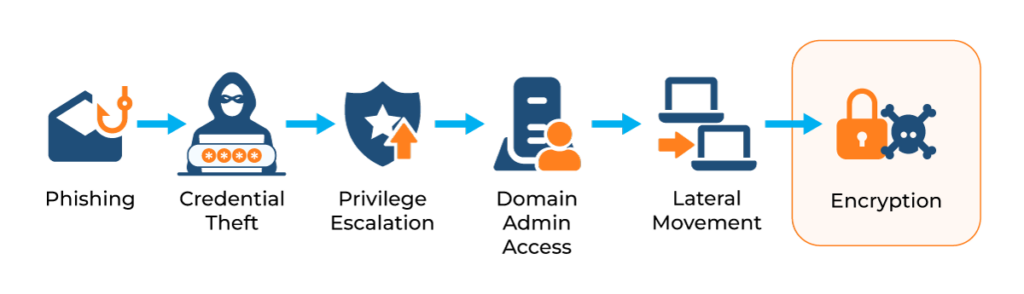
Before an incident, document and rehearse the following:
- Escalation authority and decision-making roles for each identity containment action. For example, the CISO or on-call security lead holds authority to order DC isolation; the AD team lead executes it; no one else can override that decision without written approval from the CISO.
- The location of break-glass accounts, stored offline on a physically secured medium
- The sequence for privileged credential resets, which roles first, and which systems depend on them
- Domain controller isolation procedures, written in enough detail to execute without discussion
Cayosoft Administrator
Cayosoft Administrator provides a unified console for managing hybrid AD, Entra ID, Microsoft 365, and Intune from a single pane of glass. Defining role-based access controls, delegating administrative authority, and enforcing least-privilege before an incident occurs is significantly easier when all identity management flows through one platform.
Monitor for identity changes continuously
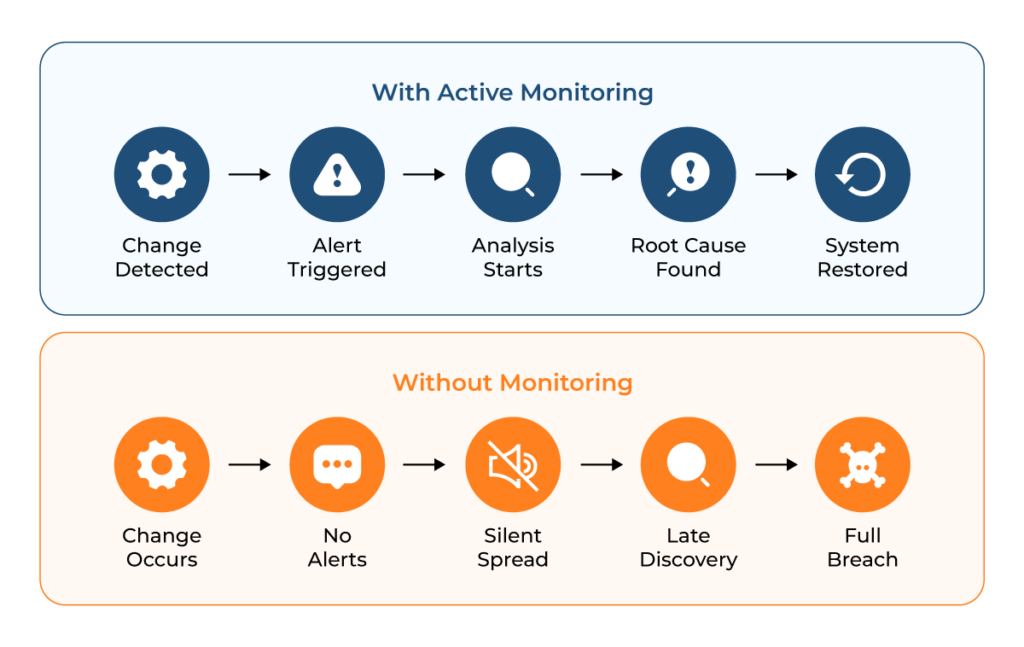
Once inside your environment, a threat actor wants to stay undetected. Their first move is to perform a quiet escalation, like adding an account to Domain Admins, assigning the Global Administrator role in Entra ID, modifying a Conditional Access policy, or changing a Group Policy Object, all through legitimate administrative channels. None of those actions looks unusual unless you are specifically watching for them.
The gap between compromise and detection is where the attacker stands. When identity changes go unmonitored, an adversary can dwell for days, complete reconnaissance, and disable logging before anyone notices. Real-time alerting on privileged group membership changes and administrative role assignments collapses that window. The diagram below shows the difference in outcome.
To surface recent privileged account additions across Active Directory, run:
					Get-ADGroupMember -Identity "Domain Admins" -Recursive |
  Get-ADUser -Properties WhenCreated |
  Select-Object Name, SamAccountName, WhenCreated |
  Sort-Object WhenCreated -Descending
To query the Microsoft 365 Unified Audit Log for role assignment operations over the past seven days:
Search-UnifiedAuditLog -Operations "Add member to role" -StartDate (Get-Date).AddDays(-7) -EndDate (Get-Date) -ResultSize 1000
To enumerate current members of all privileged roles in Entra ID:
					Connect-MgGraph -Scopes 'RoleManagement.Read.Directory'
Get-MgDirectoryRole | ForEach-Object {
  $roleName = $_.DisplayName
  $roleId   = $_.Id
  Get-MgDirectoryRoleMember -DirectoryRoleId $roleId |
    Select-Object @{N='Role'; E={$roleName}}, DisplayName,      UserPrincipalName
}
Treat any account added to a privileged group in the days before a suspected incident as attacker-controlled until you can confirm otherwise, regardless of how familiar the name looks.
Cayosoft Guardian Audit & Restore — Continuous Change Monitoring
Cayosoft Guardian Audit & Restore monitors every change across on-premises AD, Entra ID, and Microsoft 365 in real time. Changes to privileged group memberships, Conditional Access policies, and GPOs trigger immediate alerts — and can be rolled back with a single click, without requiring a full backup restore.
Isolate compromised domain controllers immediately
Active Directory replication is one of the most powerful features in your environment and one of the most dangerous during an incident. A single compromised domain controller can propagate malicious changes, like modified GPOs, new administrative accounts, or altered trust relationships, to every other DC in the forest within minutes. Adversaries understand this and rely on it: They compromise one DC early, then let replication handle the rest before the network team can acknowledge the compromise.
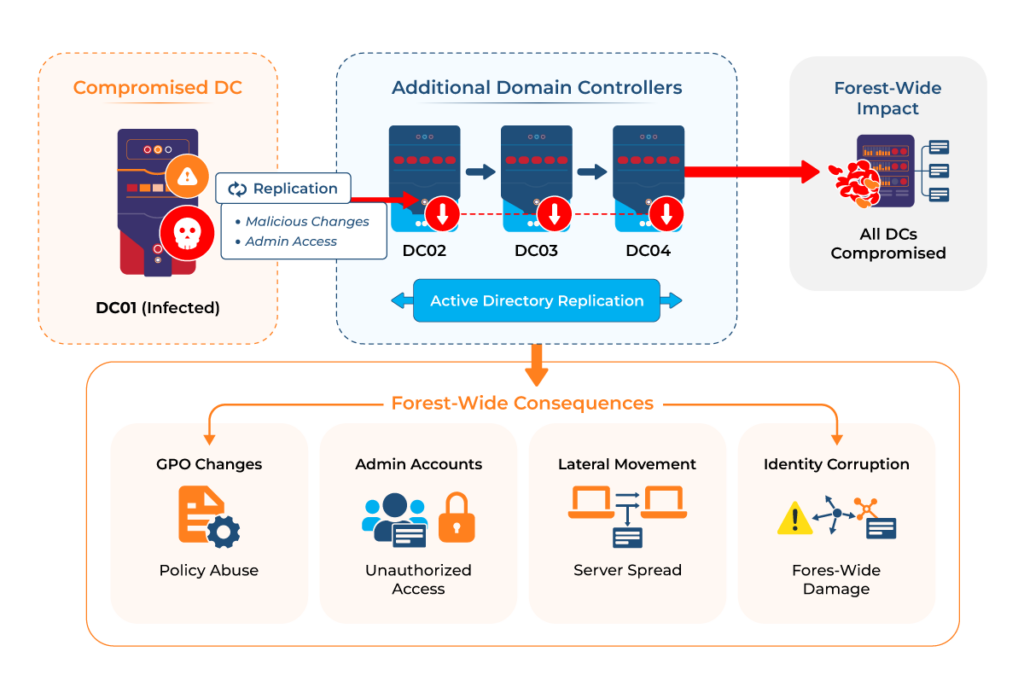
When you confirm a domain controller compromise, halt replication as the first action; do not touch anything else on that machine until replication is stopped:
- Disconnect the DC from the network at the switch or hypervisor level.
- Disable inbound and outbound replication using repadmin.
- Block the DC’s IP address at the firewall.
- Record the exact isolation timestamp because forensic reconstruction depends on it.
To disable replication on the compromised DC:
					repadmin /options DC01 +DISABLE_INBOUND_REPL
repadmin /options DC01 +DISABLE_OUTBOUND_REPL
To confirm that replication has stopped across the domain:
					repadmin /showrepl
repadmin /replsummary
If isolation is delayed, check immediately for GPO modifications that may have replicated before you pulled the DC offline:
Get-GPO -All | Sort-Object ModificationTime -Descending | Select DisplayName, ModificationTime | Select-Object -First 20
Any GPO modified during the incident window deserves immediate review. Attackers routinely use GPO changes to push malicious scripts or disable endpoint protection across the domain before the encryption phase begins.
Preserve logs before touching anything
Forensic evidence gets inevitably deleted as soon as the reimaging phase begins. Once you restore a system, whether from scratch or from a backup, the logs that would have shown you the initial access vector and the full scope of compromise are no longer available. Without them, preventing a recurrence is almost impossible, rendering any lesson learned moot. The sequencing rule is simple: Preserve all logs before making any changes to the infrastructure, without exception.
The key log sources in a Microsoft environment are Windows Security event logs from domain controllers and member servers, Directory Service logs, Entra ID sign-in logs, and the Microsoft 365 Unified Audit Log. If a SIEM is collecting these in real time, verify its integrity first; threat actors sometimes target log infrastructure specifically to reduce forensic visibility.
To export Windows Security and Directory Service event logs from a domain controller before isolation:
					wevtutil epl Security C:\Logs\DC01_Security.evtx
wevtutil epl 'Directory Service' C:\Logs\DC01_DirectoryService.evtx
wevtutil epl System C:\Logs\DC01_System.evtx
To export Entra ID sign-in logs via Microsoft Graph PowerShell:
					Connect-MgGraph -Scopes 'AuditLog.Read.All'
Get-MgAuditLogSignIn -Filter "createdDateTime ge YYYY-MM-DD" -All |
  Export-Csv C:\Logs\EntraSignIns.csv -NoTypeInformation
To export the Microsoft 365 Unified Audit Log for a defined window:
					Search-UnifiedAuditLog -StartDate 2026-03-01 -EndDate 2026-03-27 -ResultSize 5000 |
  Export-Csv C:\Logs\UAL_Export.csv -NoTypeInformation
Copy everything to isolated storage (a machine not connected to the affected domain) before doing any remediation work.
Cayosoft Guardian — Change History That Survives an Attack
Threat actors frequently target native event logs to reduce forensic visibility before encryption begins. Cayosoft Guardian Audit & Restore maintains a continuous, immutable change history that records identity changes even when security logs or SIEM tools are compromised, providing the forensic timeline needed for root-cause analysis after the incident.
Reset all privileged roles
Ransomware operators do not rely on a single account. They build multiple persistence paths — new accounts, hijacked service accounts, altered group memberships, and ACL backdoors on sensitive AD objects — precisely because they expect you to find and reset the obvious ones. A complete audit goes beyond group membership. It includes the access control lists on the objects that control the entire domain.
Your review needs to cover Domain Admins and Enterprise Admins in Active Directory, Global Administrators and Application Administrators in Entra ID, and any service accounts with elevated permissions. It also needs to cover ACL modifications on four high-value targets: the AdminSDHolder object (whose ACL propagates automatically to all protected accounts and groups), the root of the domain partition, the Domain Controllers OU, and the AdminCount attribute on user objects. An attacker who adds themselves to the ACL of AdminSDHolder gains persistent, self-replicating elevated access that survives a group membership reset. Pay close attention to accounts added recently, accounts with unusual naming patterns, and accounts whose passwords were last set at an unexpected time.
					# Check ACL on AdminSDHolder — look for unexpected principals with GenericAll, WriteDacl, or WriteOwner
$adminSDHolder = "CN=AdminSDHolder,CN=System,$(Get-ADDomain | Select-Object -ExpandProperty DistinguishedName)"
(Get-Acl "AD:$adminSDHolder").Access |
  Where-Object { $_.IdentityReference -notmatch 'SYSTEM|Domain Admins|Enterprise Admins|Administrators' } |
  Select-Object IdentityReference, ActiveDirectoryRights, AccessControlType
To enumerate Domain Admin and Enterprise Admin membership recursively:
					Get-ADGroupMember -Identity "Domain Admins" -Recursive | Select Name, SamAccountName, DistinguishedName
Get-ADGroupMember -Identity "Enterprise Admins" -Recursive | Select Name, SamAccountName
To list all Global Administrators in Entra ID:
					Connect-MgGraph -Scopes 'RoleManagement.Read.Directory'
$role = Get-MgDirectoryRole | Where-Object { $_.DisplayName -eq 'Global Administrator' }
Get-MgDirectoryRoleMember -DirectoryRoleId $role.Id |
  Select-Object DisplayName, UserPrincipalName, OdataType
Any account you cannot immediately verify should have its password reset and all active sessions revoked; only then should it be allowed back into any privileged group. To revoke all active sessions for a compromised account in Entra ID:
Revoke-MgUserSignInSession -UserId <UserObjectId>
Validate backups before relying on them
Threat actors deliberately target backup infrastructure. Before deploying encryption, threat actors often spend time disabling backup agents, deleting snapshots, and corrupting restore points specifically to cut off any recovery options. Discovering mid-response that your backups are gone or compromised is one of the most damaging situations in an incident. It leaves you with the choice between rebuilding from scratch and negotiating with the attacker.
For each candidate backup, check that the following are true to avoid restoring possibly compromised backups:
- The timestamp predates the suspected compromise window.
- Storage was isolated from the production network during the incident.
- Immutability settings remain intact.
- A test restore in a clean environment completes successfully
Do not proceed with a restore whose timestamp falls within the compromise window; even clean-looking files may contain attacker-planted persistence, such as scheduled tasks, registry run keys, or WMI subscriptions.
For Azure Backup, query available recovery points to verify timestamps ahead of any restore decision:
					$vault = Get-AzRecoveryServicesVault -Name 'ProdVault' -ResourceGroupName 'BackupRG'
Set-AzRecoveryServicesVaultContext -Vault $vault
$container = Get-AzRecoveryServicesBackupContainer -ContainerType AzureVM -FriendlyName 'DC01'
$item = Get-AzRecoveryServicesBackupItem -Container $container -WorkloadType AzureVM
Get-AzRecoveryServicesBackupRecoveryPoint -Item $item |
  Select RecoveryPointTime, RecoveryPointType | Sort RecoveryPointTime -Descending
Prepare for forest recovery
Forest-level recovery is the most complex Active Directory operation you are likely to face. An improvised recovery in environments with multiple domain trusts or nested structures introduces serious risks. For example, configuration errors such as the following may occur:
- Flexible Single Master Operations (FSMO) roles seized out of sequence
- krbtgt account (which signs every domain authentication ticket) reset only once
- DCs restored in the wrong order
Each mistake extends the outage and can produce authentication failures that take hours to diagnose. Organizations that have never rehearsed this routinely find it takes far longer than expected.
The correct workflow is to restore the Primary Domain Controller (PDC) Emulator first, since it holds the Primary Domain Controller role. Then, seize all five Flexible Single Master Operations roles onto it. Reset the krbtgt account twice, with at least a 10-hour interval between each reset; this ensures that every ticket issued under the old key has expired. Finally, it is possible to bring up additional domain controllers.
To check current FSMO role holders:
netdom query fsmo
To seize FSMO roles when the original holder is unavailable:
ntdsutil "roles" "connections" "connect to server DC02" "quit" "seize PDC" "seize RID master" "seize infrastructure master" "seize naming master" "seize schema master" "quit" "quit"
To reset the krbtgt account, which invalidates all existing domain authentication tickets:
Set-ADAccountPassword -Identity krbtgt -Reset -NewPassword (ConvertTo-SecureString -AsPlainText 'NewStrongRandomPassword!' -Force)
Reset krbtgt a second time after 10 hours. This step is frequently skipped or performed only once, leaving an adversary with a valid Kerberos ticket that grants up to 10 hours of post-recovery access. The second reset closes that window entirely.
Cayosoft Guardian Instant Forest Recovery
Cayosoft Guardian Instant Forest Recovery is the only solution on the market providing instant AD forest recovery, completing in minutes rather than the hours or days required by traditional backup-based methods. It automates the sequencing of FSMO role transfers, krbtgt resets, and DC restoration, eliminating the manual sequencing errors that routinely extend post-ransomware outages.
Use object-level rollback where possible
Not every incident reaches full forest compromise. Some attacks are contained early enough that the identity damage is limited to specific actions: mass user account deletions, removal from security groups, Conditional Access policy changes, or license stripping in Microsoft 365. In those cases, a full domain rebuild is excessive and significantly riskier than a targeted rollback.
If the AD Recycle Bin was enabled before the incident, recovery is indeed easier. To list all objects deleted in the past 24 hours:
					Get-ADObject -Filter 'isDeleted -eq $true' -IncludeDeletedObjects -Properties * |
  Where-Object { $_.WhenChanged -gt (Get-Date).AddHours(-24) } |
  Select Name, ObjectClass, WhenChanged, DistinguishedName
To restore a specific deleted object by its GUID:
Restore-ADObject -Identity '<ObjectGUID>'
To restore all deleted user accounts from the past 24 hours in a single operation:
					Get-ADObject -Filter 'isDeleted -eq $true -and ObjectClass -eq "user"' -IncludeDeletedObjects -Properties WhenChanged |
  Where-Object { $_.WhenChanged -gt (Get-Date).AddHours(-24) } |
  Restore-ADObject
If the Recycle Bin was not enabled before the incident, an authoritative restore from backup is your only option. That is a much slower path; reason enough to enable the AD Recycle Bin now if it is not already active.
Cayosoft Guardian — One-Click Object Rollback
For environments where the Recycle Bin was not enabled—or where granular rollback of attributes, group memberships, GPOs, or Microsoft 365 configurations is needed—Cayosoft Guardian Audit & Restore provides one-click rollback for any change tracked in its continuous change history. Individual attributes, entire objects, or bulk group membership changes can be reversed in seconds, without depending on file-based backup restores.
Contain Microsoft 365 configuration changes
Hybrid environments provide a threat actor with a second attack surface running in parallel to Active Directory. With Global Administrator access, an adversary can disable audit logging to hide their tracks and configure mailbox forwarding rules to drain email throughout the response. They can also modify retention policies to block recovery of deleted items and adjust Conditional Access policies to keep cloud access active even after you reset on-premises credentials. Microsoft 365 containment needs to run in parallel with AD containment, not after it.
Start by querying the Unified Audit Log for administrative operations during the suspected compromise window:
					Search-UnifiedAuditLog -StartDate 2026-03-20 -EndDate 2026-03-27 -RecordType ExchangeAdmin -ResultSize 1000 |
  Select CreationDate, UserIds, Operations | Sort CreationDate
To surface any mailbox forwarding or redirect rules planted to exfiltrate email after the incident:
					Get-Mailbox -ResultSize Unlimited | ForEach-Object {
  Get-InboxRule -Mailbox $_.PrimarySmtpAddress
} | Where-Object { $_.ForwardTo -or $_.RedirectTo } |
  Select Name, MailboxOwnerID, ForwardTo, RedirectTo
To check whether audit logging was disabled, a standard move to reduce forensic visibility:
Get-AdminAuditLogConfig | Select UnifiedAuditLogIngestionEnabled
If the output shows as “false,” re-enable it immediately and document the gap in your forensic timeline:
Set-AdminAuditLogConfig -UnifiedAuditLogIngestionEnabled $true
Cayosoft — Unified Hybrid AD and Microsoft 365 Visibility
Cayosoft’s platform covers on-premises AD, Entra ID, and Microsoft 365—including Teams, Exchange, and Intune—from a single console. Changes across all integrated Microsoft services are recorded in a unified change history, making it straightforward to identify which cloud configurations were modified during an incident and roll them back without switching between native admin portals.
Test the response plan regularly
A plan that has never been tested is a hypothesis. Real incidents expose every gap a controlled exercise would have caught first. Steps take longer than expected. Commands fail because a dependency changed. Authority conflicts emerge. Procedures describe an environment that no longer exists. The teams that get through ransomware incidents fastest are the ones that have already run through the hard questions: who calls the isolation? Where are the break-glass credentials? What does a krbtgt reset actually look like in your environment?
Effective testing covers four activities:
- Tabletop simulations—structured scenario walk-throughs where decision-makers work through a realistic attack on paper—force sequencing and authority questions to be resolved before the pressure of a live incident.
- DC recovery drills have your operations team execute the actual isolation and restore sequence in a lab.
- Privileged access reset exercises confirm that the right people have working access to break-glass accounts end-to-end.
- Backup restore validations confirm that specific recovery points produce a working system, not just that the backup job completed.
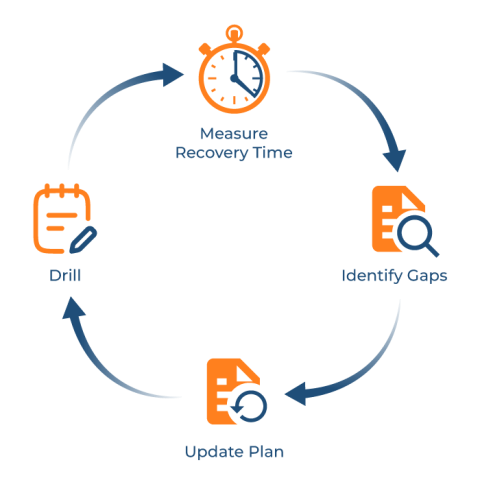
Update the plan whenever the environment changes significantly—new domain trusts, Entra ID migrations, new administrators, or changes to backup infrastructure all affect how a response executes. An outdated plan gives your team false confidence in procedures that no longer match reality.
Conclusion
This article covered ten practices for responding to ransomware in Microsoft environments, all built around a single premise: identity comes first. Active Directory and Entra ID formed the attack surface long before any files were encrypted, and they had to be secured before anything else in the recovery could be trusted.
The practices followed that logic in order. Starting with establishing an identity-centric framework and monitoring for privilege changes, they moved on to isolating domain controllers, preserving logs, and resetting roles. From there, they covered validating backups, preparing for forest recovery, rolling back object damage, containing Microsoft 365, and testing the plan. Together, they addressed the full scope of ransomware incidents in hybrid Microsoft environments, not just the visible damage at the end of the attack chain.
Stop AD Threats As They Happen
Cayosoft Protector provides continuous monitoring and real-time alerts across your entire Microsoft Identity stack
Like This Article?
Subscribe to our LinkedIn Newsletter to receive more educational content