



Home » Ransomware Recovery: 10 Best Practices for Microsoft Environments
Ransomware Recovery: 10 Best Practices for Microsoft Environments
Learn ten ransomware recovery best practices to restore Microsoft Active Directory and Entra ID after an attack.
Explore the chapters:
< Previous Chapter
Table of Contents
Stop AD Threats As They Happen
Cayosoft Protector provides continuous monitoring and real-time alerts across your entire Microsoft Identity stack
Like This Article?
Subscribe to our LinkedIn Newsletter to receive more educational content
Ransomware recovery begins once containment is confirmed and focuses on rebuilding infrastructure, restoring data, and getting your organization back to normal operations.
This phase of ransomware incident response is often the source of operational delays, and ineffective recovery strategies can lead to reinfection. Infrastructure is brought back online in a haphazard sequence, triggering a domino effect of identity and access errors. Teams deploy restore points without scrubbing them for threats, essentially inviting the adversary back into the environment. Vigilance is prematurely scaled down, providing a clear path for reinfection via hidden persistence mechanisms.
Fortunately, organizations can mitigate each of these ransomware risks with a formal strategy that provides teams with an established recovery framework before a breach occurs. With that in mind, this article will provide a robust ransomware recovery framework for Microsoft Active Directory, Microsoft Entra ID, Microsoft 365, and on-premises Microsoft workloads.
Summary of ransomware recovery best practices
The table below summarizes the ten ransomware recovery best practices that this article will explore in more detail.
Best practice | Description |
|---|---|
Conduct root cause analysis | Identify the initial access vector before declaring recovery complete, preventing the same attack path from being exploited again. |
Validate system integrity before reconnecting | Run integrity checks, EDR (Endpoint Detection and Response) scans, and configuration audits on each rebuilt system before it rejoins the production network. |
Restore Microsoft 365 and hybrid services | Reset service accounts, revalidate Entra ID Connect sync, and restore Exchange and Teams configuration to a known-clean state. |
Monitor for reinfection during recovery | Apply enhanced alerting during the recovery window, as threat actors frequently return through backdoors left before containment. |
Establish a clean recovery environment | Create an isolated staging network for rebuilding systems before reconnecting to production, preventing reinfection during recovery. |
Define recovery order by system dependency | Restore identity and DNS services first, since every other system depends on them. Restoring in the wrong order extends the outage. |
Rebuild domain controllers from clean media | Avoid restoring a potentially backdoored DC image. A clean rebuild from known-good media removes all attacker persistence from the identity layer. |
Restore data from verified backups | Confirm that backup timestamps predate the compromise and validate restore integrity in a staging environment before committing to production. |
Communicate recovery status | Keep stakeholders informed, meet regulatory notification deadlines, and provide users with clear guidance on restored service availability. |
Harden the environment post-recovery | Patch exploited vulnerabilities, enforce MFA (multi-factor authentication), remove unnecessary privileges, and close the attack surface before lifting isolation. |
Why should you prepare a ransomware recovery plan?
In most cases, the damage from a ransomware attack doesn’t stop immediately after containment. While the encryption payload is the obvious harm, the real danger lies in what follows. Organizations without a solid recovery plan face the worst‑case scenario: racing against time, missing key information, and dealing with adversaries who have left backdoors to survive partial restorations. What should be a recovery effort quickly turns into a second breach.
Many ransomware recovery failures are well-known and predictable. For example, incorrect system restoration order results in authentication errors that propagate to dependent services. When backups are used without integrity verification, the attacker’s ingrained persistence, established weeks before the ransom note appeared, is reintroduced. The recovery window, when defenses are at their weakest, is seldom monitored as teams shift their focus to restoration work. In addition to the initial ransom demand, recovery expenses in Microsoft setups frequently include days of lost productivity, emergency licensing, incident response fees, and regulatory exposure. All of these failure modes prolong downtime, and downtime is costly.
A ransomware recovery plan is not a backup policy or a disaster recovery runbook. It is a sequenced framework that defines who does what, in what order, using which systems, and is in place before any of those decisions need to be made under pressure. Active Directory and Entra ID are the systems that verify who is allowed to log in and what they are permitted to do. Restore an application server before these identity systems are secured, and that server either fails to authenticate users entirely or trusts accounts the attacker still controls. Restoring servers before Active Directory and Entra ID are secured gives the adversary the same access they had before recovery began.
Conduct root cause analysis
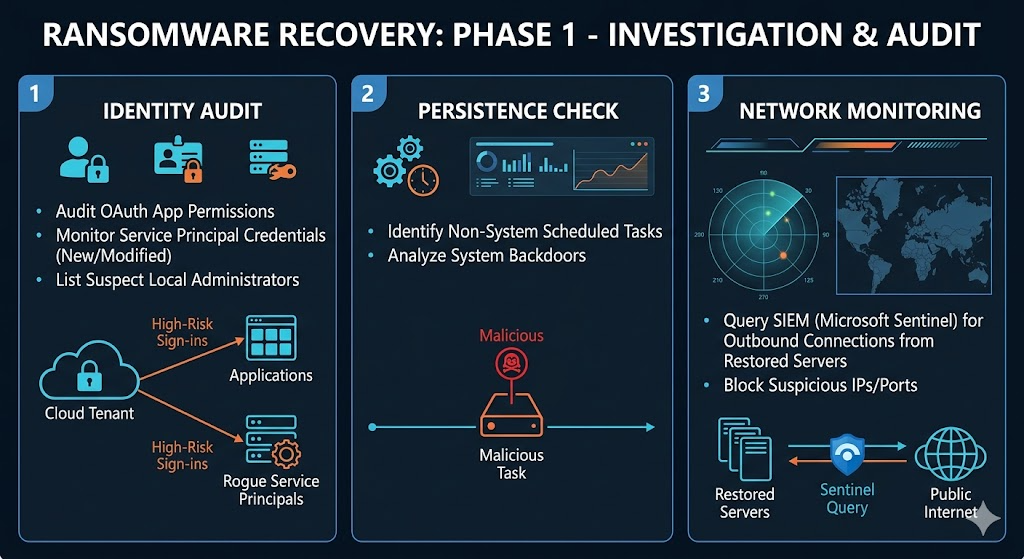
Recovery is not complete until the initial access vector is understood and closed. Declaring recovery without root cause analysis leaves the same vulnerability open. The next adversary — or the same one — uses the same path. Root cause analysis uses the logs preserved during the response phase to reconstruct the attack timeline and identify the entry point.
The three most common initial access vectors in Microsoft environments are phishing emails delivering credential-harvesting payloads, exploitation of internet-facing services, and compromised third-party vendor credentials. For example, VPN appliances, RDP, and OWA (Outlook Web Access) are frequent targets for exploitation. Security teams should examine logs from the compromise window for all three. Reconstruct the attack timeline using Entra ID sign-in logs, security event logs, and Unified Audit Log exports. Identify the first account to show anomalous activity — that is, the likely entry point. Determine whether initial access was credential-based, vulnerability-based, or a supply chain compromise. Confirm the entry point is closed before lifting network isolation.
To search Entra ID sign-in logs for high-risk sign-ins during the compromise window:
					Connect-MgGraph -Scopes 'AuditLog.Read.All'
Get-MgAuditLogSignIn `
  -Filter "createdDateTime ge 2026-03-01T00:00:00Z and riskLevelDuringSignIn eq 'high'" `
  -All |
  Select-Object CreatedDateTime, UserPrincipalName, IpAddress, Location, RiskLevelDuringSignIn |
  Sort-Object CreatedDateTime
Validate system integrity before reconnecting
A rebuilt or restored system is not safe to reconnect until its integrity is confirmed. Integrity validation checks that no attacker-placed files, scheduled tasks, services, or registry entries survived the rebuild or restore. This step is frequently skipped under time pressure and is one of the most common causes of reinfection during recovery.
Validation uses EDR (Endpoint Detection and Response) scanning, configuration baseline comparison, and manual inspection of high-risk persistence locations. The system must pass all checks before it connects to the production network. Run a full EDR scan and confirm no detections. Compare installed services against a known-clean baseline. Review scheduled tasks for unexpected entries. Check the Run and RunOnce registry keys under HKLM\SOFTWARE\Microsoft\Windows\CurrentVersion. Confirm no unexpected local administrator accounts exist.
To list scheduled tasks not owned by SYSTEM or Microsoft:
					Get-ScheduledTask |
  Where-Object {
    $_.Principal.UserId -notin @('SYSTEM','NT AUTHORITY\SYSTEM','LOCAL SERVICE','NETWORK SERVICE') -and
    $_.TaskPath -notlike '\Microsoft\*'
  } | Select-Object TaskName, TaskPath, @{N='Author'; E={$_.Principal.UserId}}
To list non-default local administrators:
					Get-LocalGroupMember -Group 'Administrators' |
  Where-Object { $_.Name -notmatch 'Administrator|Domain Admins' }
Restore Microsoft 365 and hybrid services
Microsoft 365 and hybrid identity services require specific recovery steps beyond on-premises infrastructure. Entra ID Connect sync must be revalidated after the domain controller rebuilds. The threat actor may have modified Exchange Online connectors, mailbox permissions, and retention policies, and the environment may need to be restored to a known-clean state. Teams and SharePoint permissions also warrant review.
Treat service accounts used by Entra ID Connect and any third-party integrations as compromised. Reset them before re-enabling sync. Verify that no unauthorized OAuth (Open Authorization) application consents or service principal credentials were added during the incident.
To check Entra ID Connect sync status:
Get-ADSyncScheduler
To list service principals created recently — a common adversary persistence technique:
					Connect-MgGraph -Scopes 'Application.Read.All'

Get-MgServicePrincipal -All |
Where-Object { $_.CreatedDateTime -gt (Get-Date).AddDays(-30) } |
Select-Object DisplayName, AppId, CreatedDateTime |
Sort-Object CreatedDateTime -Descending
To find service principal credentials added in the last 30 days:
					Get-MgServicePrincipal -All | ForEach-Object {
  $sp = $_
  $sp.PasswordCredentials |
    Where-Object { $_.StartDateTime -gt (Get-Date).AddDays(-30) } |
    Select-Object @{N='App';E={$sp.DisplayName}}, DisplayName, StartDateTime, KeyId
}
Cayosoft Guardian Audit & Restore — Unified Change History
Native Microsoft tools show what exists now — they do not show you what changed and when. Cayosoft Guardian Audit & Restore maintains a granular, timestamped change history across Active Directory, Entra ID, Exchange Online, and Teams. During recovery, your team can identify exactly which accounts, group memberships, or GPOs were modified during the compromise window. Roll them back to a known-clean state with a single click — without rebuilding from scratch.
Monitor for reinfection during recovery
Threat actors don’t just disappear once encryption hits—they plan for what comes next. Before launching ransomware, they often plant backdoors: web shells, scheduled tasks that beacon out to command-and-control infrastructure, or compromised service accounts with persistent cloud access. These are designed to come alive during recovery, when defenses are loosened, and teams are juggling too many priorities at once.
That’s why enhanced monitoring needs to be in place before the first restored system reconnects to the network. Set up alerts for new service installations, outbound connections to unfamiliar external IPs, and changes to privileged group membership. Recovery is not complete until 48–72 hours of clean monitoring are confirmed: no EDR alerts above informational severity, no unexpected outbound connections, no privileged group membership changes, and no anomalous sign-in events in Entra ID.
Some signals matter more than others. Pay close attention to newly created or modified scheduled tasks on restored systems, and outbound traffic on ports 443, 80, or 8080 heading to IPs outside your allowlist. The creation of new local administrator accounts on rebuilt machines should trigger immediate scrutiny. In cloud environments like Microsoft Entra ID, watch for service account sign-ins from unusual locations. And if you see PowerShell or cmd.exe being launched by the IIS worker process (w3wp.exe), treat it as a strong indicator of a web shell.
To hunt for suspicious outbound connections in Microsoft Sentinel using KQL (Kusto Query Language). In normal operations, PowerShell, cmd.exe, and wscript.exe rarely initiate direct connections to external IPs — browsers and dedicated network tools handle that activity. When those scripting engines connect outbound, it typically means a script is beaconing to a command-and-control server or exfiltrating data. Any match from the query below warrants investigation:
					DeviceNetworkEvents
| where RemoteIPType == 'Public'
| where InitiatingProcessFileName in~ ('powershell.exe','cmd.exe','wscript.exe')
| where Timestamp > ago(24h)
| project Timestamp, DeviceName, InitiatingProcessFileName, RemoteIP, RemotePort
| sort by Timestamp desc
Cayosoft Guardian Protector — Always-On Recovery Monitoring
Cayosoft Guardian Protector provides continuous, agentless monitoring across Active Directory, Entra ID, Microsoft 365, Teams, and Exchange Online at no cost. Unlike point-in-time security scanners, it delivers real-time alerts the moment a suspicious change occurs in your environment. That includes privilege escalation attempts, GPO (Group Policy Object) modifications, and new service principal credentials — so your team can respond before a backdoor establishes itself during the recovery window.
Establish a clean recovery environment
Rebuilding systems on the production network while attacker-controlled devices remain active risks reinfection before recovery is complete. A staging network — physically or logically isolated from the production environment — provides a controlled space to rebuild and validate each system before it rejoins production.
Think of your staging network as a cleanroom. It needs its own independent air supply—dedicated DNS, DHCP, and a fresh domain controller—with absolutely no connection to the compromised network until the “all clear” is given. In practice, this means building a temporary DC in an isolated VLAN or even a completely separate Azure subscription. Block all traffic between staging and production until every system is validated. Once you’re done, document the setup for the operations team before you tear it down.
Define recovery order by system dependency
Not all systems restore in parallel. Most workloads in your environment depend on Active Directory for authentication, DNS for name resolution, and file services for data access. Restoring application servers before the identity and DNS infrastructure is restored causes authentication failures that delay every subsequent step. That order holds even under pressure to restore high-visibility systems first.
A dependency map defines the correct sequence. Restore in five tiers:
- Identity: Active Directory domain controllers, Entra ID Connect, certificate authority
- Network services: DNS, DHCP, NPS (Network Policy Server) / RADIUS (Remote Authentication Dial-In User Service)
- Core infrastructure: file servers, print servers, backup infrastructure
- Line-of-business applications: ERP, CRM, internal web services
- End-user devices: workstations, VDI (Virtual Desktop Infrastructure), mobile device management
Rebuild domain controllers from clean media
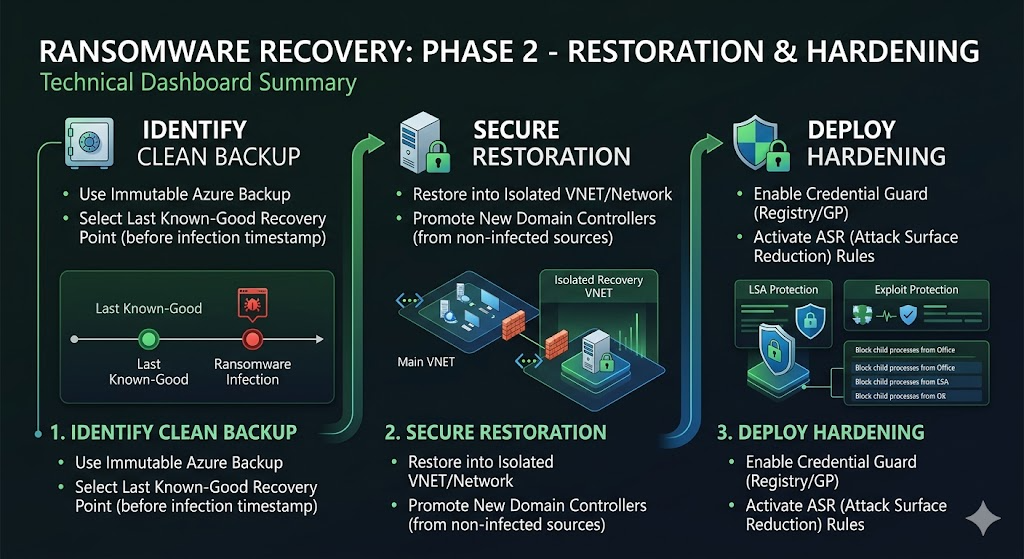
Restoring a domain controller from a backup image carries risk. If the image was created after the initial compromise, any attacker-installed persistence — such as scheduled tasks, malicious services, or registry run keys — survives the restore. If the image origin is unclear, or if the backup predates the compromise window by less than 24 hours, do not restore it. Rebuild from clean operating system media instead and promote the new DC into a clean forest.
A clean DC rebuild requires a verified Windows Server ISO, patched offline before promotion, and a tested AD DS installation procedure. The krbtgt account — which signs every domain authentication ticket — must be reset twice after the new DC is online, separated by at least the domain’s maximum TGT lifetime (10 hours by default). That interval ensures every ticket issued under the old key has expired.
To promote a new DC into an existing domain:
					Install-WindowsFeature AD-Domain-Services
Install-ADDSDomainController `
  -DomainName 'contoso.com' `
  -InstallDns `
  -Credential (Get-Credential) `
  -SafeModeAdministratorPassword (ConvertTo-SecureString 'YourSafeModePwd123!' -AsPlainText -Force) `
  -Force
To reset krbtgt (run twice, 10 hours apart):
					Set-ADAccountPassword -Identity krbtgt `
  -NewPassword (ConvertTo-SecureString -AsPlainText 'NewStrongPassword!' -Force)
Cayosoft Guardian Instant Forest Recovery
Manual DC rebuilds require careful sequencing of FSMO (Flexible Single Master Operations) role seizure, DNS configuration, SYSVOL replication, and global catalog settings. Cayosoft Guardian Instant Forest Recovery automates this entire sequence — DC promotion, FSMO role assignment, DNS restoration, and SYSVOL configuration. It completes in minutes rather than the hours or days required by legacy backup-based tools. Its instant standby forest means the recovery infrastructure is tested and ready before an incident occurs in your environment.
Restore data from verified backups
Before restoring any backup to production, confirm three things. First, the backup timestamp must predate the confirmed compromise window. Second, backup storage must have been isolated from the network during the incident. Third, a test restore in the staging environment must complete successfully and produce a working system.
Any backup whose timestamp falls within the compromise window should be treated as potentially contaminated. Even files that appear clean may carry adversary-planted persistence, such as scheduled tasks or WMI (Windows Management Instrumentation) subscriptions that re-establish a foothold after recovery.
To list Azure Backup recovery points for a VM and confirm timestamps:
					$vault = Get-AzRecoveryServicesVault -Name 'ProdVault' -ResourceGroupName 'BackupRG'
Set-AzRecoveryServicesVaultContext -Vault $vault
$item = Get-AzRecoveryServicesBackupItem -BackupManagementType AzureVM -WorkloadType AzureVM -Name 'DC01'
Get-AzRecoveryServicesBackupRecoveryPoint -Item $item |
  Select-Object RecoveryPointTime, RecoveryPointType |
  Sort-Object RecoveryPointTime -Descending
To list on-premises backup versions using the wbadmin command-line tool:
wbadmin get versions
Communicate recovery status
Ransomware incidents trigger notification obligations across multiple US regulatory frameworks, each with its own deadline and recipient. Confirm which apply to you at the start of the incident — not mid-recovery.
Cyber Incident Reporting for Critical Infrastructure Act of 2022 sets clear expectations for incident reporting. Covered entities must notify the Cybersecurity and Infrastructure Security Agency within 72 hours of reasonably believing a cyber incident occurred. If an organization pays a ransom, it must submit a separate report within 24 hours. Public companies have an obligation to file Form 8-K Item 1.05 with the Securities and Exchange Commission within 4 business days of determining that the incident is material. In healthcare, organizations governed by the Health Insurance Portability and Accountability Act must notify the Department of Health and Human Services and affected individuals within 60 days if protected health information is involved—and if more than 500 people in a single state are affected, local media must also be notified.
At the same time, internal communication can’t lag behind compliance. IT teams need real-time updates on what’s been restored. Business units need clear guidance on how to keep operating. Leadership needs a grounded recovery timeline with realistic milestones. Both tracks—external reporting and internal coordination—have to move together.
Here’s a practical checklist that covers both:
- Confirm which federal and state notification requirements apply, and map out deadlines as soon as the incident begins
- Report to CISA within 72 hours if you’re covered under CIRCIA; report any ransom payment within 24 hours
- File Form 8-K Item 1.05 with the SEC within four business days if the incident is material (for public companies)
- Notify HHS and affected individuals within 60 days if PHI is involved under HIPAA
- Identify applicable state breach notification laws and confirm deadlines for individuals and the attorney general
- Provide internal status updates at least every four hours during active recovery
- Brief senior leadership with a clear recovery timeline and milestone tracking
- Retain all communications for post-incident review and potential regulatory submissions
Harden the environment post-recovery
Every ransomware incident exposes the gaps in your environment. Maybe it started with an unpatched service that gave attackers a way in. Maybe an over-privileged account lets them move sideways once inside. Or maybe your backups were reachable from the same network, turning a bad situation into a worse one. Post-recovery hardening is about closing those exact gaps—and shrinking the overall attack surface before things go back to business as usual.
The biggest wins usually come from enforcing MFA on all privileged accounts and stripping away unnecessary local admin rights. Patch the exploited vulnerability and use tiered administration — a model that separates domain controllers, servers, and workstations into isolated management tiers — to block the same lateral movement paths. Set up Privileged Access Workstations (PAWs) for domain admin tasks, enable Credential Guard on domain controllers and Tier 0 systems, and configure Attack Surface Reduction (ASR) rules through Microsoft Defender for Endpoint.To enable Credential Guard via registry:
Note: Credential Guard requires virtualization-based security (VBS), Secure Boot, and a compatible TPM (Trusted Platform Module). Without these, the registry settings below have no effect, and Credential Guard does not activate. Verify hardware support first: msinfo32 → System Summary → Virtualization-based security.
					$dgPath = 'HKLM:\SYSTEM\CurrentControlSet\Control\DeviceGuard'
if (!(Test-Path $dgPath)) { New-Item -Path $dgPath -Force }
Set-ItemProperty -Path $dgPath -Name 'EnableVirtualizationBasedSecurity' -Value 1
Set-ItemProperty -Path $dgPath -Name 'RequirePlatformSecurityFeatures' -Value 1
Set-ItemProperty -Path 'HKLM:\SYSTEM\CurrentControlSet\Control\Lsa' -Name 'LsaCfgFlags' -Value 1
To enable an ASR rule blocking Office applications from spawning child processes:
					Add-MpPreference -AttackSurfaceReductionRules_Ids D4F940AB-401B-4EFC-AADC-AD5F3C50688A `
  -AttackSurfaceReductionRules_Actions Enabled
Cayosoft Guardian — Continuous Post-Recovery Protection
Hardening is most effective when it is continuous, not a one-time post-incident exercise. Cayosoft Guardian Protector maintains always-on, real-time monitoring across Active Directory, Entra ID, and Microsoft 365 at no cost. It alerts your team the moment a privileged group membership changes, a new account is created, or a GPO is modified. Paired with Cayosoft Guardian Audit & Restore, your team can roll back any unauthorized change instantly, turning what would have been an undetected persistence mechanism into a contained and reversed incident.
Conclusion
Ransomware recovery fails when treated as an extension of containment rather than a separate discipline. A structured plan that includes an isolated staging environment, defined restoration order, verified backups, integrity checks, and continuous monitoring helps organizations avoid failures and complications that extend recovery time after an incident.
The best practices in this article follow the logic that identity infrastructure comes first, and hardening comes last. Each step addresses a specific way recovery can go wrong: systems restored in the wrong order, backups used without verification, monitoring dropped too early, and root cause left unconfirmed. Together, these ransomware recovery best practices covered the full scope of what it actually takes to return your organization to normal operations — from the first clean domain controller to the post-incident hardening that proactively prevents the next attack.
Stop AD Threats As They Happen
Cayosoft Protector provides continuous monitoring and real-time alerts across your entire Microsoft Identity stack
Like This Article?
Subscribe to our LinkedIn Newsletter to receive more educational content