



Home » How to Implement Identity Threat Detection and Response Best Practices » Identity Security Posture Management: Best Practices for Microsoft Entra ID
Identity Security Posture Management: Best Practices for Microsoft Entra ID
Learn identity security posture management best practices to find and fix identity risks in Microsoft Entra ID.
Table of Contents
Stop AD Threats As They Happen
Cayosoft Protector provides continuous monitoring and real-time alerts across your entire Microsoft Identity stack
Like This Article?
Subscribe to our LinkedIn Newsletter to receive more educational content
Identity Security Posture Management (ISPM) is the ongoing process of finding and fixing identity risks before they become incidents.
Most identity breaches stem from misconfigurations such as stale accounts, overprivileged service principals, and MFA gaps. Traditional IAM handles provisioning and access control but doesn’t continuously verify whether an organization’s identity setup is secure. ISPM fills that gap.
This article covers practical Identity Security Posture Management best practices using Microsoft Entra ID and the broader Microsoft security stack.
Summary of key ISPM best practices
| Best practice | Benefits |
|---|---|
| Understand your complete identity footprint. | Finds stale accounts, orphaned guests, forgotten app registrations, and shadow admins in the organization’s tenancy. |
| Enforce least privilege with access reviews and PIM. | Stops permission creep by making privileged access temporary and forcing regular reviews. |
| Close MFA and authentication gaps. | Catches accounts that bypass MFA, use legacy auth, or rely on phishable methods. |
| Monitor identity misconfigurations and drift. | Detects config changes that weaken security posture, such as CA exclusions, surprise admin roles, and disabled defaults. |
| Lock down non-human identities. | Covers the service principals, app registrations, and managed identities that are not reviewed but often have the broadest access. |
| Connect identity security posture data to threat detection. | Links ISPM findings with Defender for Identity and Sentinel, so security teams can fix what attackers are actually targeting. |
Learn how ITDR must evolve to account for non-human identities (NHI)
What is identity security posture management?
ISPM is about continuously checking whether an organization’s identity configurations are secure. It covers users, service accounts, permissions, authentication methods, and policies. Where IAM provisions access, ISPM checks whether that access is still appropriate and correctly configured.
Microsoft's ISPM toolset
| Tool | Function | Where to access |
|---|---|---|
| Microsoft Defender for Identity | Posture assessments across five categories:
|
Microsoft Defender portal |
| Microsoft Secure Score (Identity) | Aggregates identity recommendations from Defender for Identity, Entra ID, and Defender XDR into one score. Main dashboard for tracking posture over time. | Defender portal > Exposure management > Secure Score |
| Microsoft Entra Recommendations | Identity Secure Score recommendations are shown directly in the Entra admin center. | Entra admin centre> Overview > Recommendations |
| Microsoft Defender XDR (Identity Security) | Unified identity inventory across AD, Entra ID, SaaS, and third-party providers. The Identity risk score aggregates signals from Defender for Identity and Entra ID Protection. | Microsoft Defender portal > Identities |
| Microsoft Entra ID Governance | Access reviews, PIM, lifecycle workflows, entitlement management | Entra admin center > Identity Governance |
Licensing requirements
Most of the Microsoft capabilities used throughout this article require specific licenses.
| Capability | Licensing Requirement |
|---|---|
| Privileged Identity Management (PIM) and Access Reviews | Entra ID P2 or Entra ID Governance |
| Identity Protection (Risky Users, Risky Sign-ins) | Entra ID P2 |
| Defender for Identity (On-prem Posture Assessments, Identity Sensors) | Separate Defender for Identity license, or included with Microsoft 365 E5 / E5 Security |
| Microsoft Secure Score | Included with any Microsoft 365 subscription; some identity-related recommendations require Entra ID P1 or P2 |
| Authentication Strength Policies in Conditional Access | Entra ID P1 |
| Microsoft Sentinel | Pay-as-you-go licensing based on data ingestion volume |
With only Entra ID P1, you can still get a lot out of inventory work, MFA coverage, and Conditional Access hardening. Automated access reviews and PIM require P2.
#1 Understand your complete identity footprint
Most tenants have guest accounts left over from old projects, forgotten service principals, and app registrations with incorrect permissions.
Initial inventory
The fastest way to get an initial understanding is to use Microsoft Entra Recommendations (Entra admin center > Overview > Recommendations), which surface recommendations such as “Remove unused user accounts” and “Remove unused applications” with one-click filters.
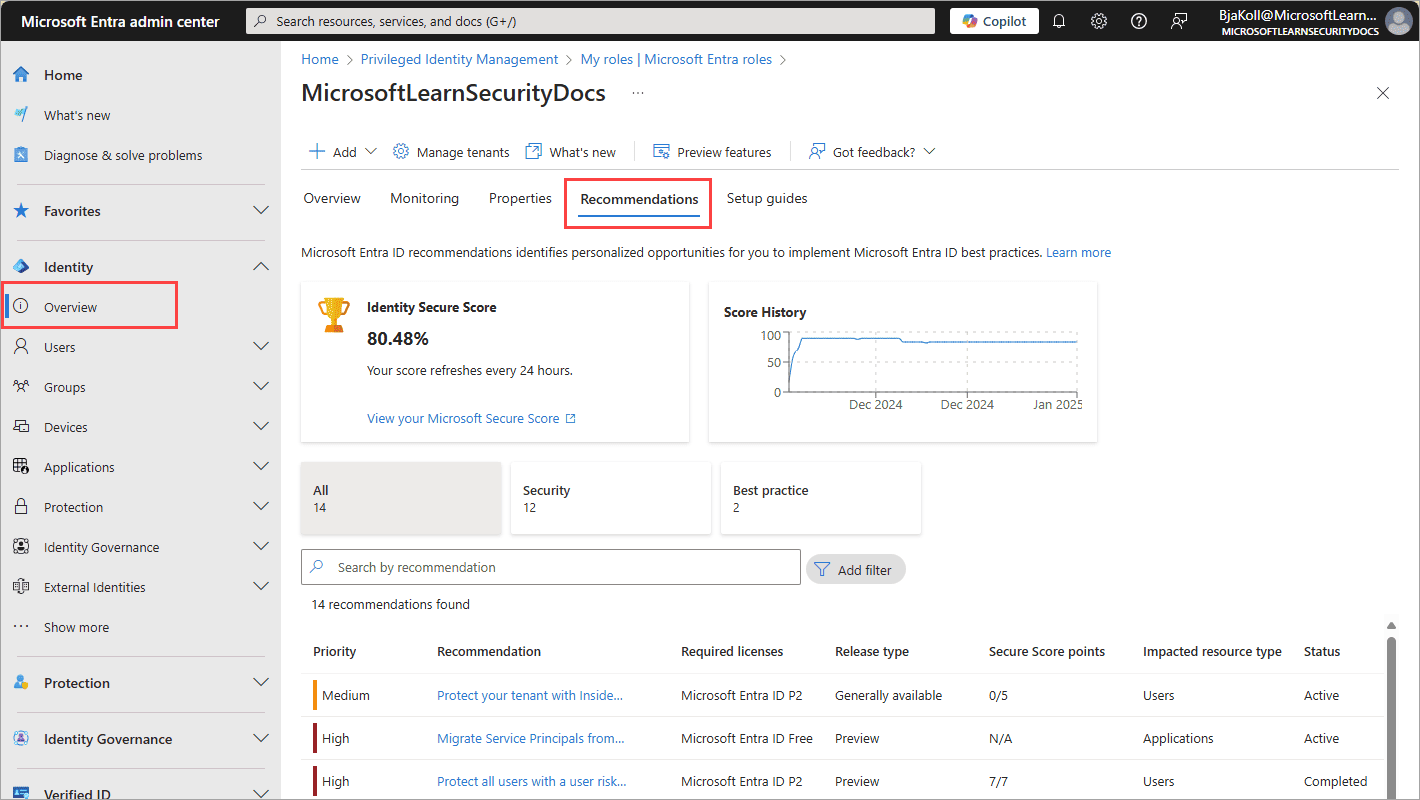
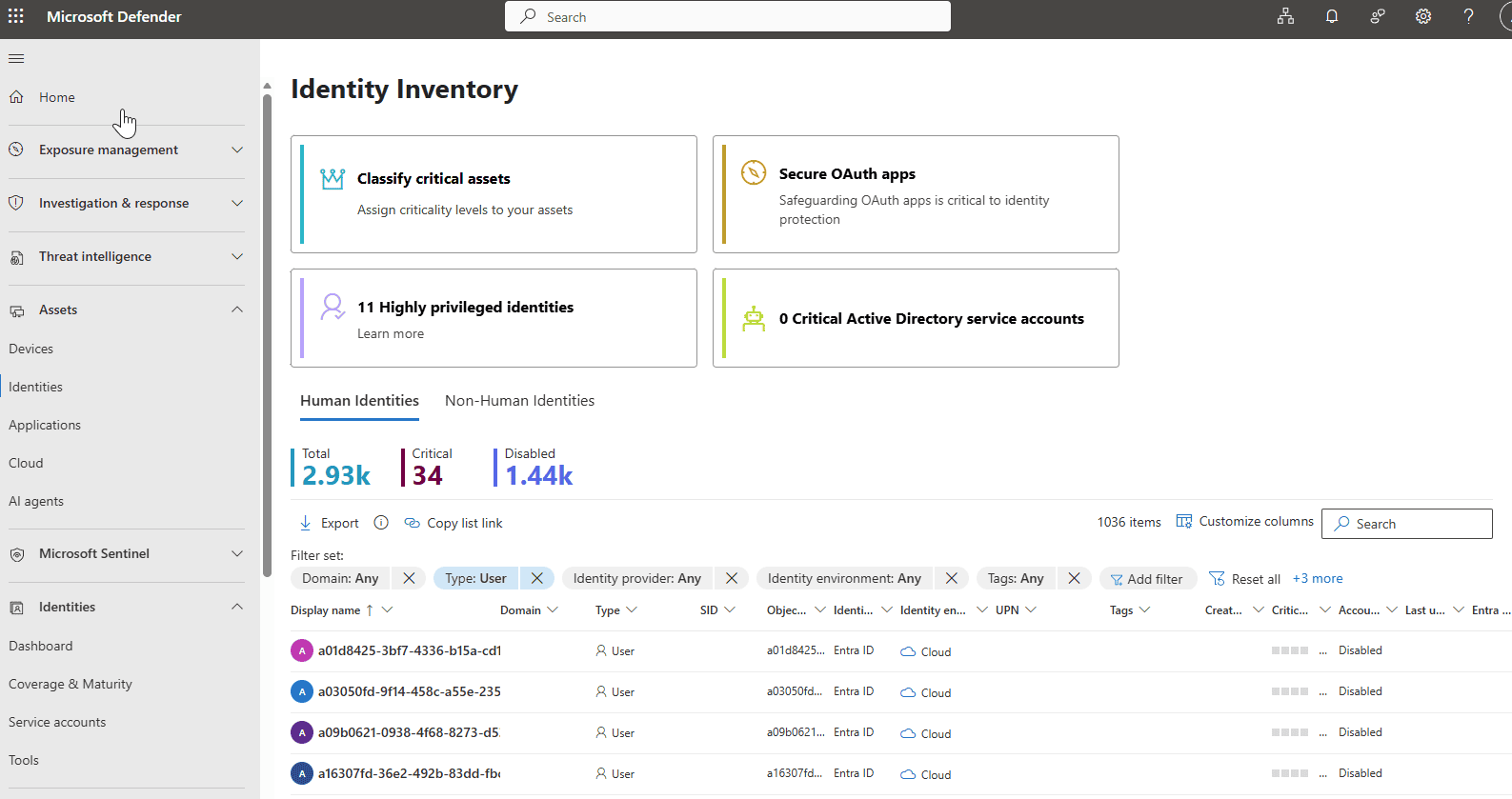
Another option is to use the unified identity inventory in Defender XDR (Defender portal > Identities) for a single-pane view across AD, Entra ID, SaaS, and third-party providers.
Check both first before reaching for scripts.
Verify inactive accounts
For checks the dashboards don’t cover, or for repeatable exports, PowerShell and Microsoft Graph fill the gap. To find stale accounts without sign-in for 90+ days, use the following script:
					powershell
# Find stale user accounts - no interactive OR non-interactive sign-in for 90+ days
$cutoff = (Get-Date).AddDays(-90)
Get-MgUser -All -Property DisplayName,UserPrincipalName,SignInActivity |
  Where-Object {
    $_.SignInActivity.LastSignInDateTime -lt $cutoff -and
    $_.SignInActivity.LastNonInteractiveSignInDateTime -lt $cutoff
  } |
  Select-Object DisplayName, UserPrincipalName,
   @{N='LastInteractive';E={$_.SignInActivity.LastSignInDateTime}},
   @{N='LastNonInteractive';E={$_.SignInActivity.LastNonInteractiveSignInDateTime}}
An account with no interactive sign-ins for 90 days may still be authenticating non-interactively via background applications or scheduled tasks. Relying solely on interactive sign-in data fails to isolate accounts that are truly inactive.
Application users
App registrations are another identity risk. Many have credentials set never to expire, or secrets that expired months ago.
					powershell
# Find app credentials that are expired OR have an excessively long lifetime (>180 days remaining)
$longLifetime = (Get-Date).AddDays(180)
Get-MgApplication -All | ForEach-Object {
    $app = $_
    $app.PasswordCredentials | Where-Object {
        $_.EndDateTime -lt (Get-Date) -or $_.EndDateTime -gt $longLifetime
    } | Select-Object @{N='AppName';E={$app.DisplayName}}, KeyId, StartDateTime, EndDateTime
}
Build an inventory baseline and validate it regularly for updates. Include workload identities (managed identities, service connections) alongside human accounts. They are easy to forget and typically the most over-privileged.
| Identity Type | Where to Find in Entra | What to Check |
|---|---|---|
| Users | Entra ID > Users > All users | Last sign-in date, assigned roles, MFA registration |
| Guest users | Entra ID > Users > Filter by “Guest” | Invitation status, last sign-in, still-needed access |
| App registrations | Entra ID > App registrations | API permissions, credential expiry, owner assignments |
| Service principals | Entra ID > Enterprise applications | Sign-in activity, assigned permissions, credential status |
| Managed identities | Entra ID > Managed identities | Role assignments, associated resources |
Native tooling shows AD and Entra ID inventory in separate locations, making it harder to maintain a unified baseline in hybrid environments. A unified hybrid management console, such as Cayosoft Administrator, consolidates AD, Entra ID, and Microsoft 365 identity management into a single view. It makes the recurring “diff against last baseline” check less manual.
Read about Microsoft 365 E7 licensing and the rise of agent identities
#2: Enforce least privilege with access reviews and PIM
At scale, permissions can quickly become redundant, overwhelming, and excessive. Someone gets temporary admin access for a migration, and it never gets revoked. A user changes roles but keeps their old permissions. After a while, half your tenants have more access than they need, and least privilege becomes hard to track.
Review permanent admin role assignments
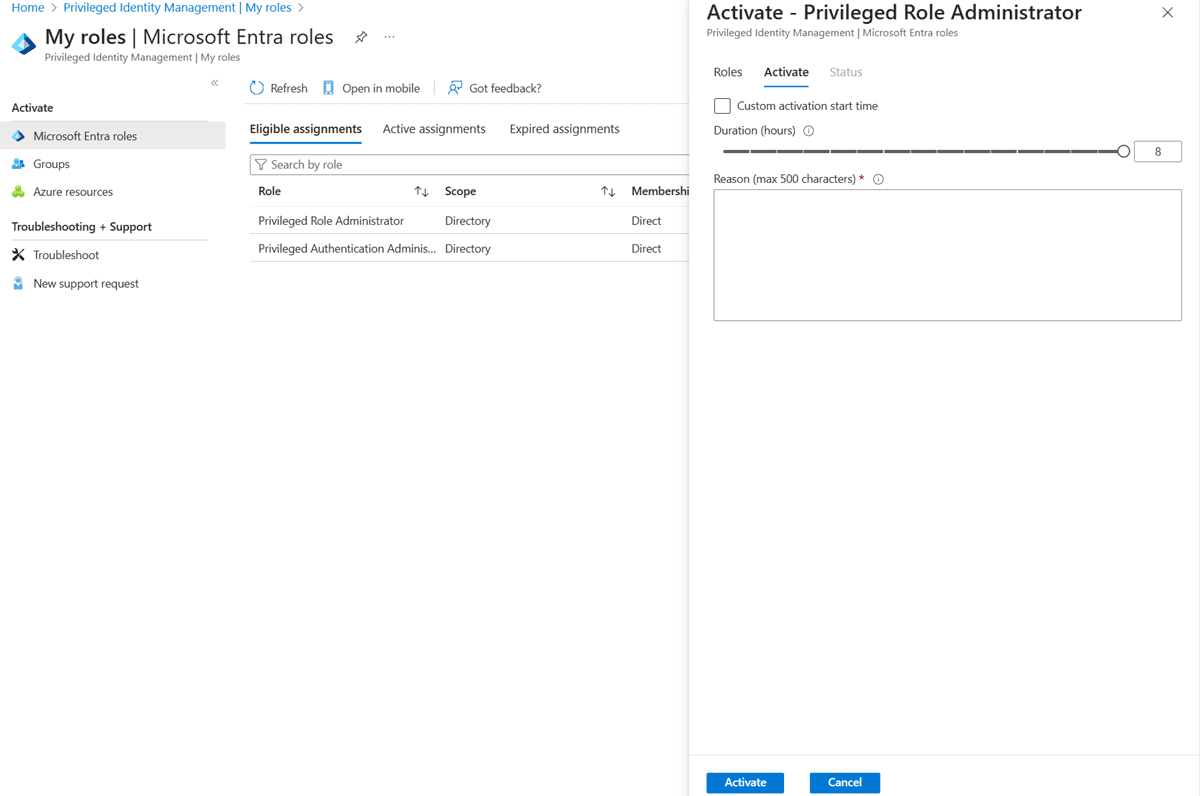
The first step is to replace permanent admin role assignments with just-in-time (JIT)- eligible roles using Privileged Identity Management (PIM). Instead of keeping users’ Global Admin or Exchange Admin privileges active at all times, let them request activation when they actually need it.
Configure activation duration (typically 1–8 hours), require MFA and a written justification, and add approval workflows for the most sensitive roles, such as Global Admin or Privileged Role Admin.
Automate access reviews
Next, set up automated access reviews in Entra ID Identity Governance (Entra ID > Identity Governance > Access reviews) as quarterly for privileged role assignments and monthly for guest users. Enable “Auto-apply results” so access gets removed automatically if a reviewer doesn’t respond in time.
You should also audit current role assignments to find permanent privileged access that shouldn’t be there.
					powershell
# Find permanent (non-PIM) privileged role assignments and resolve to display names
Get-MgRoleManagementDirectoryRoleAssignmentScheduleInstance -All |
  Where-Object { $_.AssignmentType -eq 'Assigned' } |
  ForEach-Object {
    $role = Get-MgRoleManagementDirectoryRoleDefinition -UnifiedRoleDefinitionId $_.RoleDefinitionId
    $principal = Get-MgDirectoryObject -DirectoryObjectId $_.PrincipalId
    [PSCustomObject]@{
        Principal = $principal.AdditionalProperties.displayName
        Role      = $role.DisplayName
    }
  }
Conditional Access policy exclusions often get added during troubleshooting, e.g., “Just exclude this group temporarily so we can fix the issue,” but then remain unrevoked forever. They create permanent loopholes in the organization’s security policy. The solution is to govern these exclusion groups under the same Identity Governance umbrella—mandating periodic automated access reviews for any group assigned as a policy exception.
Real-time alerts for privilege
PIM and access reviews handle the lifecycle of privileged access, but they don’t alert the security team the moment a role assignment changes outside that process. For example, someone adding a user directly to a privileged group. Tools such as Cayosoft Guardian can monitor privileged group membership in real time and alert (or automatically revert) when an assignment is made outside the approved workflow.
#3: Close MFA and authentication gaps
You probably have MFA enforced for most users. However, many organizations frequently have a handful of admin accounts only on SMS, service desk accounts still using legacy authentication that bypasses Conditional Access, or users who never completed their MFA registration.
Microsoft Secure Score and Entra Recommendations surface the main concerns here – recommendations like “Ensure all users can complete MFA”, “Require MFA for administrative roles”, and “Block legacy authentication” are standard and flagged automatically. Begin with them, then drill down manually.
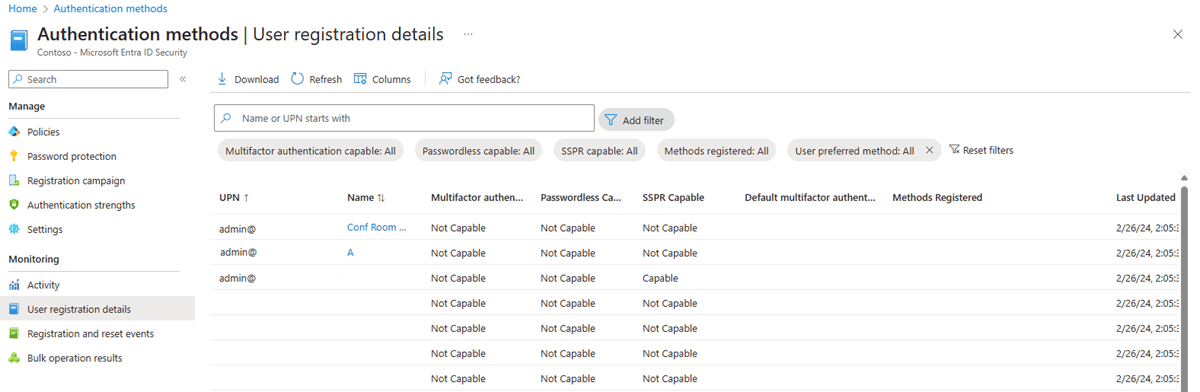
For more details on who, specifically, is a problem, check the MFA registration coverage in Entra ID > Protection > Authentication methods > User registration details. Look for users with no MFA methods registered at all, and users whose only method is vulnerable to phishing, such as SMS or phone call.
It is non-negotiable to block legacy authentication protocols such as SMTP AUTH, POP3, IMAP, and older Exchange ActiveSync clients that bypass Conditional Access entirely. Remember that current security policies do not apply to those sign-ins.
Create a Conditional Access policy that blocks these client app types: Conditions > Client apps > Exchange ActiveSync clients, Other clients → Grant > Block access.
For admin accounts, push for phishing-resistant authentication: FIDO2 security keys, Windows Hello for Business, or certificate-based authentication. This is critical because standard push notifications remain vulnerable to MFA fatigue attacks and adversary-in-the-middle (AiTM) phishing kits that can intercept session tokens, even when MFA is present.
Respond Instantly to Identity Threats

Monitor AD for unwanted changes – detect for security or critical functions

Recover global enterprise-wide Active Directory forests in minutes, not days

Use a single tool to administer and secure AD, Entra ID, and Microsoft 365
#4: Monitor identity misconfigurations and drift
Identity configurations don’t remain static. Someone adds a Conditional Access exclusion during a support ticket and forgets to remove it. A test account gets admin rights for a demo that already happened. A security default gets disabled. None of these changes seems like a big deal individually, but they add up.
Microsoft Secure Score
Use Microsoft Secure Score as an ongoing baseline for identity posture. Navigate to the Microsoft Defender portal > Exposure management > Secure Score and filter by the “Identity” category. It surfaces recommendations like:
- “Turn off per-user MFA in favor of Conditional Access”
- “Remove unused applications.”
- “Ensure all admins can complete MFA.”
Track score changes over time – a drop in score indicates drift. Entra Recommendations (Entra admin center > Overview > Recommendations) reveal a similar set of identity-focused recommendations directly in the Entra portal, so it’s worth checking both views.
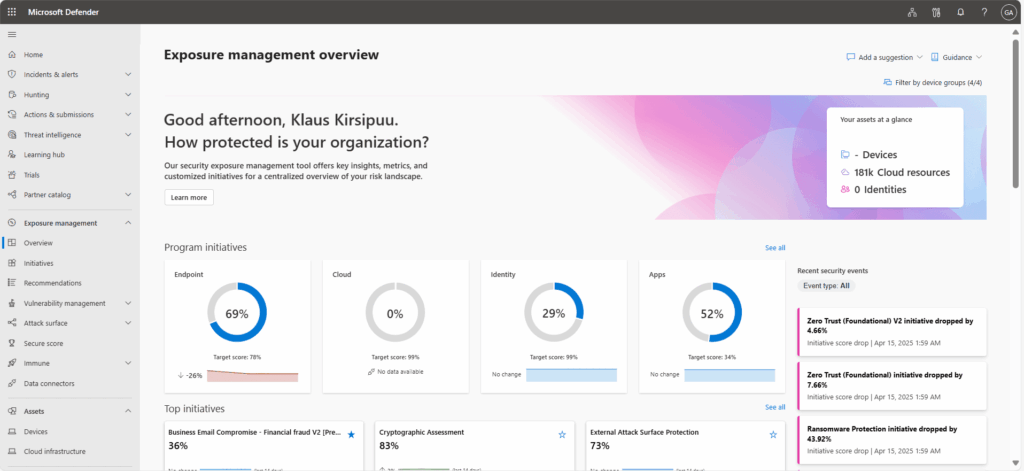
Secure Score is useful, but it’s not the only measure of identity posture. Supplement with CIS Benchmarks for Microsoft 365 for an independent, community-maintained baseline covering areas Secure Score doesn’t prioritize.
Microsoft Defender for Identity
For on-premises posture, deploy Microsoft Defender for Identity sensors on domain controllers and Entra Connect servers. They catch misconfigurations that traditional tools miss, such as:
- Insecure SID history attributes
- Accounts still using Kerberos DES encryption
- Dormant entities in sensitive groups
- Legacy NTLM usage.
Findings are grouped into categories (hybrid security, identity infrastructure, lateral movement paths, certificates) and show up directly in Secure Score.
Entra audit log
Set up change auditing for critical identity configurations such as when someone modifies a Conditional Access policy, changes a privileged role assignment, or updates authentication method policies. These can be queried through the Entra audit log.
					powershell
# Review recent Conditional Access policy changes
Get-MgAuditLogDirectoryAudit `
  -Filter "activityDisplayName eq 'Update conditional access policy'" -Top 20 |
  Select-Object ActivityDateTime, InitiatedBy, TargetResources
Non-native tooling
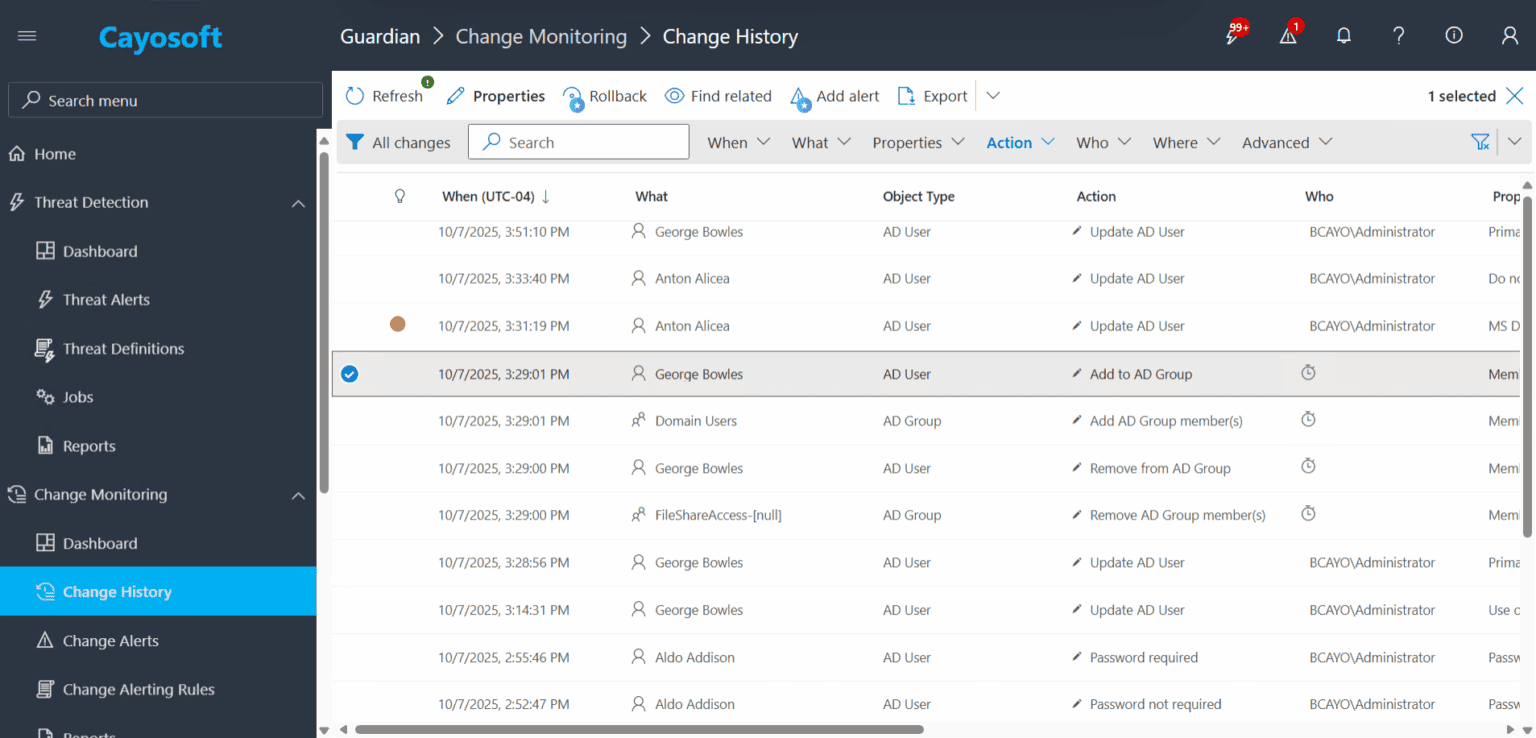
Native Microsoft tooling provides a point-in-time view of identity configuration but offers limited visibility into how that configuration changed over time, such as who modified a Conditional Access policy, the previous value, and whether the change was authorized.
Third-party tools like Cayosoft Guardian fill this gap with continuous change auditing and the ability to roll back unwanted modifications to AD and Entra ID. For environments where configuration drift is a recurring problem, having a defined before-and-after history (and a one-click revert) shortens the time between an incorrect change and its remediation.
#5: Lock down non-human identities
Service principals, app registrations, and managed identities are usually the most over-privileged and least monitored identities in an enterprise tenancy, as they lack MFA, have credentials that rarely expire, and have no access reviews. If compromised, they present a quiet, persistent path into your environment that doesn’t trigger the same alerts as a compromised user account.
Microsoft Entra Recommendations covers some common concerns – “Remove unused applications”, “Rotate application secrets”, and related checks are flagged automatically. Microsoft Entra Workload ID Premium adds posture findings and risk signals specific to service principals, and the Defender XDR unified inventory includes non-human identities alongside users. Check those first before running custom queries.
Use the following script for a deeper look at what permissions your app registrations actually have, especially app-only (Application type) permissions that operate without a signed-in user.
					powershell
# Find app registrations with high-privilege app-only permissions
Get-MgApplication -All -Property DisplayName,RequiredResourceAccess |
  Select-Object DisplayName, @{N='Permissions';E={
    $_.RequiredResourceAccess.ResourceAccess |
      Where-Object { $_.Type -eq 'Role' }
  }}
Review and remove overly broad permissions like:
- Mail.ReadWrite
- Directory.ReadWrite.All
- RoleManagement.ReadWrite.Directory.
They may show up more frequently than expected, usually because the app was configured with “grant everything” during development and not scoped down for production.
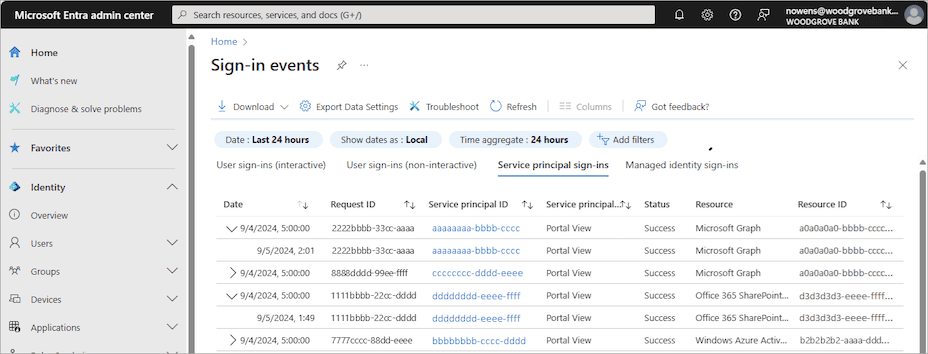
Monitor service principal sign-in activity separately from user sign-ins. These are in a different tab in the Entra portal: Entra ID > Monitoring > Sign-in logs > Service principal sign-ins.
Credential hygiene matters just as much as permissions. Set a maximum expiry on all client secrets; six months is a reasonable ceiling. Where possible, migrate from client secrets to certificates or managed identities. For CI/CD pipelines, use workload identity federation to eliminate the need to store secrets entirely. The pipeline authenticates through a trust relationship rather than a shared secret.
Watch our recorded & upcoming educational webinars about identity protection
#6: Connect identity security posture data to threat detection
Posture management and threat detection usually live in separate workflows. Teams fix misconfigurations in one place and investigate alerts in another, without connecting the two. The misconfiguration that Secure Score flagged last week is often the same thing that an attacker exploits the following week.
Connect Defender for Identity with Microsoft Defender XDR to link posture gaps with active attack paths. Posture assessments, surface risks, and Defender for Identity alerts appear in the same view when those risks are actually exploited. Instead of sorting through a generic list of hundreds of open security recommendations, you can immediately triage your workload by fixing the specific misconfigurations that are currently acting as open doorways for active incidents.
To build a complete timeline of these identity exploits across your enterprise, you must also stream your authentication and governance data into a central engine. Route Entra ID logs directly to Microsoft Sentinel (or your chosen SIEM) to ensure comprehensive visibility.
Navigate to Entra ID > Monitoring > Diagnostic settings > Add diagnostic setting and pick the log categories:
- AuditLogs
- SignInLogs
- NonInteractiveUserSignInLogs
- ServicePrincipalSignInLogs
- ManagedIdentitySignInLogs
- RiskyUsers.
Send them to a Log Analytics workspace connected to Sentinel.
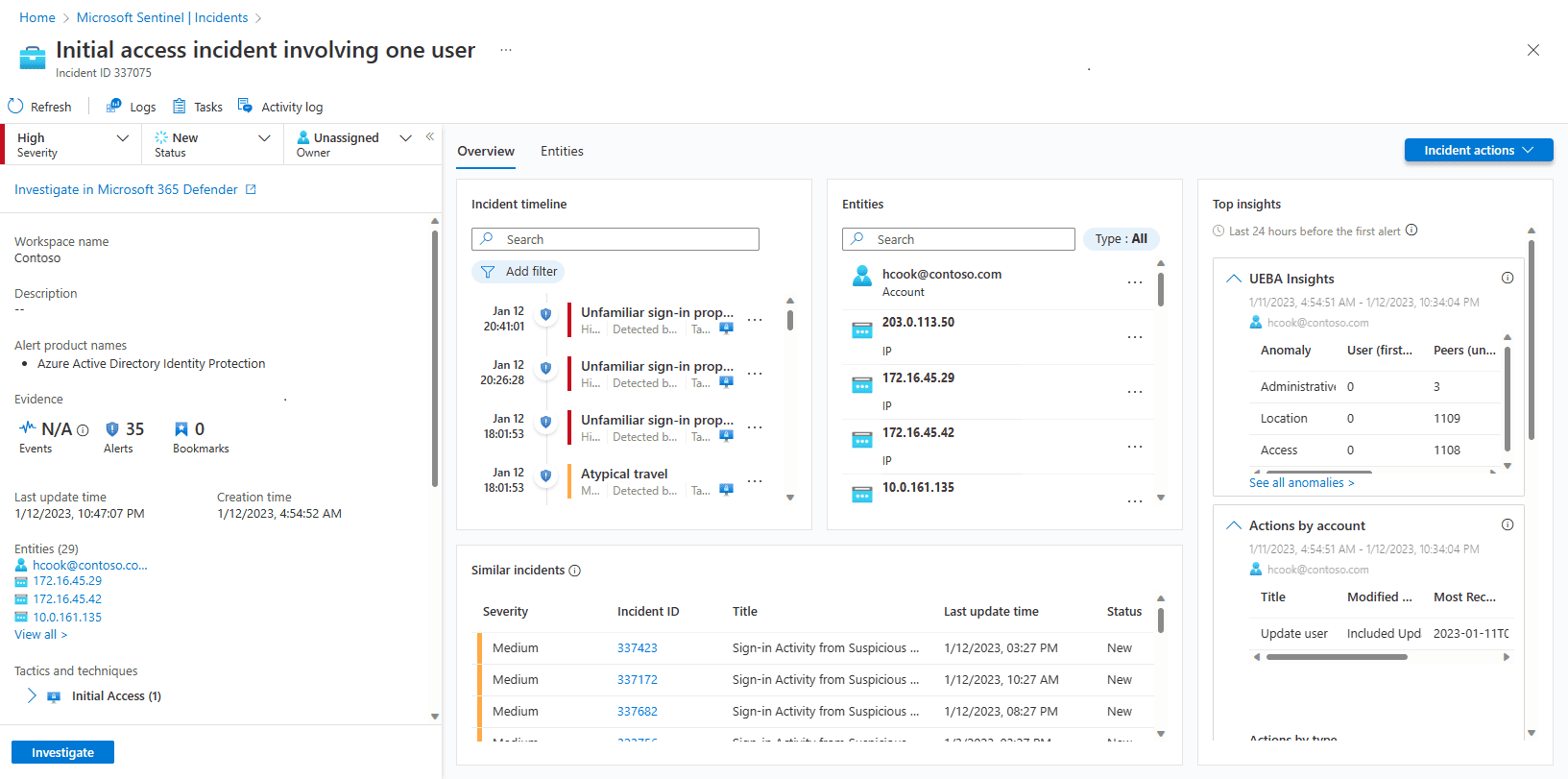
It is not necessary to build every detection from scratch. When installing the Microsoft Entra ID solution from the Sentinel Content Hub, predefined analytics rule templates and workbooks tuned for identity security are already present. Rules like “Privileged Role Assigned Outside PIM” map directly to the posture gaps covered earlier in this article.
Start from these templates, enable the ones relevant to your environment, and then extend them with posture data as context. For example, flag sign-ins from accounts that Secure Score already identified as “not registered for MFA”. That way, posture work feeds into what the SOC is watching for, without reinventing the wheel.
Prioritize fixes by actual exposure, not score alone. An account with unconstrained delegation that appears in Defender XDR’s attack path analysis matters more than a low-scoring recommendation that no attacker will realistically exploit.
| Platform | Admin Features | Single Console for Hybrid (On-prem AD, Entra ID, M365, Teams) |
Change Monitoring/Auditing | User Governance (Roles Rules, Automation) |
Forest Recovery in Minutes |
| Microsoft AD Native Tools | ✓ | ||||
| Microsoft AD + Cayosoft | ✓ | ✓ | ✓ | ✓ | ✓ |
Conclusion
Identity loopholes such as stale accounts, excessive privileges, MFA gaps, drifting configurations, and unmonitored workload identities accumulate silently. Identity security posture management isn’t a product to buy or a project to finish. It’s a combination of processes and maturity that regularly checks whether an organization’s identity setup remains secure.
When starting from scratch, begin with inventory. Check Entra Recommendations and Defender XDR first to see what’s already flagged, then run the PowerShell queries from this article for anything more specific.
Pick the two or three biggest issues that need fixing, then set up Secure Score tracking and a recurring access review cadence. Layer on authentication hardening, workload identity hygiene, and threat detection integration over the following weeks. None of this is particularly complex on its own; however, consistency is critical.
Cayosoft provides immediate visibility into all vulnerabilities across hybrid Active Directory and Entra ID environments. It automates the cleanup of workloads and the removal of excessive privileges, ensuring identity configurations remain permanently secure.
Request your personalized Cayosoft demo today to observe how it works.
Stop AD Threats As They Happen
Cayosoft Protector provides continuous monitoring and real-time alerts across your entire Microsoft Identity stack
Like This Article?
Subscribe to our LinkedIn Newsletter to receive more educational content