



Home » How to Build a Resilient Plan Using Disaster Recovery Best Practices » How to Use Disaster Recovery Solutions to Protect Microsoft Identity Environments
How to Use Disaster Recovery Solutions to Protect Microsoft Identity Environments
Learn how disaster recovery solutions protect Active Directory and Entra ID from identity-threatening incidents.
Explore the chapters:
Next Chapter >
Stop AD Threats As They Happen
Cayosoft Protector provides continuous monitoring and real-time alerts across your entire Microsoft Identity stack
Like This Article?
Subscribe to our LinkedIn Newsletter to receive more educational content
Identity solutions are the most critical security layer in modern security. Whether organizations depend on on-premises Active Directory Domain Service (AD DS), cloud-native Entra ID, or a hybrid model, identity solutions remain a primary target during a disaster.
While Entra ID requires a shared responsibility model, AD DS requires end-to-end, total management by the organization. In a hybrid environment (e.g., AD DS synchronized with Entra ID using Microsoft Entra Connect), the issue is even more complex. A failure in identity replication represents not just a technical glitch but a total lockout from critical systems.
Disaster recovery (DR) for identity is a distinct discipline from general infrastructure DR. Unlike a workload that can be restored from a snapshot, identity systems carry stateful relationships—such as group memberships, trust relationships, schema extensions, and conditional access policies—that must be recovered consistently and in the right order. Object deletions, domain controller corruption, misconfigurations, and forest-wide ransomware events each require different recovery approaches, with different recovery time objectives (RTOs), recovery point objectives (RPOs), and mean time to recovery (MTTR) implications.
In this article, we highlight the risks associated with managing identity solutions and discuss how you can leverage DR solutions in various environments, including Active Directory and Entra ID, to mitigate these risks and ensure business continuity.
Summary of key disaster recovery solutions for Microsoft identity environments
DR solution | Environment | Best practice |
AD recycle bin restore | On premises | Recover soft-deleted objects, including user and usergroup, from the recycle bin in Active Directory. |
System state backup in AD DS | On premises | Recover a single failed or corrupted domain controller through non-authoritative restore, using replication from healthy DCs to bring it current. |
Active Directory forest recovery | On premises | Rebuild the forest from trusted backups after a forest-wide compromise such as ransomware. |
Soft delete in Entra ID | Cloud | Restore Entra ID objects (applications, users, Microsoft365 groups, Conditional Access policies, etc.) within the 30-day soft-delete window. |
Microsoft Entra Backup and Recovery | Cloud | Recover critical directory objects from accidental changes or security compromise to a known good state. |
Hard delete in Entra ID | Cloud | Reconstruct objects that were never soft-deleted or that exceeded the 30-day window, using exported known-good-state documentation and audit log evidence. |
Manage, Monitor & Recover AD, Entra ID, Microsoft 365

Unified Console
Use a single tool to administer and secure AD, Entra ID, and M365

Track Threats
Monitor AD for unwanted changes – detect for security or critical functions

Instant Recovery
Recover global enterprise-wide Active Directory forests in minutes, not days
Critical threats to the identity security plane
Studies have shown that identity is the new security perimeter, which is precisely why it is the target that attackers go after first and the surface where operational mistakes do the most damage. The threats fall into two broad categories, and DR planning has to address both.
Operational error
Data loss, object deletion, and misconfiguration are common operational disasters in managing Identity solutions. An administrator can delete objects (e.g., users, groups, application objects, and administrative units) in response to a ticket or when performing a routine automated maintenance task.
In hybrid environments, the risk surface is larger because changes propagate. An object that is deleted on premises or that moves out of an OU included in Entra Connect’s sync scope will be deleted in Entra ID on the next sync cycle. Recovery has to account for both sides of the connection, not just the side where the deletion was first noticed.
Cyber attacks
Identity infrastructure is a high-value target because compromising it gives an attacker access to everything that depends on it. Ransomware operators specifically target domain controllers because installing payloads there propagates across the environment automatically and because encrypting AD halts the business immediately.
The harder problem is that identity-specific attack techniques—such as credential theft, Kerberos ticket forgery (golden and silver tickets), and DCSync abuse—allow an attacker to operate inside identity infrastructure with legitimate-looking credentials for weeks or months before triggering a visible incident. By the time an outage occurs, recent backups may already contain the attacker’s persistence mechanisms. For this specific reason, modern recovery emphasizes the concept of “last known trusted backup.” If you treat disaster recovery for identity as a standalone discipline, you risk restoring an environment that is already compromised. True recovery requires pairing those backups with integrity monitoring and detection to ensure that the identity layer is actually secure.
Manage, Monitor & Recover AD, Entra ID, M365, Teams
| Platform | Admin Features | Single Console for Hybrid (On-prem AD, Entra ID, M365, Teams) | Change Monitoring & Auditing | User Governance (Roles, Rules, Automation) | Forest Recovery in Minutes |
| Microsoft AD Native Tools | ✓ | ||||
| Microsoft AD + Cayosoft | ✓ | ✓ | ✓ | ✓ | ✓ |
Watch our recorded & upcoming educational webinars about identity protection
Key disaster recovery solutions for identity in different environments
Recovery approaches differ by environment. On-premises AD relies on the AD recycle bin, authoritative restore, and forest recovery (as a last resort). Entra ID offers a 30-day soft-delete window for users, groups, applications, and service principals, while most directory configuration is hard-deleted immediately and recoverable only through reconstruction from customer-maintained exports. Hybrid environments inherit both models and must coordinate the order of operations to prevent a cloud-side restore from being undone on the next sync.
The sections that follow address each environment in turn.
Enabling the recycle bin in Active Directory (AD)
The AD recycle bin is the first recovery mechanism to reach for when an object is deleted by mistake in AD DS. When it is enabled, deleted objects are preserved in a recoverable state with all their attributes intact, including link-valued attributes such as group memberships and manager relationships. Restoring an object from the recycle bin returns it to its previous state in a single operation with no need for authoritative restore from backup and no need to manually reconstruct group memberships.
Note that the recycle bin doesn’t protect in the following situations:
- Group Policy Objects cannot be retrieved because GPOs consist of containers in AD and their files are stored in the SYSVOL share. The recycle bin will only have the containers and not the files, which isn’t enough to restore GPOs.
- System volume (SYSVOL) data, including scripts and templates, cannot be recovered when deleted.
Prerequisites for enabling the recycle bin in AD
The recycle bin can only be enabled when the following checklist items are in place:
- The functional level of the forest and the domain for Windows Server needs to be a minimum of Windows Server 2008 R2.
- The administrator must have membership rights in the Domain Admins group for the domain in which the recycle bin will be enabled.
- One of the remote server administrator tools (RSAT), such as Active Directory Administrative Centre (ADAC) or the Active Directory module for Windows PowerShell, must be installed.
Steps for enabling the recycle bin in AD
1. Sign in to a computer with Active Directory installed.
2. From the Server Manager Console Tools menu, open the Active Directory Administrative Centre (ADAC).
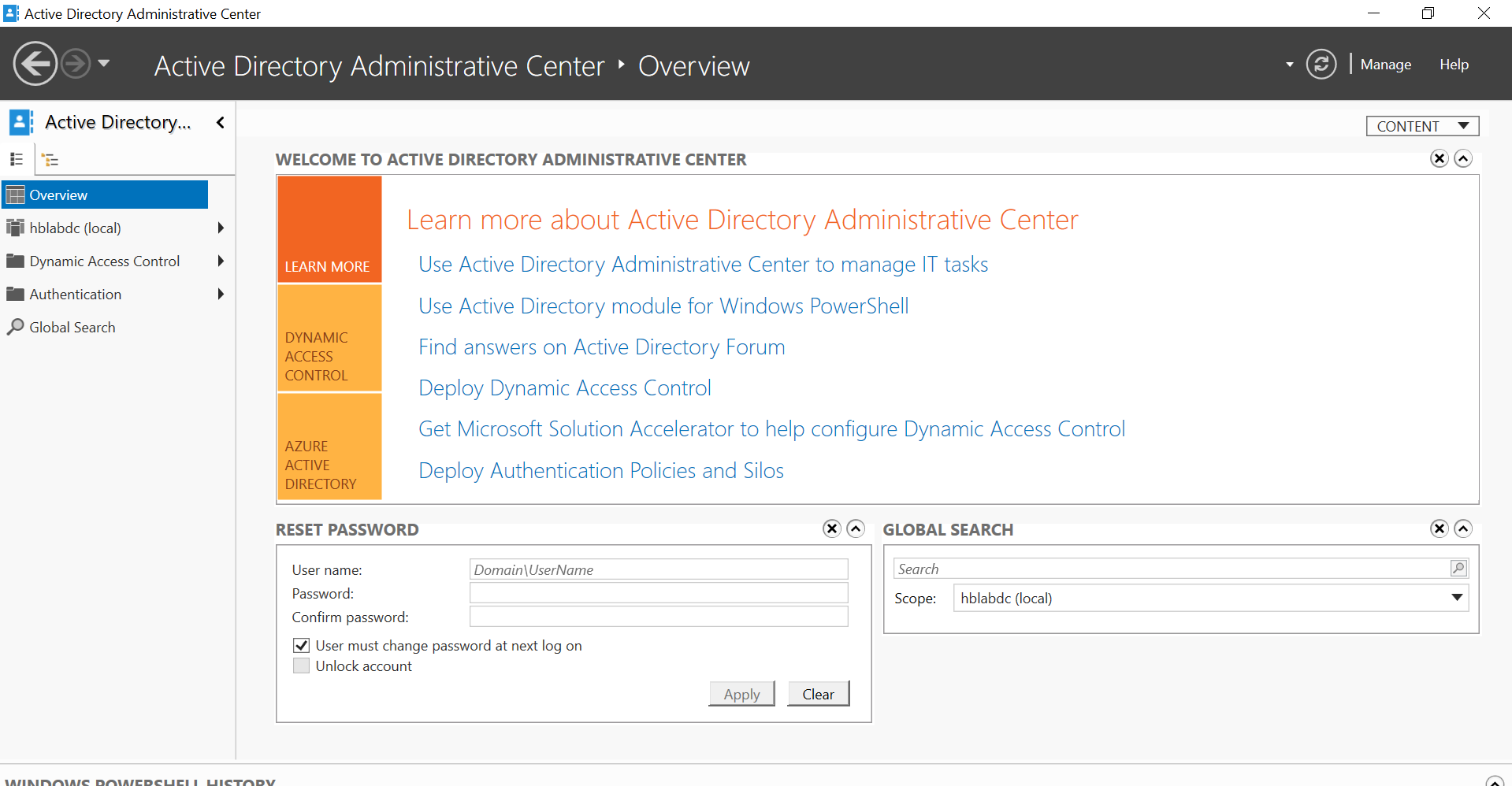
3. Select the right domain by clicking on Manage, then select Add Navigation Nodes, select the domain, and close the dialog box.
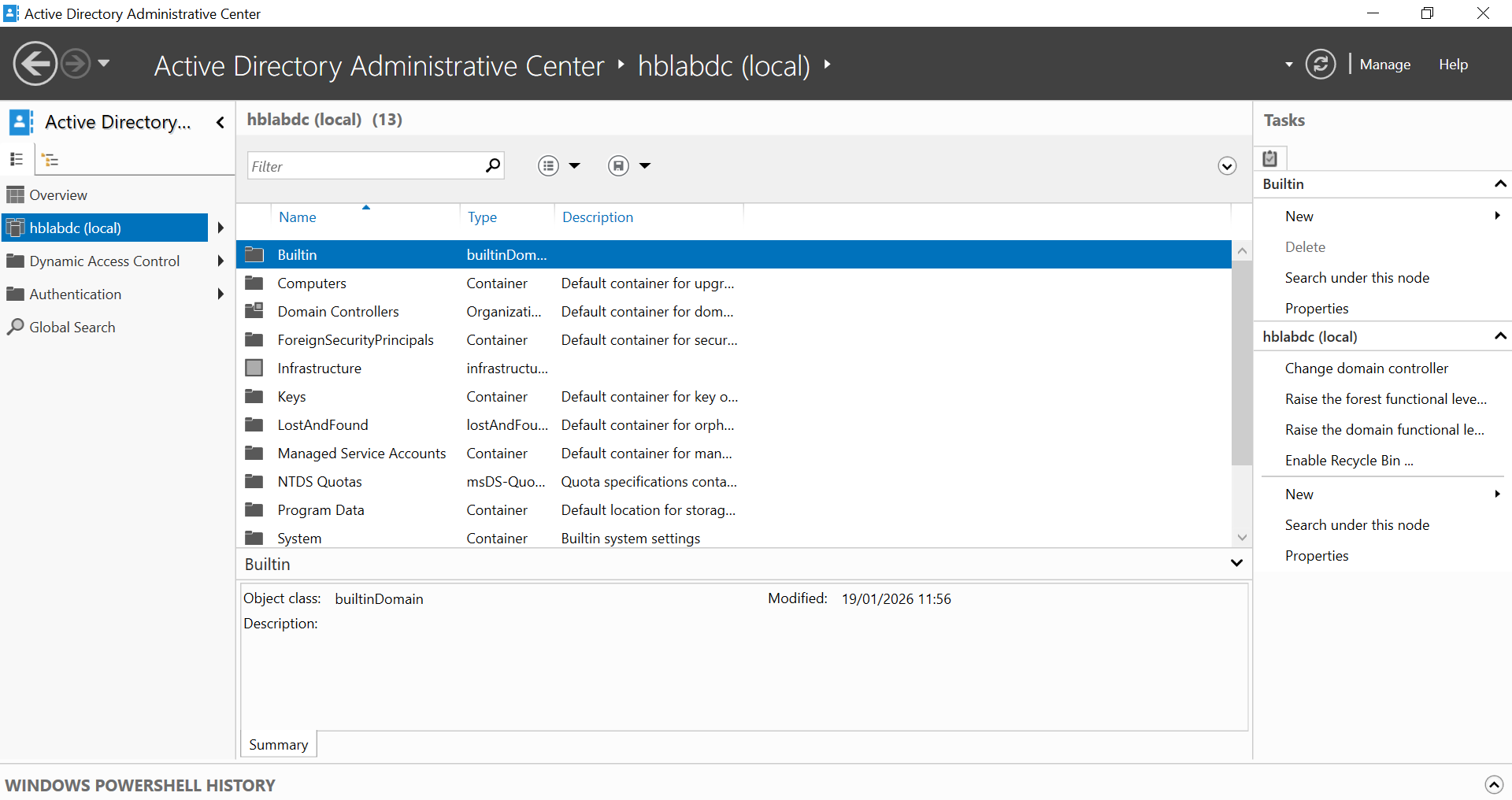
4. To enable the recycle bin, click on the Task pane, then select Enable Recycle Bin and click OK when the warning message appears. It is important to note that once you click OK, the recycle bin cannot be disabled.
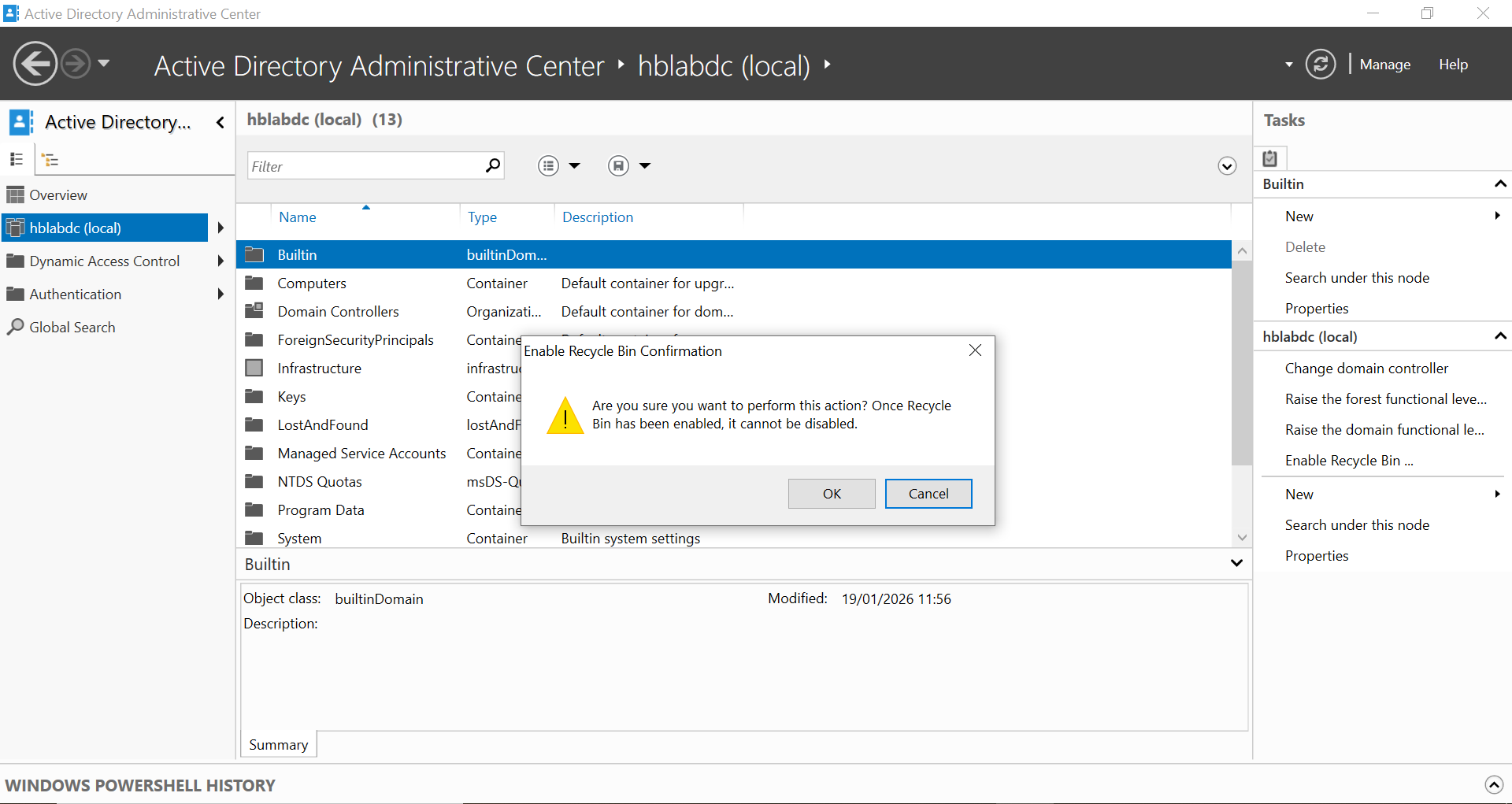
5. Click OK to refresh the ADAC, then click the refresh icon.
Useful as it is, the recycle bin only addresses part of the broader recovery strategy. It won’t restore GPOs or SYSVOL contents, it only protects against soft deletion within the tombstone lifetime (typically 180 days), and it offers no recourse for attribute-level changes or group membership tampering. Notably, those kinds of modifications don’t involve deletion at all, but they can be just as damaging.
Organizations dealing with such scenarios typically layer additional tooling on top of the recycle bin. That might mean regular system state backups, adoption of third-party platforms like Cayosoft Guardian that capture attribute-level history and full GPO state, or a combination of both. The right mix depends on the recovery objectives your organization has set, which is why most identity DR plans don’t stop at enabling the recycle bin immediately. They treat it as the foundation for the heavier recovery mechanisms covered in the following sections.
System state backup in Active Directory (AD)
The backbone of a domain controller is essential system data, including the AD database, SYSVOL folder, registry, boot files, and COM+ database. As such, regular backups of this data are paramount to the restoration of a DC. When a DC fails, it can be restored to a functional state using a system state backup and to a healthy forest where other DCs are trusted and uncompromised. This type of restoration is called an unauthoritative restore. The DC will have data from its last backup before the failure and will update itself from other healthy redundant DCs in the forest.
Prerequisites for performing system state backup using the command line
System state backup can be performed when the following checklist is in place:
- The administrator must have elevated permissions.
- A backup destination (local drive or a remote network shared folder) with substantial storage space must be available.
- The domain controller (DC) must have the Windows Server backup feature installed.
Performing system state backup using the command line
- Open the command prompt as an administrator.
- Provide an elevated credential if prompted.
- Write the following command to start the backup:
Wbadmin start systemstatebackup -backuptarget: <targetDrive>:
The <targetDrive> field should be replaced with the letter the backup disk is using (usually F: or E: for a local drive) or the directory for a remote network shared folder. Please note that the target must be NTFS-formatted and not the system drive.
Active Directory forest domain recovery
Forest recovery is the procedure for rebuilding an entire AD forest from backup when no individual domain controller can be trusted as a source of truth. It is the recovery option of last resort, applied when the alternatives (the recycle bin, non-authoritative restore, and authoritative restore) are all insufficient because the corruption or compromise is forest-wide.
Standard restore procedures assume that there is at least one healthy authority to replicate from or reconcile against. Forest recovery assumes the opposite: Every live DC is suspect, and the only trustworthy state of the forest is whatever exists on offline backup media. The procedure restores a single DC per domain from backup, in isolation from the rest of the environment, and rebuilds the forest outward from those recovered DCs. All other DCs are wiped and re-promoted; their existing AD databases are not used.
Prerequisites for performing forest domain recovery
You will need the following:
- Familiarity with relevant Active Directory concepts, including forest-wide operation master roles (schema and domain naming master) and domain-wide operation master roles (relative ID master, infrastructure master, and primary domain controller emulator master)
- A well-documented, vetted procedure for a recovery plan, detailing recoveries for AD DS domain/forest, SYSVOL, and object/subtree
- Efficient, full server backup and restore drills of AD DS and SYSVOL; it is important to note that writable DCs are backed up for forest recovery
High-level steps for recovering the forest domain
- Identify the root cause and mitigations by collaborating with experts such as Microsoft support and business stakeholders.
- Prepare for recovery by completing preliminary steps, including identifying the last backups before the incident, and determining which of the DCs to restore in each domain in a forest.
- Recover one DC in isolation as the initial recovery step, then perform DC cleaning and reconnection to the appropriate domain.
- Recover the remaining DCs in each domain, which will ensure that the forest returns to its full state before the incident.
- Once forest functionality is restored, name resolution should be configured as needed.
As stated above, there are reasons why forest recovery sits at the far end of the DR strategy. The native procedure is manual, sequential, and unforgiving of mistakes, with most organizations measuring full recovery in days rather than hours once DC cleanup, metadata removal, SYSVOL rebuilds, and post-recovery validation are accounted for. Even a successful recovery rolls the environment back to the last trusted backup, which means any objects added, attribute changes, or schema updates made after that point are lost and have to be recreated manually. During an active ransomware event, the combination of timeline and data loss is often what separates a contained incident from a prolonged business outage, which is why forest recovery planning tends to get disproportionate attention in mature DR programs.
Some organizations address the problem by maintaining detailed runbooks and rehearsing the procedure annually, and tightening backup cadence to shrink the data loss window. Other options are to utilize purpose-built automated platforms, such as Cayosoft Guardian Instant Forest Recovery, which orchestrates the multi-step procedure against pre-validated clean recovery points and compresses the work into a much shorter window.
Recovering from a soft delete in Entra ID
Entra ID is a cloud-native identity solution, and like other cloud-native solutions, its protection and recovery are a shared responsibility between the cloud provider (Microsoft) and the customer.
The shared responsibility is classified into two distinct processes: preparation and actual recovery. The provider ensures that all necessary infrastructure and functionality required to achieve any of the processes are available, and the customer is responsible for orchestrating these processes.
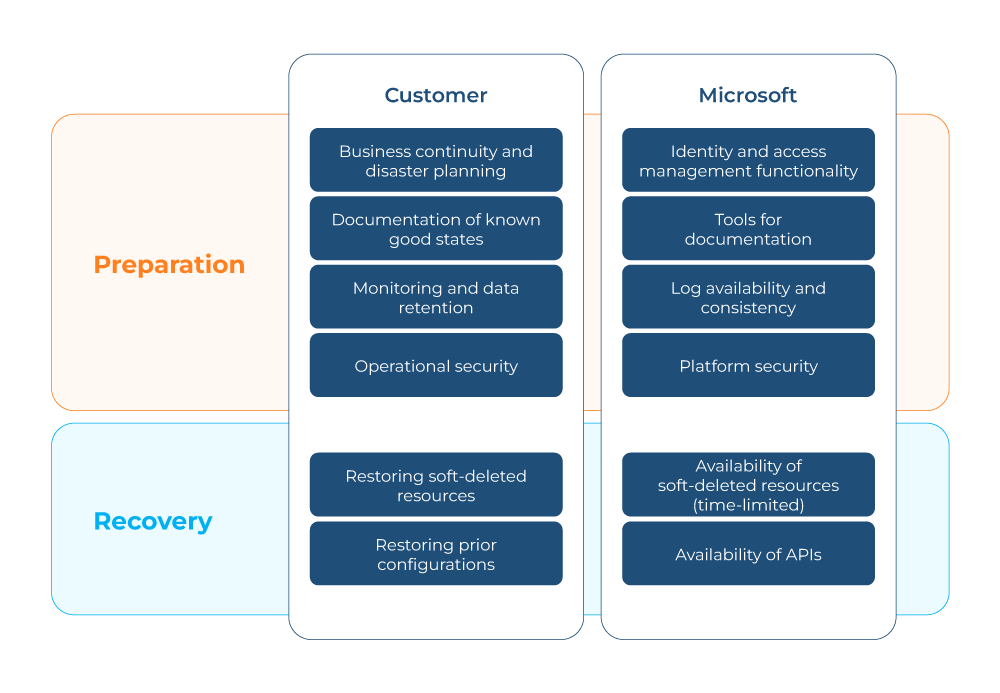
By default, Microsoft Entra ID protects objects of different types that are deleted for 30 days and categorizes them as soft deleted. Soft delete is the Entra ID recovery mechanism for accidental deletion of supported object types. When a soft-deletable object is deleted, it is moved to a deleted-items state where it remains for 30 days before being permanently removed. Within that window, the object can be restored to its previous state with its identifier and most attributes intact.
However, not all objects can be categorized this way, which means that some objects can be hard deleted when they aren’t among the soft delete object types. Additionally, soft-deleted objects become permanently deleted if not reinstated within the 30-day window.
Not all Entra ID object types support soft delete, and the distinction is the most common source of recovery surprises. The following table summarizes the boundary.
Object type | Soft-deleted? | Recovery window |
Users (including external users) | Yes | 30 days |
Microsoft 365 Groups | Yes | 30 days |
Applications | Yes | 30 days |
Service principals | Yes | 30 days |
Security groups | Yes | 30 days |
Distribution groups (cloud-only) | No | None; hard-deleted immediately |
Administrative unit | Yes | 30 days |
Conditional Access Policies | Yes | 30 days |
Named locations | Yes | 30 days |
Directory roles and role assignments | No | None; hard-deleted immediately |
If an object type does not support a soft-delete recovery path, you must use the reconstruction approach covered in the next section. Because of this limitation, exporting the configuration of these objects in advance is always a prerequisite.
Steps in restoring a soft-deleted user in Entra ID
- Log into the Entra ID Admin center with an admin credential.
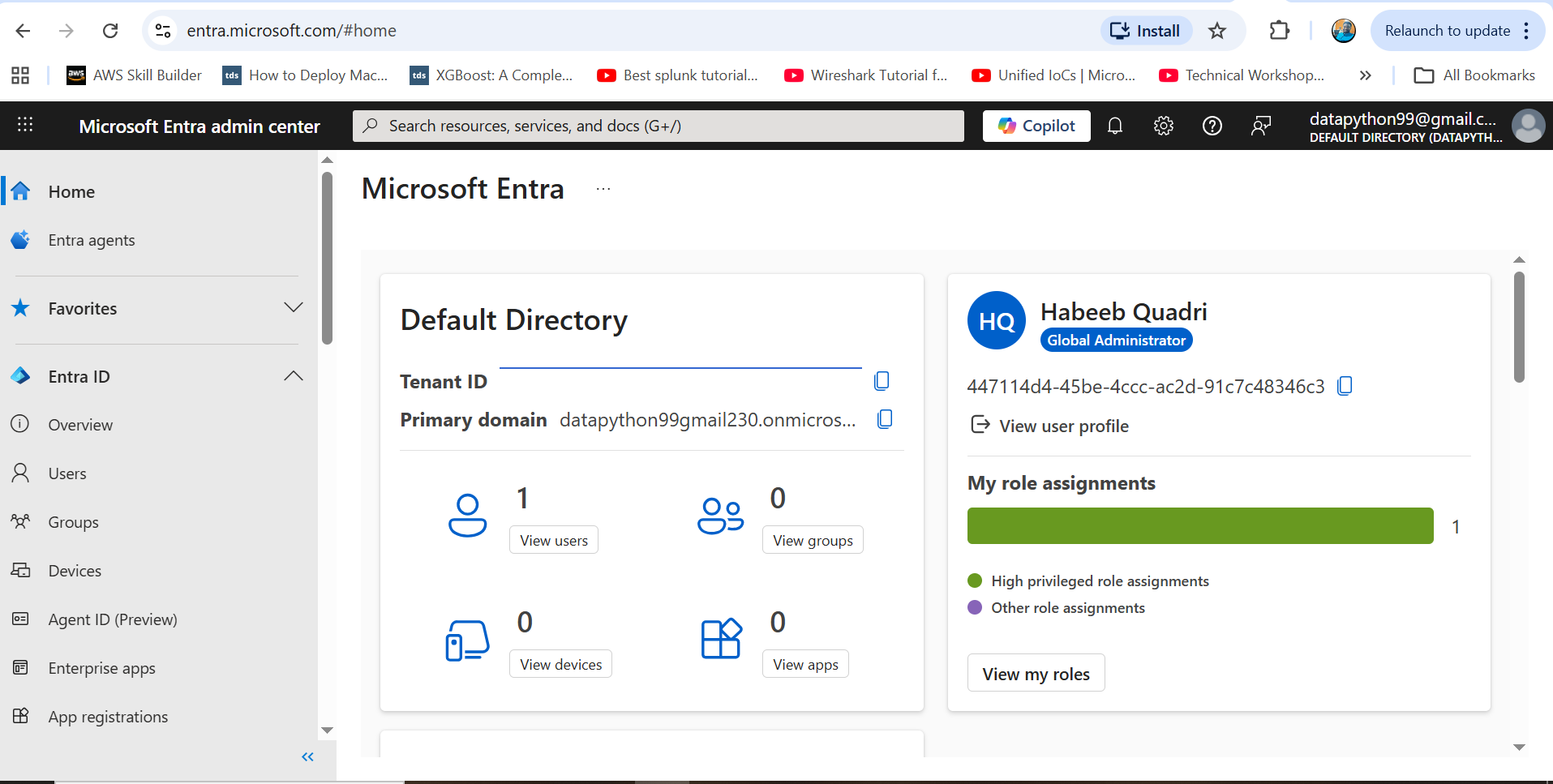
2. Click on Users in the left pane of the screen to expand it.
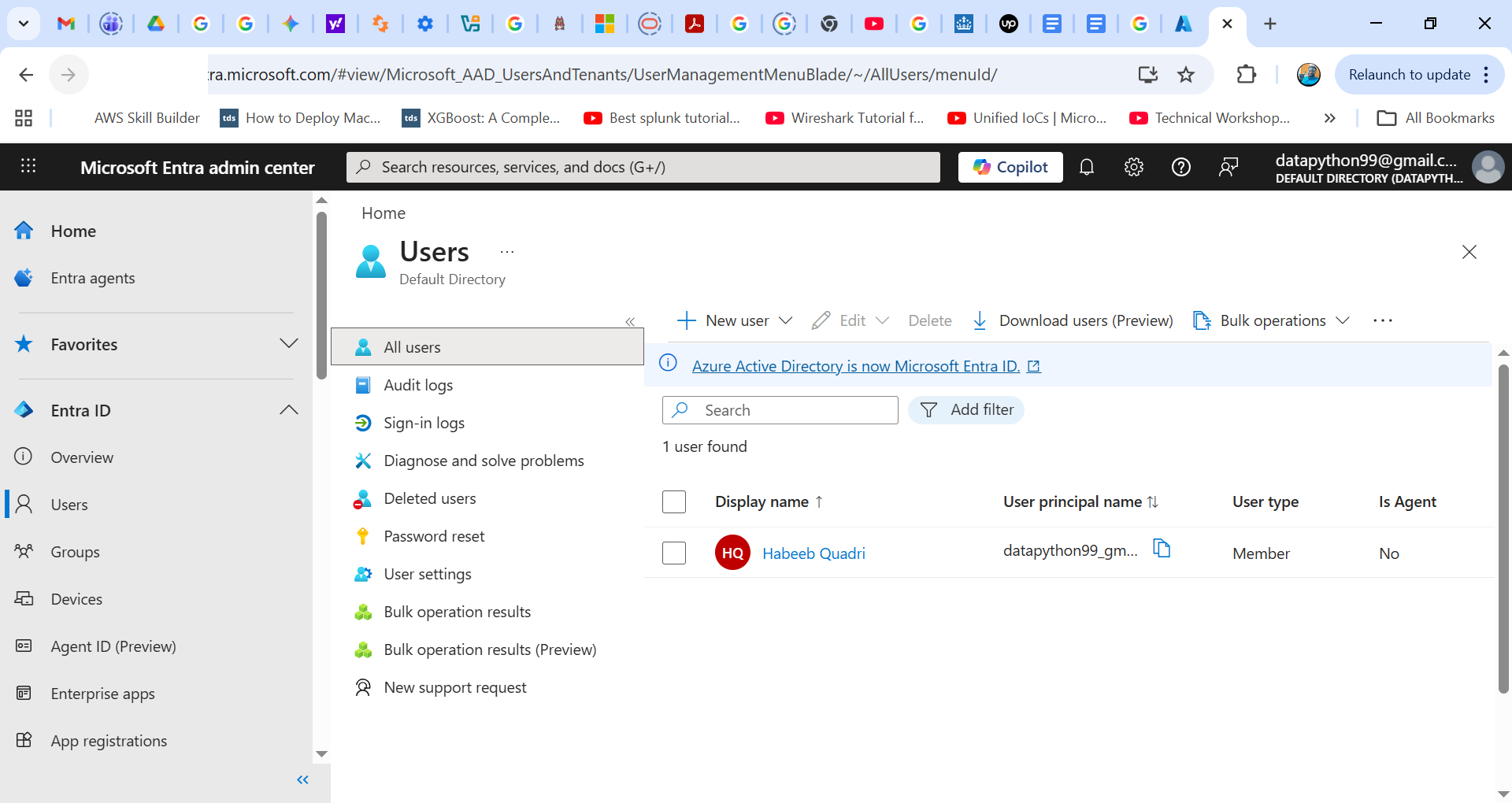
3. Click on Deleted Users to view the users that have been deleted. A user can be reinstated if the permanent deletion date has not yet elapsed.
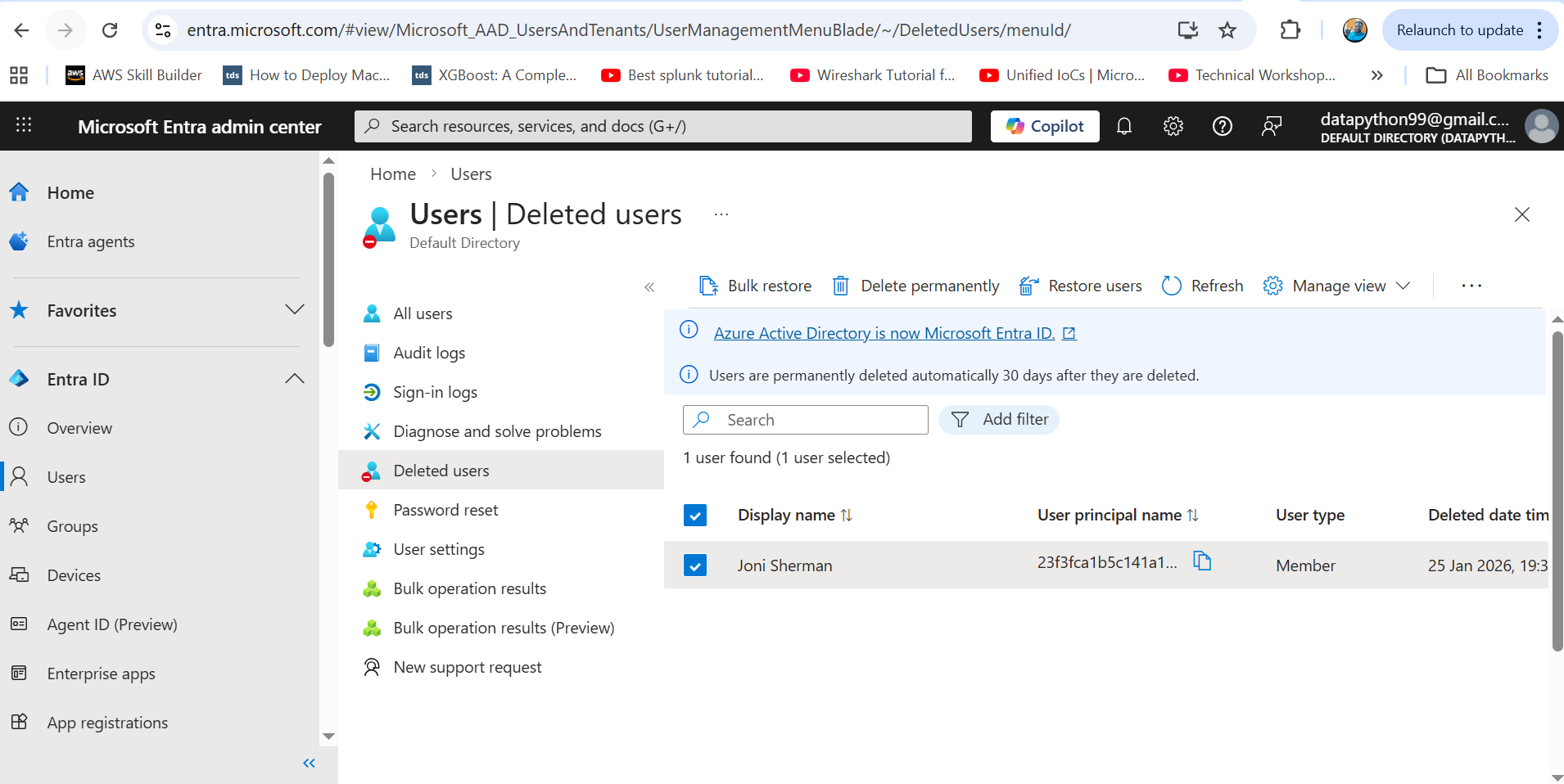
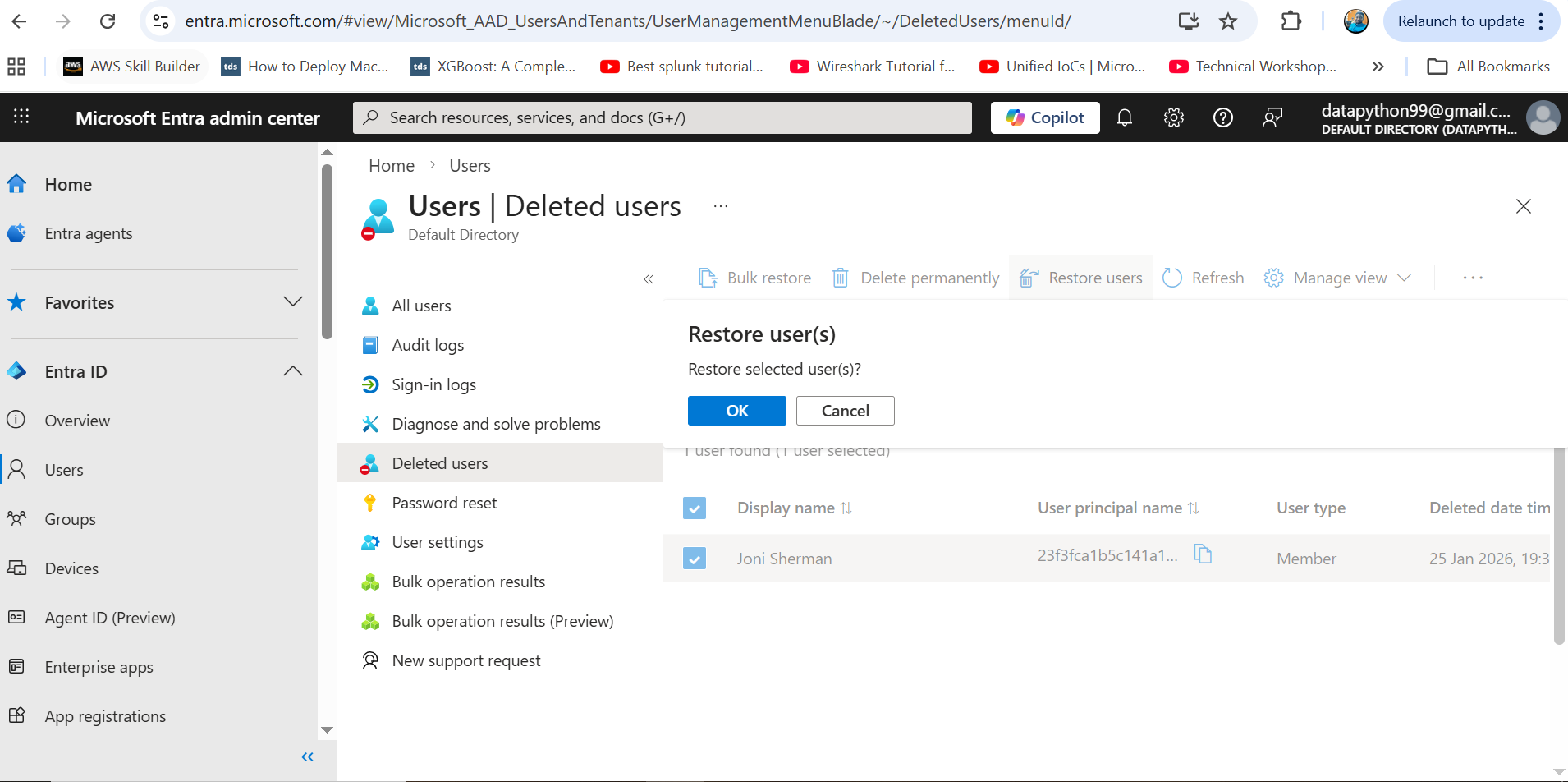
4. Click on the users you are interested in restoring and then click Restore on the top frame of the deleted user page.
Microsoft Entra Backup and Recovery
In March 2026, Microsoft introduced the Microsoft Entra Backup and Recovery solution (currently in public preview)to help organizations recover from accidental modifications, deletions, or security compromises.
Understanding how this solution differs from standard soft delete (the Recycle Bin) is critical. While soft delete is purely reactive—waiting for an object to be deleted before retaining it for 30 days—Entra Backup and Recovery proactively takes an automated daily snapshot of supported live objects and saves them in a tamper-proof, immutable backup. Unlike soft delete, which cannot protect you if an active policy or user attribute is corrupted without being deleted, this backup tool allows you to roll live directory data back to a known-good state. It is always enabled, cannot be turned off, and holds a rolling 5-day history window. However, it does not support the recovery or re-creation of hard-deleted objects that have been permanently purged from the tenant.
Key Capabilities
With Microsoft Entra Backup and Recovery, you can:
- View available backups: Gain central visibility into the rolling 5-day automated snapshots within the tenant.
- Create a difference report: Compare the state of directory objects in a selected backup snapshot side-by-side with their current live state to pinpoint precisely what drifted or changed.
- Object recovery: Restore directory states all at once, or selectively filter by specific object types or distinct Object IDs to minimize blast radius.
- Recovery recovery history: Access a transparent audit trail of completed and in-progress restoration operations.
It is equally important to understand the boundary lines of this tool. It cannot surface or recover hard-deleted objects. Furthermore, in hybrid identity architectures, while changes to on-premises synchronized objects will surface within different reports for visibility, the solution cannot execute recovery workflows on them because their source of authority remains on-premises Active Directory.
How Entra Backup Works
The backup framework is entirely managed by Microsoft; organizations do not control the backup schedules, data storage locations, or underlying architecture. Snapshots are captured automatically once every 24 hours across the tenant and are stored securely within the same region as the Microsoft Entra tenant. Because these backups are strictly immutable, they cannot be modified, deleted, or disabled—even by a compromised Global Administrator account.
However, a 5-day retention window leaves organizations with an incredibly tight timeline to discover a compromise and restore to a known-good state. For sophisticated attacks or rogue administrative changes where the dwell time frequently exceeds five days, the clean snapshots will roll out of view, exposing the organization to a re-infection loop. To mitigate this structural gap, enterprises must complement native capabilities with alternative strategies—such as documenting and exporting known-good configurations via tools like EntraExporter, detailed in the following section.
Free Ransomware webinar: Why Traditional AD Recovery Tools Aren’t Enough
Recovering from a hard delete in Entra-ID
Hard deletion may occur when an object exceeds the 30-day soft-delete window, when the object type isn’t supported by soft deletion in the first place, or when an automated script triggers the mass deletion of stale objects. Unlike soft deletion, hard deletion is permanent from Microsoft’s side. There is no native restore path, no recycle bin to fall back on, and no support ticket that will recover the object for you. Microsoft places this squarely in the customer’s lap, which means recovery from a hard delete is really a reconstruction exercise.
Detecting the deletion
Continuous monitoring is also the customer’s responsibility under the shared responsibility model, and detection time directly determines how much of the recovery happens under pressure versus on a planned schedule.
Entra ID’s audit log is the native starting point for this. The log is preconfigured by Microsoft to automatically capture deletion events, and customers can filter by deletion category to see what was removed and when. With this, you get visibility, but the audit log does not help you distinguish a routine cleanup script from a mass deletion incident.

To close that gap, the lighter-weight option is to configure alerts on top of the audit log in Microsoft Sentinel or a third-party SIEM, with rules tuned to flag mass deletions, deletions of privileged objects, or deletions outside change windows. A better option is using a dedicated monitoring platform. Cayosoft Guardian, for example, provides continuous change monitoring across Entra ID and on-premises Active Directory in a single view, with real-time alerts on deletions and configuration changes, anomaly detection for unusual deletion patterns, and the ability to roll back changes from the same console that detected them. For organizations running hybrid identity, having detection and rollback in one tool collapses what is otherwise a multi-step incident response into a single action.
Recovering from the deletion
Once a hard deletion is detected, recovery options depend entirely on what was prepared beforehand. Native Entra ID has no built-in recovery path for hard-deleted objects, so the work shifts to documentation and reconstruction. That preparation has two parts. The first is documenting known good states of the tenant on a regular cadence, so there is a reference point to rebuild from. The second is having the operational ability to act on that documentation quickly, which usually means scripts, runbooks, or tooling that can recreate objects in bulk rather than one at a time.
Documenting known good states with EntraExporter
Several tools exist for documenting Entra ID configurations, and Microsoft EntraExporter is the most commonly used because it’s free, officially maintained, and PowerShell-based. EntraExporter exports tenant configurations and a wide range of object types into JSON files that can be version-controlled, reviewed, and consulted during a recovery.
It is important to be clear about what EntraExporter is and isn’t. It is a configuration export tool, not a backup. It leaves out critical security materials, including secret and private keys, logs and telemetry, and some identity data such as user group and membership data, managed identities, and conditional access nuances such as named locations. If your organization is relying solely on EntraExporter output to rebuild after a mass hard deletion, you will recover the shape of the tenant but will still need to recreate memberships, regenerate secrets, and manually validate conditional access behavior. For many organizations, that gap is acceptable for routine documentation purposes and unacceptable as a sole recovery strategy.
Using EntraExporter
PowerShell version 7.0 is recommended for better output. The steps below cover installation, connection, and the most common export scenarios.
1. Install the PowerShell module.
Install-Module EntraExporter
2. Connect the module and get ready to export the configuration.
Connect-EntraExporter
3. To export the basic configuration and objects, use the code below.
Export-Entra -Path ‘C:\EntraIDBackup\’
4. To export all configurations, the “all” parameter can be included, as shown below.
Export-Entra -Path ‘C:\EntraIDBackup\’ -All
5. For scenarios where specific objects and configurations need to be exported, such as users and configurations, the parameter “Type” can be used to provide the necessary information.
Export-Entra -Path ‘C:\EntraIDBackup\’ -Type “Config” “Users”
Note: Replace the path C:\EntraIDBackup with your secured DR storage path. Storing exports in version control or in immutable storage is generally preferable to a local drive, since the value of the export depends on it being available and trustworthy after a tenant-level incident.
Other approaches to consider
EntraExporter handles the documentation half of hard-delete preparedness but not the recovery half. Rebuilding a tenant from JSON exports is still manual work, and the tool’s omissions mean some data has to be reconstructed from elsewhere regardless. If your organization has stricter recovery requirements, you can consider building scripted tooling on top of EntraExporter output, pulling in the missing pieces through additional Graph API calls, or adopting DRaaS platforms such as Cayosoft Guardian that provide point-in-time backup and restore for Entra ID tenants, including the object types and configuration state EntraExporter doesn’t capture.
Watch our recorded & upcoming educational webinars about identity protection
Conclusion
Disaster recovery requires structured planning, regular testing, and continuous monitoring to meet the RTOs and RPOs that business continuity demands. The scope of DR essentially requires coverage across every environment where identity lives. The native Microsoft tools covered in this article each solve a piece of the problem, but they don’t compose into a unified solution because none of these tools talk to each other across the AD/Entra ID boundary that most modern organizations now tackle.
Cayosoft Guardian is purpose-built to close these gaps. It delivers continuous, granular backup and recovery across AD DS, Entra ID, and hybrid environments from a single platform, with automated forest recovery, attribute-level rollback, and real-time change monitoring that detects threats before they escalate into full DR events. Organizations using Guardian have reduced forest recovery time from days to hours and eliminated entire categories of identity downtime.
To see how Cayosoft Guardian can protect your identity infrastructure, request a demo here.
Stop AD Threats As They Happen
Cayosoft Protector provides continuous monitoring and real-time alerts across your entire Microsoft Identity stack
Like This Article?
Subscribe to our LinkedIn Newsletter to receive more educational content