



Home » Active Directory Management Tools: Must-Have Features » Best Practices for Active Directory Monitoring
Best Practices for Active Directory Monitoring
Learn how to monitor Active Directory for health, replication, GPO changes, and threats, including tools like Cayosoft Guardian for real-time Active Directory monitoring.
Explore the chapters:
- Chapter
- Active Directory Management Tools
- Active Directory Group Policy Management
- Active Directory Security
- Active Directory Management
- Active Directory Disaster Recovery
- Active Directory Auditing
- Active Directory Groups
- Disable Active Directory
- Active Directory Reporting
- Active Directory Backup
- Active Directory Forests
- Active Directory Monitoring
- Chapter
- Active Directory Management Tools
- Active Directory Group Policy Management
- Active Directory Security
- Active Directory Management
- Active Directory Disaster Recovery
- Active Directory Auditing
- Active Directory Groups
- Disable Active Directory
- Active Directory Reporting
- Active Directory Backup
- Active Directory Forests
- Active Directory Monitoring
Next Chapter >
Stop AD Threats As They Happen
Cayosoft Protector provides continuous monitoring and real-time alerts across your entire Microsoft Identity stack
Like This Article?
Subscribe to our LinkedIn Newsletter to receive more educational content
Active Directory monitoring is the continuous process of tracking changes, events, and health signals across your AD environment to detect threats, ensure directory integrity, and maintain compliance. It functions as a security alarm system for your directory: logging user logins, password resets, account creations, group membership changes, and modifications to security policies as they occur. For most organizations, AD is the backbone of identity and access, which makes it a top target for attackers.
Without AD monitoring, attackers who gain a foothold in your environment can escalate privileges, move laterally, and persist for weeks before detection. Most breaches involving AD leave a trail in event logs. Without a monitoring strategy, that trail is buried in millions of events per day.
Effective AD monitoring covers several distinct areas: domain controller health and replication, changes to AD objects and Group Policy Objects (GPOs), privileged account activity, and (for organizations running hybrid environments) Microsoft Entra ID (formerly Azure Active Directory). Each area requires different Active Directory monitoring tools, event IDs, and response workflows.
This guide covers all of these areas, including the built-in Windows tools available to every AD admin, and where dedicated active directory monitoring software like Cayosoft Guardian closes the gaps that native tools leave open.
Note that this article does not cover AD build and implementation. We recommend that you have a working AD environment set up with at least one domain controller and a member server (or workstation), so you can follow some of the real-world examples this guide includes.
Summary of key Active Directory monitoring concepts
The table below summarizes the key concepts involved in Active Directory monitoring infrastructure, which we will discuss in detail in the following sections.
Key concept | Description |
Monitoring AD Health and replication | Track AD health and replication to prevent data inconsistencies and ensure directory integrity. |
Tracking changes to AD objects and GPOs | Monitor changes to critical AD objects and Group Policy Objects (GPOs) to maintain security and compliance. |
Auditing user and privileged account activity | Monitor user logins of standard and privileged accounts and detect suspicious account usage to prevent security breaches. |
Centralized log collection and analysis | Collect and centralize logs from multiple locations for continuous analysis. |
Hybrid AD and Azure Active Directory monitoring | Extend monitoring to Microsoft Entra ID, tracking sign-in risk, privileged role changes, sync health, and cloud-layer threats alongside on-premises AD. |
Automated alerting and reporting | Implement alerting and reporting through scripting and by leveraging various tools. |
Monitoring AD health and replication
To begin with, we should discuss the most commonly monitored aspects of an Active Directory environment: health and replication. This first key concept is essential, especially if there are multiple Active Directory sites and several domain controllers in different locations. The good thing is that since the idea of health and replication has existed since Windows Server 2000, there are many Microsoft tools that, despite being old, are still being used today.
Monitoring AD health
Administrators usually use the command-line utility tool dcdiag to analyze the health state of domain controllers in the environment. The command is mainly in charge of performing basic health checks and routine maintenance of domain controllers.
Here are some specific dcdiag commands:
| dcdiag command | Description |
|---|---|
| dcdiag /s:<DC name> | Runs a series of tests against a specified domain controller. |
| dcdiag /v | Provides detailed information about the results of the tests run. |
| dcdiag /test:RoleCheck | Verifies that the domain controller performs its assigned roles correctly. |
| dcdiag /test:SysVolCheck | Checks the integrity of the SYSVOL shared folder, which is essential for group policy. |
Monitoring AD replication
The dcdiag command can also check for replication, but there is a more appropriate command for checking the replication status. The repadmin command, a command-line utility by Microsoft, can be used to diagnose, monitor, and troubleshoot AD replication issues. This command provides valuable information, such as which domain controllers have replication issues and which sites have replication errors.
Here are some essential repadmin commands usually used during monitoring and troubleshooting:
| Repadmin command | Description |
|---|---|
| repadmin /syncall | Forces replication between domain controllers, ensuring that changes propagate quickly throughout the environment. |
| repadmin /replsummary | Summarizes the overall health of the replication environment, including the number of replication failures and the replication latency. |
Domain Controller Monitoring
Domain controllers (DCs) handle all authentication and authorization in an AD environment. Domain controller monitoring goes beyond running dcdiag, it includes tracking the specific services, performance metrics, and configuration states that determine whether your DCs are functioning correctly and securely.
Critical services of domain controller monitoring:
- Active Directory Domain Services (NTDS)
- Kerberos Key Distribution Center (KDC)
- NetLogon
- DNS Server
- Windows Time (W32Time)
- Distributed File System Replication (DFSR)
If any of these services stop, authentication will fail, or replication will break, often silently. Your monitoring setup should alert immediately when these services go down, not after users start reporting login failures.
Beyond service status, monitor these DC-level metrics:
- CPU and memory utilization: DCs should rarely exceed 60-70% CPU under normal conditions. Sustained high utilization can indicate a replication storm, a compromised account running bulk LDAP queries, or an enumeration tool like BloodHound walking the directory.
- LDAP response times: slow LDAP queries directly affect authentication speed across every application and user login that depends on AD.
- NTDS database size and disk health: the AD database (ntds.dit) grows over time. Insufficient disk space on a DC will eventually cause replication failures.
- FSMO role holders: the five Flexible Single Master Operation roles must be online and accessible. Use netdom query fsmo to verify role assignments and detect unauthorized changes.
- Replication topology changes: unexpected changes to AD sites, site links, or replication schedules are worth investigating.
Cayosoft Guardian monitors domain controllers as part of its continuous AD monitoring coverage, tracking service status, configuration changes, and security-relevant events across all DCs, not just directory objects.
Necessary event IDs for AD health and replication
The server registers events related to Active Directory domain services. These events include AD health and replication, which signifies their corresponding event IDs. Here are some of the event IDs that you should keep track of while monitoring your environment:
| Event ID | Description |
|---|---|
| 1988 | A replication attempt occurred with a domain controller that has been out of sync for too long, risking replication issues. |
| 1311 | The Knowledge Consistency Checker (KCC) could not form a complete site replication topology, leading to potential replication problems. |
| 1265 | Replication errors due to DNS lookup failures caused by network degradation or DNS misconfigurations. |
| 1865 | The domain controller could not connect with other domain controllers, affecting replication. |
Manage, Monitor & Recover AD, Entra ID, Microsoft 365

Unified Console
Use a single tool to administer and secure AD, Entra ID, and M365

Track Threats
Monitor AD for unwanted changes – detect for security or critical functions

Instant Recovery
Recover global enterprise-wide Active Directory forests in minutes, not days
Tracking changes to AD objects and GPOs
In addition to domain controller monitoring, you should also track other critical components on the object level. Some of these are Active Directory objects and Group Policy Objects (GPOs). Changing some objects’ permissions and memberships will significantly impact the environment. Here are some examples.
AD Objects (Groups):
AD Object (Group) | Scope | Potential Impact of Compromise |
Schema Admins | Forest Wide | Modify the Active Directory schema, impacting all objects and attributes across the entire forest. |
Enterprise Admins | Forest Wide | Gain complete administrative control over all domains within the forest. |
Domain Admins | Domain | Obtain administrative rights on all computers in the domain, including local administrator privileges. |
Administrators | Domain | Gain full control over the domain’s resources and the ability to change system configurations. |
Cert Publishers | Domain | Issue unauthorized certificates, potentially leading to identity spoofing or encryption bypass. |
DHCP Administrators | Domain | Manipulate DHCP configurations, causing IP address conflicts or network outages. |
DNSAdmins | Domain | Modify DNS settings, potentially redirecting network traffic to malicious websites. |
Group Policy Creator Owners | Domain | Create or edit Group Policy Objects (GPOs), enabling the deployment of malicious settings across the domain. |
Account Operators | Domain | Manage user and group accounts, leading to unauthorized access or privilege escalation. |
Backup Operators | Domain | Back up or restore data, potentially exfiltrating sensitive information. |
Protected Users | Domain | Weaken security protections for high-privilege accounts, increasing the risk of credential theft. |
Pre-Windows 2000 Compatible Access | Domain | Gain legacy permissions that could allow unauthorized access to Active Directory resources. |
For the full list of built-in AD groups and their specific permissions, please refer to the official Microsoft documentation.
Group Policy Objects:
- Default Domain Policy: Contains baseline security settings for the entire domain, including password policies and account lockout settings; changes can affect the security posture of the whole domain.
- Default Domain Controllers Policy: This policy specifies security settings applied to all domain controllers; unauthorized changes can weaken their security.
To monitor changes in your environment, ensure that you have enabled advanced auditing via group policies. Once enabled, events will start coming in your Event Viewer console.
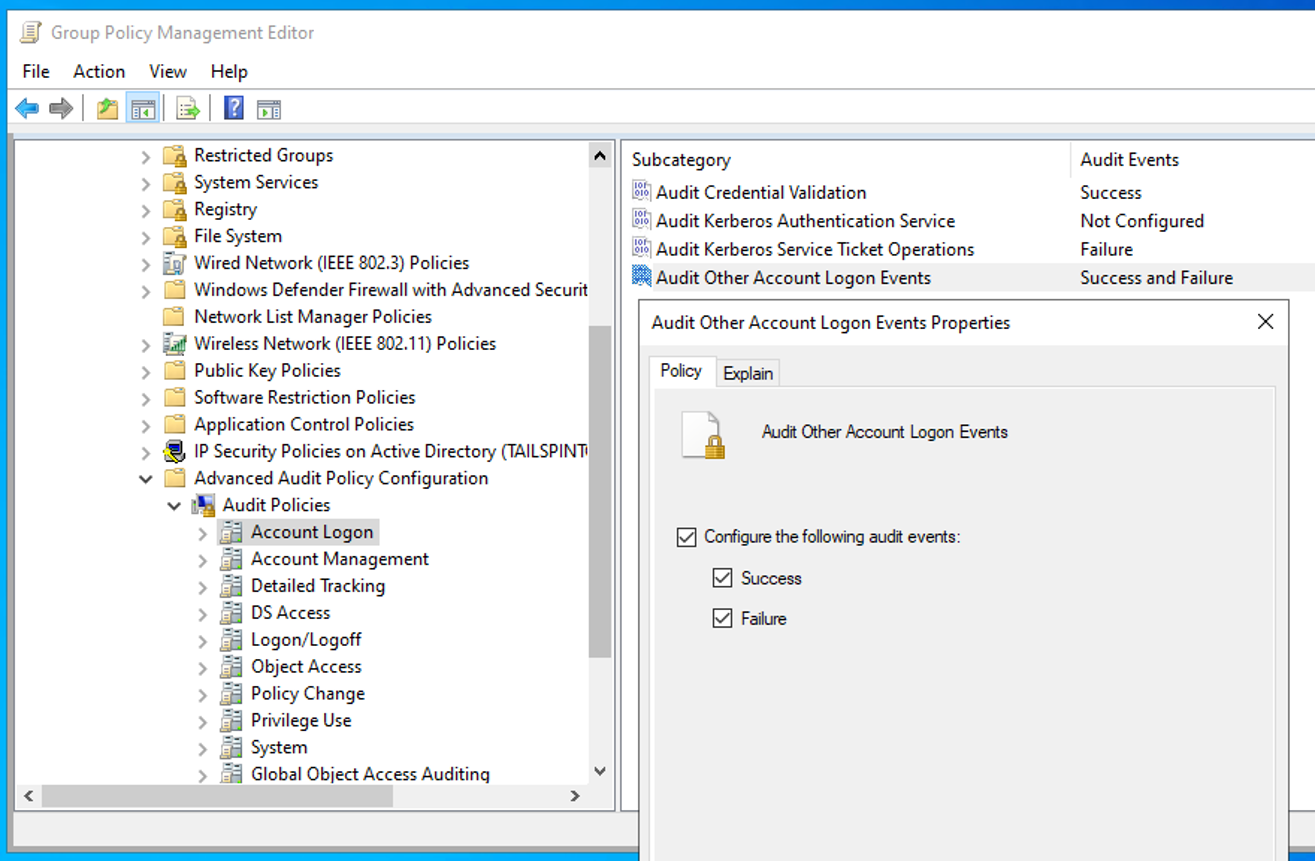
Some of the example essential event IDs that you should track are shown in the table below.
| Event ID | Description |
|---|---|
| 5136 | Logs when an AD object is modified. This event is crucial for tracking changes to groups, OUs, service accounts, and other critical AD objects. |
| 5132 | Logs when a GPO is modified. This event is critical for tracking changes to GPO settings, including security policies. |
| 4732 | Indicates that a member was added to a security-enabled local group. |
Monitoring most of these objects will improve your environment’s stability and avoid security risks. However, remember that the examples above do not represent a complete list of critical objects. That’s why you need Active Directory monitoring tools that cover the whole list of essential objects to monitor for changes, like Cayosoft Guardian, which provides reporting on modified AD objects and GPOs.
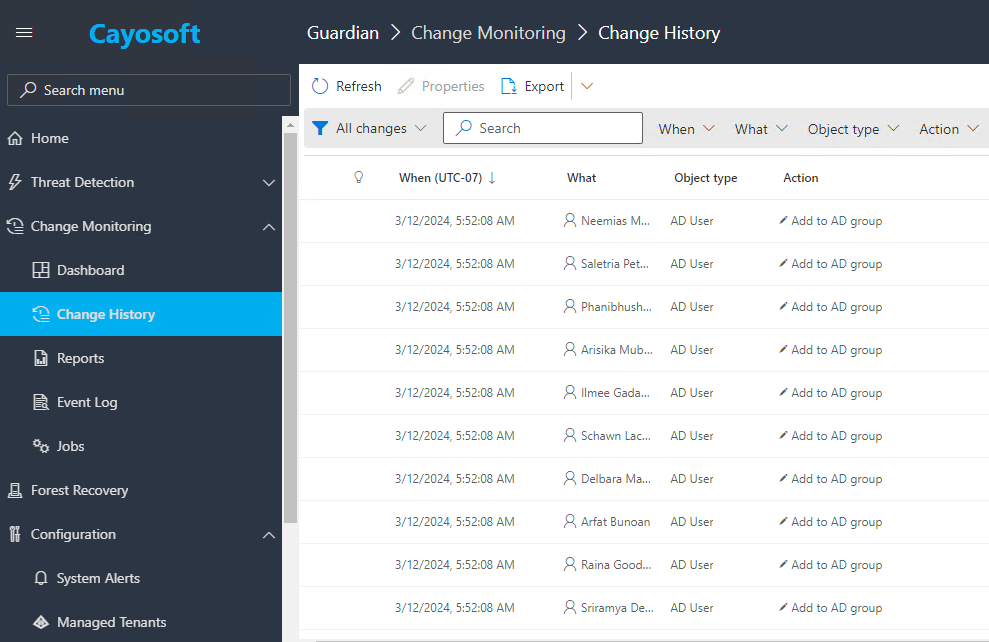
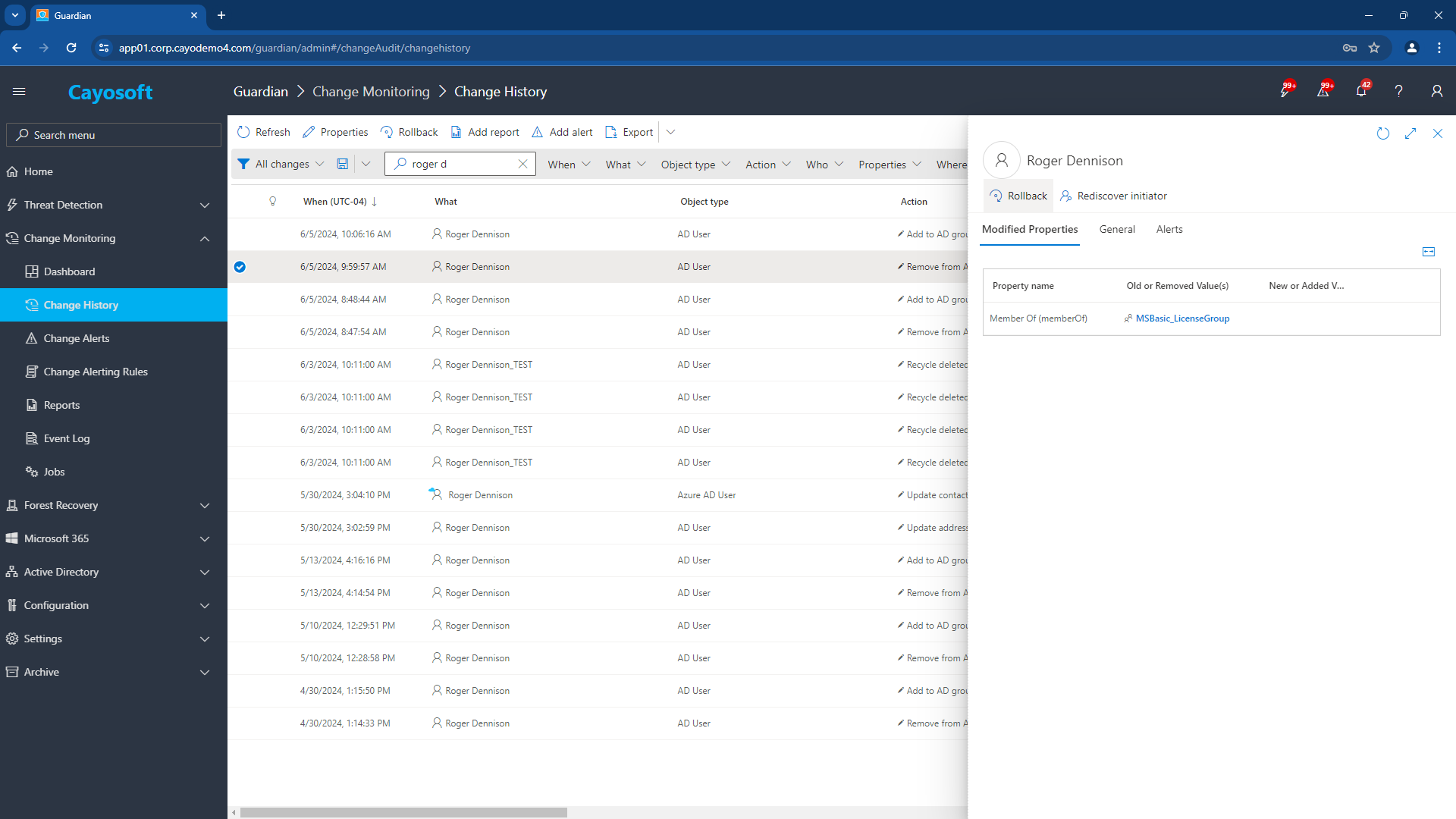
In addition, Cayosoft Guardian can protect AD and Entra ID objects from change. Even if a user impersonates an elevated account making a change to the protected object, if that user is not on Cayosoft Guardian’s list of approved users to change that object, the change is instantly rolled back.
Manage, Monitor & Recover AD, Entra ID, M365, Teams
| Platform | Admin Features | Single Console for Hybrid (On-prem AD, Entra ID, M365, Teams) | Change Monitoring & Auditing | User Governance (Roles, Rules, Automation) | Forest Recovery in Minutes |
| Microsoft AD Native Tools | ✓ | ||||
| Microsoft AD + Cayosoft | ✓ | ✓ | ✓ | ✓ | ✓ |
Watch our recorded & upcoming educational webinars about identity protection
Auditing user and privileged account activity
In addition to tracking changes to AD and GPOs, you should also track AD user objects with the necessary privileges to access these critical objects. If any unauthorized users have these privileges, this could cause security risks in your environment. This risk is one of the reasons why you should always check the memberships of these critical objects.
One of the industry’s best practices for managing privileged accounts is following the principle of least privilege. In AD user management, no individual user should be part of the critical AD groups discussed in the previous sections.
There are multiple ways to check for memberships. One example of this is through PowerShell, as shown below:
Get-ADGroupMember -Identity "Domain Admins" -Recursive
If the user gained privileged access, monitoring specific event IDs related to authentication and authorization is crucial to detect any suspicious activities. Here are some examples:
| Event ID | Description |
|---|---|
| 4624 | A successful account login event. Monitor for logins, especially from unexpected locations or times. |
| 4769 | A Kerberos service ticket was requested. Monitoring this event helps detect unauthorized access to services using privileged credentials. |
Despite monitoring the essential event IDs, a proper intrusion prevention and detection system (IPS/IDS) capable of detecting and preventing further environmental suspicious activity is vital.
Monitoring Active Directory in Hybrid Environments
Organizations running hybrid AD environments (where on-premises Active Directory synchronizes to Microsoft Entra ID) need to monitor both layers. Attackers frequently pivot between them, and a misconfiguration or compromise in one layer directly affects the other.
Azure Active Directory monitoring (now Entra ID) focuses on:
- Sign-in activity: monitoring for impossible travel, sign-ins from unfamiliar locations, and authentication attempts from risky IP addresses. Entra ID Protection provides risk scoring and can trigger Conditional Access policies automatically, but granular detections require a P2 license.
- Audit logs: Entra ID generates audit logs for changes to users, groups, applications, and directory roles. Retention is 7 days on free plans and 30 days on P1/P2, making export to Azure Monitor, Microsoft Sentinel, or a third-party SIEM essential for compliance or forensic use.
- Privileged role changes: changes to the 28 roles Microsoft designates as privileged, including Global Administrator and Privileged Role Administrator, should trigger immediate alerts. Entra ID Privileged Identity Management (PIM) provides just-in-time access controls and notifications for role assignments.
- Sync health: Azure AD Connect synchronizes on-premises AD objects to Entra ID. Monitoring sync health ensures changes propagate correctly and that the sync account itself has not been compromised or misconfigured.
Cayosoft Guardian extends to real-time on-premises and Azure Active Directory monitoring within a single console, tracking changes and detecting threats across the hybrid identity stack without requiring separate tooling for each layer.
Watch a demo video of Cayosoft’s hybrid user provisioning
Centralized log collection and analysis
Maintaining hundreds of devices in a large environment will generate millions of events daily. You will surely only need some of the events, so filtering them by event IDs mentioned above on multiple locations and servers will take a long time. You need a way to manage them in a central location to analyze them better.
Some examples of centralizing our logs from multiple sources are as follows:
- Windows Event Forwarding (WEF): A native solution that forwards events to a centralized Windows Server with a Windows Event Collector (WEC) role.
- Security Information and Event Management (SIEM): A solution that collects, analyzes, and correlates security events from various sources, such as Windows Servers and Active Directory.
- Azure Monitor and Log Analytics: A hybrid infrastructure solution that centralizes logs from on-premise and cloud sources.
Collecting logs in a centralized location makes it more efficient to determine which events to monitor during an issue. Once we have centralized all of our logs, we can start our analysis by performing the methods below:
- Log Correlation: Correlating AD events across servers to identify patterns, such as failed logins and account lockouts indicating a brute force attack.
- Log Aggregation and Visualization: Aggregating logs to visualize trends, like spikes in account creations or password resets.
- Incident Response and Forensic Analysis: Using AD logs to investigate security incidents, like password spray attacks, by analyzing failed authentication attempts.
These analyses often come as a feature and are automated by the Active Directory monitoring tools listed above. There are many other ways to perform analysis, but the above methods will help us detect, analyze, and respond to events across our environment for AD-specific logs.
Automated alerting and reporting
Collecting events is not the same as monitoring. Raw event logs tell you something happened: they do not tell you whether it matters, how severe it is, or what to do about it. Effective active directory monitoring software transforms event data into actionable signals by adding context: which account made the change, what the previous state was, whether the change matches a known attack pattern, and what response is appropriate.
The native Windows approach for alerting uses WMI event subscriptions via PowerShell. It is technically functional but has no GUI, requires custom scripting per event type, and provides no built-in context or remediation capability.
You can use WMI to set up event subscriptions that trigger actions when you receive a specific event. By configuring WMI Event Filters, you can monitor particular events, such as AD security events, and trigger actions like sending alert notifications or running scripts. The main downside of WMI is that it is all managed through PowerShell with no graphical user interface (GUI).
Here’s an example WMI query that checks AD modification events every ten (10) seconds using PowerShell:
					$query = "SELECT * FROM __InstanceModificationEvent WITHIN 10 WHERE TargetInstance ISA 'Win32_NTLogEvent' AND TargetInstance.EventCode = '5136'"
Register-WmiEvent -Query $Query -Action {
    Write-Host "An AD object has been modified." -ForegroundColor Cyan
}
Cayosoft Guardian is purpose-built for this layer of Active Directory monitoring. Rather than surfacing raw events, it provides continuous visibility into what actually changed and why it matters: tracking who changed what, when, and how across AD, Entra ID, and Microsoft 365 in a single console. It detects privilege escalation, configuration drift, and suspicious activity patterns, delivering alerts with full context rather than raw event IDs. When a protected object is changed by an account not on the approved list, Guardian rolls the change back automatically.
In addition, implementing automation on top of an Active Directory monitor reinforces it significantly, resulting in reduced manual workload and enhanced response times. There are many ways to achieve this, but through automation, we can address incidents efficiently by performing event-driven actions, like implementing self-healing triggered by the previously set-up automatic alerts. Automating Active Directory monitoring improves efficiency and security by ensuring timely and consistent responses to threats.
Recommendations
Here are some additional recommendations to improve the monitoring of your AD environment.
Stay up to date on security bulletins
While essential for detecting suspicious activity, Active Directory monitoring tools alone are not enough to fully secure an environment. Critical vulnerabilities in your AD environment may remain exposed without preventive and detective measures like IPS and IDS, leaving your systems vulnerable to advanced threats exploitable by bad perpetrators.
One such advanced threat is a zero-day vulnerability, which refers to a security flaw in software that is unknown to the vendor and lacks an available fix. These vulnerabilities commonly occur right after patching a system like a domain controller.
To combat zero-day vulnerabilities, stay updated with security advisories and bulletins from organizations dedicated to reporting these threats like the following:
- The National Institute of Standards and Technology (NIST)
- Trend Micro’s Zero-Day Initiative (ZDI)
- Microsoft Security Response Center (MSRC)
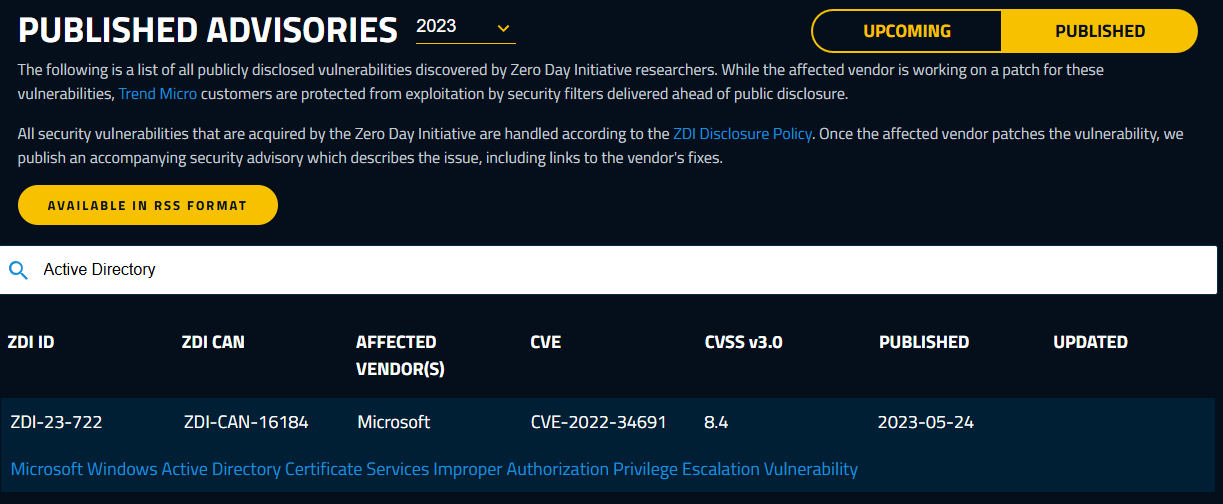
These organizations report on multiple zero-day vulnerabilities on different products, including Active Directory.
Integrate monitoring with SIEM solutions
We discussed log and event collections in an earlier part of the article. As mentioned, these tools assist in collecting and analyzing event logs from different sources and storing them in a centralized location. One example is the Security Information and Event Management (SIEM).
SIEM mainly collects and analyzes events from an organization’s IT infrastructure to detect threats and provide real-time alerts. However, it’s important to remember that SIEM tools primarily focus on detection and alerting. While they can highlight critical events and provide valuable insights, they don’t typically provide comprehensive monitoring capabilities or automate incident response actions on their own..
Consider pairing your SIEM with a tool like Cayosoft Guardian. This simple integration will not only increase environmental observability but will also help you with reporting and an automated response when a particular event is received.
Conduct regular reviews of monitoring setups
Regularly reviewing and updating monitoring setups is crucial to maintaining an effective defense against new and evolving threats. As infrastructures change daily, outdated configurations can lead to blind spots, leaving vulnerabilities undetected even by the monitoring software.
To conduct reviews of our monitoring setups properly, consider the following practices:
- Evaluate and Optimize: Thoroughly assess every monitoring tool to ensure they capture relevant security events effectively. Ensure all Active Directory monitoring tools are updated to reflect the latest security definitions and adjust alert thresholds if necessary.
- Simulate and Validate: Perform regular scheduled controlled incident response simulations through sandboxing scenarios to validate the effectiveness of alerting mechanisms and refine response workflows.
- Document and Ensure Compliance: Maintain and update documentation of the Active Directory monitoring tools, ensuring alignment with compliance requirements and integrating feedback from security audits to enhance monitoring efficacy.
Cayosoft Guardian offers built-in, out-of-the-box scans on a scheduled basis and actively monitors for changes that could indicate a potential threat. Cayosoft maintains the definitions Guardian uses to identify known industry threats for known products like AD, Entra ID, and Azure tenant configs and settings.
Learn why U.S. State’s Department of Information Technology (DOIT) chose Cayosoft
Conclusion
Active Directory monitoring is a fundamental responsibility for maintaining your organization’s infrastructure security, compliance, and operational efficiency. Implementing robust monitoring practices like those described above helps your organization respond to potential threats, ensure regulatory compliance, and minimize downtime through proactive issue resolution.
In addition, key practices like regular audits, real-time alerts, and comprehensive logging are critical components of effective Active Directory monitoring. They help ensure user access integrity and the proper functioning of our essential systems. With the right tools and processes, like Cayosoft Guardian, AD monitoring can become a powerful asset in maintaining a secure and resilient IT environment.
Stop AD Threats As They Happen
Cayosoft Protector provides continuous monitoring and real-time alerts across your entire Microsoft Identity stack
Like This Article?
Subscribe to our LinkedIn Newsletter to receive more educational content
Explore More Chapters
Next Chapter >