



Home » How to Implement Identity Threat Detection and Response Best Practices » Best Practices for Identity Threat Protection
Best Practices for Identity Threat Protection
Learn how to protect Microsoft identities by mapping attack surfaces, hardening privileged access, and testing recovery.
Explore the chapters:
Table of Contents
Stop AD Threats As They Happen
Cayosoft Protector provides continuous monitoring and real-time alerts across your entire Microsoft Identity stack
Like This Article?
Subscribe to our LinkedIn Newsletter to receive more educational content
Identity threat protection is the discipline of reducing the likelihood, impact, and dwell time of attacks that target identities, credentials, permissions, and directory infrastructure. For Active Directory administrators or technical managers, this means protecting the systems attackers use after initial access: AD, Microsoft Entra ID, Microsoft 365, privileged groups, service accounts, app registrations, synchronization servers, and recovery paths.
Verizon’s 2025 DBIR found that credential abuse was the leading initial access vector in breaches, accounting for 22% of them. Microsoft’s 2025 Digital Defense Report also shows why identity remains a priority: Microsoft analyzed an average of 38 million identity risk detections per day and reported that 97% of identity attacks were password spray attacks.
This article discusses identity-specific practices that help you protect the Microsoft identity control plane that attackers often use for persistence, privilege escalation, and lateral movement. You will see how to map your identity attack surface, protect privileged paths, monitor changes, detect abuse, roll back risky changes, and test recovery before an incident.
Summary of key identity threat protection best practices
Best practice | Description |
Map your identity attack surface | Build and maintain an accurate inventory of human, privileged, service, application, and agent identities across AD, Entra ID, and Microsoft 365. |
Protect privileged access paths | Reduce the number of routes attackers can use to reach administrative control, using tiering, role separation, MFA, conditional access, and just-in-time access. |
Enforce least privilege and delegated administration | Give administrators and automation only the permissions required for their tasks via roles and rules; use approval workflows, periodic access reviews, and just-in-time or time-bound elevation for privileged work. |
Harden identity infrastructure and authentication controls | Secure Active Directory, Microsoft Entra ID, Microsoft 365, synchronization components, authentication policies, password controls, legacy protocols, service-account logon rights, privileged access workstations, and recovery accounts across the hybrid control plane. |
Monitor identity changes continuously | Track changes to users, groups, roles, permissions, policies, applications, and non-human identities, so risky modifications can be investigated quickly. |
Detect identity-based attack patterns | Look for signals such as password spraying, suspicious privilege escalation, abnormal group membership changes, impossible travel, and anomalous admin activity. |
Automate response and rollback for high-risk changes | Define response actions that can disable sessions, quarantine accounts, remove risky permissions, or roll back malicious and accidental changes. |
Test identity recovery before an incident occurs | Validate that AD, Entra ID, Microsoft 365, and hybrid identity recovery processes can restore critical objects, attributes, policies, and forests quickly. |
Learn how ITDR must evolve to account for non-human identities (NHI)
Map your identity attack surface
Your inventory should include more than employee accounts. You need to track privileged users, break-glass accounts, service accounts, managed identities, application identities, agent identities, shared mailboxes, resource accounts, stale users, disabled users, and guests.
Non-human identities need specific attention because they often run outside normal joiner-mover-leaver processes. Cayosoft notes that in large enterprise environments, there may be 20 to 50 non-human identities for every human user. A service principal with broad permissions and no owner can be as dangerous as a compromised administrator.
You also need to document where the identity authority lives. Active Directory may remain the source of authority for users and groups, Entra ID may control cloud access, Microsoft 365 may contain workload-specific permissions, and sync tools may bridge these systems. Your inventory should also include Exchange Online, SharePoint, Teams, Azure subscriptions, enterprise applications, and automation platforms.
The following diagram shows a hybrid Microsoft identity control plane.
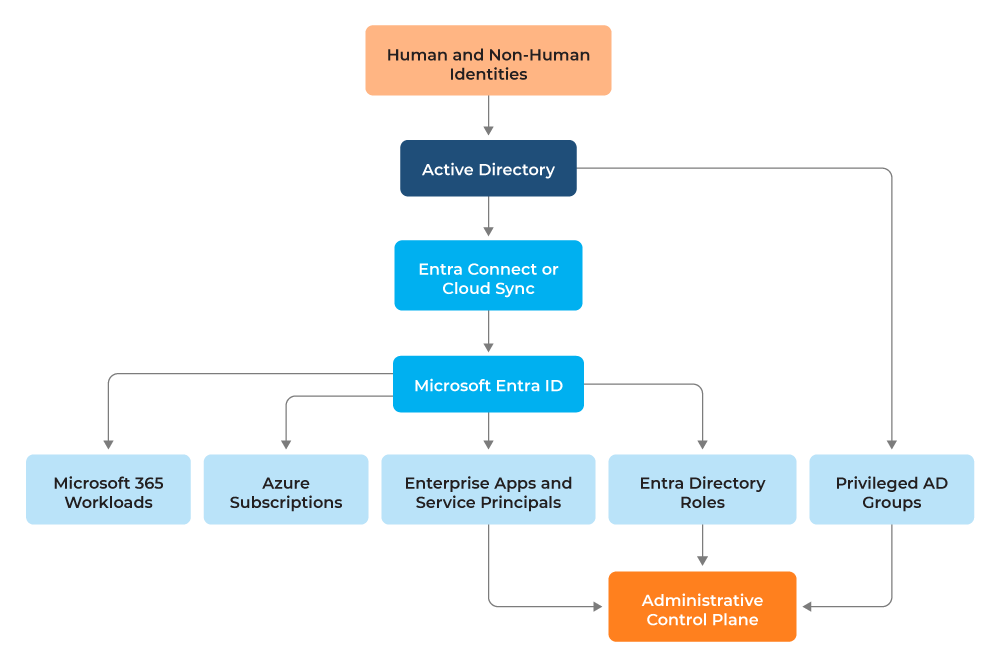
After you know where identity authority lives, prioritize the identities that can change the environment. Start with Domain Admins, Enterprise Admins, Schema Admins, Global Administrators, Privileged Role Administrators, Application Administrators, accounts with directory replication rights, accounts that can change conditional access, and service accounts with broad delegation.
The following PowerShell snippet gives you a recurring export of privileged AD group membership. It uses the current Active Directory PowerShell module included with Remote Server Administration Tools (RSAT for short) and handles groups that may not exist in every domain.
					Import-Module ActiveDirectory
$privilegedGroups = @(
    "Domain Admins",
    "Enterprise Admins",
    "Schema Admins",
    "Administrators",
    "Account Operators",
    "Backup Operators",
    "Server Operators"
)
$results = foreach ($group in $privilegedGroups) {
    try {
        Get-ADGroupMember -Identity $group -Recursive | Select-Object `
            @{Name="PrivilegedGroup"; Expression={$group}},
            Name,
            SamAccountName,
            objectClass,
            distinguishedName
    }
    catch {
        Write-Warning ("Could not query group {0}: {1}" -f $group, $_.Exception.Message)
    }
}
$results | Sort-Object PrivilegedGroup, SamAccountName |
    Export-Csv ".\privileged-ad-members.csv" -NoTypeInformation
PowerShell export for recursively reviewing high-risk Active Directory group membership. The snippet uses supported Get-ADGroupMember syntax from the Active Directory module and avoids hard-failing when a queried group is absent.
Protect privileged access paths
Privileged access paths define how an administrator, service account, or attacker can gain control of identity systems. Your goal is to reduce those paths, isolate high-risk credentials, and make every privileged action easier to verify.
Separate privileged access from daily work
Your daily account should not be used to administer the directory. If a mailbox, browser session, or workstation is compromised, the attacker should not receive a direct route to Domain Admin or Global Administrator. Use separate privileged accounts, separate authentication policies, and separate workstations for high-risk administration.
Privileged sessions should originate from hardened administrative workstations, not from general-purpose laptops used for email and web browsing. Microsoft recommends treating Entra Connect as a Tier 0 or control-plane asset and using dedicated privileged access workstations for personnel with privileged access to identity systems, as outlined in its Entra Connect prerequisites.
Apply strong controls to administrative actions
MFA is baseline protection, but administrator access needs stronger treatment. Microsoft reported that MFA adoption among enterprise customers reached 41%, but attackers increasingly use adversary-in-the-middle phishing and token theft. For privileged users, prefer phishing-resistant methods such as FIDO2 security keys, passkeys, or certificate-based authentication where your environment supports them.
Long-standing privilege also gives attackers time. Instead, use just-in-time access, approval workflows, time-bound role activation, and periodic expiration for privileged assignments. For common administrative work, Cayosoft Administrator supports delegated administration with roles, rules, and automation across hybrid AD, Entra ID, and Microsoft 365 without requiring broad native admin rights for every task.
Enforce least privilege and delegated administration
Least privilege is most effective when it is designed around real administrative tasks, not broad job titles. Pair it with just-in-time (JIT) elevation: least privilege limits what an identity can do, while JIT limits how long privileged permissions remain active. Where your platform supports it, make privileged roles eligible rather than permanently active; require strong authentication, approval, or justification, a narrow scope, and an expiration time. In hybrid Microsoft environments, that means controlling what each admin or automation account can change across AD, Microsoft Entra ID, and Microsoft 365. Microsoft’s privileged-access architecture treats time-bound elevation, approval workflows, and trusted devices as parts of the same access path.
Delegate administrative work by task
Password resets, mailbox provisioning, group updates, license assignment, and onboarding should not require broad directory roles. Map each task to the minimum AD permissions, Entra roles, and workload permissions required. This is where delegation often fails because teams assign a broad role, as it is faster than designing the workflow.
Your rules should answer operational questions before changes occur: who can create users, which OUs can be modified, which groups require approval, who can assign Microsoft 365 licenses, which attributes can be changed, and which automation accounts can modify objects. Cayosoft’s secure administration model fits this pattern because Cayosoft Administrator applies roles, rules, and automation to routine hybrid AD, Entra ID, and Microsoft 365 administration.
Review and remove excess access
Access reviews should cover AD admin groups, Entra directory roles, enterprise application permissions, service principal permissions, delegated admin assignments, and stale privileged users. For Entra ID, the Microsoft Graph query below exports Active Directory role assignments through the current Microsoft Graph PowerShell SDK and the Graph v1.0 endpoint.
					Connect-MgGraph -Scopes "RoleManagement.Read.Directory","Directory.Read.All"

$uri = "https://graph.microsoft.com/v1.0/roleManagement/directory/roleAssignments?`$expand=principal,roleDefinition&`$top=999"
$rows = @()

do {
    $response = Invoke-MgGraphRequest -Method GET -Uri $uri
    $rows += $response.value
    $uri = $response.'@odata.nextLink'
} while ($uri)

$rows | Select-Object `
    @{Name="Role"; Expression={$_.roleDefinition.displayName}},
    @{Name="Principal"; Expression={$_.principal.displayName}},
    @{Name="PrincipalType"; Expression={$_.principal.'@odata.type'}},
    directoryScopeId |
    Export-Csv ".\entra-role-assignments.csv" -NoTypeInformation
A Microsoft Graph PowerShell export for reviewing active Entra ID directory role assignments. The snippet uses Microsoft Graph role management APIs, requests the required read scopes, expands role and principal details, and handles pagination through @odata.nextLink.
Review both permanent and eligible role assignments: for roles managed through PIM or an equivalent workflow, verify that activation requires strong authentication, justification or approval, a narrow scope, and an expiration time. Flag direct permanent assignments that bypass those controls.
Every privileged identity also needs an owner, a business purpose, and a review cycle. Orphaned service accounts, app registrations without owners, expired projects, and disabled users with preserved group membership all create avoidable risk. Treat cleanup as part of identity threat protection, not as cosmetic directory maintenance.
Read about Microsoft 365 E7 licensing and the rise of agent identities
Harden identity infrastructure and authentication controls
Identity threat protection depends on the resilience of the systems that issue, synchronize, and enforce access. Before you tune detections, you need to harden Active Directory, Microsoft Entra ID, Microsoft 365, and the hybrid identity components that attackers would target to gain control.
Secure AD, Entra ID, and Microsoft 365 infrastructure
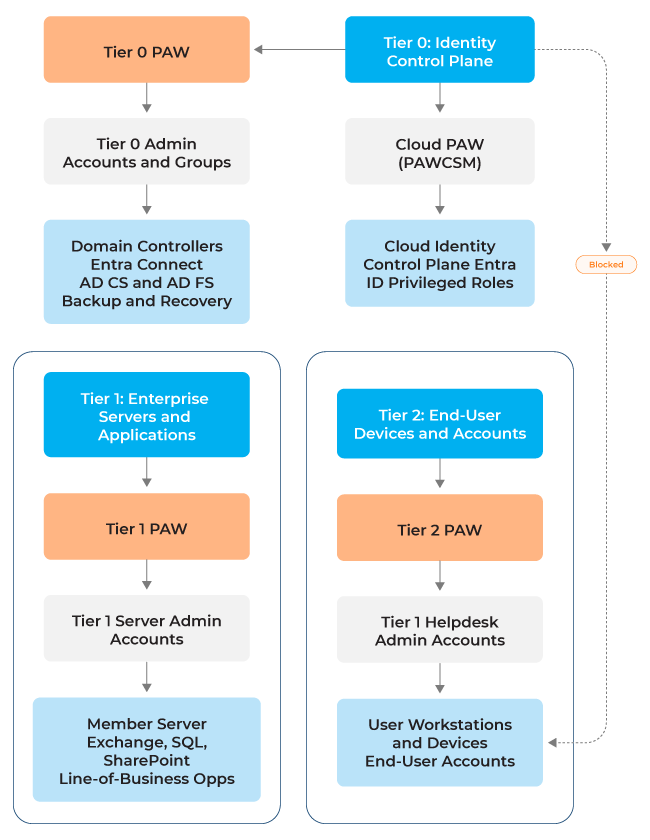
Domain controllers should be dedicated systems that are patched, monitored, and protected from unnecessary software. You should control DNS changes, replication health, Group Policy changes, AdminSDHolder behavior, and privileged group membership. Use Microsoft’s AD DS tier model to prevent Tier 0 credentials from touching lower-trust systems. Microsoft positions the tier model as a component of its broader Enterprise Access Model: it groups assets into Tier 0 (the identity control plane), Tier 1 (enterprise servers and applications), and Tier 2 (end-user devices and accounts), and it requires a tier-matched Privileged Access Workstation (PAW) for each tier, including a dedicated cloud PAW (PAWCSM) for privileged Entra ID management..
Entra Connect and Cloud Sync servers are not ordinary member servers. If an attacker controls synchronization or federation infrastructure, they can influence cloud identities and potentially reach Microsoft 365 administration. Microsoft’s guidance for protecting Microsoft 365 from on-premises attacks recommends cloud-only privileged accounts, phishing-resistant authentication, Conditional Access, cloud-managed PAWs, and PIM for privileged cloud roles; it also says that on-premises accounts and service accounts should not hold privileged cloud roles. Treat Entra Connect, Cloud Sync, federation components, password-writeback agents, and their management paths as Tier 0 dependencies. Restrict administrative access, monitor configuration changes, protect connector credentials, and document source-of-authority decisions.
The tier model holds only if trust starts at the first keyboard you use: typing higher-tier credentials on a lower-tier workstation exposes them to a lower-trust environment. Privileged sessions should originate from the PAW that matches the destination tier and reach their targets through just-in-time elevation or credential vaulting; any jump server in that path inherits the trust of the credentials touching it. Avoid the anti-pattern of monitoring, backup, or EDR agents running with Domain Admins rights, because each creates the same exposure path into the identity control plane. The following diagram shows the three tiers, the PAW each tier requires, and the credential-flow rule that holds the model together.
Restrict service-account logon and protect PAWs
You shall treat service accounts as noninteractive identities unless a documented dependency requires otherwise. Microsoft recommends assessing regular user accounts used as service accounts for migration to gMSAs or sMSAs and removing unnecessary privileged-group membership. For cloud workloads, prefer managed identities; when a service principal is unavoidable, use certificate credentials and protect the workload with Conditional Access. Microsoft’s service-account guidance explains these alternatives and the need to document each account’s owner, service, and resource access.
On Windows hosts, you should restrict the logon types a service account can use. For accounts that never need interactive access, assign Deny log on locally and Deny log on through Remote Desktop Services through the appropriate GPO. Microsoft specifically lists service accounts in the RDP-denial guidance and warns that user-rights changes can affect legitimate operations (like Deny log on locally and Deny log on through Remote Desktop Services). Preserve Log on as a service for accounts that run services, and test the effective policy in a pilot OU before broad rollout. Microsoft guidance also warns that Deny log on as a service can prevent services from starting.
Lastly, protect the PAW path separately. Use a tier-matched PAW for each administrative scope, keep it free of email, web browsing, and unmanaged software, and use Conditional Access to require trusted or compliant devices for cloud administration. Use PAWCSM for privileged cloud management. These controls make a stolen service account or administrator credential harder to turn into a privileged interactive session, as suggested by the AD DS tier model and Microsoft Entra security best practices.
Strengthen authentication policies
You should enforce MFA, block legacy authentication, apply conditional access, use smart lockout, and move privileged users toward phishing-resistant authentication. Microsoft’s 2025 Digital Defense Report states that Microsoft analyzes an average of 38 million identity risk detections per day, and that 97% of identity attacks were password spray attacks. Your password and authentication policies are not static compliance settings—they are live controls against continuous identity attack traffic.
Apply these controls to Microsoft 365 administration as well as Microsoft Entra ID. Microsoft recommends cloud-only accounts for privileged Microsoft 365 and Entra roles, phishing-resistant authentication, Conditional Access, cloud-managed PAWs, and PIM-based JIT activation. Do not place on-premises accounts or service accounts in privileged cloud roles as recommended by Microsoft’s Microsoft 365 protection guidance.
Break-glass accounts are necessary, but they should be few, monitored, documented, and tested. Exclusions from conditional access should be reviewed, not forgotten. Alert on every use, keep credentials protected offline where appropriate, and verify that the accounts work before you need them.
Monitor identity changes continuously
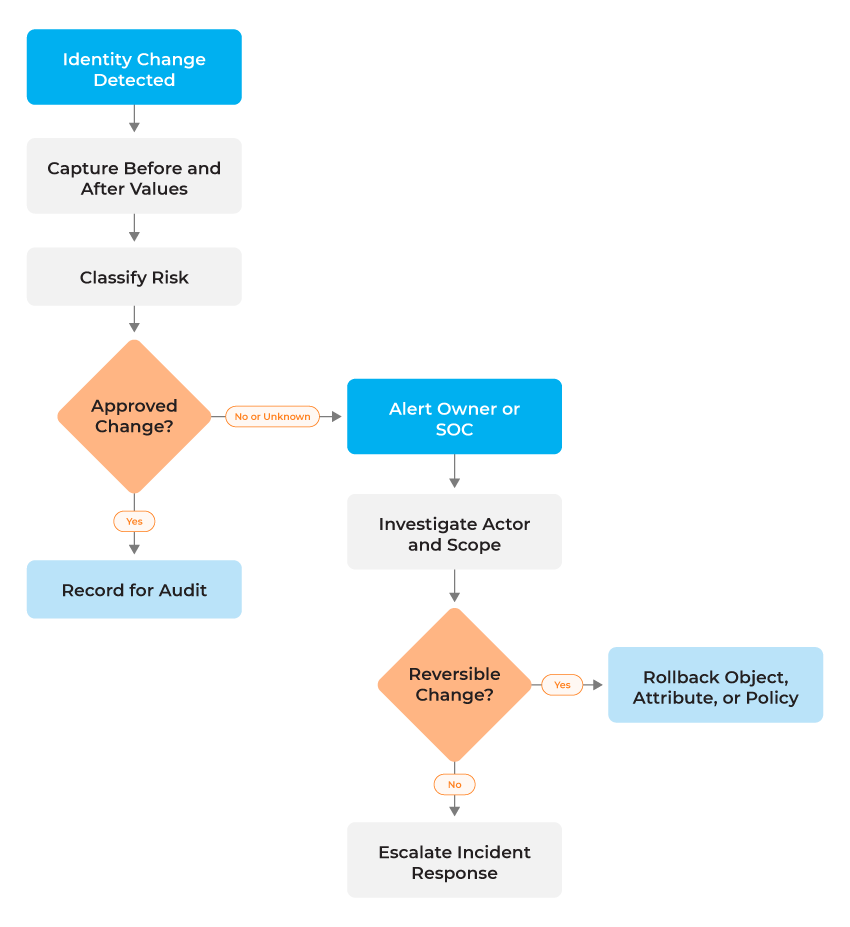
Identity attacks often appear as changes that look administrative on the surface. Continuous monitoring helps you separate approved operations from risky changes by preserving context before, during, and after the event.
Track high-risk changes with historical context
You should monitor privileged groups, admin roles, conditional access policies, MFA settings, service principals, app registrations, GPOs, directory synchronization settings, mailbox permissions, and delegation settings. Cayosoft Guardian is relevant here because it continuously monitors identity changes across AD, Entra ID, Microsoft 365, Exchange Online, Teams, and related Microsoft services.
The important point to keep in mind in all this is context: You need to know who made the change, what changed, where it originated, and the previous value. For example, a change to a privileged group membership should preserve the actor, timestamp, source system, target object, added or removed members, and previous group state. Cayosoft Guardian’s change history and audit-ready reporting are useful in this exact workflow because they preserve before-and-after identity state rather than only recording that an event occurred.
Monitor AD, Entra ID, and Microsoft 365 together
You inadvertently weaken identity threat protection when cloud and on-premises monitoring are separate. A real attack may start with an Entra sign-in, continue through a service principal credential change, and end with an AD group or mailbox permission update—what you need is one investigation path across the connected identity environment.
Cayosoft’s hybrid monitoring model aligns well with this requirement because it provides a single operational view of AD, Entra ID, Microsoft 365, Exchange Online, Teams, and related identity changes. That matters during an investigation because you do not want to reconstruct a timeline manually across separate portals when the incident involves both cloud and on-premises identity systems.
The following diagram shows how identity monitoring should connect change detection, context, investigation, rollback, and escalation across AD, Entra ID, and Microsoft 365.
Respond Instantly to Identity Threats

Monitor AD for unwanted changes – detect for security or critical functions

Recover global enterprise-wide Active Directory forests in minutes, not days

Use a single tool to administer and secure AD, Entra ID, and Microsoft 365
Detect identity-based attack patterns
After you can monitor identity changes, the next step is to recognize the patterns that indicate abuse. Focus first on credential misuse, privilege escalation, and persistence because these are the paths attackers use to turn access into control.
Detect credential abuse and privilege escalation
Credential abuse includes password spraying, brute-force attempts, unfamiliar sign-in locations, impossible travel, repeated MFA prompts, and legacy protocol use. You should correlate authentication failures with successful sign-ins, device state, conditional access results, and subsequent administrative activity. In hybrid Microsoft environments, detection becomes more useful when tied to concrete identity changes: a successful sign-in followed by a role assignment, service principal update, mailbox permission change, or privileged group modification.
Privilege escalation often manifests as a role assignment, a change in group membership, a delegated permission update, an app consent grant, or an ACL modification. The KQL below is designed for Microsoft Sentinel or Log Analytics workspaces receiving Entra ID AuditLogs.
					AuditLogs
| where TimeGenerated > ago(24h)
| where OperationName has_any (
    "Add member to role",
    "Add eligible member to role",
    "Add app role assignment",
    "Consent to application"
)
| extend InitiatedByUser = tostring(InitiatedBy.user.userPrincipalName)
| extend InitiatedByApp = tostring(InitiatedBy.app.displayName)
| extend Target = tostring(TargetResources[0].displayName)
| extend TargetType = tostring(TargetResources[0].type)
| project TimeGenerated, OperationName, InitiatedByUser, InitiatedByApp,
          Target, TargetType, Result, CorrelationId
| order by TimeGenerated desc
KQL query for finding recent Entra ID privilege and consent changes in AuditLogs. The query uses standard Microsoft Sentinel AuditLogs fields and conservative string matching, so it remains useful across common Entra audit operation names.
Detect persistence across human and non-human identities
Persistence may include new hidden admins, modified recovery methods, malicious federation changes, added service principal secrets, Golden Ticket activity, SIDHistory abuse, GPO modification, or AdminSDHolder changes. Treat these as control-plane events, not ordinary administrative noise.
Furthermore, service accounts, managed identities, applications, and agent identities can authenticate and act without human interaction. Cayosoft’s work on agent identity monitoring is a useful example: Cayosoft Guardian brings Microsoft Entra agent identity entities into change history, saved queries, alerting, and rollback workflows rather than forcing you into a separate dashboard. That approach keeps non-human identity activity in the same investigation path as user, group, role, and application changes.
Automate response and rollback for high-risk changes
Response should be fast, but it should not be careless. For identity changes, the safest approach is to match each action to the confidence, severity, and reversibility of the event.
Match response actions to risk
Response actions should match both severity and confidence:
- Low-risk changes may only need audit logging.
- Medium-risk changes may require validation from the owner.
- High-risk changes, such as privileged role assignments, should trigger escalation and, if necessary, removal.
- Critical changes, such as Domain Admin membership changes or malicious GPO updates, may require rollback and incident response.
The following table shows how you can match identity-related changes to proportionate review, escalation, and rollback actions based on risk level.
Risk Level | Example Event | Possible Response |
Low | Non-sensitive attribute update | Log and review |
Medium | Group membership change | Alert the owner and request validation |
High | Privileged role assignment | Alert, remove assignment, open incident |
Critical | Domain Admin change or malicious GPO update | Roll back, disable actor, initiate incident response |
Example classification table for matching identity-change severity to proportionate investigation, escalation, and rollback actions.
Roll back and escalate safely
Many identity-related incidents are change-related incidents. A user is added to the wrong group, a policy is weakened, an app receives excessive consent, or a GPO is modified. Cayosoft Guardian Audit & Restore addresses this operational gap by combining monitoring with rollback for AD and Entra ID changes, including users, groups, attributes, GPOs, and policies.
The details matter. Attribute-level rollback can reverse a specific harmful change without restoring a whole object. Group rollback can remove an unauthorized privileged membership while preserving legitimate membership updates. GPO rollback can reverse a risky policy change that weakens authentication, disables controls, or changes local administrator behavior. This differs from simply alerting on an event; it provides a controlled path to restore the identity state to a known-good condition.
Your identity alerts should feed incident response workflows such as SIEM, SOAR, ticketing, email, Teams, and runbooks. Cayosoft can participate in that workflow by providing the Microsoft identity-specific evidence and rollback path: what changed, who changed it, what the previous value was, and whether the change can be safely reversed. Fully automated responses should still be reserved for high-confidence and reversible actions. Disabling a compromised account may be safe; deleting an application registration may not be. Remember to keep destructive remediation behind approval unless the detection confidence and rollback path are well tested.
Watch our recorded & upcoming educational webinars about identity protection
Test identity recovery before an incident occurs
Recovery plans fail when they are treated as documents instead of tested procedures. For identity systems, you need to validate both granular object recovery and broader AD recovery before an outage or compromise forces the decision.
Validate forest recovery and ownership
Identity recovery is broader than restoring a domain controller. Your scope may include AD forests, users, groups, OUs, GPOs, attributes, group memberships, Entra ID objects, Microsoft 365 settings, mailbox permissions, Teams access, SharePoint access, and conditional access policies.
You should test granular recovery before you test it during an outage. Restore a deleted user, revert a group membership, recover mailbox permissions, undo an OU move, and reverse a GPO change in a controlled exercise. This is where identity recovery differs from server backup. You often need the precise object, attribute, and relationship state, not only a restored machine.
Define and test recovery scope
If AD is unavailable, then authentication, business applications, email access, and administrative responses may all fail. Cayosoft Guardian Instant Forest Recovery uses pre-recovery and standby forest concepts to support rapid recovery when AD is unavailable. The important practice is not the tool alone; it is the validated recovery process.
You should know which forests, domains, domain controllers, FSMO roles, DNS dependencies, SYSVOL content, and replication paths are covered before an incident. Cayosoft’s Instant Forest Recovery approach is relevant because it emphasizes prepared recovery environments, validation, and cutover readiness rather than starting from a cold restore during a crisis.
Your plan should name who declares an identity incident, who can initiate recovery, which systems return first, which emergency accounts are used, how recovery is validated, and how communication works. You should also document which changes can be handled through granular rollback and which conditions justify forest-level recovery. That distinction prevents overreaction during smaller incidents and indecision during catastrophic ones.
| Platform | Admin Features | Single Console for Hybrid (On-prem AD, Entra ID, M365, Teams) |
Change Monitoring/Auditing | User Governance (Roles Rules, Automation) |
Forest Recovery in Minutes |
| Microsoft AD Native Tools | ✓ | ||||
| Microsoft AD + Cayosoft | ✓ | ✓ | ✓ | ✓ | ✓ |
Conclusion
As we have seen, identity threat protection requires more than MFA or a one-time access cleanup. You need an accurate inventory, protected privileged paths, least privilege, hardened authentication, continuous identity change monitoring, attack-pattern detection, controlled response, and tested recovery.
For Microsoft hybrid environments, AD, Entra ID, Microsoft 365, and non-human identities are connected, so your identity controls need the same continuity.
Cayosoft helps you manage, monitor, and recover those identity changes across the Microsoft stack. Request a demo to see how Cayosoft can support delegated administration, continuous change monitoring, rollback, and identity recovery in your environment.
Stop AD Threats As They Happen
Cayosoft Protector provides continuous monitoring and real-time alerts across your entire Microsoft Identity stack
Like This Article?
Subscribe to our LinkedIn Newsletter to receive more educational content