Home » Active Directory Management Tools: Must-Have Features » Active Directory Disaster Recovery: Key Strategies & Best Practices
Active Directory Disaster Recovery: Key Strategies & Best Practices
Learn the importance of having a disaster recovery plan for Active Directory, including key considerations, challenges, and steps for successful implementation and testing.
Explore the chapters:
- Chapter
- Active Directory Management Tools
- Active Directory Group Policy Management
- Active Directory Security
- Active Directory Management
- Active Directory Disaster Recovery
- Active Directory Auditing
- Active Directory Groups
- Disable Active Directory
- Active Directory Reporting
- Active Directory Backup
- Active Directory Forests
- Active Directory Monitoring
- Chapter
- Active Directory Management Tools
- Active Directory Group Policy Management
- Active Directory Security
- Active Directory Management
- Active Directory Disaster Recovery
- Active Directory Auditing
- Active Directory Groups
- Disable Active Directory
- Active Directory Reporting
- Active Directory Backup
- Active Directory Forests
- Active Directory Monitoring
Stop AD Threats As They Happen
Cayosoft Protector provides continuous monitoring and real-time alerts across your entire Microsoft Identity stack
Like This Article?
Subscribe to our LinkedIn Newsletter to receive more educational content
Active Directory (AD) is one of the IT foundations of many businesses worldwide, so ensuring that it remains healthy and highly available is critical. A disaster recovery (DR) plan is a big part of that effort. However, even though most organizations have a documented recovery plan, they must validate and practice it to ensure that their systems can be recovered quickly and reliably.
Cayosoft conducted a survey and found that organizations could lose between $250,000 and $10 million per week during an AD outage. The potential for a substantial financial impact for Active Directory downtime highlights the critical nature of having an AD disaster recovery plan and ensuring that it works through thorough testing. Having tools and software to make this process faster and easier is an essential part of this effort.
This article provides an in-depth overview of the Active Directory disaster recovery process and planning efforts. Key considerations are covered to help ensure that all critical aspects are addressed during the disaster recovery planning process. We also explore the challenges and limitations of native tools for recovering Active Directory.
Key Active Directory disaster recovery actions
| Action | Description |
|---|---|
| Address Active Directory disaster recovery prerequisites | Ensure alignment with business stakeholders and that acceptable risks have been identified. Define a recovery time goal and obtain the latest topology and architecture diagrams. |
| Conduct discovery | Create an outline of critical considerations to take into account for the Active Directory DR plan and assess all environments. |
| Create a disaster recovery plan | Document a business continuity plan for Active Directory based on business requirements and discovery findings. |
| Test and document the Active Directory disaster recovery process | Document and validate vital test cases for DR. |
| Consider the challenges of using native Active Directory disaster recovery tools | Native Active Directory DR tools can be practical but have many complexities and nuances. For example, reviewing backups, restoring backups, and orchestrating backups in different locations and domains are challenging activities that require a lot of effort and time during a situation when time is of the essence. |
Address Active Directory disaster recovery prerequisites
During the planning phase for creating an Active Directory recovery plan, it is critical to understand the business requirements and acceptable risks.
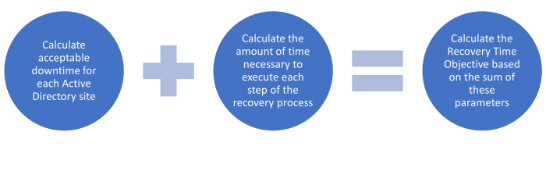
Start by defining a recovery time objective (RTO). It’s important to maintain topology and architectural drawings with the most critical locations labeled to ensure that the sites with the most business needs are recovered first. Typically, an organization will prioritize the locations with the most significant personnel and the locations serving as data centers. Analyzing the impact of downtime for these locations will help determine the recovery time objective based on business needs.
Conduct discovery
Some essential exercises are necessary for organizations starting to build their Active Directory disaster recovery plans to develop a successful strategy. From a technology perspective, this discovery process should include assessing the on-premises and cloud infrastructure for Active Directory and Entra ID / Azure AD. From a business perspective, involve key stakeholders and leadership teams to ensure that critical business requirements and objectives are built into the recovery plan.
Consider the following steps during the initial discovery process:
- Assess the current Active Directory environment, including cloud and on-premises infrastructure.
- Assess the Entra ID / Azure AD configuration.
- Assess the current DNS infrastructure.
- Involve critical stakeholders.
- Determine business DR requirements.
- Determine technical DR requirements.
- List recovery test cases and develop solutions to address them.
Create a disaster recovery plan
A disaster recovery plan can be created after concluding the discovery phase and meeting all Active Directory disaster recovery prerequisites. Third party solutions like Cayosoft Guardian are designed to alleviate the traditional complexities of manual DR planning by automating key processes and mitigating potential risks. The plan should include the domains, forests, and domain controllers to be backed up based on the artifacts and information gathered during the discovery phase.
In addition, a test plan should be included in the disaster recovery plan. Performing regular tests will validate that the plan works as expected and allow the plan to be refined over time as the AD environment and business needs change. Third party tools can also help automate this process too.
The following example details the process of creating an AD forest disaster recovery plan; we will use a fictitious company, Common Capital, and various assets to show some context.
AD Forest Recovery In Minutes

Automate the entire AD forest recovery process

Recover global enterprise-wide forests in minutes, not days or longer

No requirement for clean or rebuilt servers to recover to – save time!
Discovery
As part of the discovery process, Common Capital has discovered the following Domain Controllers:
- Comcap-DC01
- Comcap-DC02
Both domain controllers and replication are active. A single AD forest, comcap.local, has a forest and domain functional level of 2016. DC01 currently holds FSMO roles.
It is absolutely crucial that the Directory Services Restore Mode (DSRM) password be documented. This phase of planning is a great time to reset the DSRM password.
This is also the time that any backup software and connected backups are verified. A “system state” backup will be required to restore the primary domain controller.
Planning
When creating a forest recovery plan, it is essential to identify the steps necessary to determine if recovery is required or not. Here is a simple guide for escalation up to the point where recovery is needed:
- Identify the problem: IT teams should work with vendor support to establish whether someone can resolve the issue through standard troubleshooting methods. Forest recovery should be considered the last option. Examples of when it is necessary include complete domain failure (all domain controllers), Active Directory schema being accidentally or maliciously extended, and replication failure among all domain controllers.
- Determine the restore method: The restore method heavily depends on the number of domain controllers in the environment and the FSMO roles assigned. In this example, all FSMO roles are on ComCap-DC01; this would be the target to restore first.
- Set a timeline: It is essential to set drop-dead boundaries on time constraints. In most cases, a complete domain failure will cause significant downtime to an organization. Within the first hour, all troubleshooting would be completed by IT. IT and stakeholders should decide to follow procedures to restore the domain. Perform regular testing to verify the length of time that the restore process takes in varying situations.
Execution
This section details the execution of a domain controller restore. The description below is based on the assumption that this is a physical server; different directions will apply if restoring a VM.
For Hyper-V, follow this link from Microsoft. For VMware, follow this link from the vendor.
Here are the suggested steps to execute a bare metal restore.
- Safe mode and restore selection:
- Reboot the domain controller. During boot-up, press F8 to access the Advanced Boot Options menu.
- Select Directory Services Restore Mode and log in with the DSRM password.
- Once logged in, open the Windows Server Backup utility from the Tools menu in Server Manager or by typing wbadmin at the command prompt.
- Performing the restore:
- Within Windows Server Backup, click Recover and choose the location from where the recovery is to be performed.
- Select the date and time for the backup that you wish to restore.
- Choose to perform a system state recovery and, if necessary, check the Perform an authoritative restore checkbox for an authoritative restoration of AD objects.
- Click Next and follow the prompts to start the restore process. The server will restore the system state data and reboot.
- Post-restore checks:
- After the server restarts, log in normally and confirm that the SYSVOL and NETLOGON shares are available.
- Open Active Directory Users and Computers and other AD-related snap-ins to verify that the domain controller is functional.
- Use the repadmin /replsum command to check replication status and health. Ensure that there are no errors and that replication is happening as expected.
- Resync and update DNS records:
- Restore any remaining domain controllers and run repadmin /syncall /AePdq to force AD replication across all domain controllers in the network.
- Verify that the DNS entries for the domain controller are correct. If any entries are incorrect or missing, update them accordingly.
- Run dcdiag /test:dns to check for DNS-related errors, and resolve any that are found.
Test and document the Active Directory disaster recovery process
As our article on Active Directory management tools mentioned, employing native Active Directory tools involves using the Windows Server Backup tool (or the command line version named wbadmin.exe) on all domain controllers. As an alternative, a third-party backup agent can be used to capture and store these backups. Ensuring that the system state is included in the backup is critical because it contains the data needed to recover a domain controller.
The snapshot function of the ntdsutil tool can be used to mount a backup image as an LDAP instance to determine which backup is needed based on the state of the data. This type of backup is known as an Active Directory snapshot.
Updating the DR recovery plan with the test cases identified during your DR discovery is vital. Some critical recovery test cases include:
- Domain controller recovery
- OU recovery
- Domain recovery
- Forest recovery
- Recovery of Active Directory to a recovery site
- Group policy object recovery
- Entra ID object recovery
Cayosoft Guardian can address these test cases by eliminating the manual processes traditionally associated with backup, restore, and testing. Guardian seamlessly automates these critical tasks, operating on a scheduled basis and can recover domain controllers, domains, forests, containers, and organizational units (OUs) much more quickly than native Active Directory tools. It’s very easy, lightweight and unique approach to forest recovery ensures your Active Directory environment is always protected and ready for any contingency.
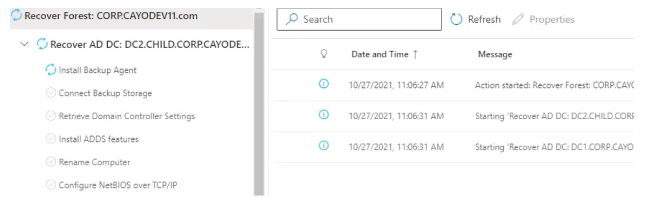
After a quick installation of Guardian, you can effortlessly add your Active Directory forest to Guardian in a matter of minutes. You can add a forest by simply clicking New Domain on the Dashboard page on the Guardian administrative site. The software automatically creates a backup plan to safeguard all domains and domain controllers within the forest. You retain the flexibility to customize these plans by including or excluding specific domains or controllers, and you can choose your preferred backup location, whether it’s in the cloud (Azure, AWS) or on a local SMB server.
Manage, Monitor & Recover AD, Azure AD, Office 365
| Platform | Admin Features | Basic Backup | Azure AD & Office 365 | Preset Security Policies | Recovery in Minutes |
| Microsoft AD Native Tools | ✓ | ✓ | |||
| Microsoft AD + Cayosoft | ✓ | ✓ | ✓ | ✓ | ✓ |
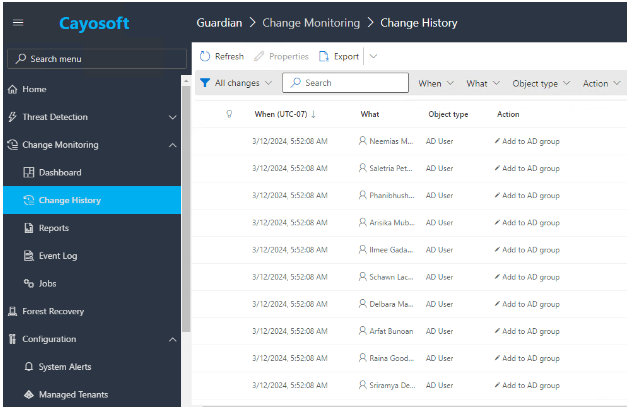
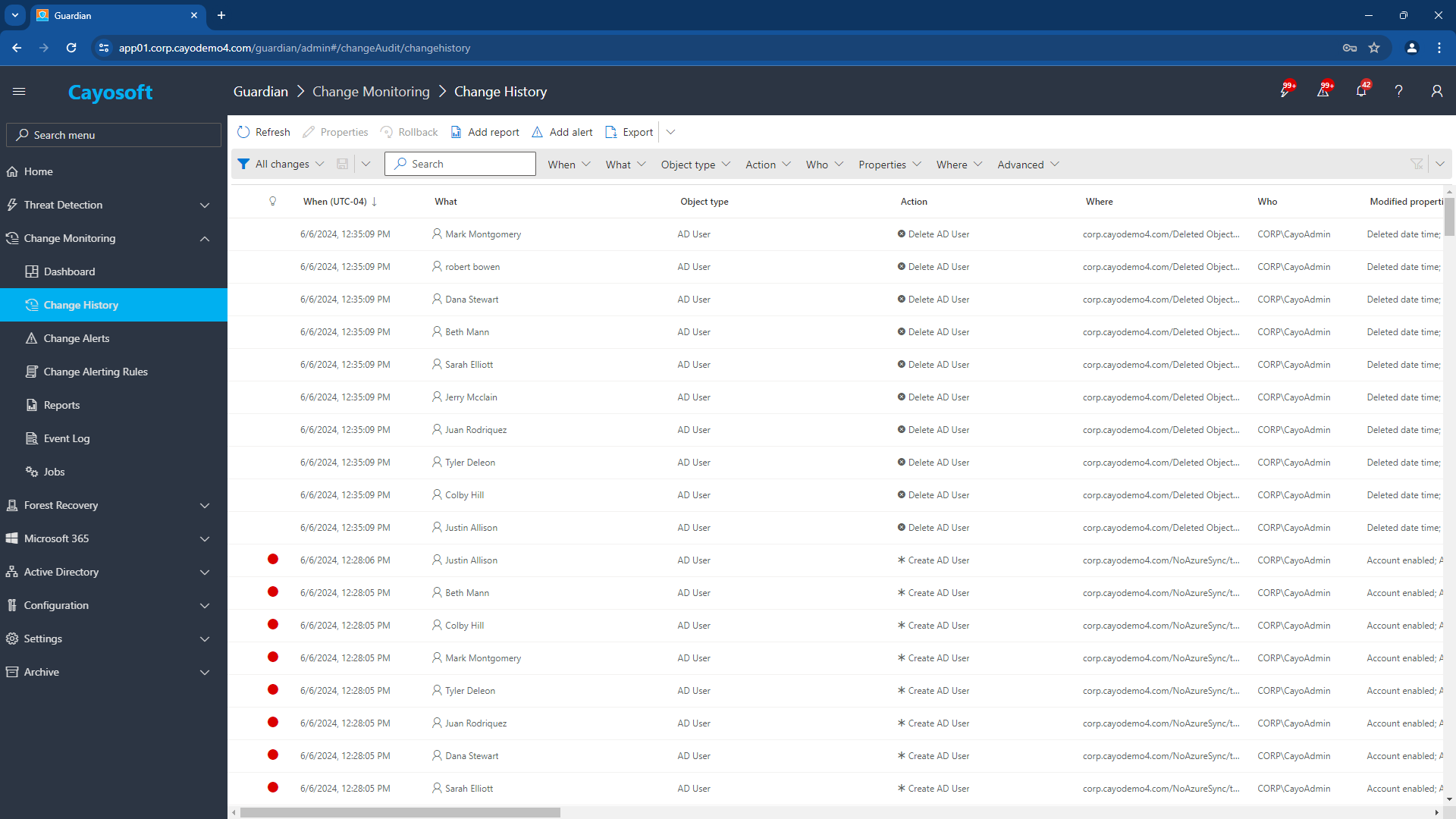
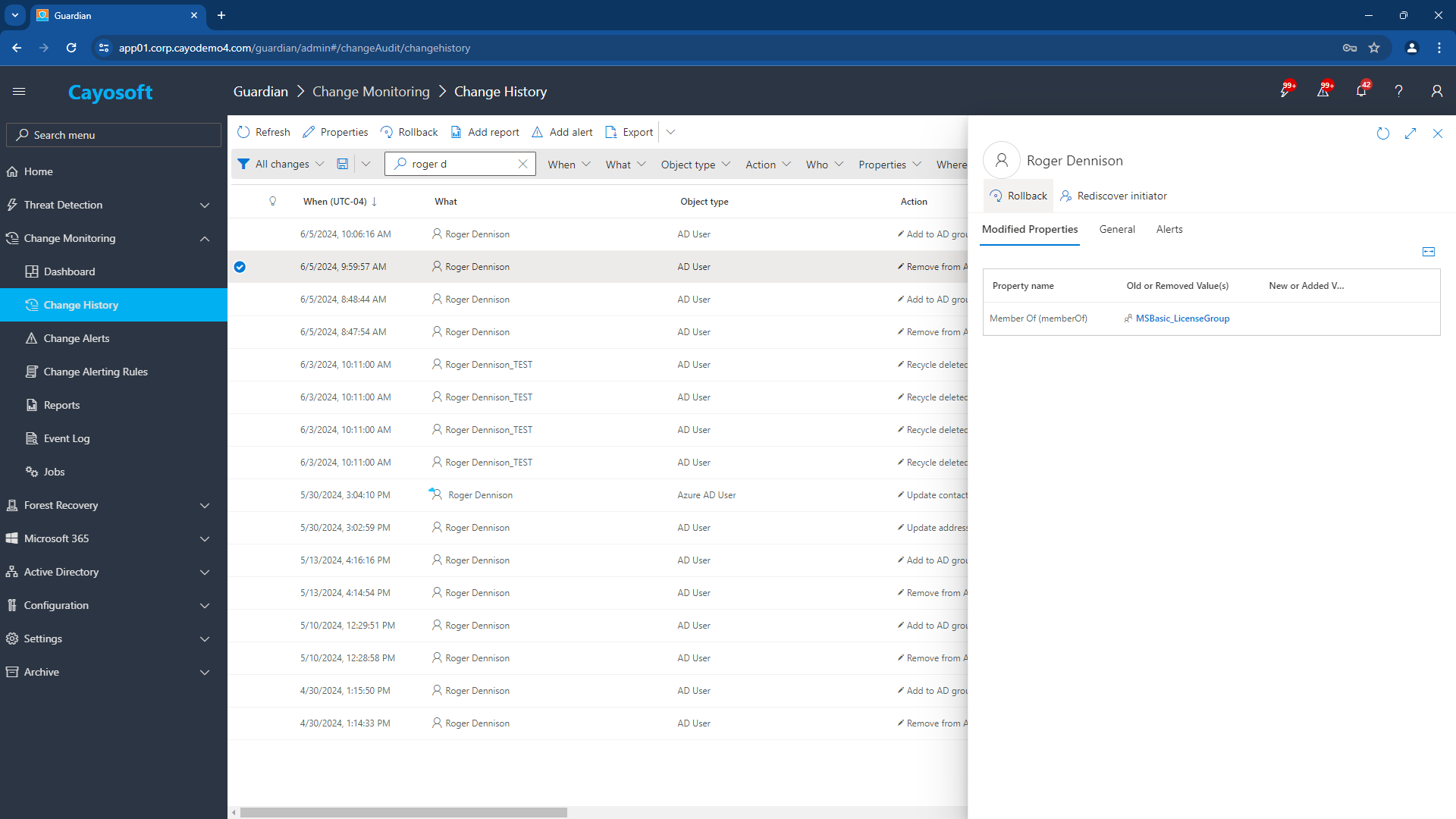
But Guardian goes beyond simple backups. It continuously monitors changes in your Active Directory and Entra ID (Azure AD), providing a detailed “Change History” view accessible through its web portal. As a result, administrators can pinpoint specific changes, review their impact, and quickly roll back any unwanted modifications with a single click.
For more significant changes, like accidental OU deletions or AD container corruption, Guardian provides comprehensive recovery capabilities. It can restore your Active Directory forest to a clean, pre-disaster state via single-click rollback, even rebuilding machines as needed. This ensures your environment is up and running quickly, minimizing downtime and potential business disruption.
Consider the challenges of using native Active Directory disaster recovery tools.
Native Active Directory DR tools can be practical but have many complexities and nuances. For example, reviewing backups, restoring backups, and orchestrating backups in different locations and domains are challenging activities that require a lot of effort and time during a situation when time is of the essence.
Common Active Directory Recovery Scenarios and How to Choose the Right Strategy
Understanding common Active Directory incident types is essential to determining the correct recovery approach. Each failure scenario requires a different restoration method. Using the wrong approach can increase downtime, cause additional corruption, or disrupt authentication services.
Below is a summary of the most frequent AD recovery scenarios and the recommended recovery options.
Active Directory Recovery Decision Table
| Scenario | Recommended Recovery Method | Recovery Scope | Why This Matters |
|---|---|---|---|
| Accidental Deletion of Active Directory Objects | Object-level restore | Users, groups, computers, GPOs | Restores deleted identities with original attributes and access without affecting healthy objects |
| Attribute-level Corruption or Overwrite | Attribute rollback | Specific attributes | Reverses unwanted attribute changes without rolling back entire objects |
| Accidental Organizational Unit (OU) Deletion | Authoritative container restore (Single DC) | Entire OU structure | Rebuilds deleted OUs and nested objects consistently |
| Domain Controller Failure | Non-authoritative domain controller restore | Single DC | Safely rebuilds a failed DC and synchronizes with healthy DCs |
| Domain Corruption | Authoritative domain restore | Entire domain | Restores the domain from clean backup data in a consistent state |
| Forest-wide Disaster (On-Premises) | AD Forest Recovery Plan | Entire forest | Automatically restores the entire forest to pre-existing servers using standardized Microsoft aligned steps |
| Forest-wide Disaster: Standby Forest Recovery | Standby Forest Recovery (Azure or AWS) | Entire forest | Provides rapid restoration using a clean cloud-based recovery forest |
| Ransomware Attack: Forest-wide Impact | Standby Forest Recovery (Azure or AWS) | Entire forest | Best option when on-premises infrastructure is compromised and unsafe |
Accidental Deletion of Active Directory Objects
Accidental deletion frequently affects users, groups, computers, and GPOs during cleanup or administrative tasks.
Why it matters:
Access breaks immediately, licensing fails, and applications dependent on group membership or attributes stop working.
Why this method:
Object-level restore is the most efficient way to recover deleted data without impacting healthy AD components.
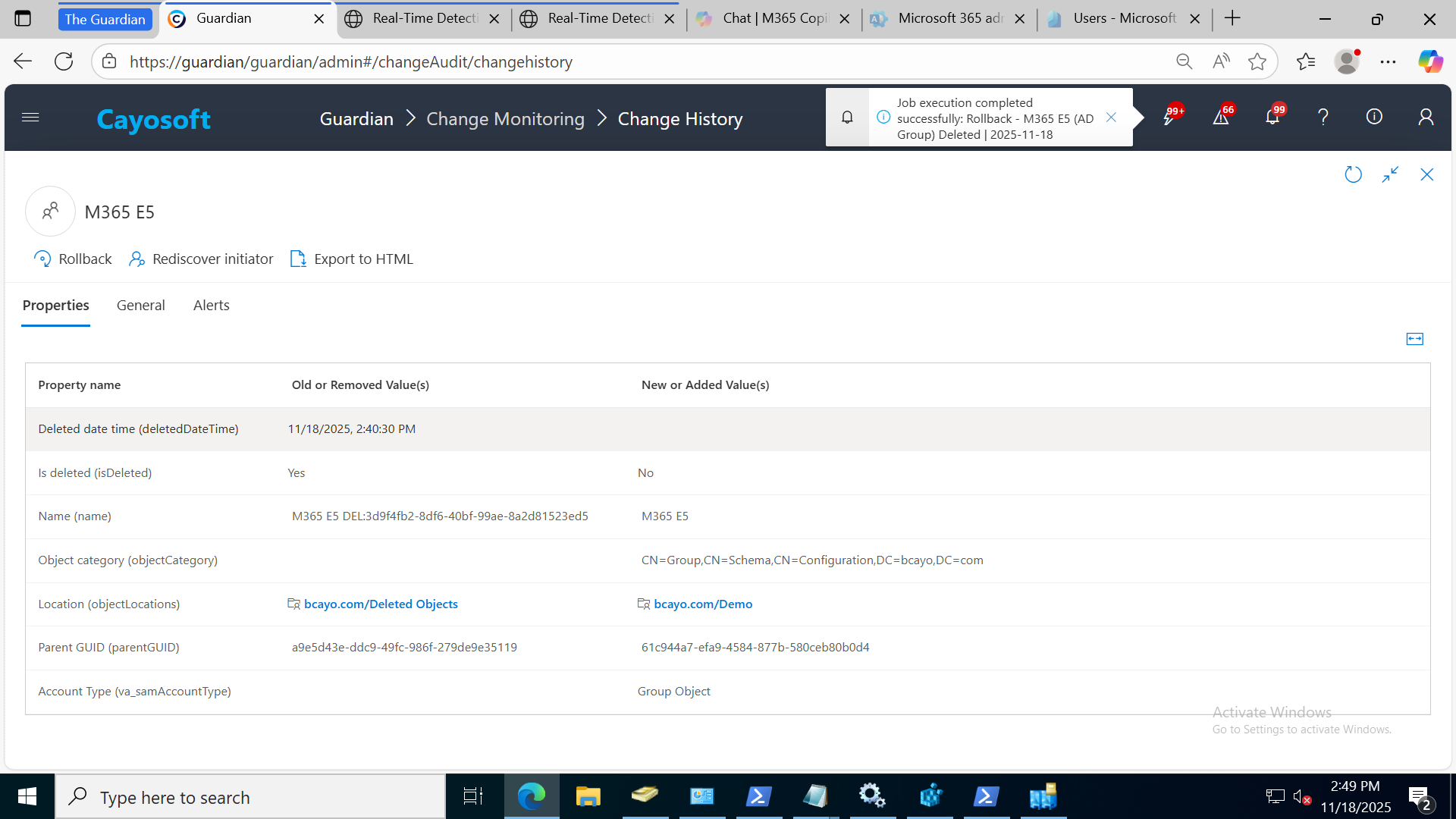
Deleted Object Identified
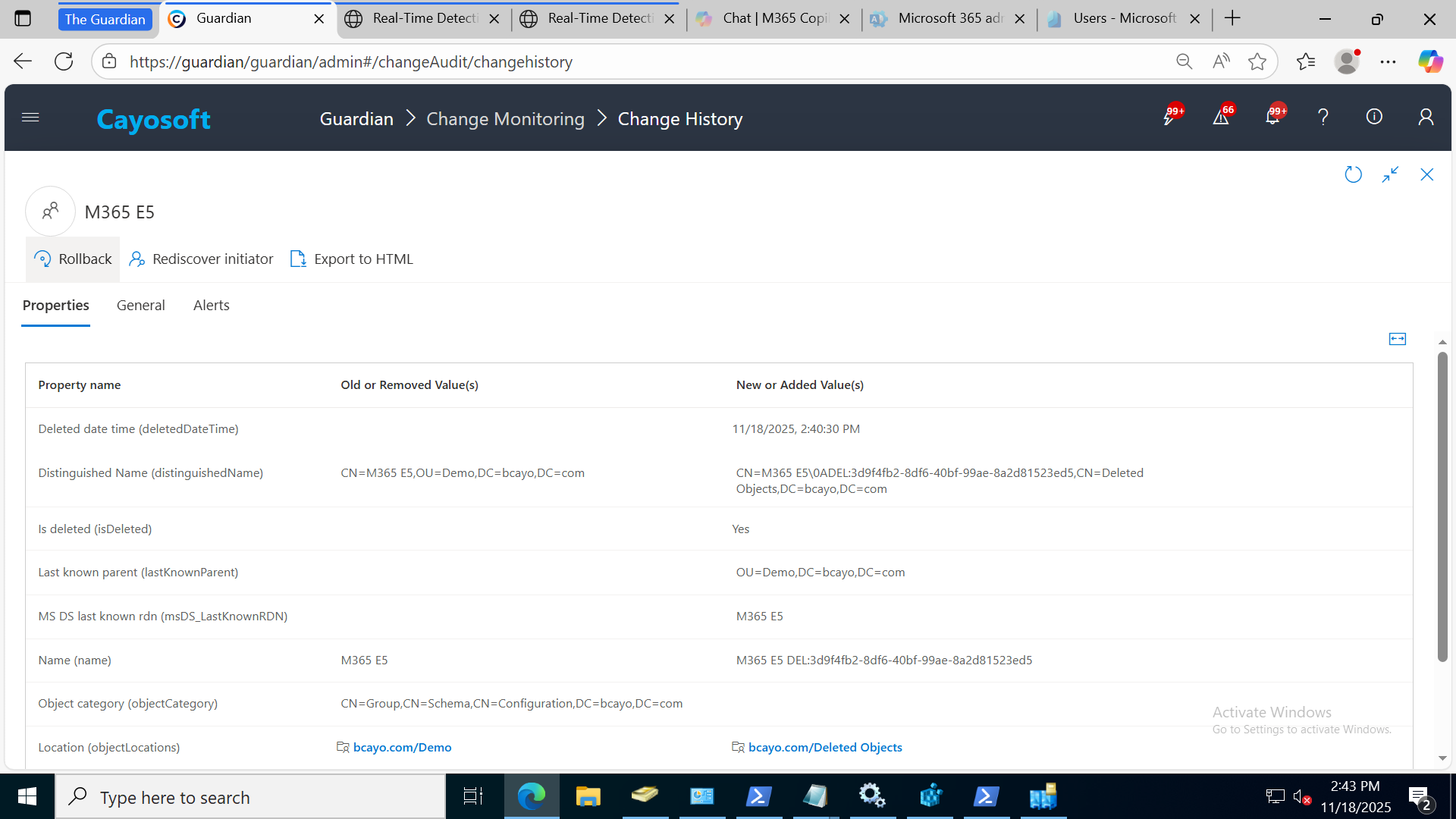
Rollback Button Selected
Object Restored with Memberships
Attribute-level Corruption or Overwrite
Scripts, sync tools, or misconfiguration can unintentionally overwrite attributes across hundreds of objects.
Why it matters:
Incorrect attributes break access, misconfigure licenses, or disrupt cloud identity synchronization.
Why this method:
Attribute rollback restores only what changed, reducing business impact and avoiding overcorrection.
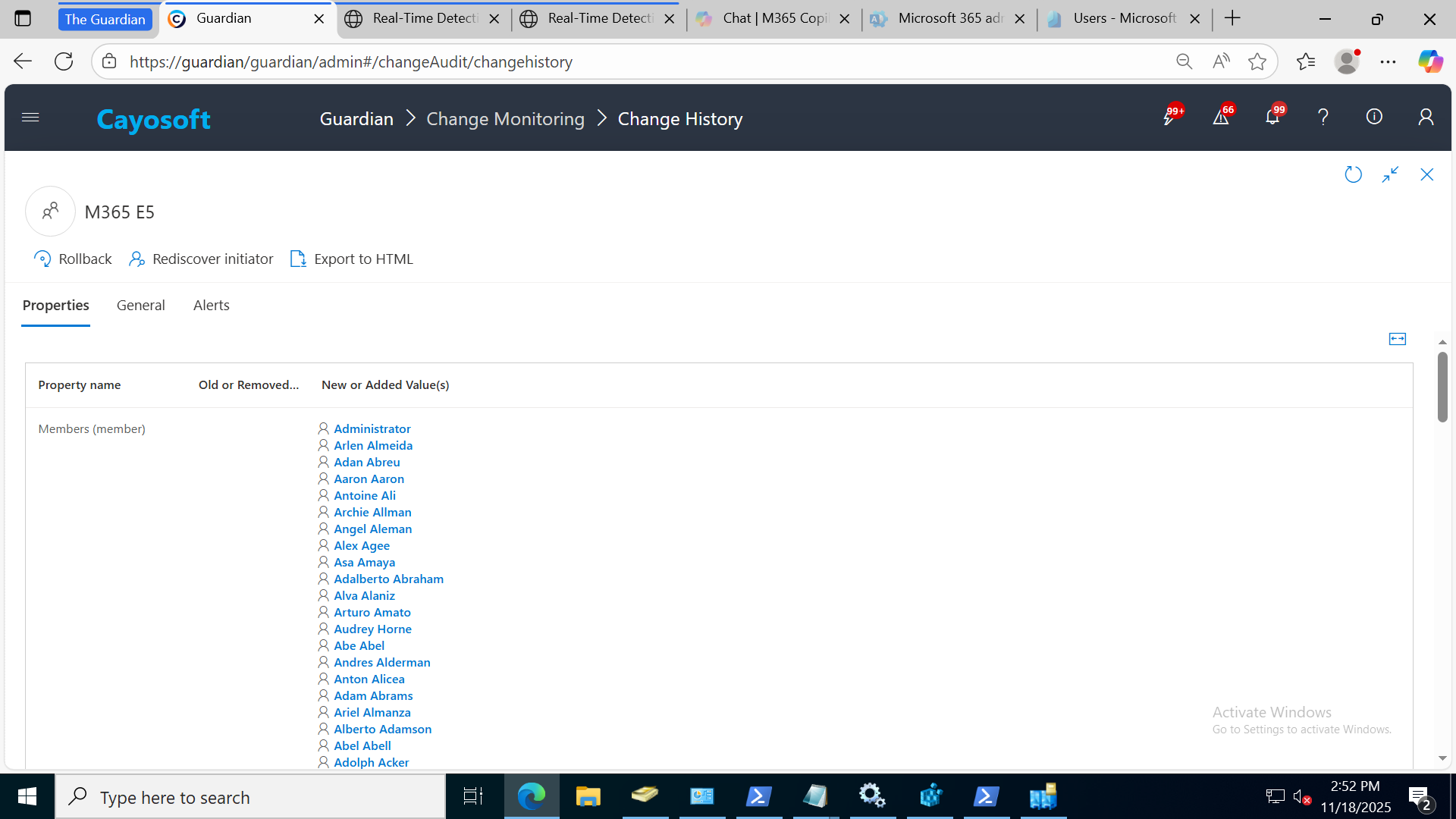
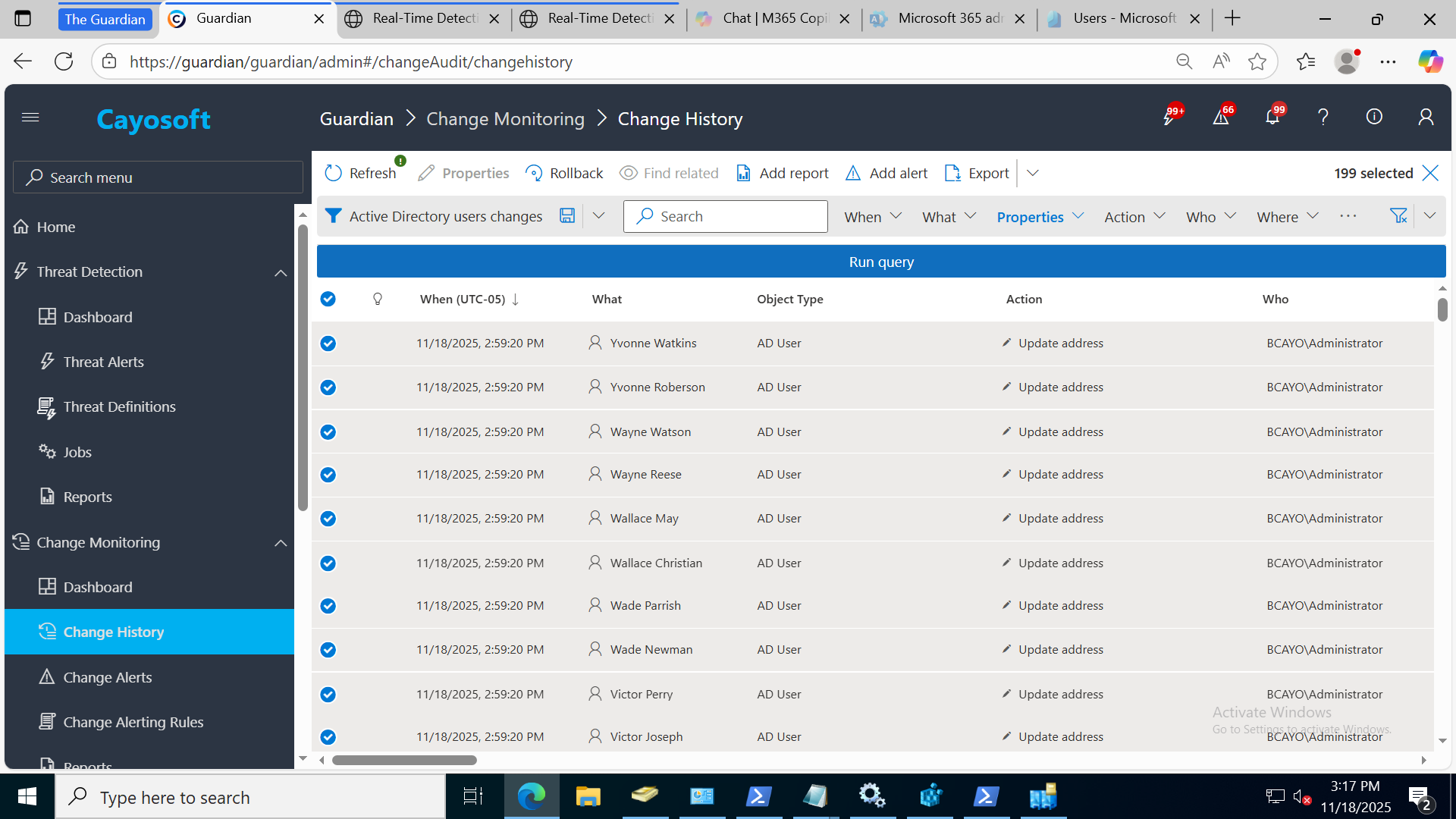
Change History – Modified Attributes
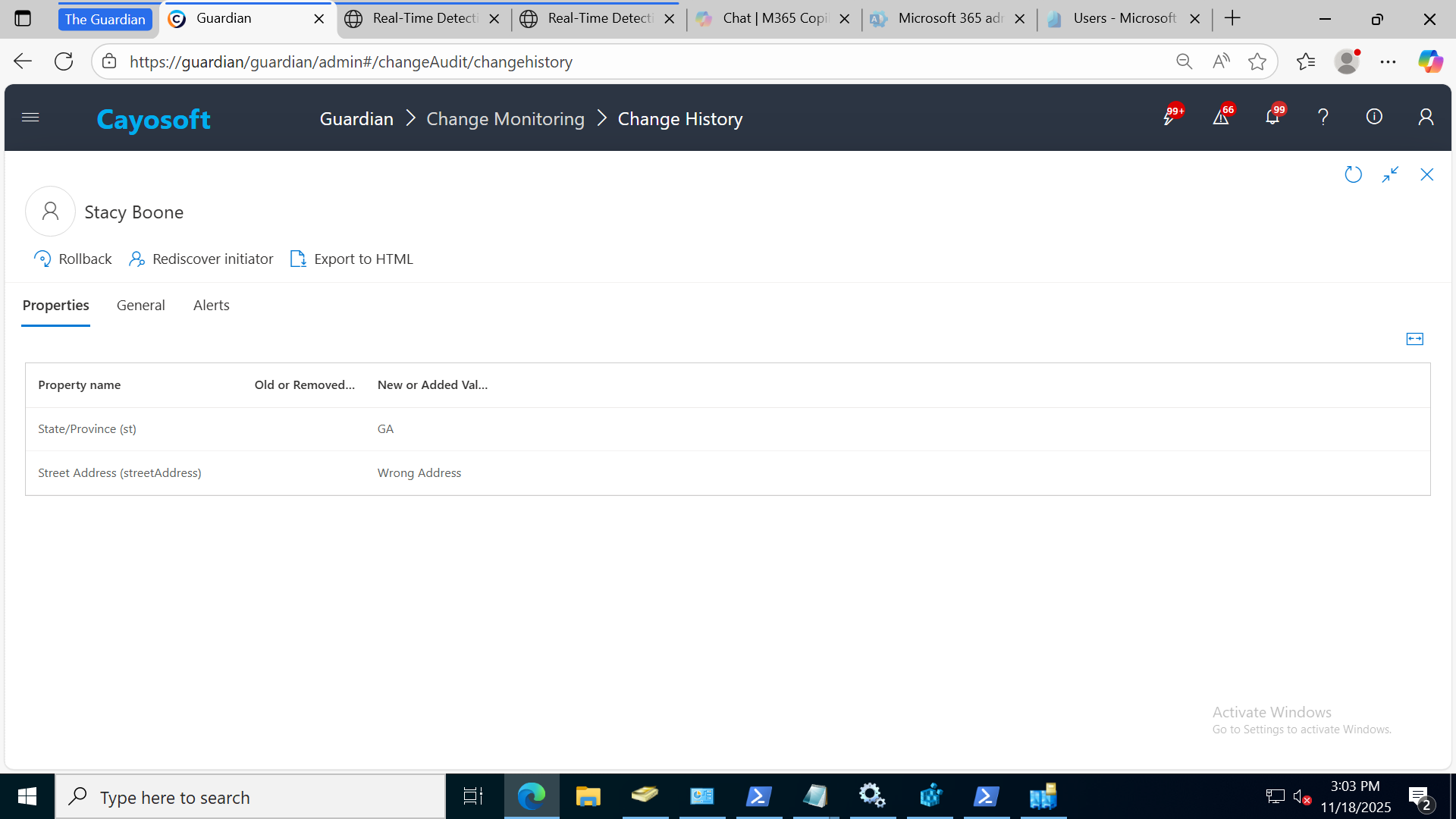
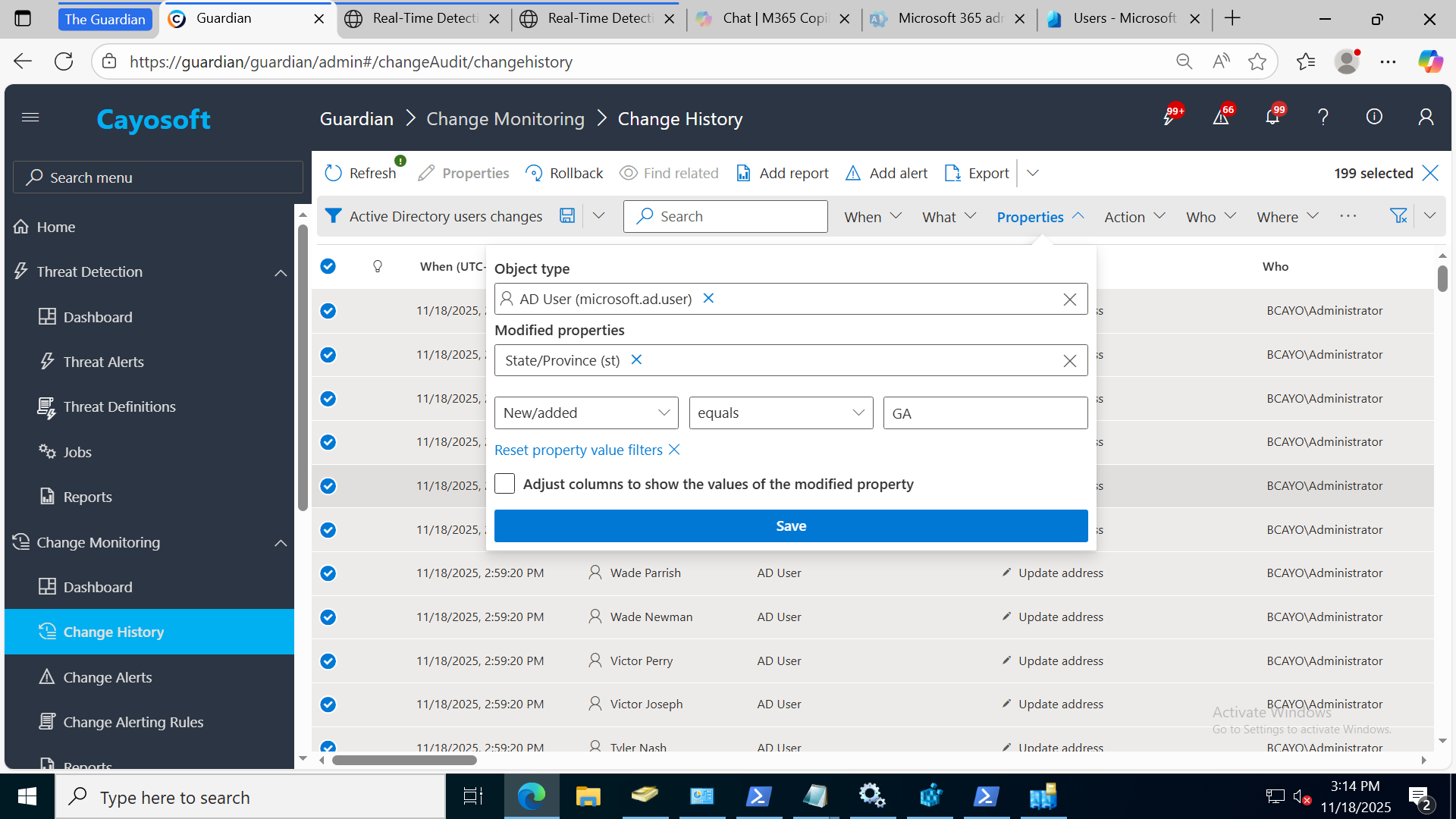
Query Builder Filtering by Attribute
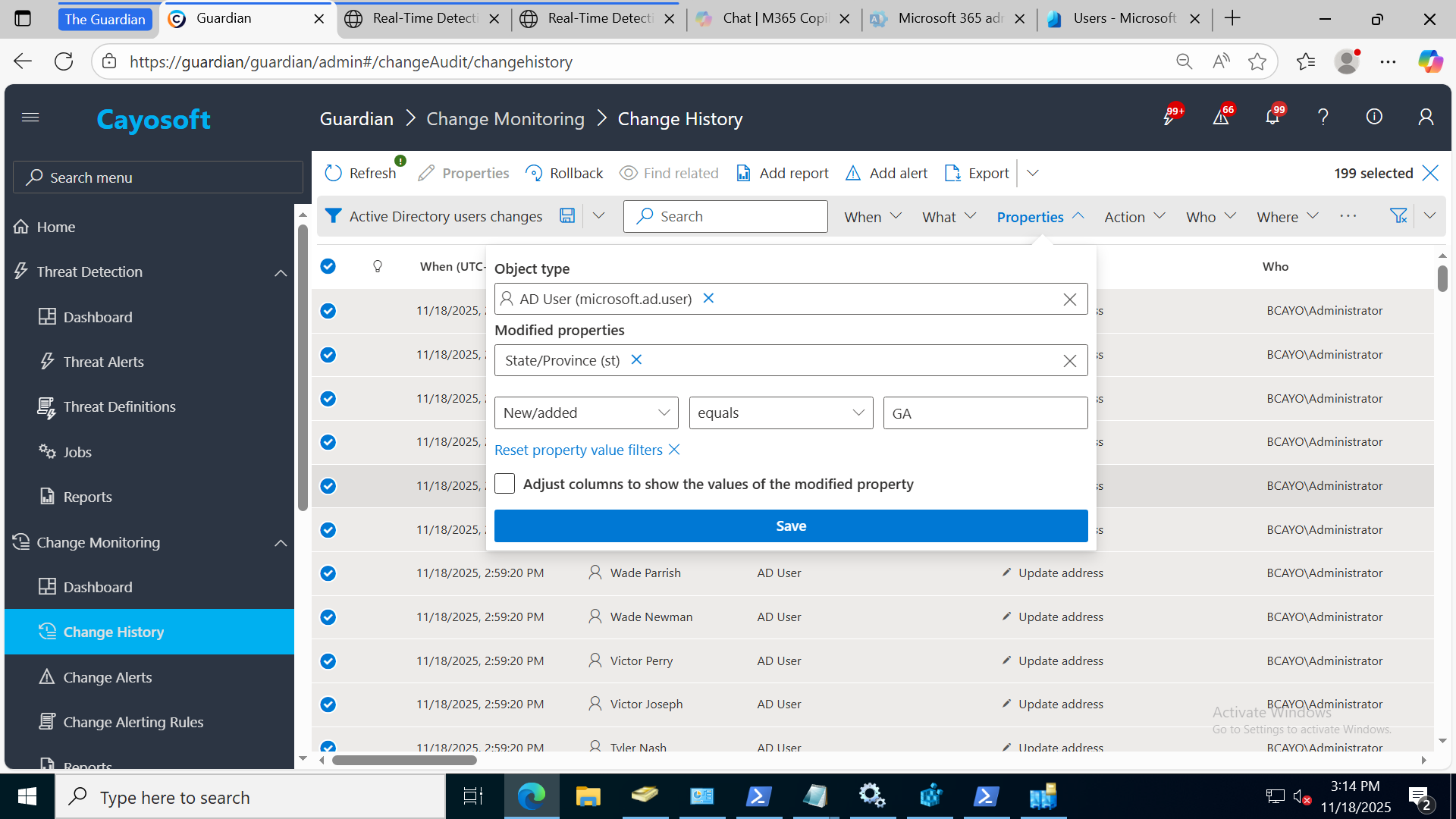
Result List Showing All Impacted Users
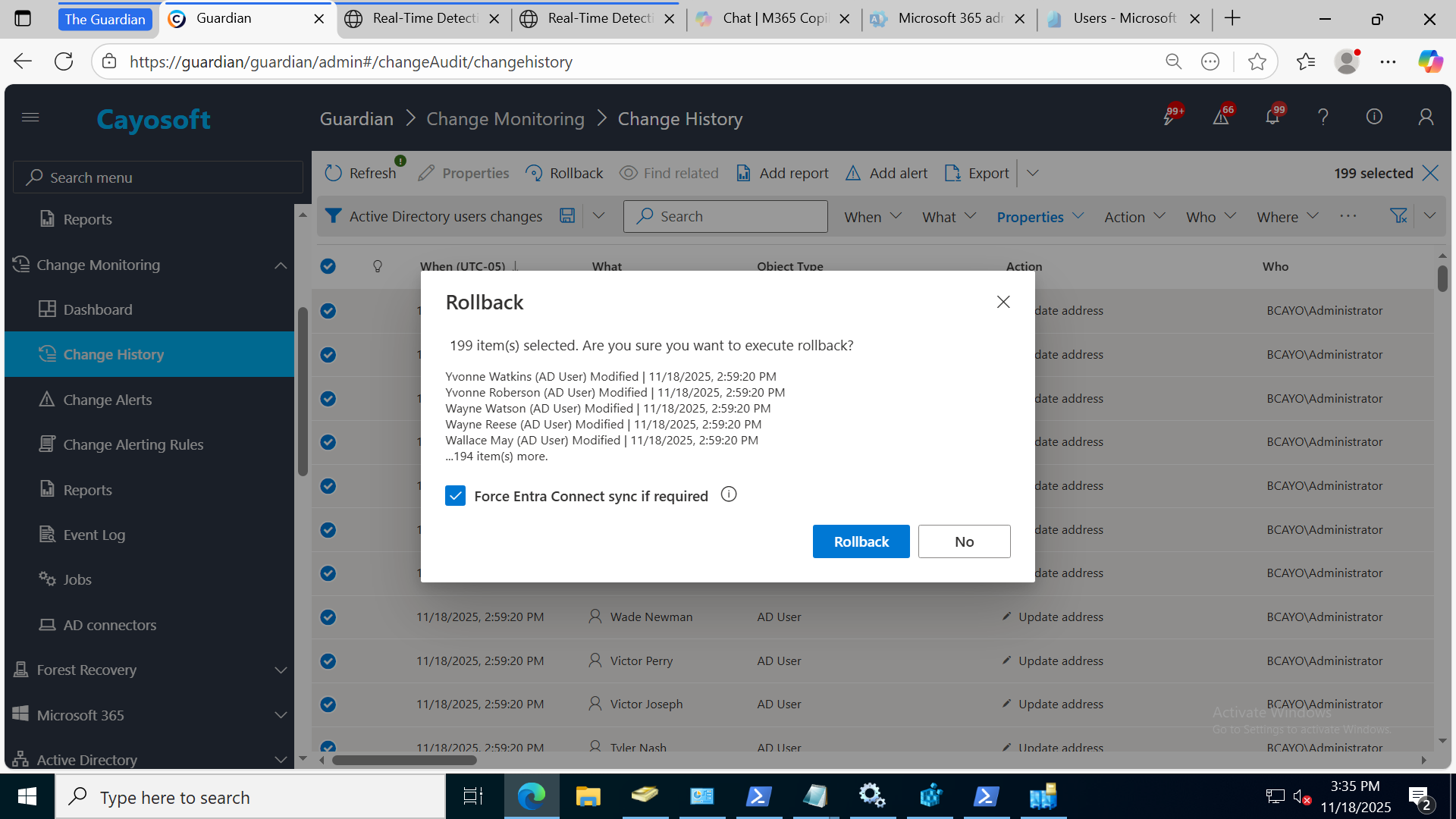
Rollback Job Started
Accidental Organizational Unit (OU) Deletion
Entire OUs can be deleted accidentally, along with all nested objects.
Why it matters:
Departments or locations may lose access completely, GPO links vanish, and automation fails.
Why this method:
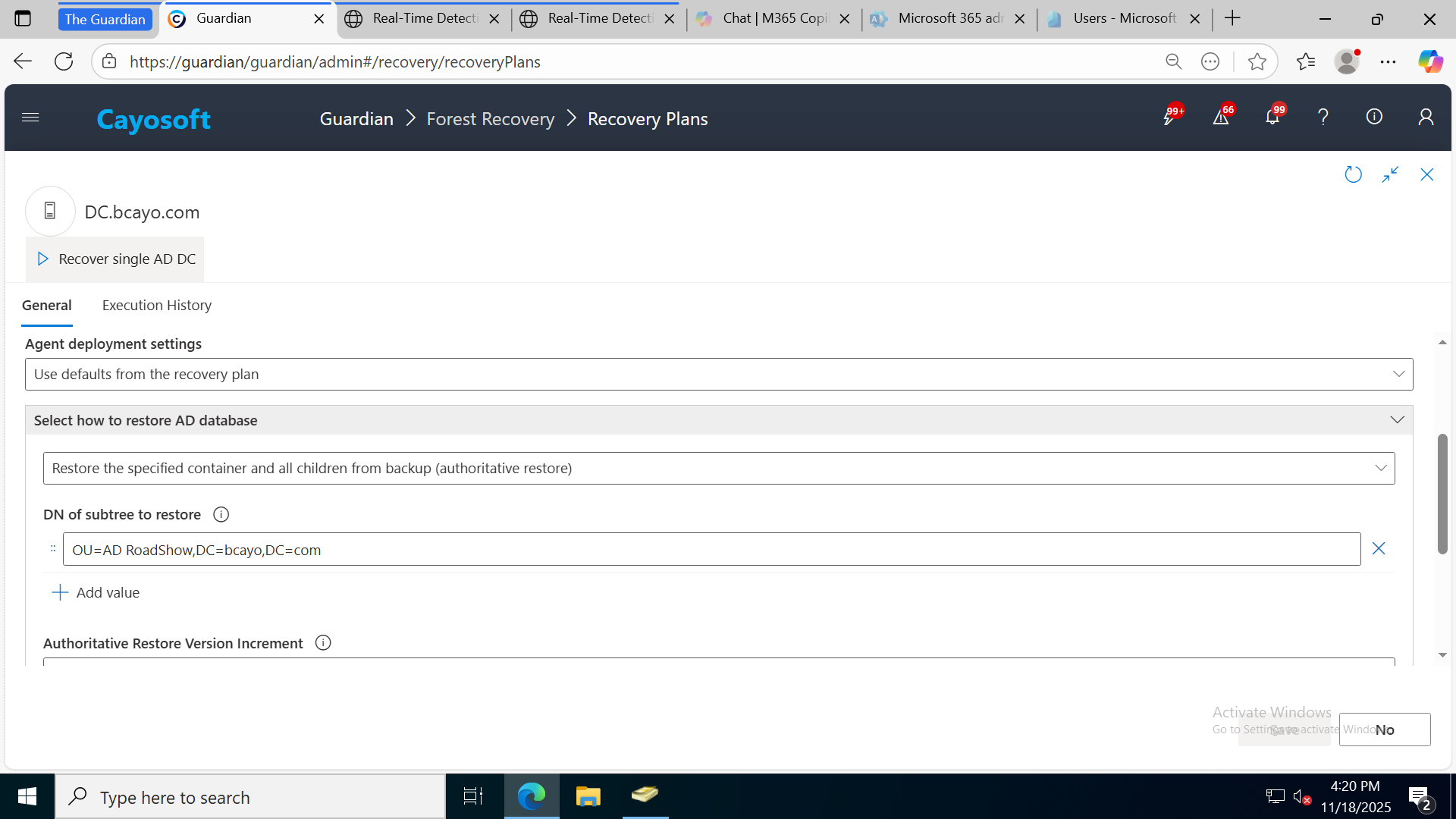
Authoritative container restore accurately rebuilds the OU and child objects.
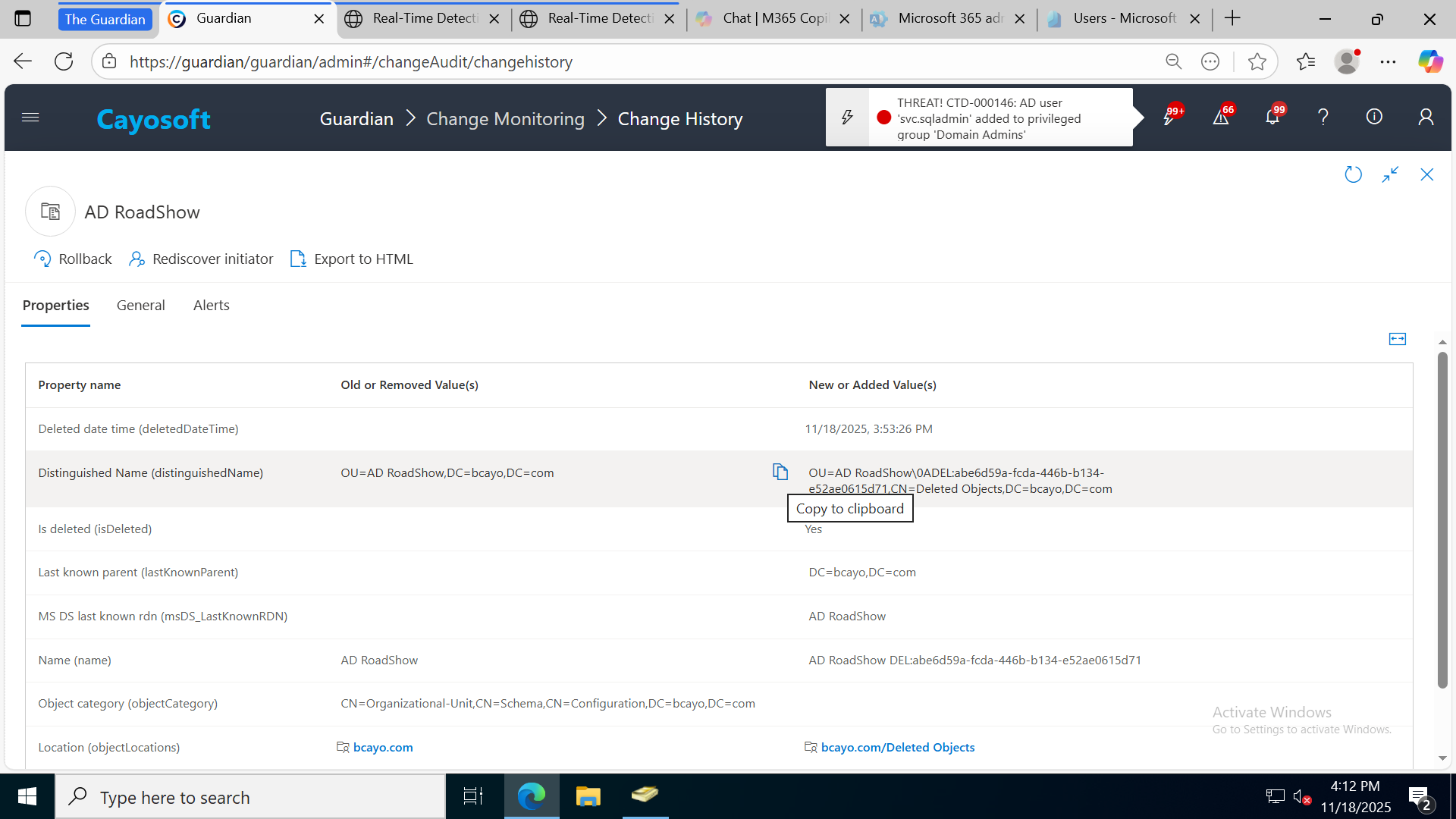
Change History – Deleted OU Query
OU Distinguished Name Located
Domain Controller Recovery Plan – Container Restore Option
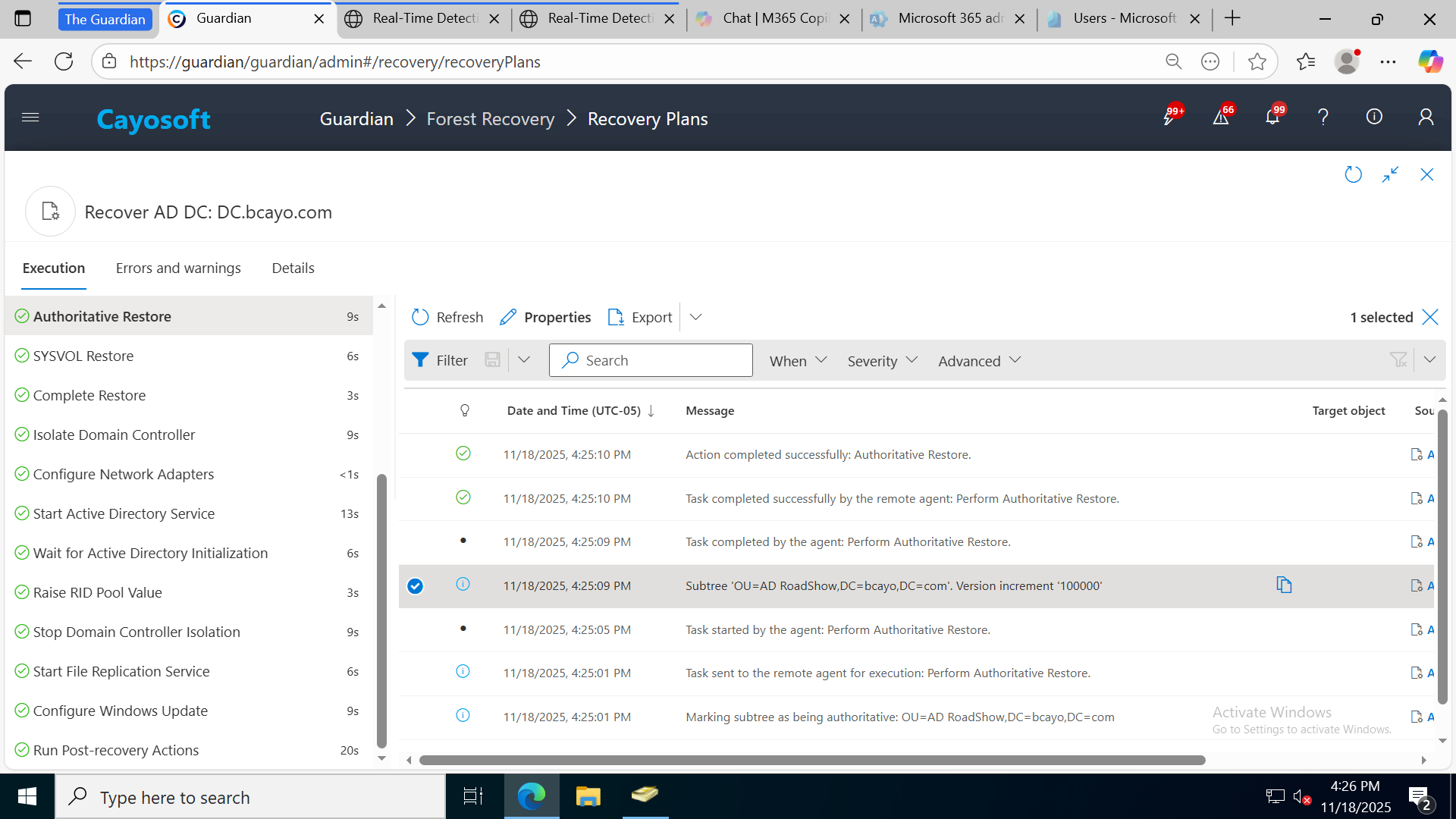
Restored OU and All Child Objects
Domain Controller Failure
Hardware issues, OS corruption, or configuration problems can make a DC unusable.
Why it matters:
Authentication may slow or fail, and replication topology suffers.
Why this method:
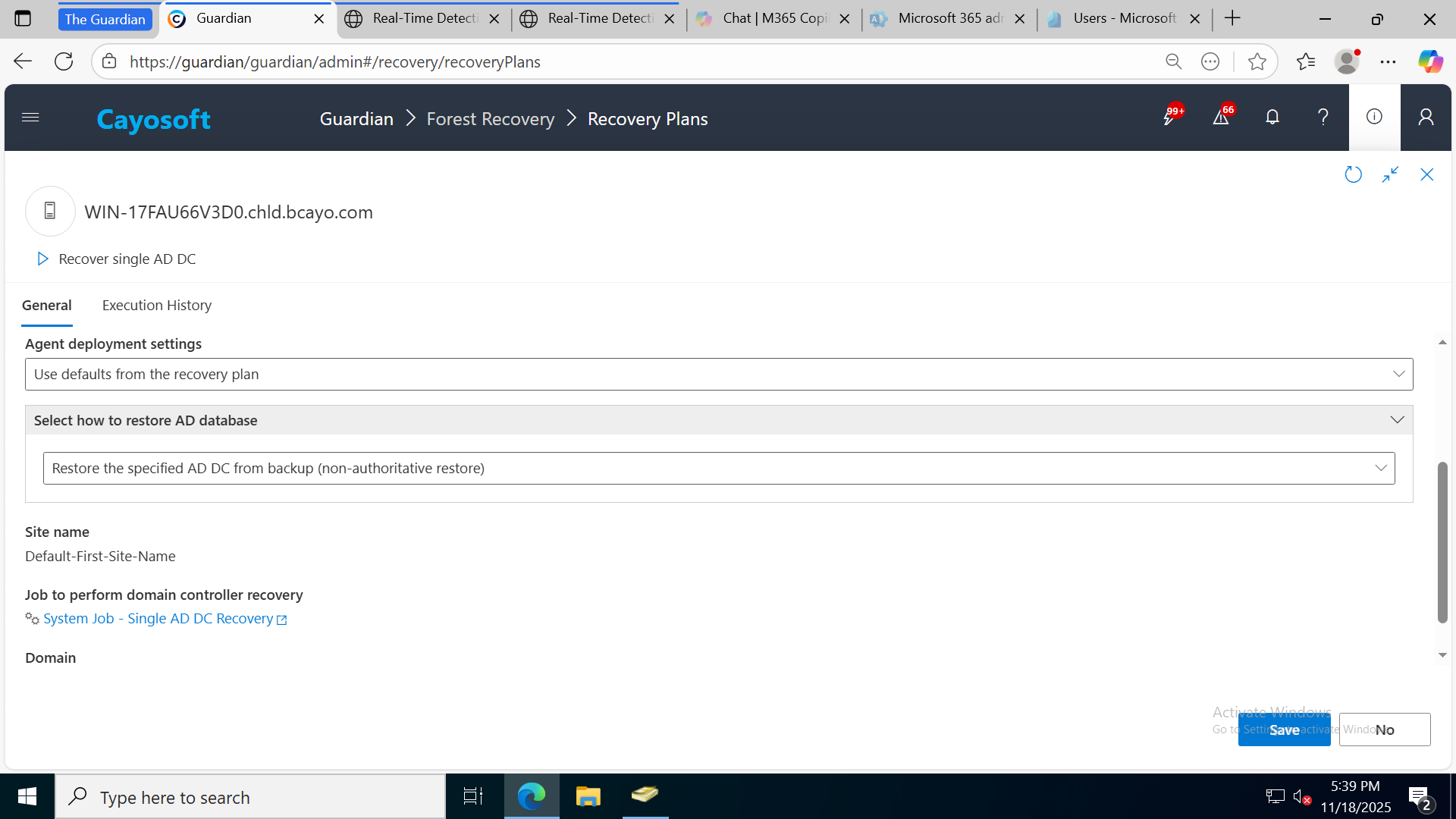
A non-authoritative DC restore quickly returns the DC to service and updates it using healthy DCs.
Select DC Restore
Domain Corruption
A domain may become unstable due to replication issues, schema changes, or misconfiguration.
Why it matters:
Authentication outages and replication failures spread quickly.
Why this method:
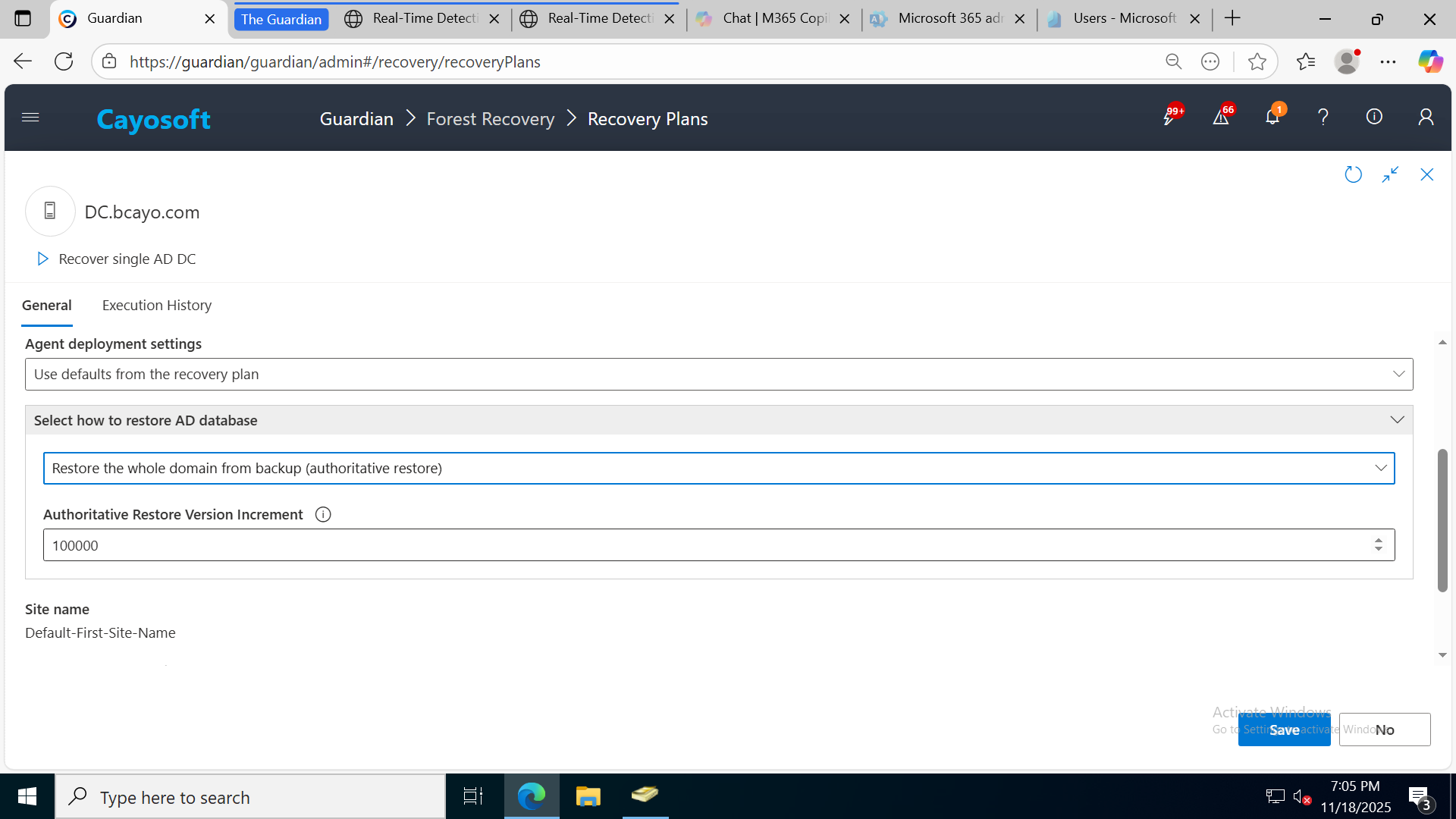
Authoritative domain restore ensures the domain is rebuilt using clean data.
Domain Restore Plan Selected
Forest-wide Disaster (On-Premises)
Forest-level corruption can occur due to misconfiguration, schema issues, or catastrophic operational mistakes.
Why it matters:
Identity becomes unavailable across the enterprise.
Why this method:
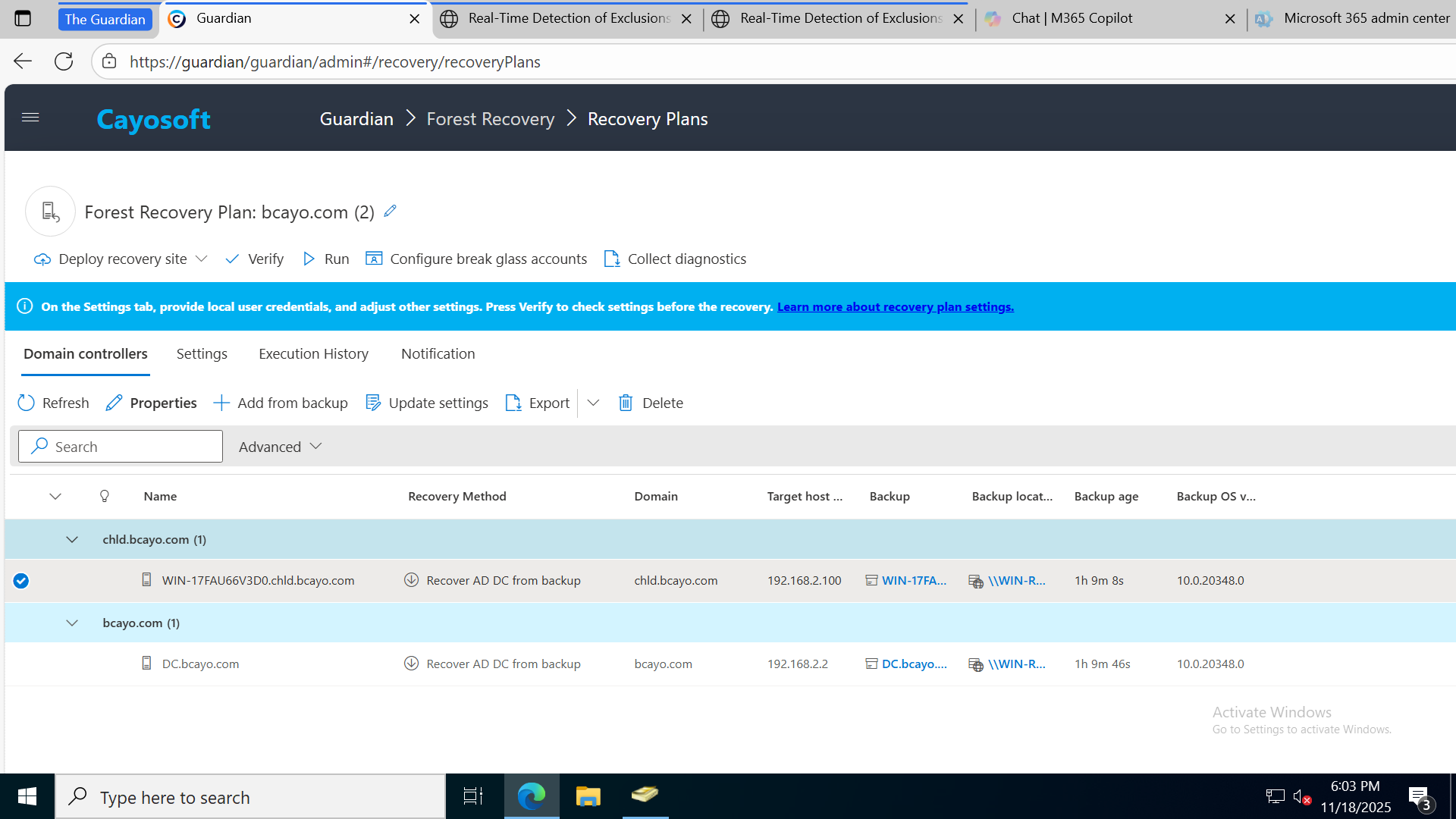
An AD Forest Recovery Plan coordinates the rebuild of all domains and DCs.
Guardian Forest Recovery Plan Selected
Forest-wide Disaster: Standby Forest Recovery
Organizations sometimes require recovery into a safe, isolated environment such as Azure or AWS.
Why it matters:
Clean recovery avoids issues linked to compromised on-prem systems.
Why this method:
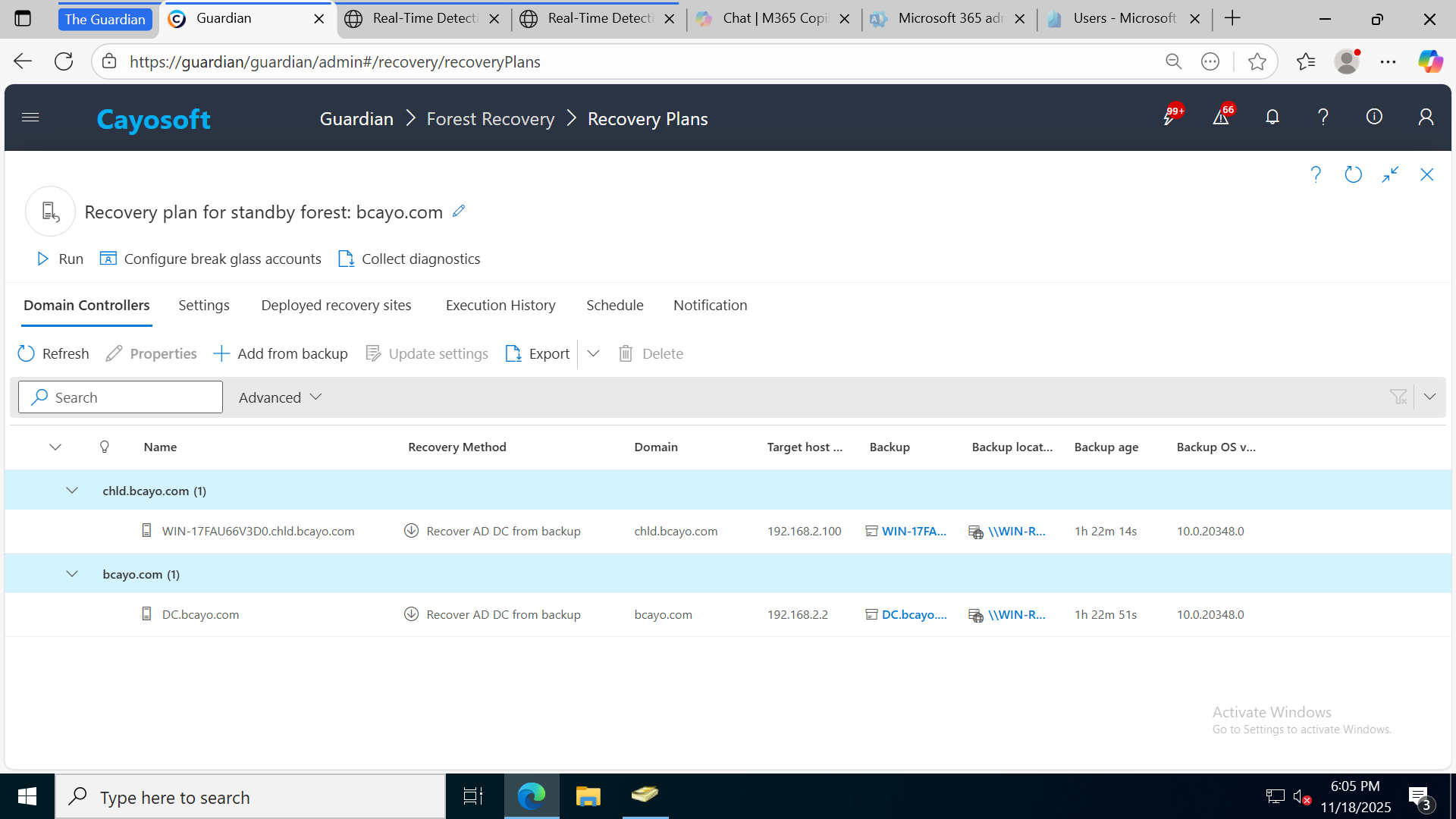
Standby Forest Recovery uses a preconfigured cloud environment for rapid, clean restoration.
Standby Forest Recovery
Scheduled Forest Recovery

Ransomware Attack: Forest-wide Impact
Ransomware increasingly targets identity infrastructure.
Why it matters:
Compromised DCs and corrupted replication make on-premises recovery risky. Reinfection is likely if compromised systems are reused.
Why this method:
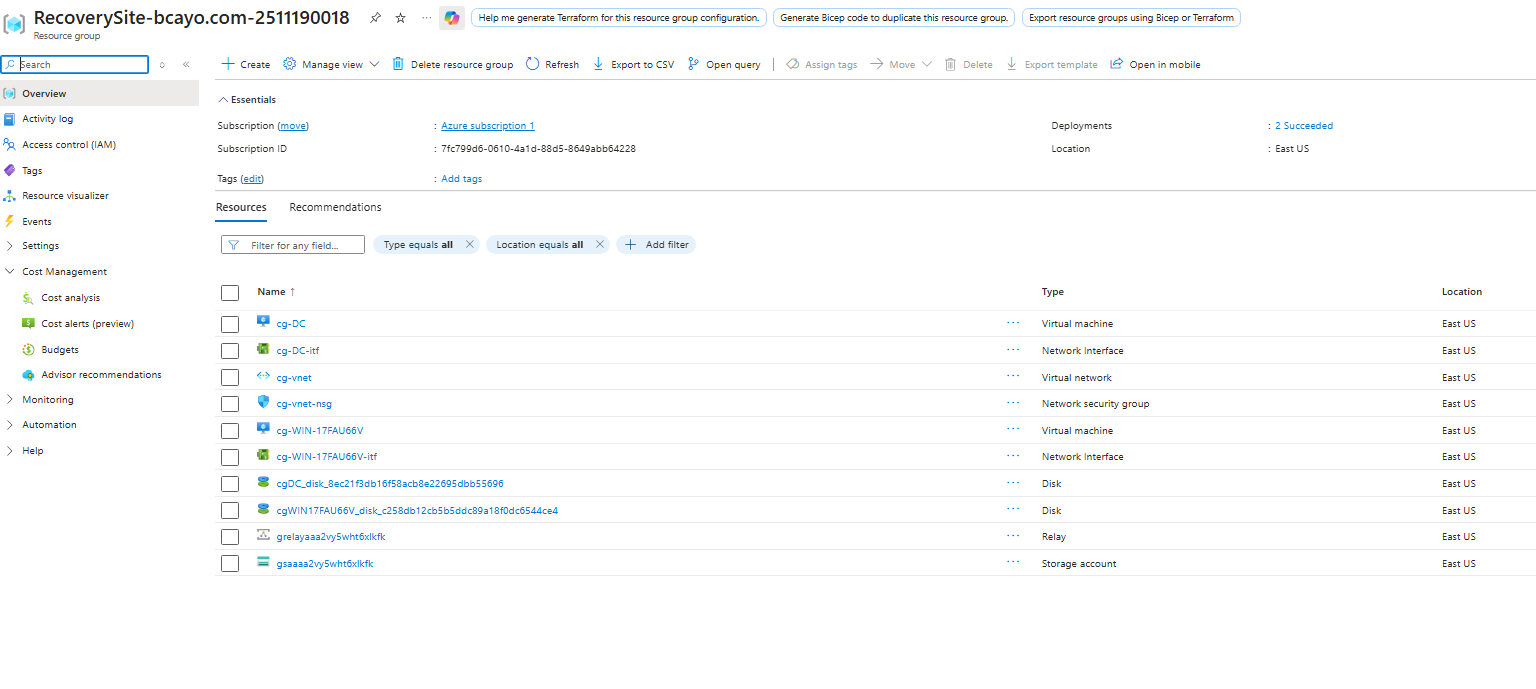
Standby Forest Recovery provides the safest option by rebuilding AD in a clean, isolated cloud forest.
Standby Forest Recovery Plan
Scheduled Forest Recovery Plan
Recovered Standby Forest in Azure
Cayosoft Guardian Completely Automates Active Directory Disaster Recovery
Cayosoft Guardian completely automates the backups and recovery of Active Directory by fully automating processes, eliminating the need for manual intervention. Leveraging patented methodology and technology, Guardian ensures rapid recovery in minutes while adhering to AD best practices. Its unique approach encompasses not only data restoration but also crucial elements like metadata and DNS cleanup, guaranteeing a healthy and functional forest post-recovery.
With Guardian, each step of the process is recorded, providing detailed reports and triggering alerts in the event of errors during backup or recovery. In contrast to monitoring AD with native tools, Cayosoft helps you eliminate the complex task of manually parsing and correlating logs from multiple domain controllers and Entra ID for continuous monitoring.
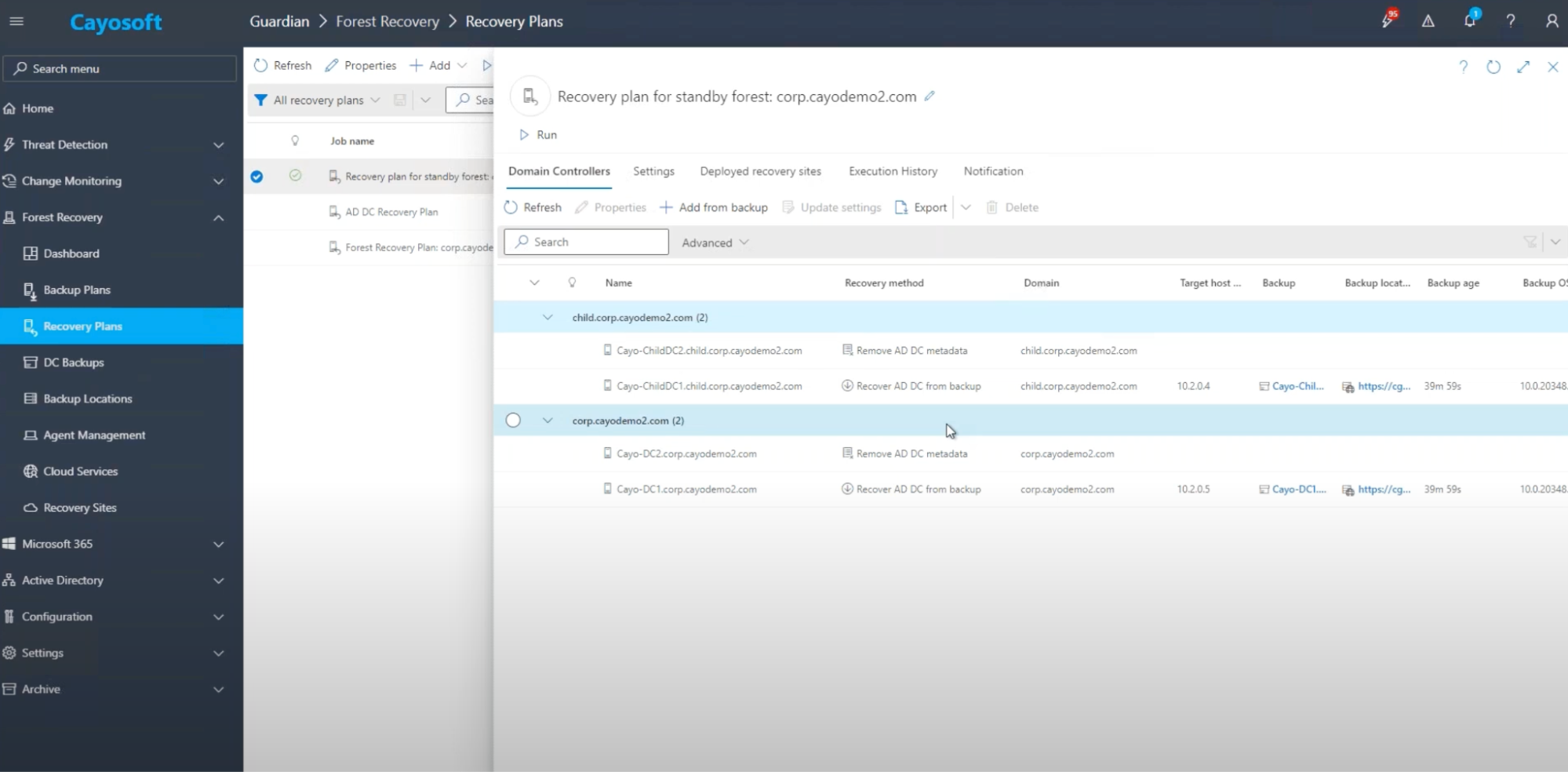
Guardian can validate the Active Directory disaster recovery plan by restoring a forest to a recovery site. Deploying the recovery site in Azure or AWS can allow Guardian to configure virtual machines automatically with the appropriate network and operating system settings for the recovery site network. This feature is known as Instant AD Forest Recovery.
With Cayosoft Guardian, changes to objects are tracked and stored. Creating a job under the Change Monitoring configuration lets you define which objects are protected and excluded from the Change Monitoring feature. Additionally, change history records can be exported.
Cayosoft Guardian extends its comprehensive protection to Entra ID (Azure AD), safeguarding critical objects like users, groups, and application registrations. For some use-cases, this may be particularly important as many items in Azure can be permanently deleted, bypassing the recycle bin.
Leveraging the Microsoft Graph API, Guardian provides unparalleled change tracking and restoration capabilities for Entra ID objects of user objects at both the object and attribute levels, even after they’ve been hard/permanently-deleted from AD.
Guardian’s extensive restoration capabilities cover a wide range of Entra ID objects:
- Users (Includes guest users and users synced from AD)
- Groups (Includes assigned groups and dynamic groups)
- Devices
- Roles
- Administrative Units
- Policies
- Enterprise Apps (Security Principals)
- App Registrations (Application Objects)
- And more…
Learn why U.S. State’s Department of Information Technology (DOIT) chose Cayosoft
Conclusion
Active Directory and Entra ID/Azure AD are central to an organization’s security and operations. A well-crafted and thoroughly tested recovery plan proactively manages the risks associated with potential outages, minimizing disruption and safeguarding the organization. By employing specialized recovery tools beyond the default Windows Server utilities, organizations can decrease operational downtime.
A comprehensive disaster recovery strategy for Active Directory requires meticulously noting all essential considerations and integrating these into a business continuity plan that reflects key business objectives gained through thorough environmental assessments. Rigorous testing, achieved through detailed documentation and practical test cases, is vital for reliability, and tools like Cayosoft Guardian can help overcome the shortcomings of native recovery options.
Like This Article?
Subscribe to our LinkedIn Newsletter to receive more educational content
Explore More Chapters