



Home » Your Guide to Secure Endpoint Management: Essential Microsoft Intune Features » How the Intune Default Device Compliance Policy Works and How to Configure It
How the Intune Default Device Compliance Policy Works and How to Configure It
Learn how to effectively manage and configure Microsoft Defender for Endpoint's ASR rules with Microsoft Intune to enhance your organization's security posture and protect against various attack techniques.
Explore the chapters:
Table of Contents
Stop AD Threats As They Happen
Cayosoft Protector provides continuous monitoring and real-time alerts across your entire Microsoft Identity stack
Like This Article?
Subscribe to our LinkedIn Newsletter to receive more educational content
As organizations continue to transition to a Zero Trust security architecture, device compliance is vital to a successful implementation. The ability to verify device compliance and grant or deny access to sensitive data and applications is a crucial Zero Trust security requirement, particularly when an organization must support Bring-Your-Own-Device (BYOD) initiatives.
In this article, we will examine the built-in compliance policy settings, also known as the Intune Default Device Compliance Policy, in Intune, which provide foundational settings that apply to all devices generating health and activity signals that can be used for fundamental compliance reporting and to further enhance endpoint security using services such as Conditional Access.
Summary of key Intune default device compliance policy concepts
| Concept | Description |
|---|---|
| Compliance policy settings | Tenant-wide settings that determine how devices without policies are treated for compliance and how frequently they should report on compliance. |
| Default device compliance policy | The built-in device compliance policy is applied automatically to every enrolled device. |
| Device compliance policy | These are platform-specific compliance policies that include detailed rules and actions. |
| Mark devices with no policy assigned (Setting) | This built-in compliance setting helps you mark devices without a custom policy as compliant or non-compliant. |
| Compliance Status Validity Period (Setting) | This setting configures a heartbeat window for devices to check in on their compliance status. |
Learn why Intune Tier 0 Security is the New Standard for Identity Resilience
Overview of Intune device compliance policies
Microsoft Intune device compliance policies are sets of rules and/or conditions that serve as checklists for evaluating the compliance of managed devices. These policies define a set of health and security standards that every device must meet to be considered trusted and to access organizational resources and data.
Intune provides the capability to define platform-specific policies that check parameters such as BitLocker encryption, minimum operating system version, if a device is rooted, and more. Additionally, the Intune default device compliance policy provides several global settings for fundamental compliance. We will discuss these built-in compliance settings that make up the default device compliance policy further in this article.
Custom policies can be created from the Compliance page, under Manage devices > Devices.
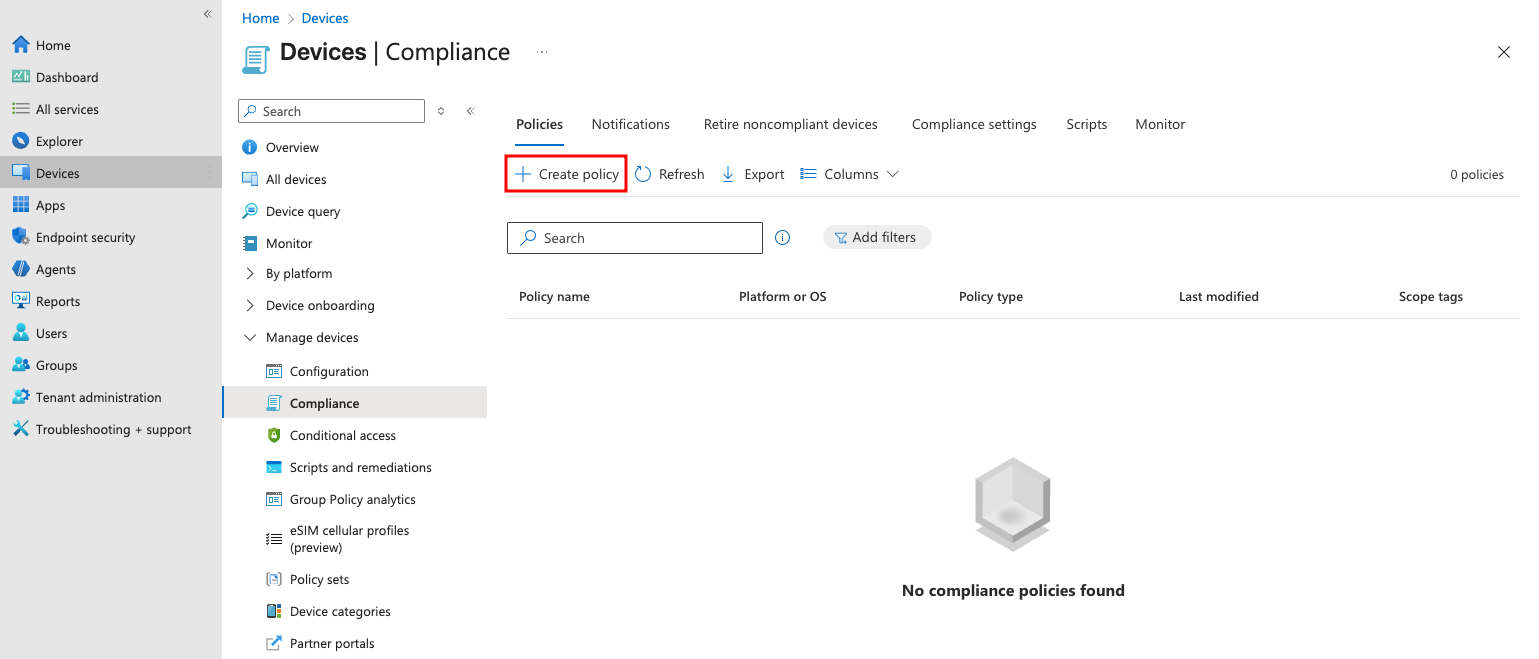
Creating a custom device compliance policy
Note that the default device compliance policy is not displayed here.
If a device is assigned one or more custom policies, the built-in default device compliance policy is still applicable. A device must pass the default policy and all custom policies to be marked as compliant.
You will require an Intune plan or subscription for using Microsoft Intune and its features, including the compliance policies. If a device is assigned one or more custom policies, the built-in default device compliance policy is still applicable. A device must pass the default policy and all custom policies to be marked as compliant.
You will need an Intune plan or subscription to use Microsoft Intune and its features, including compliance policies. Microsoft Intune Plan 1 is the most basic subscription and is included with subscriptions to Microsoft 365 E3, E5, F1, and F3, Enterprise Mobility + Security E3 and E5, and Business Premium plans.Additionally, there is the Microsoft Intune Plan 2 or the Microsoft Intune Suite.
Visit the official Microsoft Intune pricing page for more information on the purchasing options.
Compliance policy settings vs. Device compliance policies
The Compliance policy settings are global configurations that act as a baseline setting for all devices. The primary objective of these settings is to define the compliance level for devices that lack a compliance policy. It includes a set of baseline settings that make up the default compliance policy, which applies to all managed devices.
The Device compliance policies, on the other hand, are custom policies that Intune admins create to enforce granular security rules, such as BitLocker encryption, minimum OS versions, and password complexity.
Understanding compliance policy settings
Compliance policy settings determine how Intune treats devices without a custom policy assigned and how often a device must report its compliance status. The settings on this page appear in the default device compliance policy, along with a third default setting that we will discuss later in the article.
To access the compliance policy settings, navigate to Endpoint security in the Intune admin center, then select Device compliance.
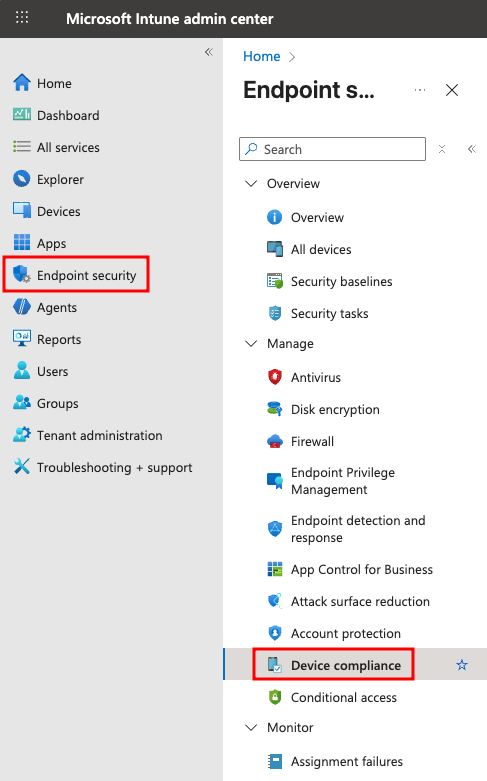
Device compliance in the Microsoft Intune admin center
Next, select Compliance policy settings from the list.
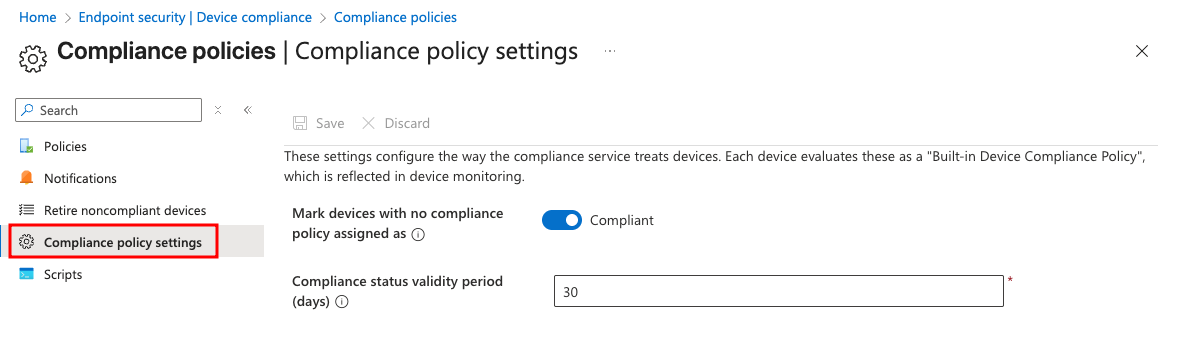
Default compliance policy settings in Device compliance
There are two settings that you can configure here:
- Mark devices with no compliance policy assigned lets you set a device as compliant or not compliant if it hasn’t been assigned a compliance policy. The default value for this setting is Compliant, which isn’t secure, and it marks all devices without a targeted compliance policy as compliant. For example, if a Windows device is enrolled with Intune and does not have a Windows-specific policy assigned, it would still be marked as compliant. The secure way to set this up would be to toggle this to Not compliant.
- Compliance status validity period (days) sets the duration within which devices must report on the device compliance policies (custom) assigned to them. Any device that fails to report compliance within the validity period is marked not compliant.
Learn About The First-Ever Monitoring and Rollback for Microsoft Intune
Intune default device compliance policy settings
The default device compliance policy is a built-in policy with three settings. The compliance policy settings discussed earlier affect the status of these settings depending on the configuration.
- Has a compliance policy assigned: This shows as Compliant if at least one compliance policy with applicable settings applies to the device.
- Is active: This setting is Compliant if the device is on, has an internet connection, and remains communicating with Intune. There is a 30-day grace period.
- Enrolled user exists: The user using the device is in Intune and has a valid Intune license assigned.
To view the status of the default device compliance policy for a device, navigate to Devices > All devices and then select a device. Then choose Device compliance and select the policy named Default Device Compliance Policy.
The following image shows the status of the Default Device Compliance Policy for a device:
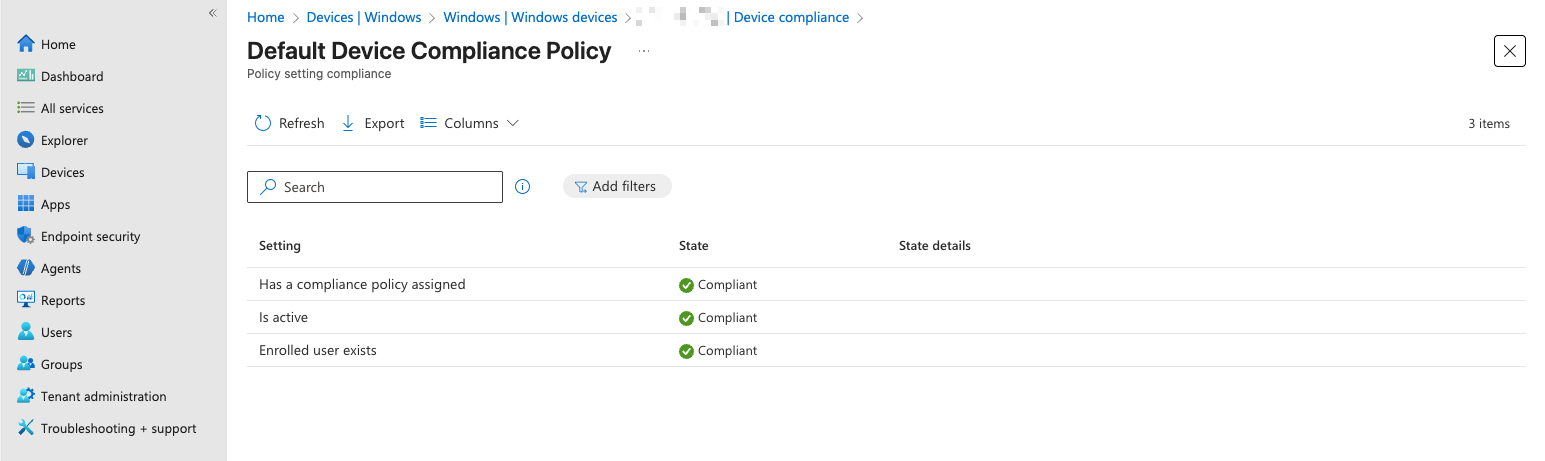
Default device compliance policy settings status
How the Intune default device compliance policy works
When a device is enrolled, the default device compliance policy is automatically applied. Intune checks whether any custom policies are assigned or apply automatically, and if so, runs the checks for them. It then runs the default device compliance policy checks and, depending on the compliance policy setting, marks a device as compliant or non-compliant.
For example, if a new Android device does not have a custom policy assigned and the policy setting is to mark it as Not compliant, the device will be marked Not compliant. This entire process can take several minutes to propagate and evaluate, depending on the platform, enrollment type, and check-in cadence.
The default device compliance status is not real-time. Similarly, not every sync results in a compliance calculation or re-calculation. The policy refresh depends on the sync type:
- Change-based is triggered by Intune when a policy is updated
- Client-initiated is typically performed by the device at regular intervals
- Single device uses a manual trigger to initiate a refresh for a specific device.
The following scenarios trigger compliance calculation, resulting in a status update:
- On new device enrollments, to ensure users are aware of blocking reasons, the frequency depends on the platform and enrollment type.
- A user logs on after being offline for a few days.
- When new compliance information is found during a sync.
- Changes to compliance policy assignment.
- When a user clicks Check status under Devices > Status in the Company Portal app.
Compliance policy settings and Conditional Access
Microsoft Entra ID Conditional Access is an intelligent policy engine that uses signals such as user identity, risk, device compliance, health, etc, to make decisions, enforce security policies, and control access to organizational apps, resources, and data. Conditional access requires a Microsoft Entra ID P1 or P2 license. Intune provides mobile device and app signals to conditional access, which teams can use to enhance its capabilities.
An administrator can then use conditional access to create a policy that grants or denies access based on the device’s compliance status. For example, setting the Require devices to be marked as compliant under Grant ensures that only compliant devices are granted access.
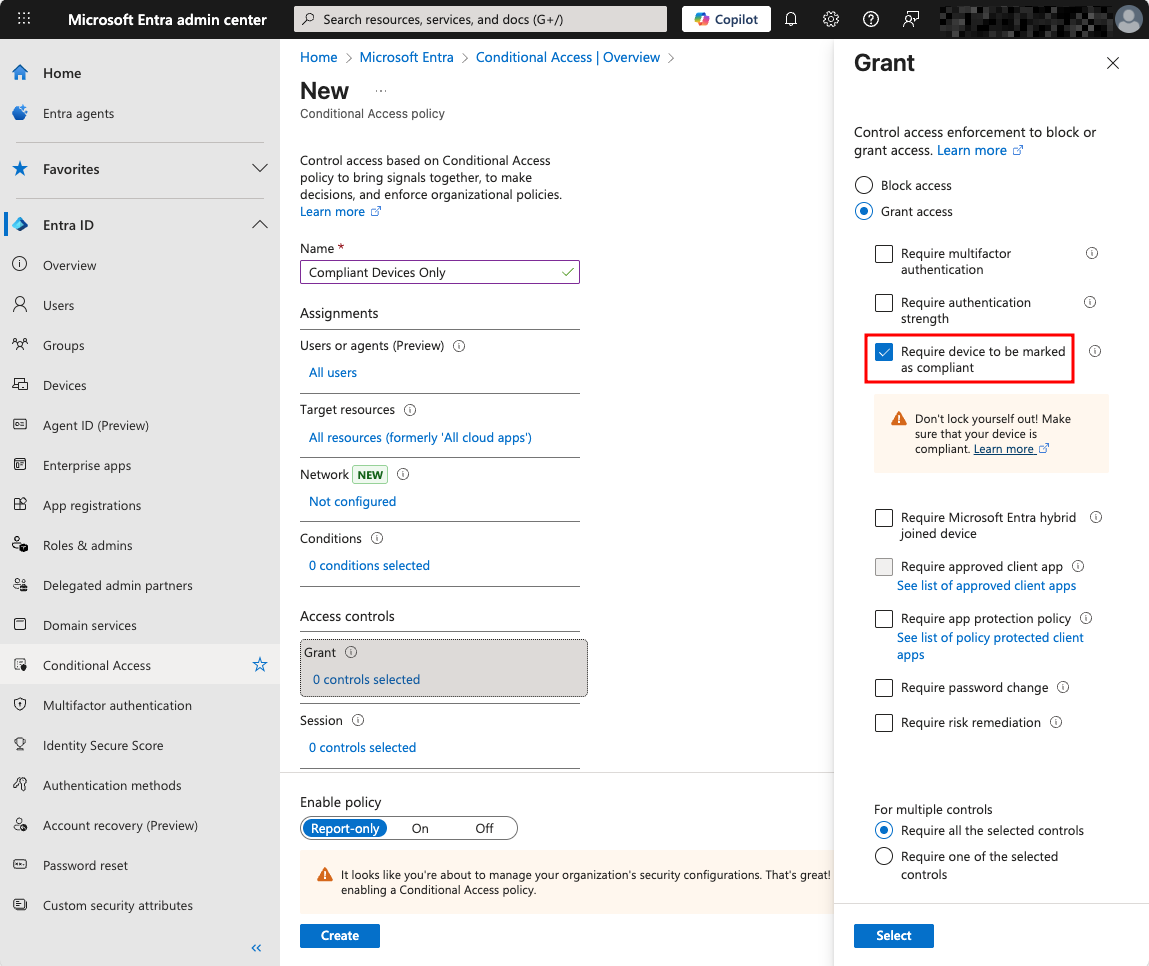
A conditional access policy that requires compliant devices for granting access
Watch a 15-minute Demo of Microsoft Intune Change Monitoring and Recovery
Intune default device compliance policy monitoring
Organizations can monitor the overall device compliance status from the Monitor tab under Devices > Manage devices > Compliance.
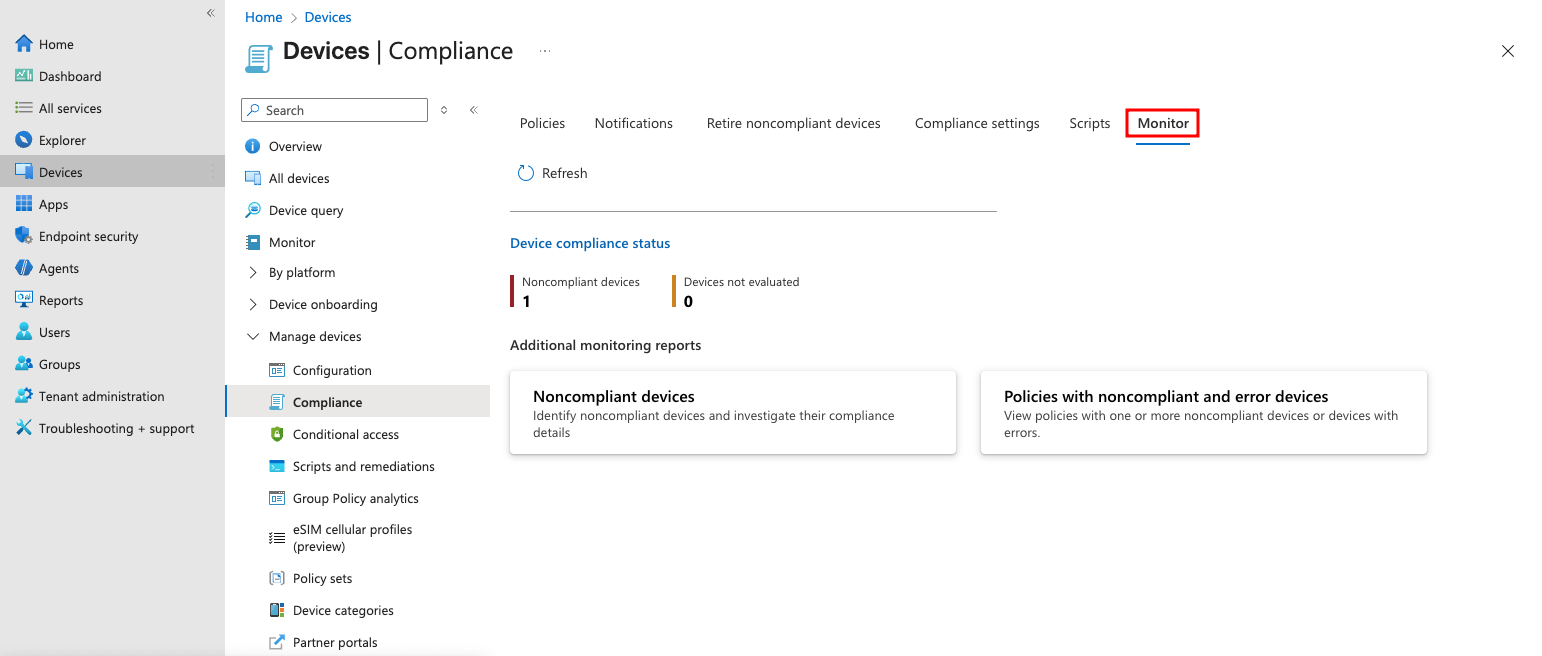
Monitor non-compliant and error devices
This section shows only non-compliant and unevaluated devices. It also includes links to two monitoring reports: the non-compliant devices and the policies with non-compliant or error devices.
You can also generate a summary of the device compliance from the Device compliance page under Reports. Click Generate to create a summary for the first time or refresh.
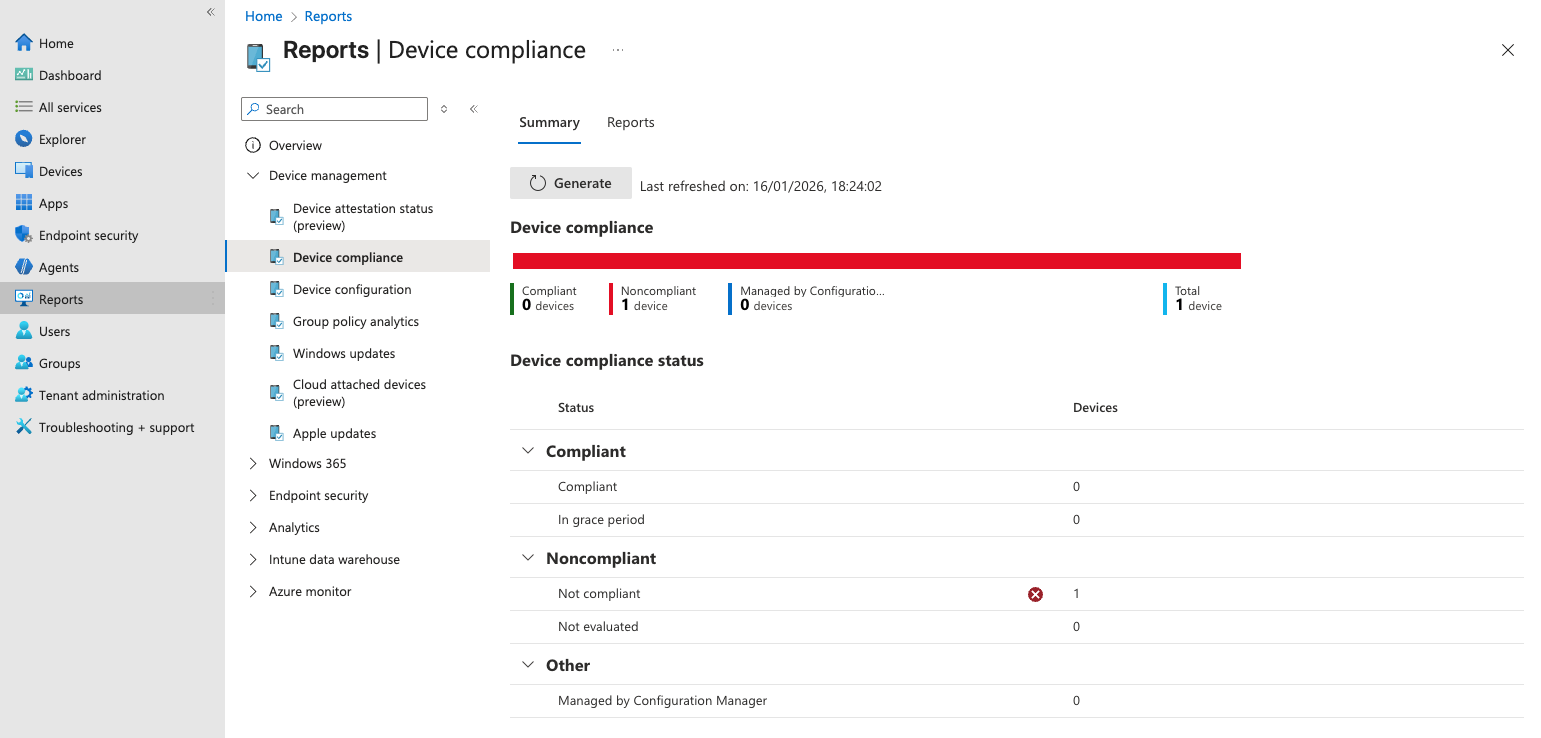
Summary of device compliance
The Reports tab of this page includes a few pre-defined reports that could also be useful.
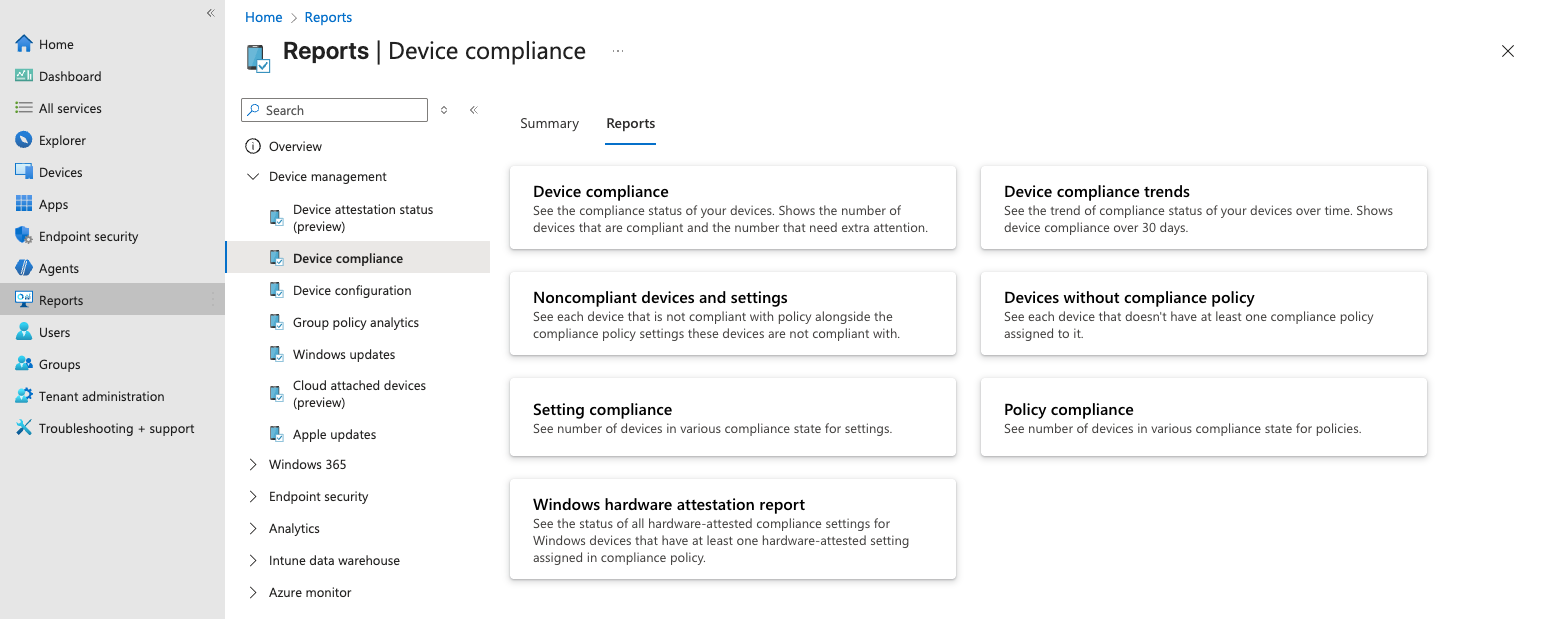
Pre-defined device compliance reports
Learn the best practices for Intune monitoring, security, and recovery
Protecting device compliance using Cayosoft Guardian
Cayosoft Guardian is an identity protection and recovery platform that provides management, real-time monitoring, and instant rollback of changes to Entra ID and Intune.
Guardian’s critical device management, monitoring, and rollback capabilities can be a valuable complement to device compliance strategy, too. Using alert notifications, administrators can be notified of device policy changes and other suspicious security behaviors within seconds, helping mitigate security gaps faster. For example, an accidental change to the “Mark devices with no compliance policy assigned as” setting toggles it to Compliant. Security administrators can then roll back these changes through automation or with a single click.
Cayosoft Guardian’s advanced monitoring capabilities can also help prevent compliance drift, such as extending the validity period of a device’s compliance. An alert trigger can notify and also do an automated reversal.
Here’s a list of the capabilities Cayosoft Guardian Audit & Restore provides for Intune administrators:
- Get an audit trail of changes
- Build reports & get alerts
- Roll back any undesired or erroneous changes & restore deletes
- Establish automated object protection
Manage, Monitor & Recover AD, Azure AD, M365, Teams
| Platform | Admin Features | Single Console for Hybrid (On-prem AD, Azure AD, M365, Teams) | Change Monitoring & Auditing | User Governance (Roles, Rules, Automation) | Forest Recovery in Minutes |
| Microsoft AD Native Tools | ✓ | ||||
| Microsoft AD + Cayosoft | ✓ | ✓ | ✓ | ✓ | ✓ |
Final thoughts
The most effective way to implement attack surface reduction rules in Intune is to start with audit mode. This allows you to observe how each rule impacts your environment without blocking any actions, making it easier to identify and resolve potential issues before enforcement. Careful monitoring of audit results is essential to be able to fine-tune your rules and set up any necessary exclusions to avoid disrupting business operations.
Once you are confident in your configuration, gradually move rules from audit to enforcement, expanding deployment in stages and continuing to watch for unexpected issues. Ongoing monitoring and regular adjustments are critical for maintaining robust protection as threats and business needs can evolve. Following this approach—starting with audit mode, monitoring closely, and making updates as needed—lets you maintain an effective and reliable ASR rule deployment in Intune, so your organization remains secure while minimizing user disruption.
Stop AD Threats As They Happen
Cayosoft Protector provides continuous monitoring and real-time alerts across your entire Microsoft Identity stack
Like This Article?
Subscribe to our LinkedIn Newsletter to receive more educational content