



Home » Your Guide to Secure Endpoint Management: Essential Microsoft Intune Features » Critical Attack Surface Reduction Rules in Intune You Must Deploy Now
Critical Attack Surface Reduction Rules in Intune You Must Deploy Now
Learn how to effectively manage and configure Microsoft Defender for Endpoint's ASR rules with Microsoft Intune to enhance your organization's security posture and protect against various attack techniques.
Explore the chapters:
Stop AD Threats As They Happen
Cayosoft Protector provides continuous monitoring and real-time alerts across your entire Microsoft Identity stack
Like This Article?
Subscribe to our LinkedIn Newsletter to receive more educational content
Attack surface reduction (ASR) rules are a set of configurations in Microsoft Defender for Endpoint that are used to protect the Windows operating system by blocking different attack techniques such as malicious Office files, unsafe email attachments, and suspicious scripts. With Microsoft Intune, it is possible to set up these rules across your environment to have a consistent, standardized security policy.
This article covers the definition, guidelines, and best practices for managing ASR rules using Microsoft Intune. We specifically discuss how to set up and manage ASR rules to improve your organization’s security posture.
Summary of how key ASR rule aspects work in Intune
|
Aspect |
Description |
|---|---|
|
Policy structure |
ASR rules are managed through Intune profiles that define rule sets, modes, and exclusions. |
|
Assignments |
Policies are assigned to devices or user groups for targeted deployment. |
|
Scope tags |
Tags enable administrative delegation for multi-team environments. |
|
Policy merge (no overlap) |
When policies configure different ASR rules, settings are combined and all applied to the device. |
|
Policy merge (conflicts) |
When multiple policies set the same rule to different values (e.g., block vs. audit), the rule is not applied at all. |
|
No priority system |
Intune does not use policy precedence for ASR rule conflicts. |
|
Group Policy vs. Intune |
When both Group Policy and Intune configure ASR rules, Group Policy takes precedence. |
Learn why Intune Tier 0 Security is the New Standard for Identity Resilience
What is an attack surface?
The attack surface of a system or network is simply all the potential points and paths an attacker can attempt to access or affect. For Windows devices, the surface includes things like email attachments, Office macros, scripts, PowerShell, USB drives, remote access tools (like RDP), and apps that might have security weaknesses. As companies use more cloud services and new technology, the number of possible entry points and misconfigurations for attackers keeps growing.
Microsoft Defender for Endpoint helps identify these entry points and reduce them by putting controls in place. Its attack surface reduction (ASR) rules are designed to block the most common ways that attackers try to break in. When you shrink the attack surface, you essentially force attackers to spend more time—often enough to push them toward riskier tactics that are easier to detect and contain.
Available ASR rules
Microsoft provides a set of ASR rules that you can manage directly through Intune. Each rule targets a specific type of attack, and every rule has a unique GUID for configuration. Unlike traditional antivirus products that detect known threats, ASR rules proactively block suspicious behaviors that attackers typically use to compromise systems.
When implementing ASR rules, it’s important to start strategically rather than enabling everything at once. Each rule targets specific attack techniques, and some may impact legitimate business processes if not properly tested. Microsoft recommends a minimum 30-day audit period per rule before enforcement, though high-security environments may require longer observation windows.
Consider prioritizing the following ASR rules, as they represent the highest-value protections that address the most prevalent attack techniques seen in real-world breaches.
|
Rule |
GUID |
Purpose |
|---|---|---|
|
Block credential stealing from the Windows local security authority subsystem (lsass.exe) |
9e6c4e1a-7d60-472f-ba1a-a39ef669e4b2 |
Prevents credential dumping attacks like Mimikatz, one of the most common techniques in ransomware and lateral movement |
|
Block executable content from email client and webmail |
be9ba2d9-53ea-4cdc-84e5-9b1eeee46550 |
Blocks executable files launched from Outlook, Thunderbird, and webmail—the primary initial access vector for 45% of malware infections |
|
Block abuse of exploited vulnerable signed drivers |
56a863a9-875e-4185-98a7-b882c64b5ce5 |
Stops bring your own vulnerable driver (BYOVD) attacks used by BlackCat, LockBit, and other ransomware to disable EDR solutions |
|
Block execution of potentially obfuscated scripts |
5beb7efe-fd9a-4556-801d-275e5ffc04cc |
Detects PowerShell downgrade attacks, Base64 encoding, and other script obfuscation techniques used in 70% of PowerShell-based attacks |
|
Block Office applications from creating executable content |
3b576869-a4ec-4529-8536-b80a7769e899 |
Prevents weaponized documents from dropping secondary payloads—common in Emotet, Qakbot, and IcedID campaigns |
|
Block process creations originating from PSExec and WMI commands |
d1e49aac-8f56-4280-b9ba-993a6d77406c |
Blocks remote execution tools commonly used for lateral movement after initial compromise |
|
Use advanced protection against ransomware |
c1db55ab-c21a-4637-bb3f-a12568109d35 |
ML-based detection of ransomware behaviors, including mass file encryption and shadow copy deletion |
|
Block Win32 API calls from Office macros |
92e97fa1-2edf-4476-bdd6-9dd0b4dddc7b |
Prevents VBA macros from directly calling Windows APIs, a technique used to bypass traditional macro security |
Note that the table above represents a curated subset of available ASR rules that address the most critical attack vectors observed in current threat landscapes. These eight rules provide coverage against credential theft, initial access techniques, and common post-exploitation activities. Microsoft provides additional rules targeting specific attack scenarios, and the complete list with detailed descriptions can be found in Microsoft’s official ASR rules reference documentation.
Learn why Intune must be treated as Tier 0 infrastructure alongside Entra ID
How ASR rules work: modes, policies, profiles
ASR rule modes
Each ASR rule can be configured in one of four operational modes, each serving different deployment and testing strategies:
- Not configured / disabled (state code 0): The rule is completely inactive and provides no protection or monitoring.
- Block (1): The rule actively prevents the targeted behavior and logs the event. This is the production mode for active protection.
- Audit (2): The rule logs the targeted behavior but allows it to proceed; this mode shows what would happen if the rule were set to block or warn.
- Warn (6): The rule shows a warning to the user but allows them to bypass the block after notification.
Best practice: Start using ASR rules in Audit mode to monitor potential impact, then switch to Block or Warn once you’re confident that there won’t be any critical business disruptions.
Policy structure in Intune
ASR rules are managed through Intune policies, which are organized into profiles. Each profile defines the set of ASR rules, their modes, and any exclusions:
- Profiles: These are collections of ASR rule settings that can be reused and assigned to different groups.
- Assignments: Policies are assigned to device groups or user groups, allowing targeted deployment.
- Scope tags: These tags are used for administrative delegation, so different teams can manage policies for specific sets of devices or users.
This structure allows for granular control, e.g., different departments or device types can have specific ASR configurations.
Best practice: Implement mutually exclusive device groups using Azure AD dynamic membership rules to ensure that each device receives ASR rule configurations from only one policy. For example, create groups like “Devices-ASR-Pilot,” “Devices-ASR-Standard,” and “Devices-ASR-HighSecurity” with logic that makes sure that no device can belong to multiple ASR policy groups simultaneously. A sample dynamic rule might be:
					(device.extensionAttribute1 -eq "ASR-Standard") -and
(device.extensionAttribute1 -ne "ASR-Pilot")
Policy merge scenarios
When a device gets more than one ASR policy from Intune, here’s how Intune handles them:
- No overlap? No problem: If each policy sets different ASR rules, all those settings are added together and applied to the device.
- Conflicting settings: If two policies try to set the same ASR rule but with different values (for example, one says Block and another says Audit), Intune won’t apply that rule at all. The rule is left unset, which means it won’t protect the device.
- No Priority: Intune doesn’t pick one policy over another if there’s a conflict—it just skips the conflicting rule.
- Group Policy vs. Intune: If a device gets ASR settings from both Intune and Group Policy, the Group Policy settings will be used.
Best practice: To avoid policy conflicts and unpredictable behavior, make sure each ASR rule is configured in only one policy per device or that all assigned policies set the same value for that rule. Regularly review the assignments and use Intune reporting to detect and resolve any conflicts.
Learn About The First-Ever Monitoring and Rollback for Microsoft Intune
Requirements: licensing and supported operating systems
Before deploying attack surface reduction rules in your environment, it’s important to verify that your licensing and operating system configurations meet Microsoft’s requirements. Licensing for Microsoft products also tends to be tricky. As such, you need to consider two dimensions—Intune and Defender—along with the underlying Windows operating system edition.
Each component plays a distinct role: Intune delivers the configuration policies to endpoints, Windows Enterprise enforces the ASR rules at the kernel level, and Defender for Endpoint provides the security intelligence and reporting infrastructure.
Licensing requirements
- Microsoft Intune License: Every user or device to be managed must have an Intune license assigned. Intune is available as a standalone subscription or as part of Microsoft 365 plans.
- Windows 10/11 Enterprise E3 or E5: E3 enables full support for configuring and enforcing ASR rules on Windows endpoints. E5 adds advanced security features, including Microsoft Defender for Endpoint Plan 2, which provides enhanced monitoring and analytics.
- Microsoft 365 E3 or E5: These suites include both Intune and Windows Enterprise licensing, covering all requirements for ASR rule management.
- Microsoft Defender for Endpoint (Plan 1 or Plan 2): This product is required for advanced security management, reporting, and integration with the Microsoft Defender security portal. Plan 2 is included with Microsoft 365 E5 and Windows E5.
Watch a 15-minute Demo of Microsoft Intune Change Monitoring and Recovery
Supported scenarios
The following license plans show corresponding ASR rule support and whether security/reporting is offered out of the box.
Note that “Basic” reporting refers to standard Intune device compliance and configuration reports, while “Advanced” includes Defender for Endpoint’s threat analytics, automated investigation, advanced hunting, and API integration capabilities.
|
License/Plan |
Intune Included |
ASR Rule Support |
Security & Reporting |
|---|---|---|---|
|
Microsoft Intune (Standalone) |
Yes |
Yes (with Windows E3/E5) |
Basic |
|
Microsoft 365 E3 |
Yes |
Yes |
Basic |
|
Microsoft 365 E5 |
Yes |
Yes |
Advanced (Defender P2) |
|
Windows 10/11 Enterprise E3/E5 |
No (add Intune) |
Yes |
E3 = Basic E5 = Advanced |
|
Defender for Endpoint (P1/P2) |
No |
Yes |
P1 = Basic P2 = Advanced |
|
Microsoft 365 Business Premium |
Yes |
Limited |
Not fully supported |
Supported operating systems
ASR rules support the following Windows versions:
- Windows 10 (version 1709 and later): Full ASR rule support with all available rules
- Windows 11: Complete ASR rule functionality with enhanced integration
- Windows Server 2012 R2 and later: Partial ASR rule support with specific server-focused rules
Note that ASR rules are only available on Windows Enterprise and Education; they cannot be deployed to Windows Pro or Home editions regardless of your Intune or Defender licensing.
Prerequisites
Before deploying ASR rules, ensure that these requirements are met:
- Microsoft Defender Antivirus must be active and configured as the primary antivirus solution.
- Real-time protection and cloud-delivered protection must be enabled for optimal ASR functionality.
- Microsoft Defender for Endpoint onboarding is not required for basic ASR rule functionality, but it is needed for advanced reporting and management.
Learn the best practices for Intune monitoring, security, and recovery
Step-by-step guide: configuring ASR in Intune
Follow these steps to configure ASR rules in Microsoft Intune:
1. Go to the Microsoft Intune admin center.
2. Sign in with your admin credentials.
3. Navigate to Endpoint Security > Attack Surface reduction.
4. Click Create Policy.
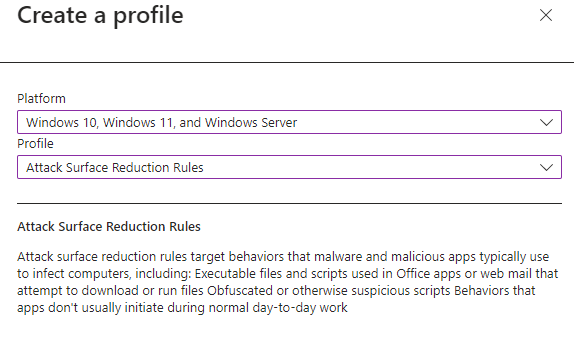
5. For Platform, pick Windows 10, Windows 11, and Windows Server.
6. For Profile, select Attack Surface Reduction Rules.
7. Click Create.
8. Enter a clear name for your policy (e.g., “ASR Rules – Audit Mode”).
9. Optionally, add a description to explain the policy’s purpose.
10. Click Next.
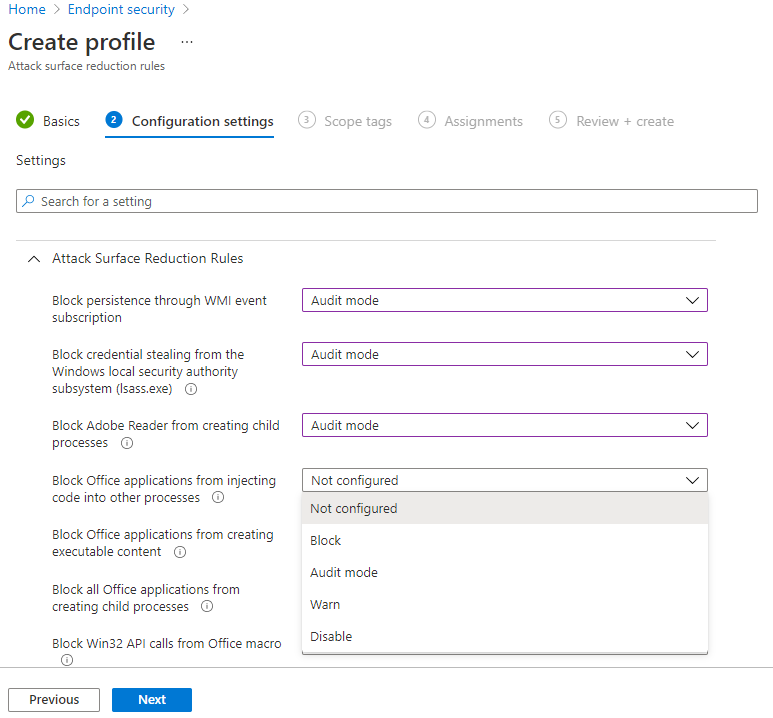
11. On the configuration settings page, you’ll see a list of available ASR rules.
12. For each rule, choose the desired mode:
- Not Configured: Rule is off.
- Block: Rule actively blocks the behavior.
- Audit: Rule logs the behavior but doesn’t block it.
- Warn: User is warned but can proceed.
As recommended earlier, it’s best to start with Audit mode for all rules to monitor their impact before enforcing them.
13. Add scope tags if your organization uses them to control which devices different admin teams can manage. The tags help ensure that each admin only sees and manages the devices they’re responsible for.
14. On the Assignments page, choose which device or user groups should receive the policy.
For a safe rollout, start with a pilot group before expanding to all devices.
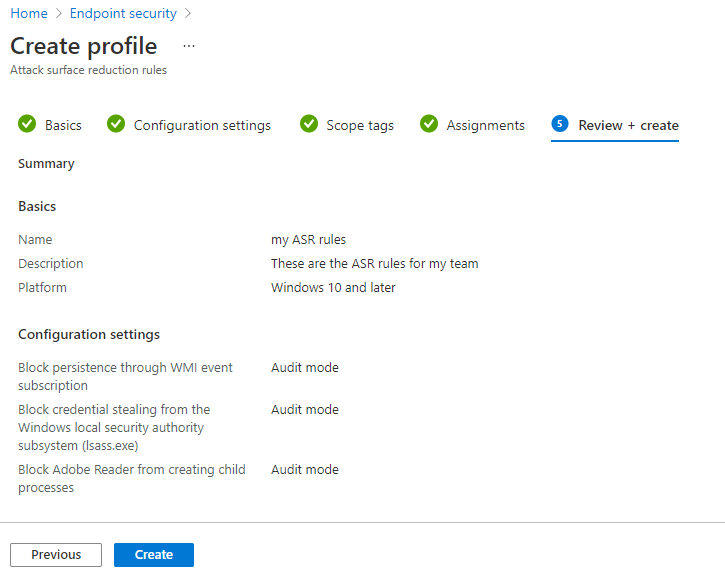
15. Review all your settings on the Review + Create page.
16. Click Create to deploy the policy.
Manage, Monitor & Recover AD, Entra ID, Microsoft 365

Unified Console
Use a single tool to administer and secure AD, Entra ID, and M365

Track Threats
Monitor AD for unwanted changes – detect for security or critical functions

Instant Recovery
Recover global enterprise-wide Active Directory forests in minutes, not days
Validate deployment
After assigning ASR rule policies in Intune, devices will receive the configuration during their next check-in cycle, which occurs approximately every 8 hours by default. If needed, you can trigger an immediate sync from the Company Portal app or through Intune’s remote sync action.
To confirm successful deployment, examine the Windows Event Log on a sample endpoint. Navigate to Event Viewer > Applications and Services Logs > Microsoft > Windows > PolicyAgent > Operational and look for Event ID 814 with “AttackSurfaceReductionRules” in the event data.
For additional validation, run Get-MpPreference in PowerShell to display the current ASR rule configuration, including GUIDs and modes (0=Disabled, 1=Block, 2=Audit, 6=Warn). Verify that these values match your Intune policy settings.
Monitor and adjust
Once ASR rules are deployed in Audit mode, monitor their impact for 30-45 days (as recommended by Microsoft) before transitioning to enforcement. This period should capture different business cycles to identify legitimate processes that might be flagged by ASR rules.
You can use Intune’s attack surface reduction report to track which rules trigger most frequently and identify patterns across departments or device types. If you have Defender for Endpoint Plan 2, leverage advanced hunting with KQL queries on the DeviceEvents table to analyze specific files, processes, or command lines that triggered ASR rules and distinguish genuine threats from false positives.
Add exclusions
During your audit phase, you’ll likely identify scenarios where trusted software exhibits behaviors that ASR rules interpret as malicious. Rather than disabling an entire rule and losing protection across all devices, exclusions let you carve out narrow exceptions while maintaining broad security coverage.
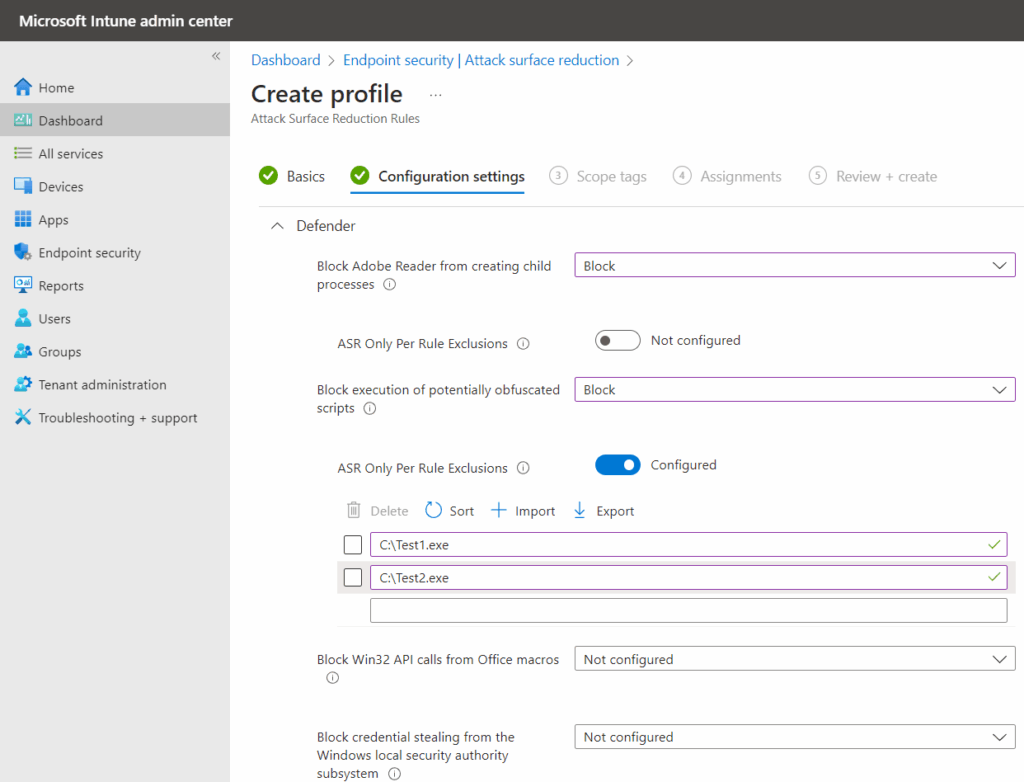
To add per-rule exclusions for attack surface reduction (ASR) in Intune, follow these steps:
- Open the Microsoft Intune admin center and go to Endpoint security > Attack surface reduction.
- Find the ASR rule you want to configure exclusions for. Make sure the rule is set to Audit or Block; if not, update its setting.
- In the ASR Only Per Rule Exclusion section, switch the toggle from Not configured to Configured.
- Enter the names of the files or applications you want to exclude from this rule.
- Click Next at the bottom of the Create profile wizard, then complete the remaining steps as prompted.
Other configuration methods
While Intune is the best and most comprehensive management platform for ASR rules, there are alternative configuration methods available for different scenarios.
Group Policy configuration
Group Policy offers ASR rule management for on-premises and hybrid environments. However, it lacks per-rule exclusion capabilities and requires separate GPOs for each rule to maintain proper exclusion management. Group Policy settings may be overridden by Intune policies during device check-in.
PowerShell configuration
PowerShell provides scripting capabilities for ASR rule deployment and automation. The Set-MpPreference and Add-MpPreference cmdlets allow enabling and direct configuration of ASR rules with specific IDs and actions. This method is useful for custom deployments and environments without enterprise management tools.
For example:
					Add-MpPreference -AttackSurfaceReductionRules_Ids 56a863a9-875e-4185-98a7-b882c64b5ce5
-AttackSurfaceReductionRules_Actions Enabled
Note: Use Add-MpPreference to append or add rules to the existing list. Using the Set-MpPreference cmdlet will overwrite the existing setup.
MDM (OMA-URI) configuration
OMA-URI enables custom ASR rule configurations not available through standard Intune interfaces. This method provides access to advanced settings and newer rules before they appear in the standard UI. OMA-URI configuration requires detailed knowledge of Defender CSP settings.
Configuration manager integration
Organizations that use Microsoft Endpoint Configuration Manager (formerly SCCM) can deploy ASR rules through Configuration Manager instead of Intune. This approach makes sense if you already manage Windows endpoints through Configuration Manager and want to keep all endpoint configurations in a single management platform.
However, Configuration Manager’s ASR implementation has limitations compared to Intune—you get fewer built-in reporting options for ASR events, less flexibility in creating conditional deployments based on device attributes, and no native integration with the Microsoft Defender portal for centralized security monitoring. For hybrid environments using both Configuration Manager and Intune (co-management), you’ll need to decide which platform manages ASR rules to avoid configuration conflicts.
Monitoring and adjusting ASR rule effectiveness
Effective monitoring requires both immediate alerting and long-term trend analysis. You should establish regular review cycles to assess ASR rule performance and adjust configurations based on operational data.
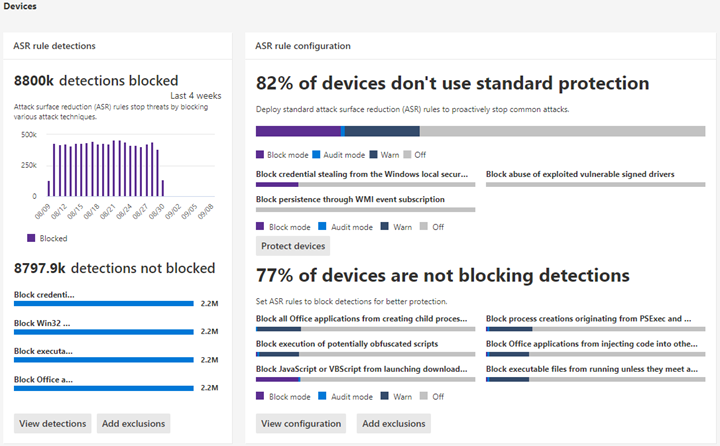
Microsoft Defender portal monitoring
The Microsoft Defender portal provides comprehensive ASR rule reporting for organizations with E5 licensing. The Attack Surface Reduction Rules report offers detailed insight into rule enforcement, detected threats, and device configuration status. This centralized view allows for quick identification of trends and responding to security events.
Windows Event Viewer monitoring
For organizations without E5 licensing, Windows Event Viewer provides basic ASR rule monitoring through specific Event IDs:
- Event ID 5007: ASR rule configuration changes
- Event ID 1121: ASR rule blocked an action
- Event ID 1122: ASR rule audited an action
Advanced Hunting queries
Microsoft Defender for Endpoint’s Advanced Hunting feature provides powerful query capabilities for ASR rule analysis. Custom KQL queries can extract detailed information about rule detections, affected devices, and application impacts.
Adjusting rules
You should regularly review and update your ASR rules to keep security strong without blocking important business tasks. If a rule causes problems for a legitimate app, check if you need to add an exclusion or change how the app works. Always write down why you create an exclusion and review these decisions from time to time.
Managing false positives
If a business app gets blocked by an ASR rule, decide if it’s better to make an exclusion for that app or fix the app itself. Keep a record of each exclusion and review them regularly to make sure they’re still needed.
Using exclusions
ASR rules let you set exclusions for all rules (global) or for individual rules (per-rule). Using per-rule exclusions is safer because it limits what’s allowed and reduces risk. Whenever possible, set exclusions for specific rules instead of applying them to all rules.
Managing policy conflicts
As discussed in the earlier section, policy conflicts can occur when a device receives ASR rule settings from more than one source or policy and they don’t match. Understanding how Intune and other management tools handle these situations is important for keeping your security setup clear and effective.
Conflicts between Intune policies
If a device gets multiple Intune ASR policies and those policies set different values for the same rule (for example, one says Block and another says Audit), Intune will not apply that rule at all. The conflicting rule is left unset, which means it won’t protect the device. Only non-conflicting rule settings from all assigned policies are combined and applied. Intune does not use a priority system to pick one policy over another for conflicting ASR rules—conflicts simply result in the rule being skipped.
To avoid this issue, make sure each ASR rule is only set in one policy per device or all assigned policies use the same value for each rule. Regularly reviewing your policy assignments and using Intune’s reporting tools can help you spot and fix conflicts.
Conflicts in mixed management environments
When a device is managed by both Intune and other tools (like Group Policy or PowerShell), you need to know which setting will win. For ASR rules, Group Policy takes precedence over Intune. So, if a rule is set differently in Group Policy and Intune, the Group Policy setting will be used on the device. PowerShell settings may also be overwritten by Intune or Group Policy, depending on which tool applies its configuration last.
Simplifying ASR management with Cayosoft
Managing ASR rules across large environments presents an ongoing operational challenge. Cayosoft Guardian offers comprehensive change auditing and reporting capabilities for Microsoft Intune, giving you complete visibility into who modified ASR policies, when changes occurred, and what the configuration looked like before and after each modification.
The platform’s rollback capabilities allow you to quickly recover from misconfigurations that might disable critical protections or create operational disruptions. Cayosoft’s comparison and synchronization features ensure configuration consistency while maintaining proper change controls. Its capabilities are ideal for organizations managing ASR deployments across multiple tenants or maintaining separation between development and production environments.
To learn more about how Cayosoft can streamline your Intune security management, request a personalized demo here.
Manage, Monitor & Recover AD, Entra ID, M365, Teams
| Platform | Admin Features | Single Console for Hybrid (On-prem AD, Entra ID, M365, Teams) | Change Monitoring & Auditing | User Governance (Roles, Rules, Automation) | Forest Recovery in Minutes |
| Microsoft AD Native Tools | ✓ | ||||
| Microsoft AD + Cayosoft | ✓ | ✓ | ✓ | ✓ | ✓ |
Watch our recorded & upcoming educational webinars about identity protection
Final thoughts
The most effective way to implement attack surface reduction rules in Intune is to start with audit mode. This allows you to observe how each rule impacts your environment without blocking any actions, making it easier to identify and resolve potential issues before enforcement. Careful monitoring of audit results is essential to be able to fine-tune your rules and set up any necessary exclusions to avoid disrupting business operations.
Once you are confident in your configuration, gradually move rules from audit to enforcement, expanding deployment in stages and continuing to watch for unexpected issues. Ongoing monitoring and regular adjustments are critical for maintaining robust protection as threats and business needs can evolve. Following this approach—starting with audit mode, monitoring closely, and making updates as needed—lets you maintain an effective and reliable ASR rule deployment in Intune, so your organization remains secure while minimizing user disruption.
Stop AD Threats As They Happen
Cayosoft Protector provides continuous monitoring and real-time alerts across your entire Microsoft Identity stack
Like This Article?
Subscribe to our LinkedIn Newsletter to receive more educational content