
Microsoft Entra user not registered with MFA
Cayosoft Threat Definition CTD-000045
Tune into Guardians of the Directory Podcast.




Stop AD Threats As They Happen
Cayosoft Protector provides continuous monitoring and real-time alerts across your entire Microsoft Identity stack
Like This Article?
Subscribe to our LinkedIn Newsletter to receive more educational content
Risk Summary
An account of a regular user that is not registered with MFA or uses insecure authentication methods does not have sufficient protection against modern threats. Microsoft reports that enforcing MFA blocks the vast majority of account takeover attempts, drastically reducing risk.
- Severity: Medium
- Platform: Entra ID
- Category: Account protection
- MITRE ATT&CK Tactics: Credential Access, Persistence
- MITRE D3FEND Tactics: Multi-factor Authentication
Description
An account of a regular user that is not registered with MFA or uses insecure authentication methods doesn’t have sufficient protection against modern threats. According to a report by Microsoft, you can block more than 99.9% of account hacking attempts by using multi-factor authentication. Multi-factor authentication is a process in which users are prompted during the sign-in process for an additional form of identification, such as a code on their cellphone or a fingerprint scan. Using only a password to authenticate a user allows a malicious actor to easily get access if they guess a weak password or find it exposed elsewhere. When the second form of authentication is required, security is increased because in most cases a malicious actor can’t pass this additional challenge.
Real-World Scenario
An attacker obtains a user’s password from a third-party breach and tries it against Microsoft 365. Because the user isn’t registered for MFA, the attacker signs in, sets up an inbox rule to hide alerts, and uses the account to phish coworkers and exfiltrate files from SharePoint. The compromise goes undetected for days because only password-based logons are audited by the helpdesk workflow. Cayosoft Guardian, configured with CTD-000045: Microsoft Entra user not registered with MFA, would have alerted on the unregistered user and highlighted any privileged roles before the account was abused.
Stop Privilege Escalation—Then Undo It with Cayosoft Guardian Audit & Restore
Real-time alerts across AD & Entra ID with one-click rollback.
Detect this and other threats with Cayosoft Guardian Protector (Free of Charge)
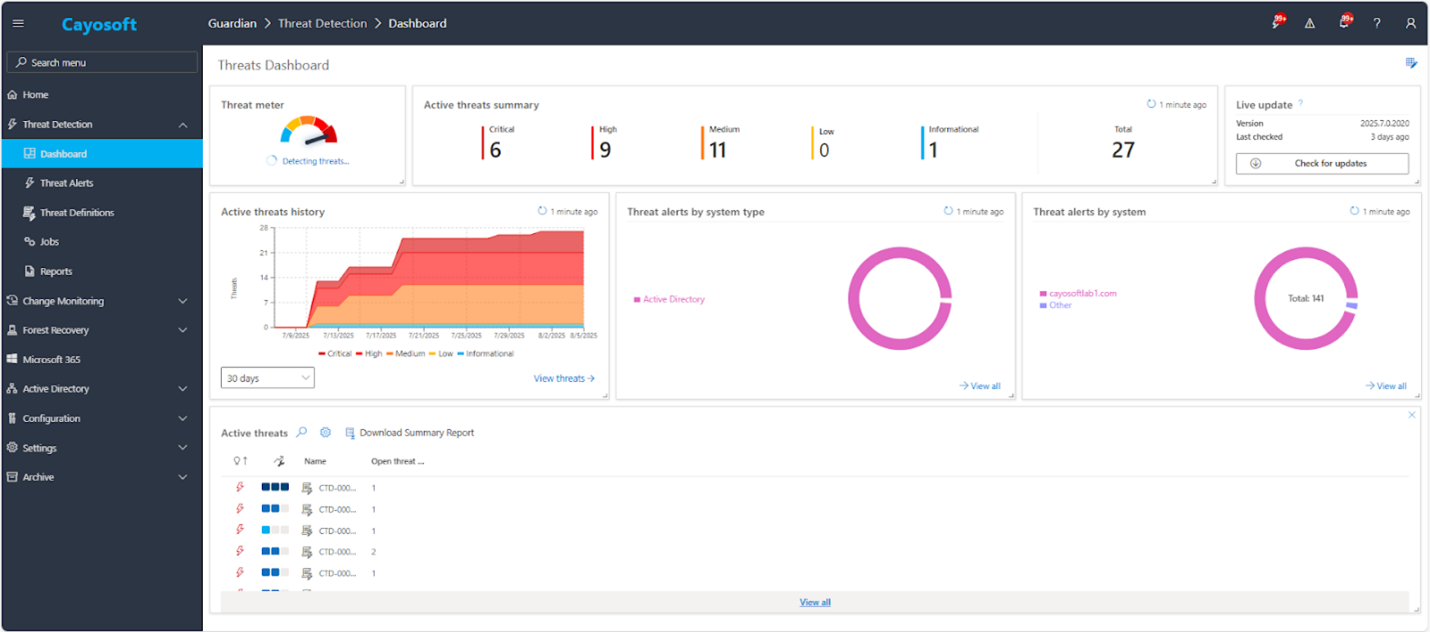
1.) Download Cayosoft Guardian Protector for free real-time threat detection and monitoring of your hybrid AD and Microsoft 365 environment. Once downloaded, sign in and navigate to the Threat Detection Dashboard.
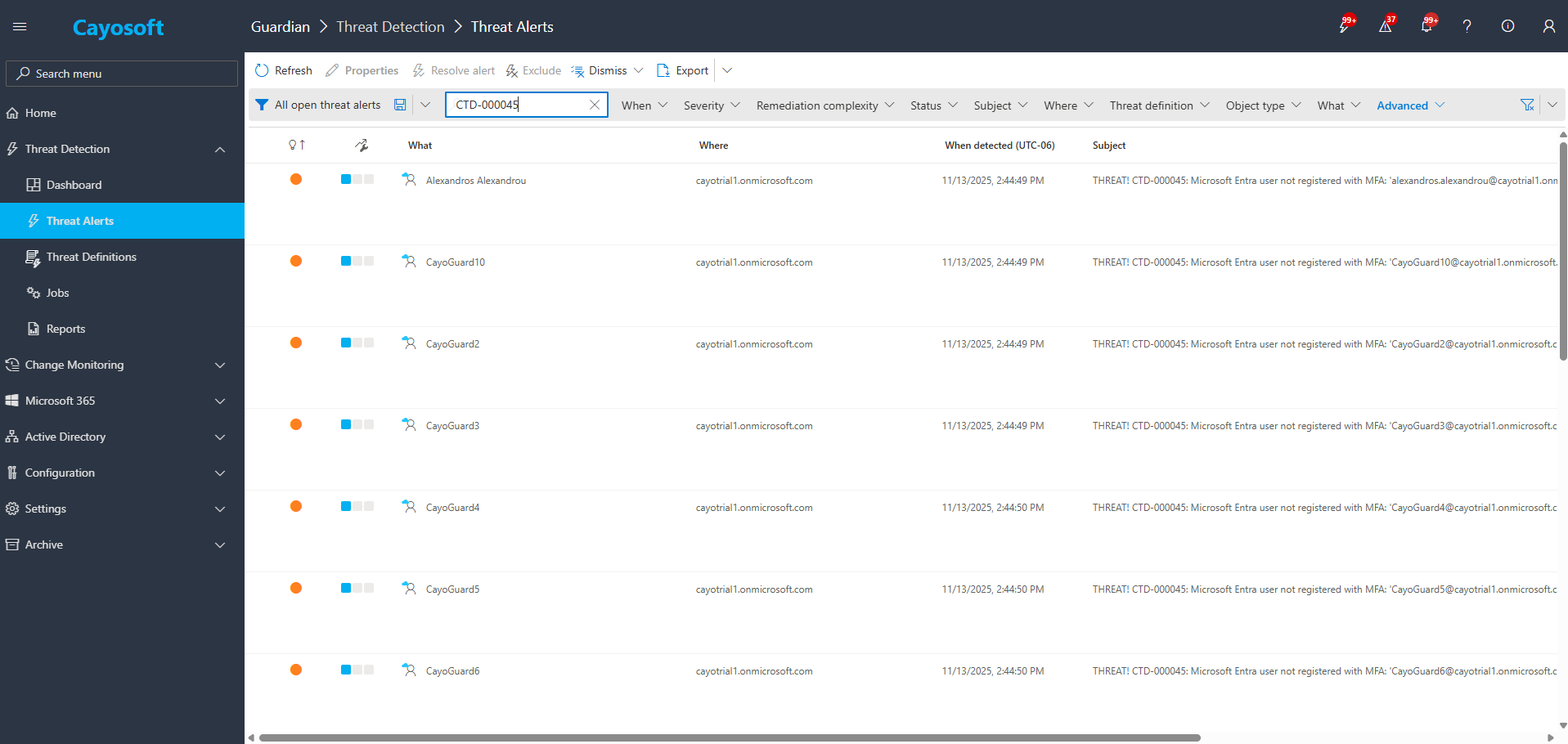
2.) Go to All Alerts and search for CTD-000045 or Microsoft Entra user not registered with MFA.
3.) Open any alert and Click for details (from Raise Threat Alert action).
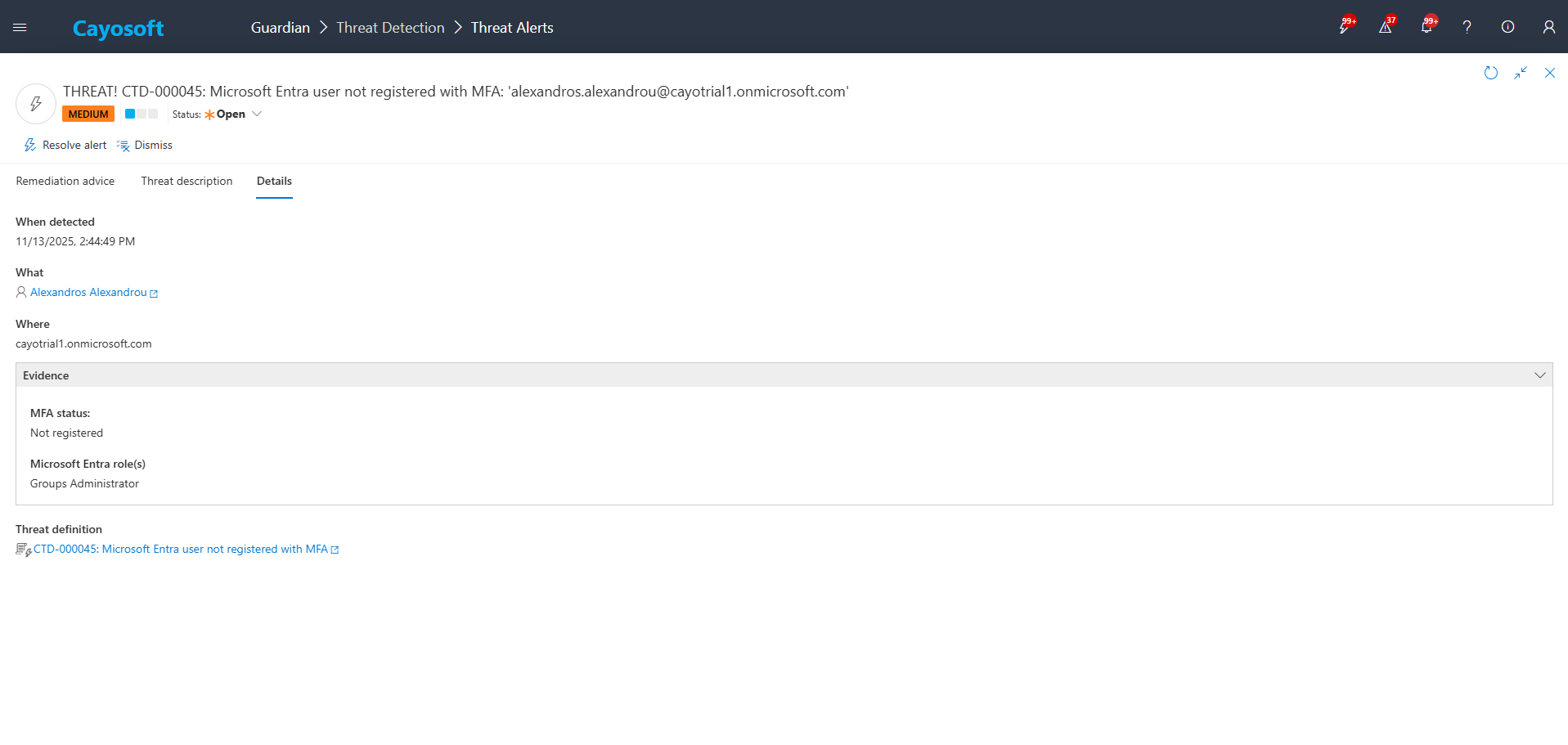
4.)Evidence:
- MFA status
- Microsoft Entra role(s)
Remediation Steps
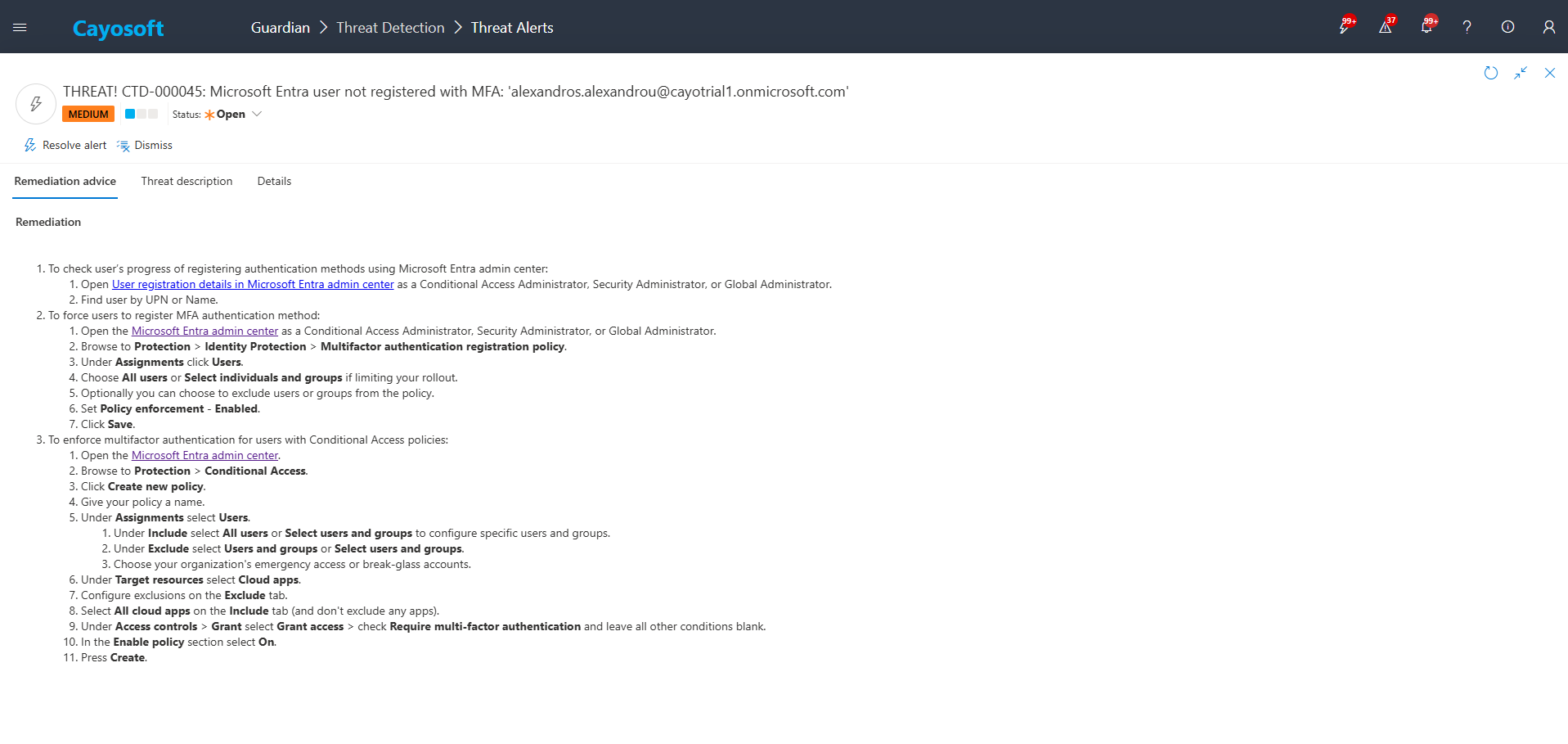
- ) To check user’s progress of registering authentication methods using Microsoft Entra admin center:
- Open User registration details in Microsoft Entra admin center as a Conditional Access Administrator, Security Administrator, or Global Administrator.
- ) Find user by UPN or Name.
- ) To force users to register MFA authentication method:
- ) Open the Microsoft Entra admin center as a Conditional Access Administrator, Security Administrator, or Global Administrator.
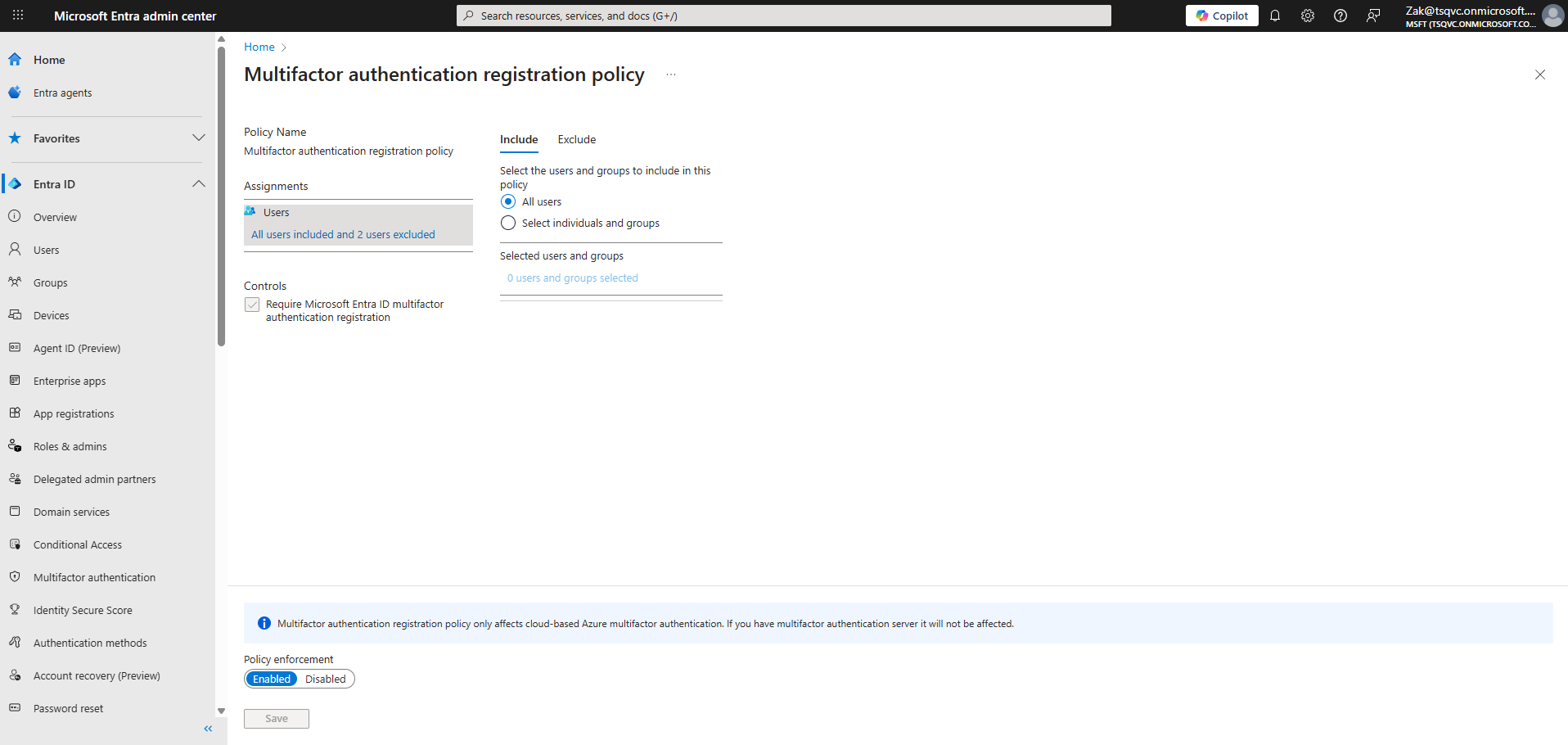
- ) Browse to Protection > Identity Protection > Multifactor authentication registration policy.
- ) Under Assignments click Users.
- ) Choose All users or Select individuals and groups if limiting your rollout.
- ) Optionally you can choose to exclude users or groups from the policy.
- ) Set Policy enforcement – Enabled.
- ) Click Save.
- ) To enforce multifactor authentication for users with Conditional Access policies:
- ) Open the Microsoft Entra admin center.
- ) Browse to Protection > Conditional Access.
- ) Click Create new policy.
- ) Give your policy a name.
- ) Under Assignments select Users.
- ) Under Include select All users or Select users and groups to configure specific users and groups.
- ) Under Exclude select Users and groups or Select users and groups.
- ) Choose your organization’s emergency access or break-glass accounts.
- ) Under Target resources select Cloud apps.
- ) Configure exclusions on the Exclude tab.
- ) Select All cloud apps on the Include tab (and don’t exclude any apps).
- ) Under Access controls > Grant select Grant access > check Require multi-factor authentication and leave all other conditions blank.
- In the Enable policy section select On.
- ) Press Create.
How to Prevent It
Cayosoft Guardian can proactively detect and alert on Microsoft Entra user not registered with MFA. It continuously monitors Active Directory, Entra ID, Microsoft 365, and Intune for over 200 misconfigurations, providing early warning before attackers can exploit them.
FAQ
Without MFA, attackers only need a password—often leaked, reused, or brute-forced—to access the account. This allows them to phish coworkers, create inbox rules to hide alerts, exfiltrate data, or move laterally without facing a second authentication challenge.
Cayosoft Guardian reviews authentication metadata and detects accounts with no MFA methods registered. It then raises CTD-000045 and shows evidence such as MFA registration status and whether the user holds privileged Entra roles.
Administrators should immediately verify the user’s registration state and enforce MFA registration. If the user was compromised, reset the password, check mailbox rule abuse, and evaluate for lateral movement.
Yes, some free utilities can highlight basic configuration risks, but Cayosoft Guardian offers comprehensive, automated, and continuous monitoring, allowing you to detect AD and Entra weaknesses—including missing MFA—far more reliably than free tools.
Yes — Cayosoft Guardian is a commercial solution designed to continuously monitor, alert, and provide prescriptive remediation for Active Directory and Microsoft Entra risks. It detects issues like CTD-000045 early and guides administrators through secure resolution.
References
- Entra admin center – User registration details: https://entra.microsoft.com/#view/Microsoft_AAD_IAM/AuthenticationMethodsMenuBlade/~/UserRegistrationDetails
- Entra admin center: https://entra.microsoft.com/
- PowerShell wildcards (used for masks in exclusions): https://learn.microsoft.com/en-us/powershell/module/microsoft.powershell.core/about/about_wildcards
Final Thought
Proactive monitoring and timely remediation of configuration risks is essential to maintaining a secure Active Directory and Microsoft 365 environment. By addressing issues like Microsoft Entra user not registered with MFA, you reduce attack surfaces and strengthen your organization’s overall security posture.