If the user risk policy is missing or too permissive, compromised accounts can continue authenticating. Microsoft recommends requiring a secure password change when user risk is High, with MFA before password writeback.
Identity Protection analyzes signals (e.g., risky sign-ins, leaked credentials) to calculate a user risk level. Administrators can enforce access controls via Conditional Access based on user risk, including blocking access or allowing access only after a secure password change. Requiring a secure password change remediates user risk and closes the risky user event, reducing alert noise for administrators.
Real-World Scenario
An attacker obtains a user’s credentials from a public dump. Identity Protection flags the account as High user risk, but the tenant lacks a Conditional Access user risk policy requiring a secure password change. The attacker keeps accessing Exchange Online and SharePoint while the risk remains open, exfiltrating sensitive files. Helpdesk resets the password without MFA-backed proof of possession, and the attacker quickly re-enters via a remembered session token. Cayosoft Guardian detects CTD-000101 and alerts the team so they can enforce a High-risk password change policy and contain the breach.
Stop Privilege Escalation—Then Undo It with Cayosoft Guardian
Audit & Restore
Real-time alerts across AD & Entra ID with one-click rollback.
Detect this and other threats with Cayosoft Guardian Protector (Free of Charge)
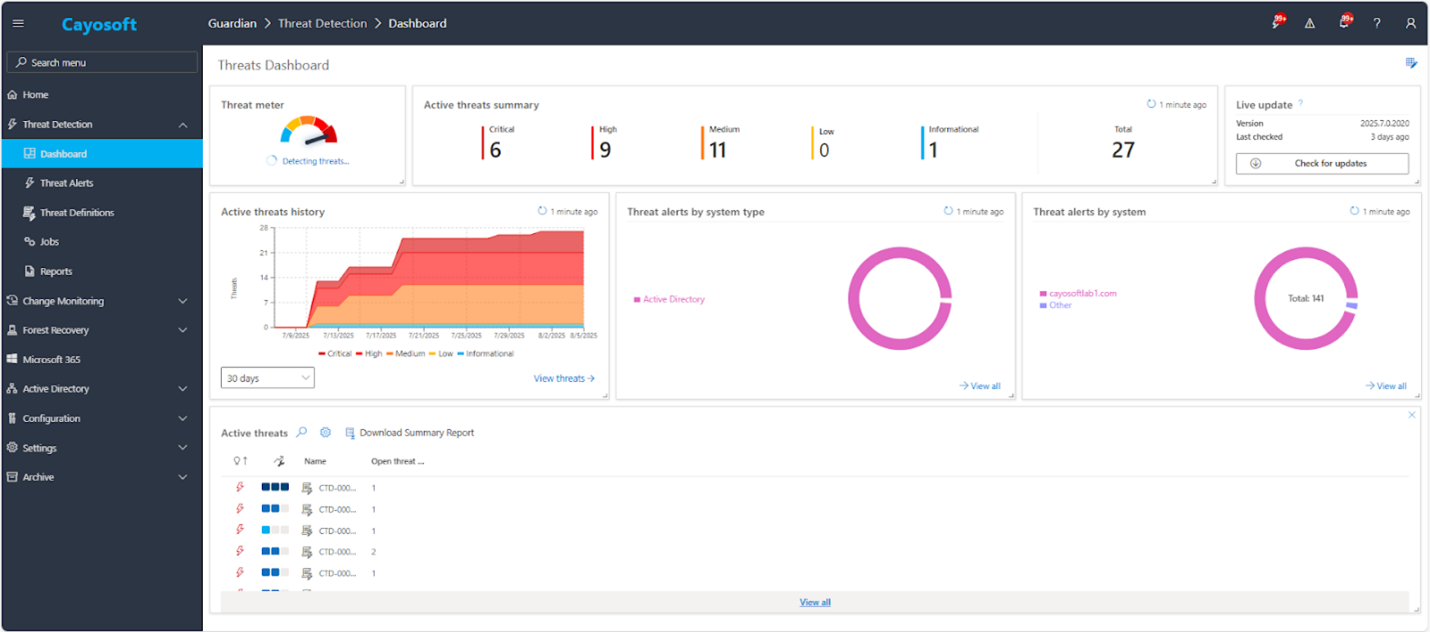
1.) Download Cayosoft Guardian Protector for free real-time threat detection and monitoring of your hybrid AD and Microsoft 365 environment. Once downloaded, sign in and navigate to the Threat Detection Dashboard.
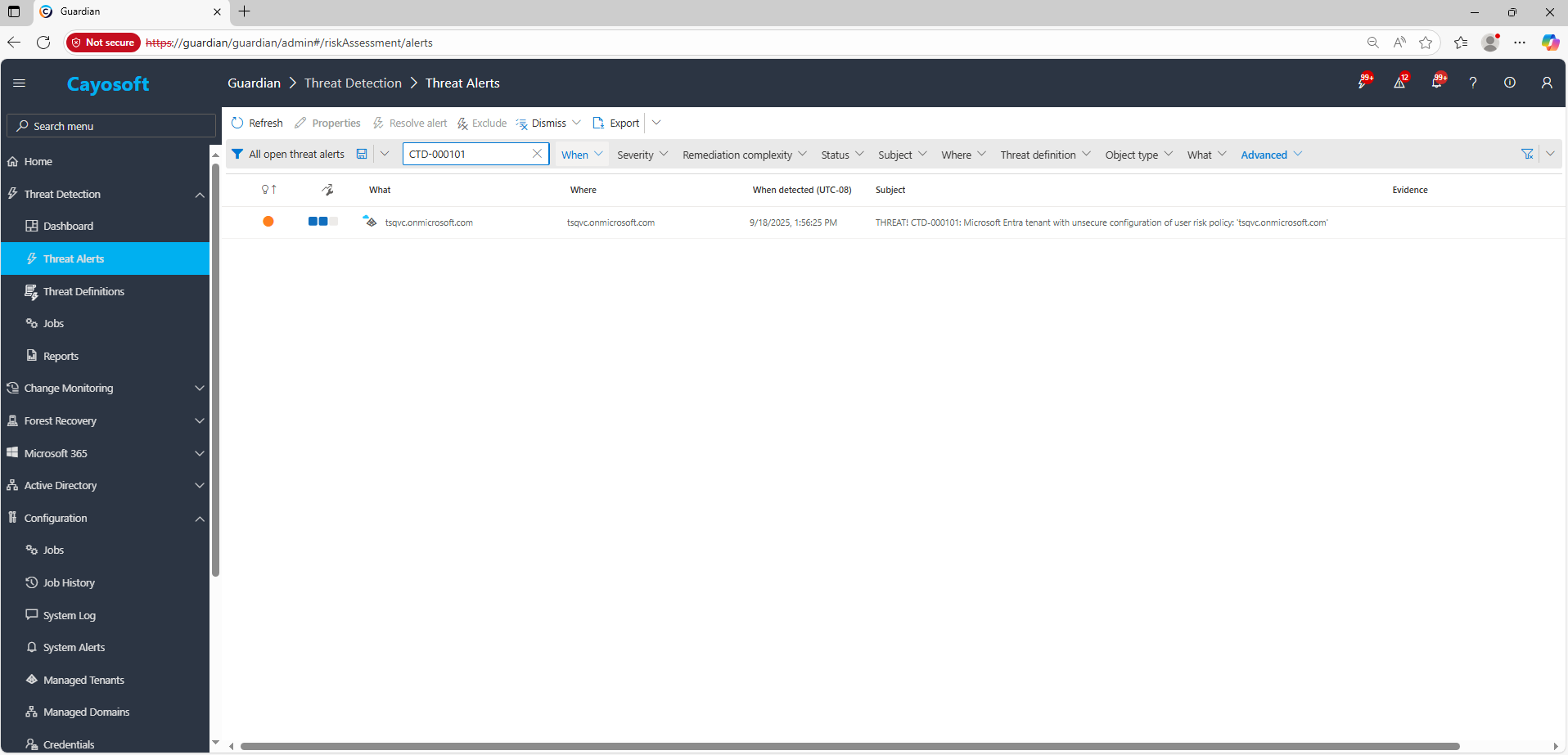
2.) Open All Alerts and search for CTD-000101 or “Microsoft Entra tenant with unsecure configuration of user risk policy.”
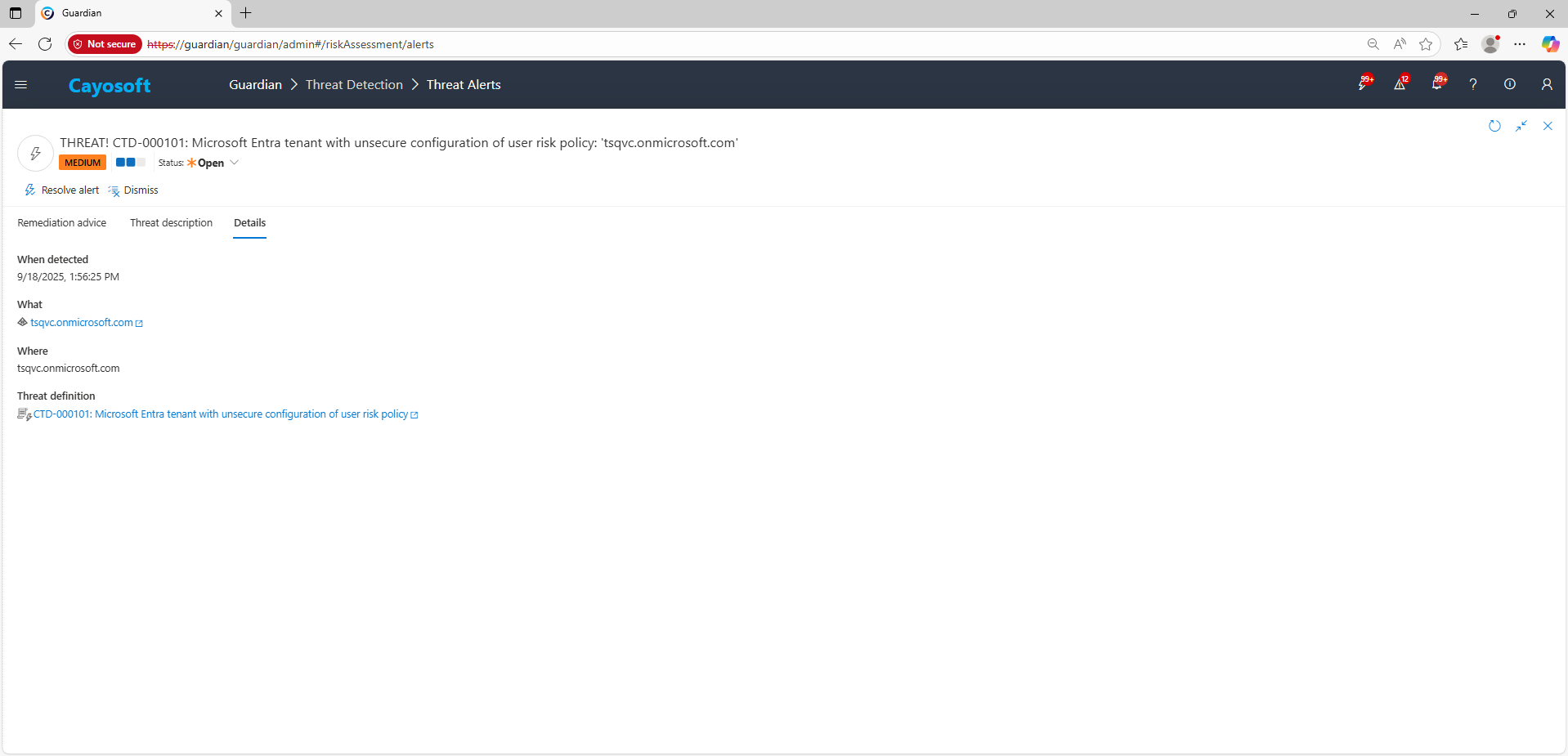
3.) Open any alert and Click for details (from Raise Threat Alert action).
Remediation Steps
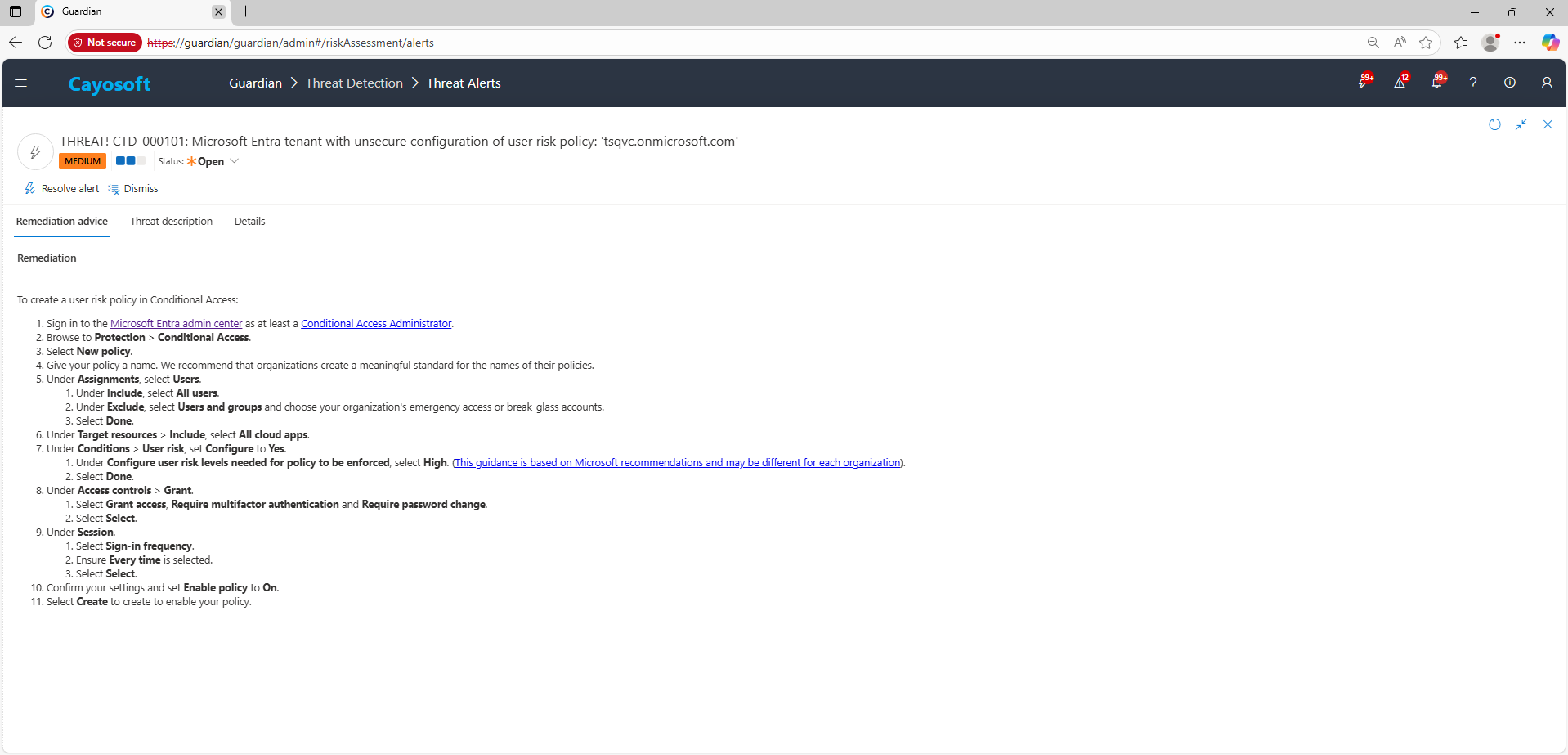
Using the remediation advice in Cayosoft Guardian, follow these steps to remove the vulnerability:
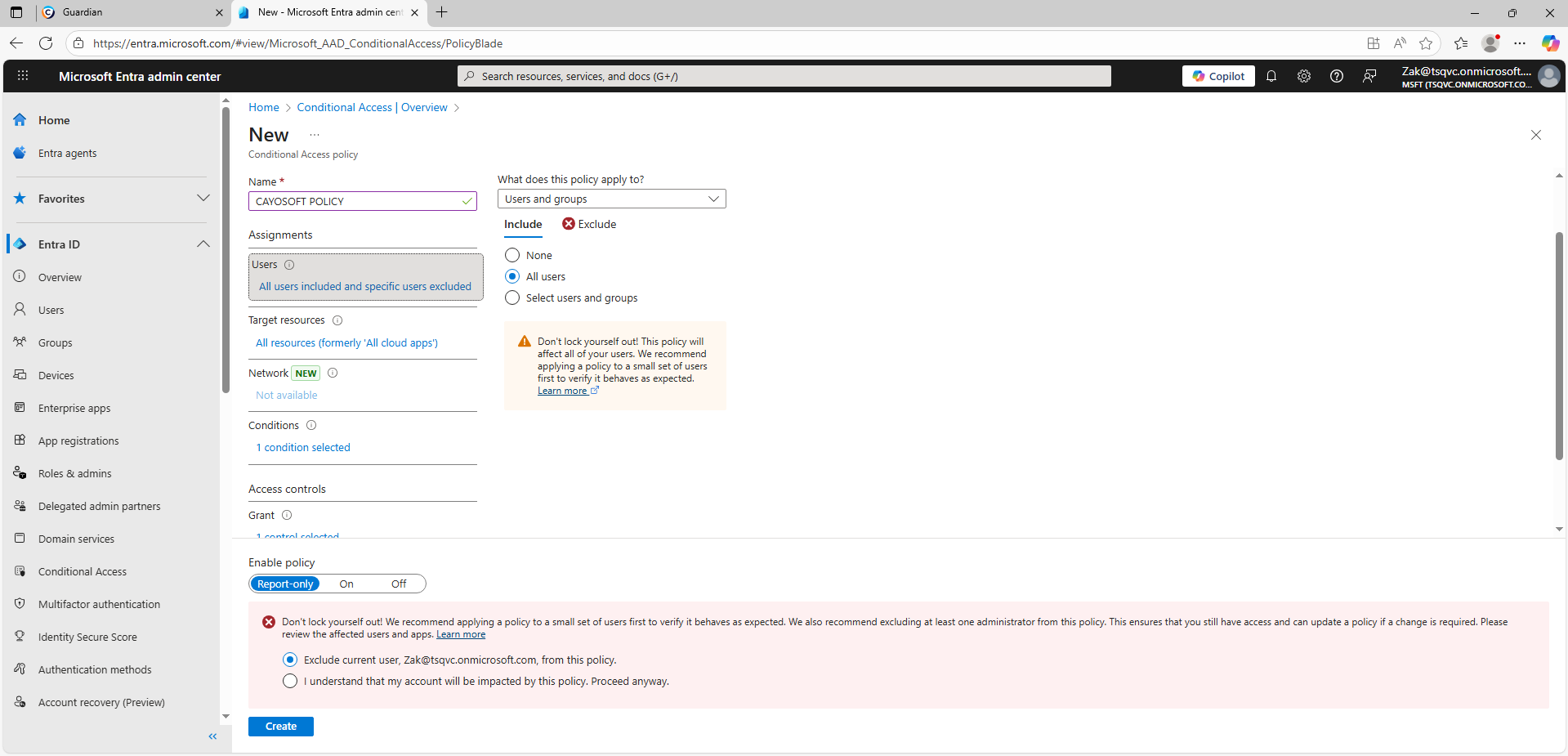
To create a user risk policy in Conditional Access:
) Select Grant access, Require multifactor authentication and Require password change.
) Select Select.
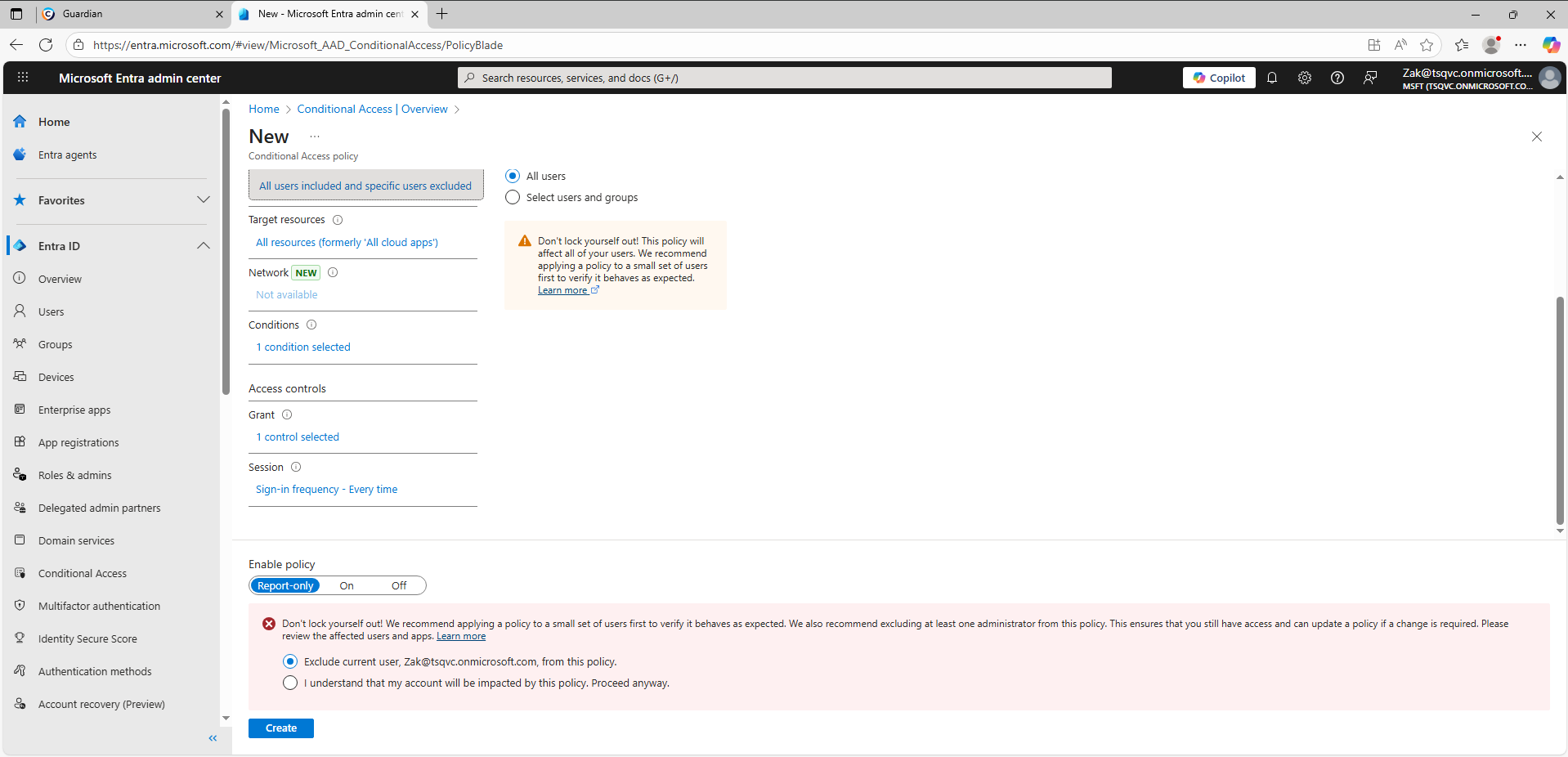
) Under Session.
) Select Sign-in frequency.
) Ensure Every time is selected.
) Select Select.
) Confirm your settings and set Enable policy to On.
) Select Create to create to enable your policy.
How to Prevent It
Cayosoft Guardian can proactively detect and alert on Microsoft Entra tenant with unsecure configuration of user risk policy. It continuously monitors Active Directory, Entra ID, Microsoft 365, and Intune for 200+ misconfigurations, providing early warning before attackers can exploit them.
Microsoft recommends enforcing a secure password change when user risk = High, ensuring the account owner verifies identity through MFA before password writeback.
Proactive monitoring and timely remediation of configuration risks is essential to maintaining a secure Active Directory and Microsoft 365 environment. By addressing issues like Microsoft Entra tenant with unsecure configuration of user risk policy, you reduce attack surfaces and strengthen your organization’s overall security posture.