
Microsoft Entra app with risky read permissions
Cayosoft Threat Definition CTD-000009
Tune into Guardians of the Directory Podcast.




Stop AD Threats As They Happen
Cayosoft Protector provides continuous monitoring and real-time alerts across your entire Microsoft Identity stack
Like This Article?
Subscribe to our LinkedIn Newsletter to receive more educational content
Risk Summary
Apps with risky permissions pose a threat to your Microsoft Entra tenant. Threat actors can use delegated or application read scopes to persist and quietly collect data across mail, files, contacts, directory, and settings.
- Severity: Low
- Platform: Entra ID
- Category: Enterprise applications
- MITRE ATT&CK Tactics: Collection, Defense Evasion
- MITRE D3FEND Tactics: Application Configuration Hardening
Description
Apps with risky permissions enable long-term, lower-visibility access to contacts, mail, notes, mailbox settings, the user directory, and files. Microsoft describes a “consent grant” attack flow in which an attacker registers an app, makes it appear legitimate, lures a user to a consent prompt, and upon acceptance obtains tokens that allow API calls on the user’s behalf. If accepted, the attacker can access mails, forwarding rules, files, contacts, notes, profile, and other sensitive resources.
Real-World Scenario
An attacker crafts an app named like a popular productivity add-in and requests Mail.Read, Files.Read.All, and Directory.Read.All. A targeted user accepts the consent prompt, granting tenant-wide read of mailboxes and SharePoint files. The attacker silently enumerates executives’ mail and files, monitors for invoices, and exfiltrates contacts for further phishing while avoiding MFA prompts because access occurs via the consented app. Cayosoft Guardian detects the enterprise app with risky read scopes and raises CTD-000009 before widespread data collection occurs.
Stop Privilege Escalation—Then Undo It with Cayosoft Guardian Audit & Restore
Real-time alerts across AD & Entra ID with one-click rollback.
Detect this and other threats with Cayosoft Guardian Protector (Free of Charge)
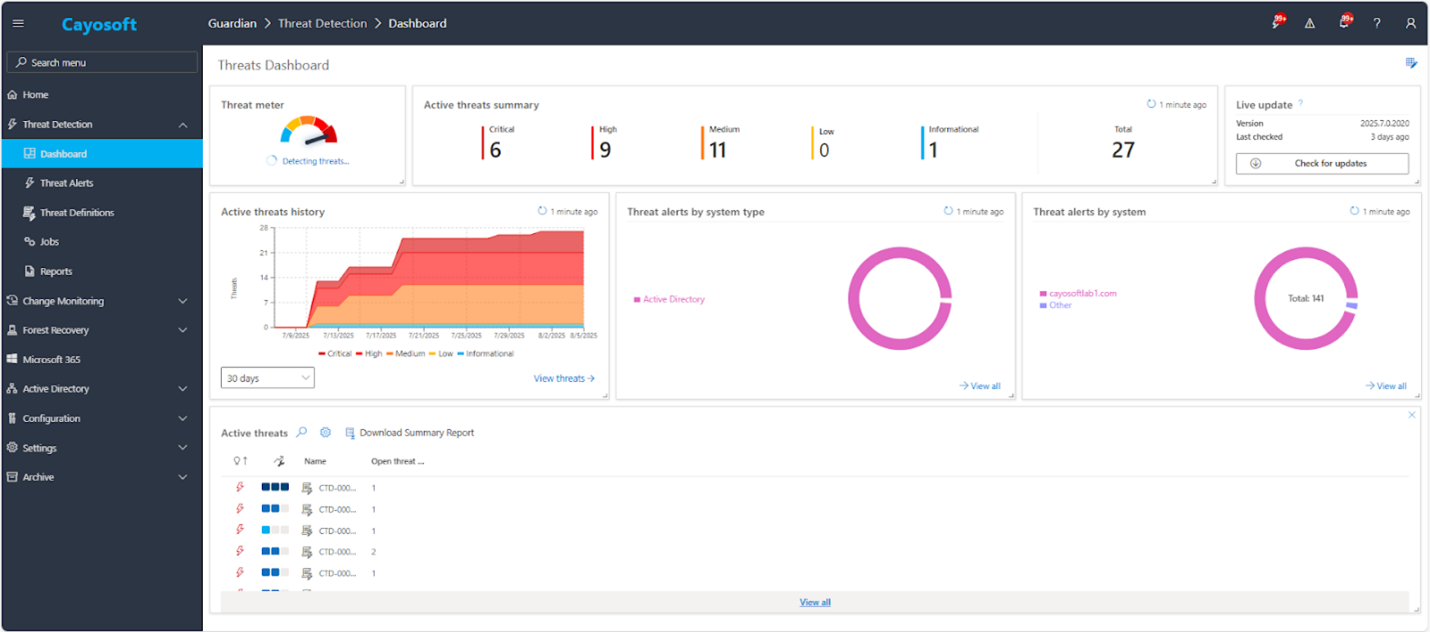
1.) Download Cayosoft Guardian Protector for free real-time threat detection and monitoring of your hybrid AD and Microsoft 365 environment. Once downloaded, sign in and navigate to the Threat Detection Dashboard.
2.) Open All Alerts and search for CTD-000009 or Microsoft Entra app with risky read permissions.
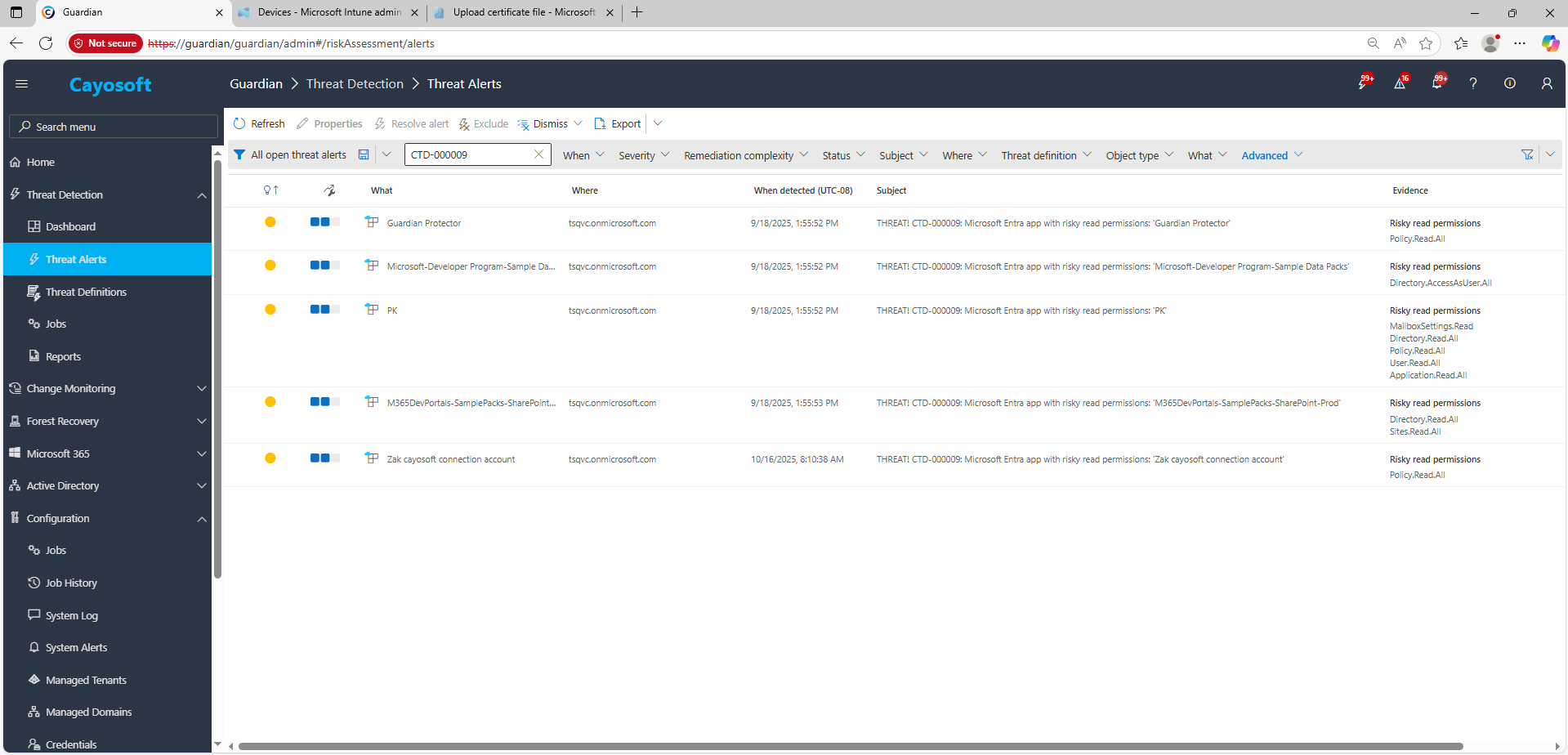
3.) Open any alert and Click for details (from Raise Threat Alert action).
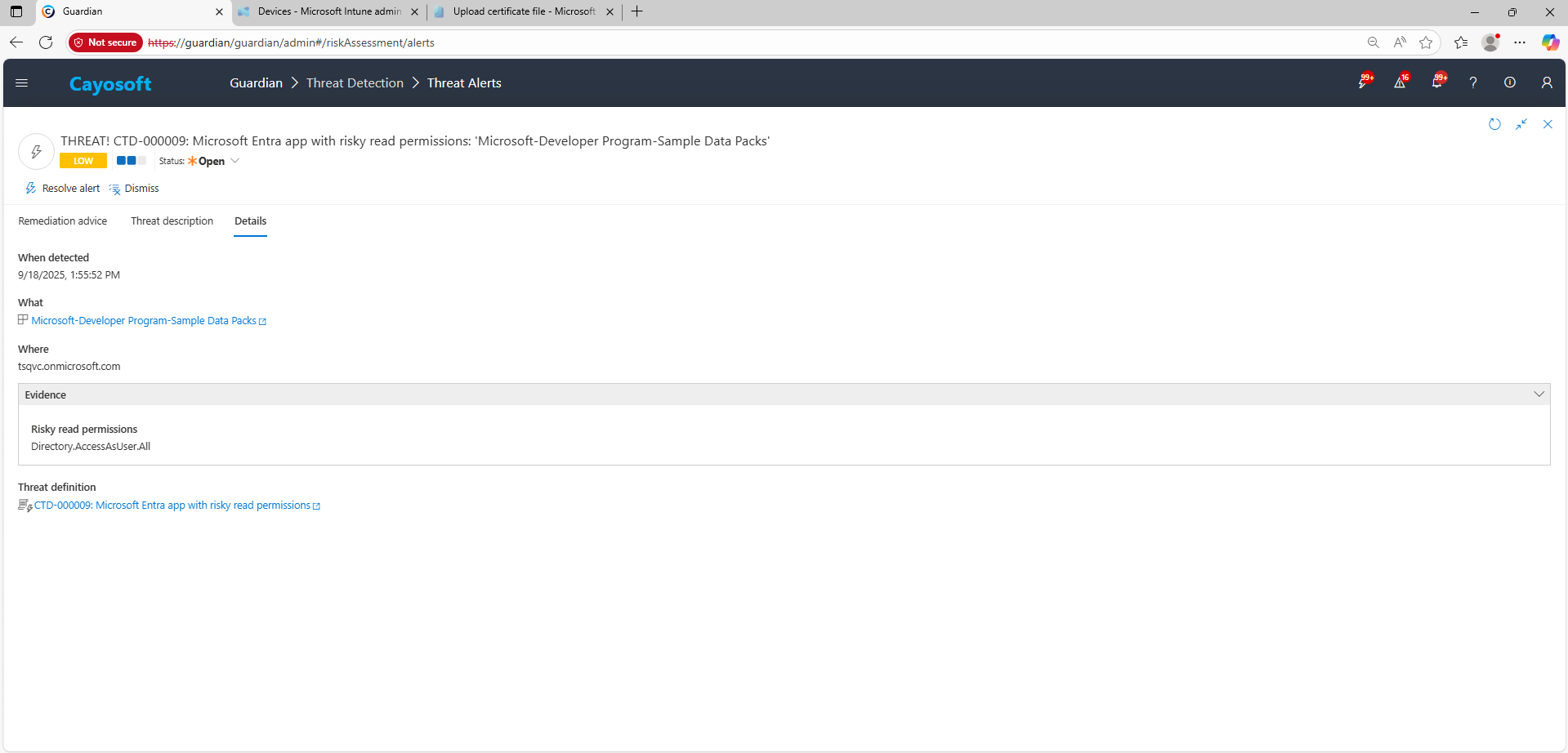
4.) Evidence:
- Risky read permissions
Remediation Steps
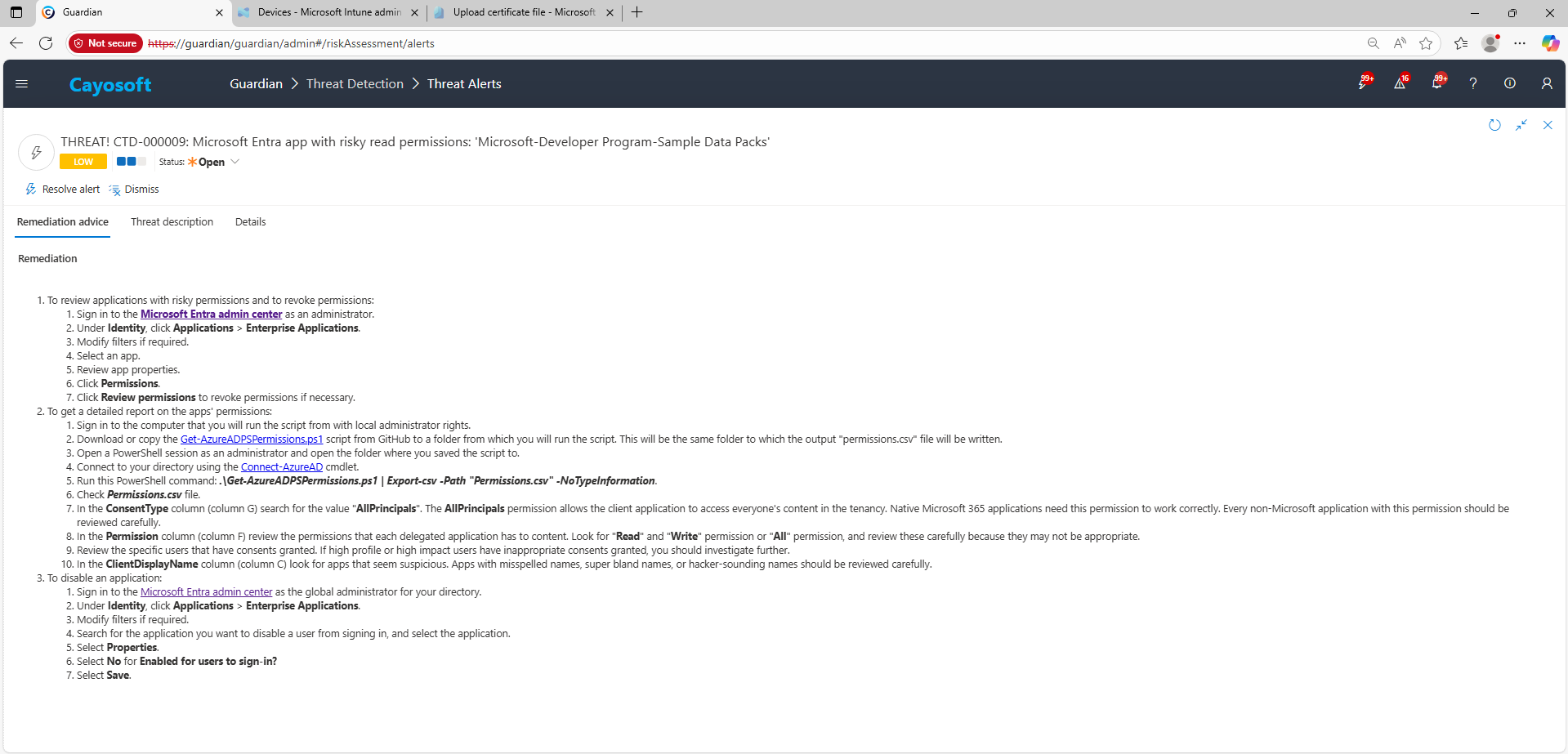
- ) To review applications with risky permissions and to revoke permissions:
- ) Sign in to the Microsoft Entra admin center as an administrator.
- ) Under Identity, click Applications > Enterprise Applications.
- ) Modify filters if required.
- ) Select an app.
- ) Review app properties.
- ) Click Permissions.
- ) Click Review permissions to revoke permissions if necessary.
- ) To get a detailed report on the apps’ permissions:
- ) Sign in to the computer that you will run the script from with local administrator rights.
- ) Download or copy the Get-AzureADPSPermissions.ps1 script from GitHub to a folder from which you will run the script. This will be the same folder to which the output “permissions.csv” file will be written.
- ) Open a PowerShell session as an administrator and open the folder where you saved the script to.
- ) Connect to your directory using the Connect-AzureAD cmdlet.
- ) Run this PowerShell command: .\Get-AzureADPSPermissions.ps1 | Export-csv -Path “Permissions.csv” -NoTypeInformation.
- ) Check Permissions.csv file.
- ) In the ConsentType column (column G) search for the value “AllPrincipals“. The AllPrincipals permission allows the client application to access everyone’s content in the tenancy. Native Microsoft 365 applications need this permission to work correctly. Every non-Microsoft application with this permission should be reviewed carefully.
- ) In the Permission column (column F) review the permissions that each delegated application has to content. Look for “Read” and “Write” permission or “All” permission, and review these carefully because they may not be appropriate.
- ) Review the specific users that have consents granted. If high profile or high impact users have inappropriate consents granted, you should investigate further.
- ) In the ClientDisplayName column (column C) look for apps that seem suspicious. Apps with misspelled names, super bland names, or hacker-sounding names should be reviewed carefully.
- ) To disable an application:
- ) Sign in to the Microsoft Entra admin center as the global administrator for your directory.
- ) Under Identity, click Applications > Enterprise Applications.
- ) Modify filters if required.
- ) Search for the application you want to disable a user from signing in, and select the application.
- ) Select Properties.
- ) Select No for Enabled for users to sign-in?
- ) Select Save.
How to Prevent It
- Configure consent policies to restrict user consent and require admin approval for high-risk scopes.
- Regularly review Enterprise applications for non-Microsoft publishers and suspicious names.
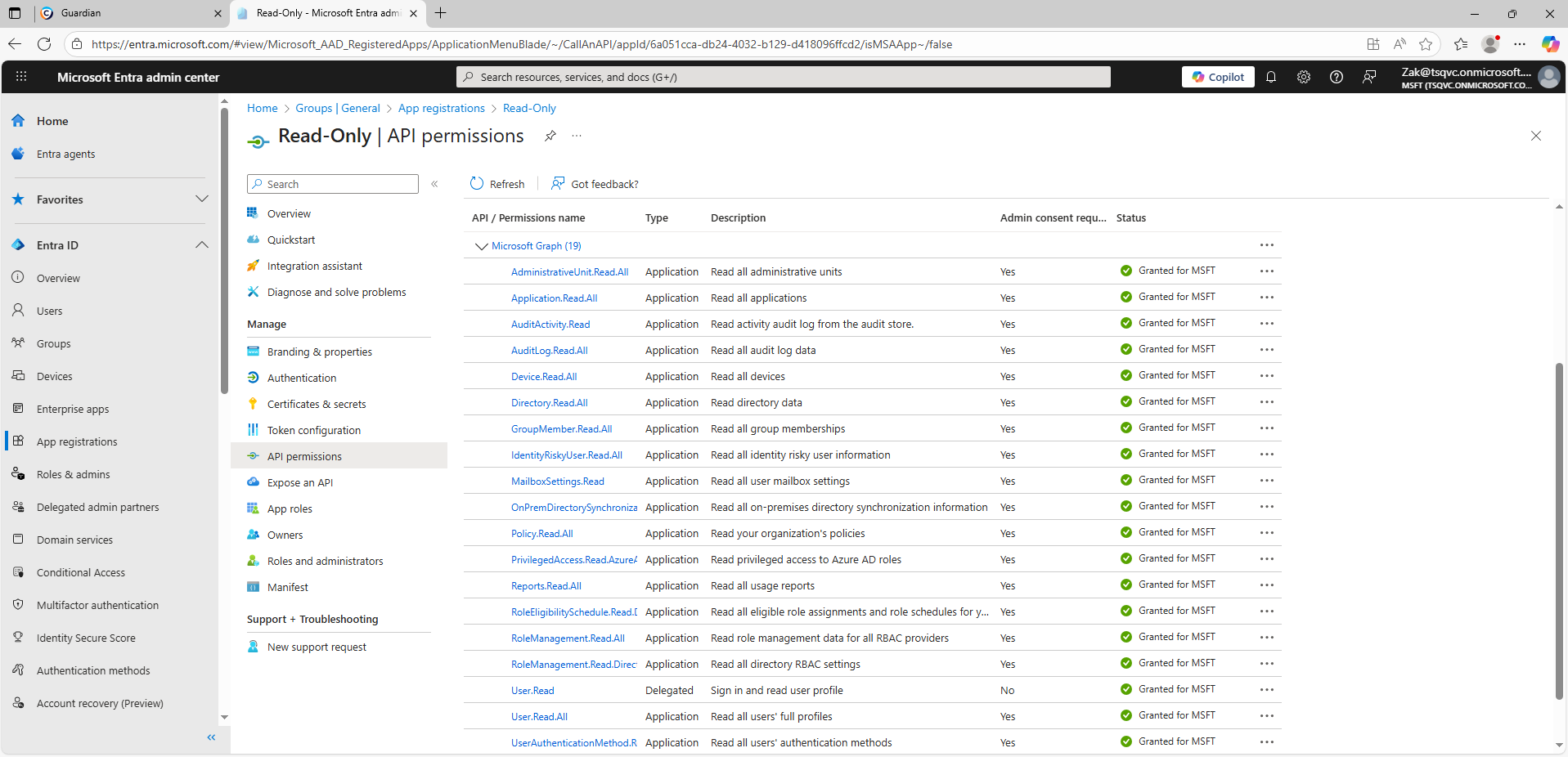
- Monitor for risky scopes such as: Mail.Read(.All), Files.Read(.All), Directory.Read.All, User.Read.All, Sites.Read.All, Application.Read.All, Group.Read.All, Directory.AccessAsUser.All, Member.Read.Hidden*.
- Use Cayosoft Guardian to proactively detect and alert on Microsoft Entra app with risky read permissions across Entra ID, Microsoft 365, and Intune, providing early warning before attackers can exploit them.
FAQ
It focuses on applications that have been granted excessive read permissions, which attackers can exploit to collect sensitive data such as emails, files, and contacts across the tenant without triggering user authentication events.
Microsoft Entra administrators and security teams should regularly review enterprise apps, verify publisher authenticity, and revoke unnecessary read permissions to prevent unauthorized data access.
They should restrict user consent for high-risk scopes, enable admin approval workflows for app permissions, and continuously monitor Entra ID with tools like Cayosoft Guardian to detect risky app permissions early.
Yes, Cayosoft Guardian Protector.
References
- Microsoft Entra admin center: https://entra.microsoft.com/#home
- Microsoft Entra admin center root: https://entra.microsoft.com/
- Community script (Get-AzureADPSPermissions.ps1): https://gist.github.com/psignoret/41793f8c6211d2df5051d77ca3728c09
- Connect-AzureAD cmdlet: https://learn.microsoft.com/en-us/powershell/module/azuread/connect-azuread
Final Thought
Proactive monitoring and timely remediation of configuration risks is essential to maintaining a secure Active Directory and Microsoft 365 environment. By addressing issues like Microsoft Entra app with risky read permissions, you reduce attack surfaces and strengthen your organization’s overall security posture.