
Entra ID tenant without policy to show geographic location context in Microsoft Authenticator notifications
Cayosoft Threat Definition CTD-000100
Tune into Guardians of the Directory Podcast.




Stop AD Threats As They Happen
Cayosoft Protector provides continuous monitoring and real-time alerts across your entire Microsoft Identity stack
Like This Article?
Subscribe to our LinkedIn Newsletter to receive more educational content
Risk Summary
By default, Microsoft Authenticator notifications do not include geographic location context, so users do not know what exactly they confirm. A threat actor can exploit absent context to trick users into approving malicious prompts.
- Severity: Medium
- Platform: Entra ID
- Category: Tenant-wide
- MITRE ATT&CK Tactics: Credential Access
- MITRE D3FEND Tactics: Application Configuration Hardening
Description
By default, Microsoft Authenticator passwordless and push notifications don’t display the application name or the geographic location of the sign-in. Attackers can abuse “MFA fatigue” by spamming prompts until a user approves one by mistake. Enforcing a policy to show the application name and geographic location adds critical context that helps users reject fraudulent approvals.
Real-World Scenario
An attacker steals a user’s password via phishing, then repeatedly triggers Microsoft Authenticator prompts (“push fatigue”). Because the tenant hasn’t enabled the policy to show app name and geographic location, the victim only sees a generic approval and finally taps Approve. The attacker immediately accesses email and SharePoint, exfiltrating data and setting inbox rules to hide alerts. Cayosoft Guardian detects the missing Authenticator context policy (CTD-000100) and raises an alert so administrators can remediate before attackers succeed.
Stop Privilege Escalation—Then Undo It with Cayosoft Guardian Audit & Restore
Real-time alerts across AD & Entra ID with one-click rollback.
Detect this and other threats with Cayosoft Guardian Protector (Free of Charge)
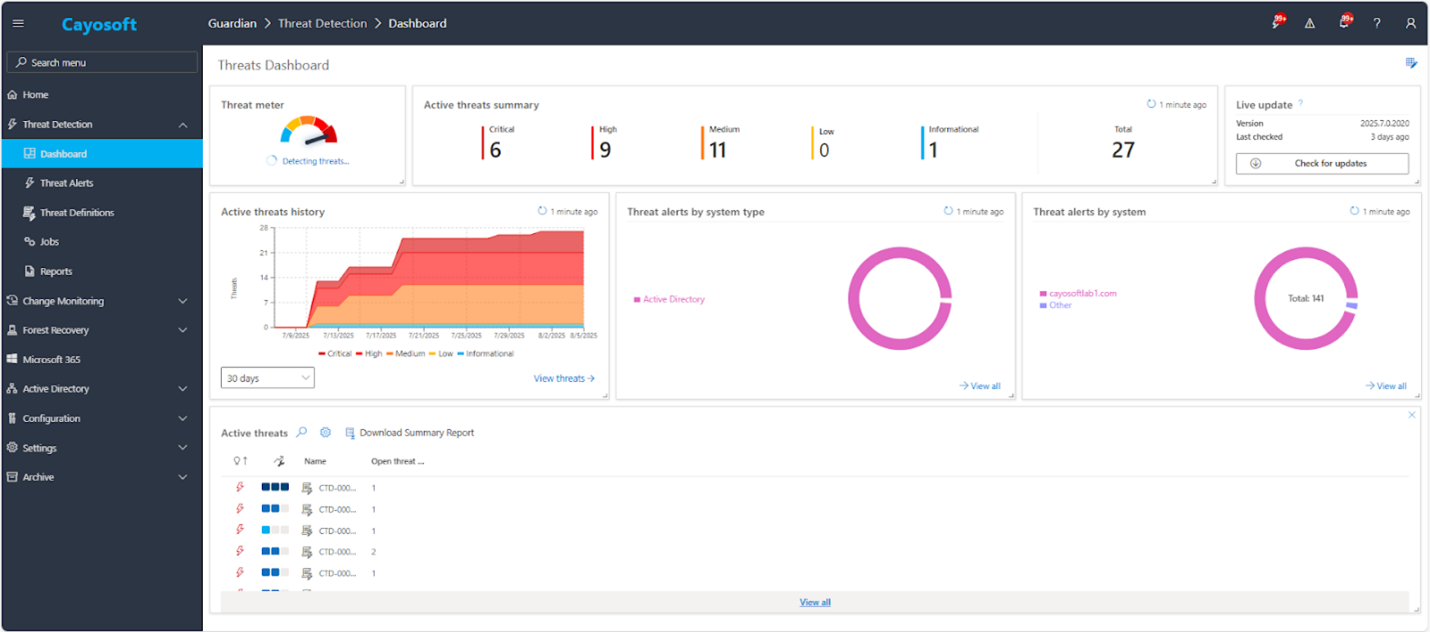
1.) Download Cayosoft Guardian Protector for free real-time threat detection and monitoring of your hybrid AD and Microsoft 365 environment. Once downloaded, sign in and navigate to the Threat Detection Dashboard.
2.) Open All Alerts and search for CTD-000100 or “Entra ID tenant without policy to show geographic location context in Microsoft Authenticator notifications.”
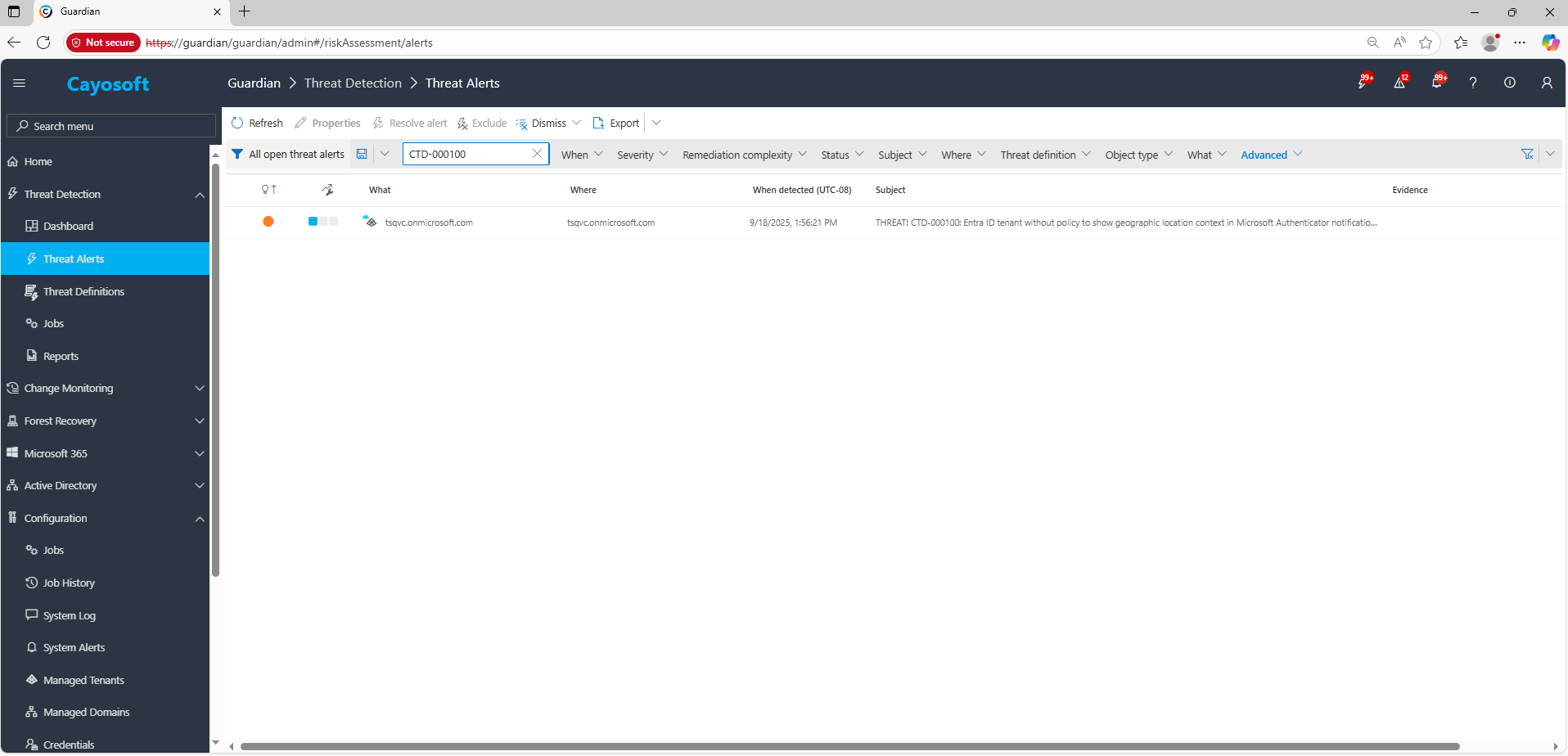
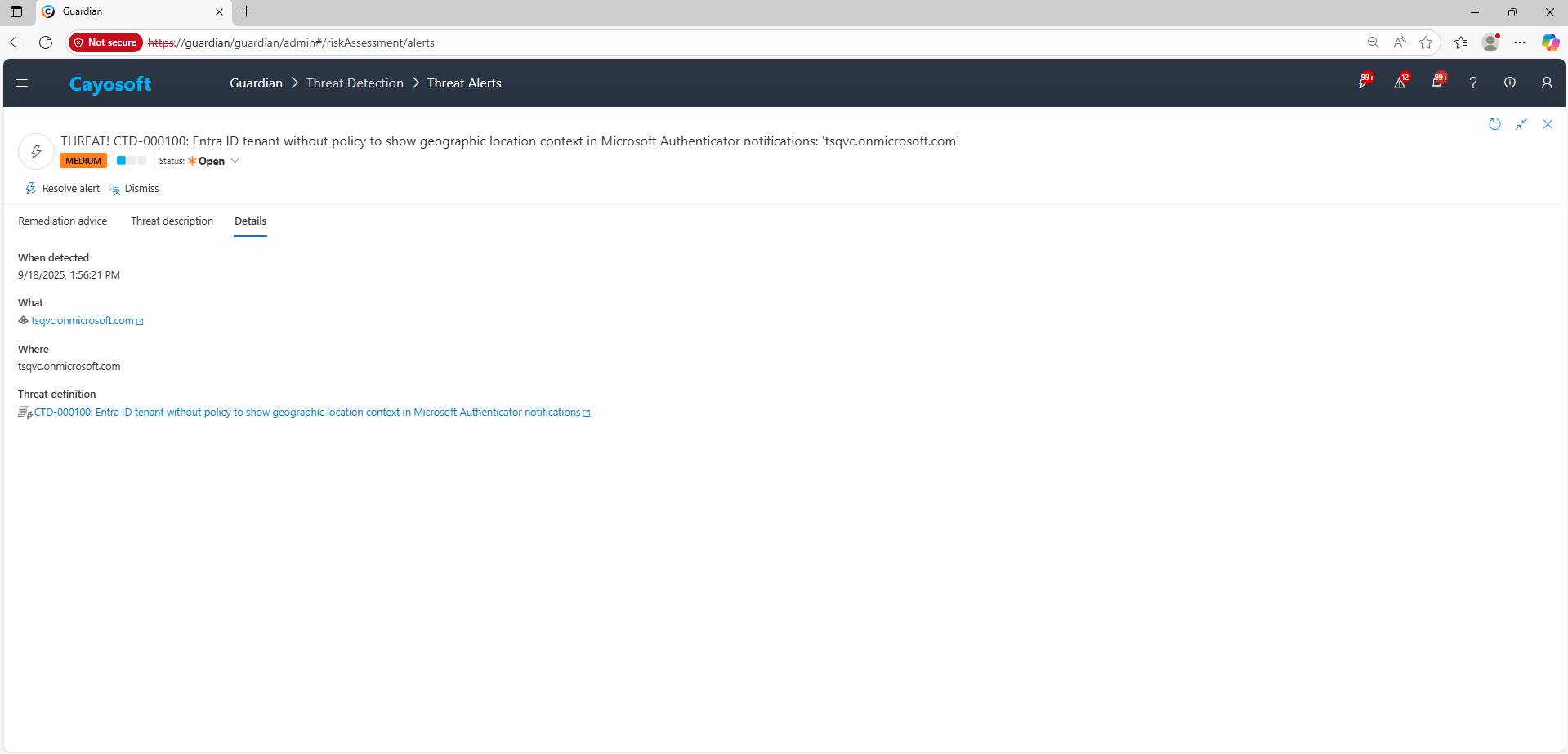
3.) Open any alert and Click for details (from Raise Threat Alert action).
Remediation Steps
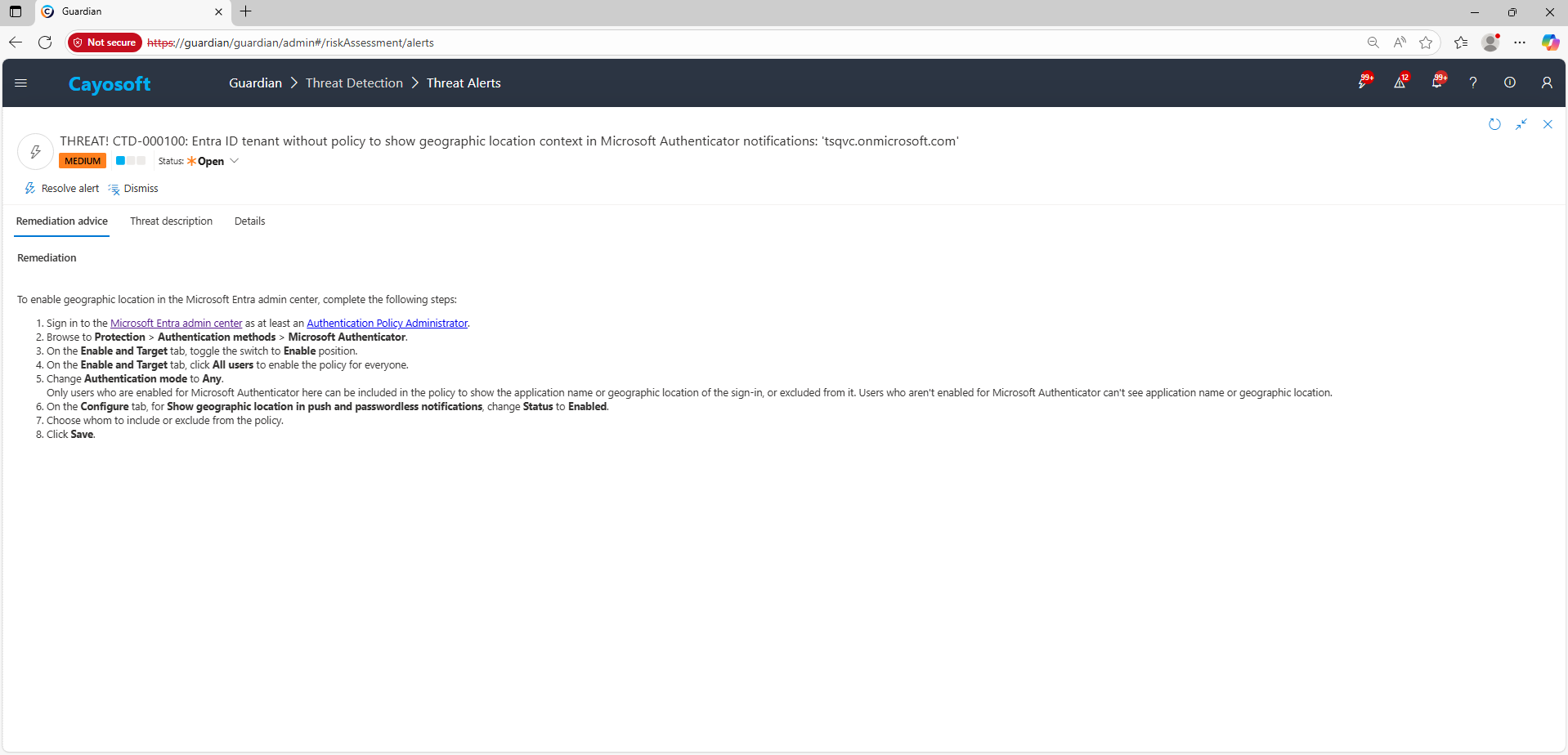
To enable geographic location in the Microsoft Entra admin center, complete the following steps:
- Sign in to the Microsoft Entra admin center as at least an Authentication Policy Administrator.
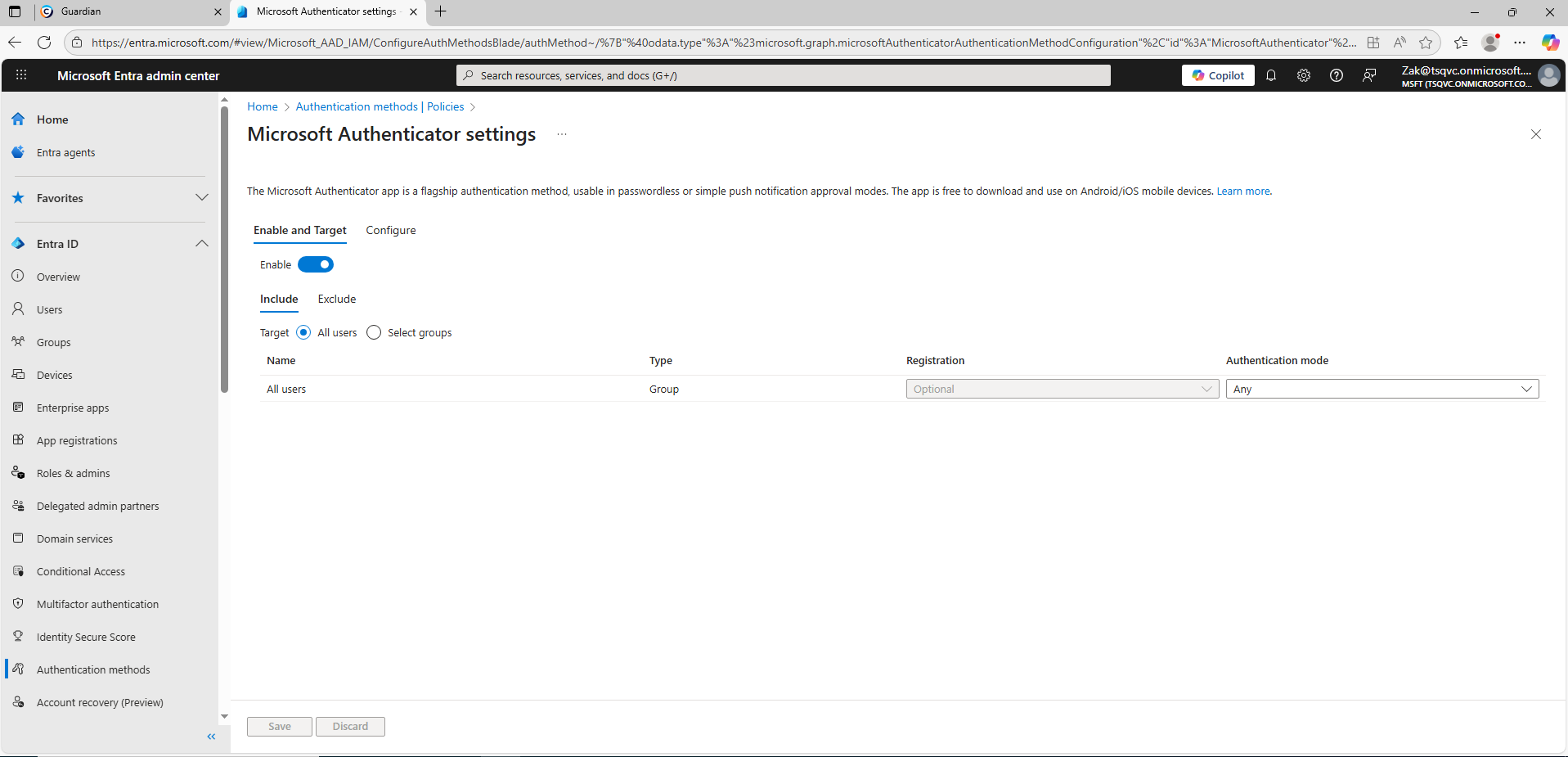
- Browse to Protection > Authentication methods > Microsoft Authenticator.
- On the Enable and Target tab, toggle the switch to Enable position.
- On the Enable and Target tab, click All users to enable the policy for everyone.
- Change Authentication mode to Any.
Only users who are enabled for Microsoft Authenticator here can be included in the policy to show the application name or geographic location of the sign-in, or excluded from it. Users who aren’t enabled for Microsoft Authenticator can’t see application name or geographic location. - On the Configure tab, for Show geographic location in push and passwordless notifications, change Status to Enabled.
- Choose whom to include or exclude from the policy.
- Click Save.
How to Prevent It
Cayosoft Guardian can proactively detect and alert on Entra ID tenant without policy to show geographic location context in Microsoft Authenticator notifications. It continuously monitors Active Directory, Entra ID, Microsoft 365, and Intune for over 200 misconfigurations, providing early warning before attackers can exploit them.
FAQ
Without showing the sign-in location and app name, users may approve fraudulent MFA prompts triggered by attackers conducting “push fatigue” attacks.
Only administrators with the Authentication Policy Administrator role or higher privilege can configure this setting in Microsoft Entra ID.
In the Entra admin center → Protection → Authentication methods → Microsoft Authenticator → Configure → set Show geographic location in push and passwordless notifications to Enabled, then save changes.
Yes, Cayosoft Guardian Protector.
References
- Microsoft Entra admin center: https://entra.microsoft.com/
- Authentication Policy Administrator role permissions: https://learn.microsoft.com/en-us/entra/identity/role-based-access-control/permissions-reference#authentication-policy-administrator
Final Thought
Proactive monitoring and timely remediation of configuration risks is essential to maintaining a secure Active Directory and Microsoft 365 environment. By addressing issues like Entra ID tenant without policy to show geographic location context in Microsoft Authenticator notifications, you reduce attack surfaces and strengthen your organization’s overall security posture.